Table of contents
Overview access-loyalty-admin
Loyalty Challenges configuration connects Journey Optimizer to your external loyalty systems by setting up reward fulfillment, event mapping, product inventory, and exclusions before marketers author challenges.
To open the configuration interface, select the Loyalty admin menu from the left navigation. The interface is organized into tabs:
- Global settings — Select the Experience Platform identity namespace for your program. Learn how to configure global settings
- Reward providers — Connect the APIs that fulfill rewards when customers make progress or complete challenges. Learn how to configure reward providers
- Event definitions — Map incoming experience events to activities used in Custom event tasks. Learn how to configure event definitions
- Product inventory — Upload item-to-group mappings for use in task eligibility rules. Learn how to configure product inventory
- Exclusions — Upload organization-wide item and group exclusions for task configuration. Learn how to configure exclusions
Global settings global-settings
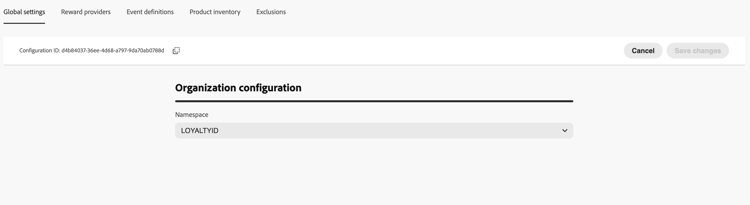
Open the Global settings tab and select the Adobe Experience Platform identity namespace for Loyalty Challenges in the Namespace drop-down. This namespace must match how member profiles are identified in your data.
➡️ Learn how to work with identity namespaces
Reward providers reward-providers
A reward provider tells Journey Optimizer where to send fulfillment calls when challenge progress is recorded or a challenge is completed. For example, an API that credits loyalty points or stars to a member account.
To create a reward provider, follow these steps:
-
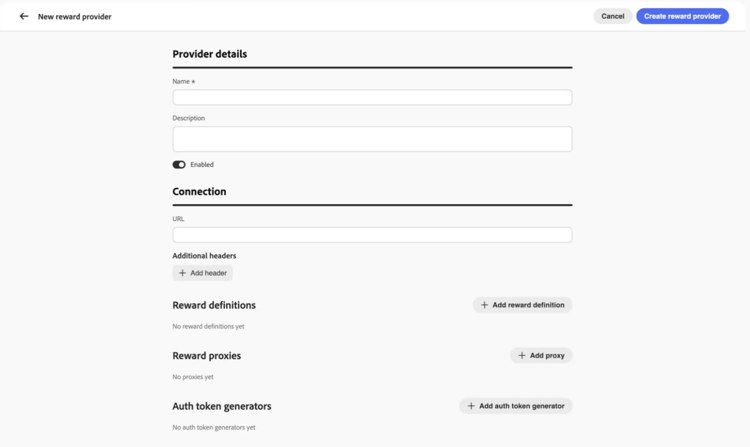
Open the Reward providers tab and select Create reward provider.
-
Enter a Name and Description.
-
In the URL field, enter the API endpoint that receives fulfillment requests.
-
Add Headers as needed for your API (for example, API keys or content types).
-
Configure the resources associated with your reward provider. Expand each section below for field details:
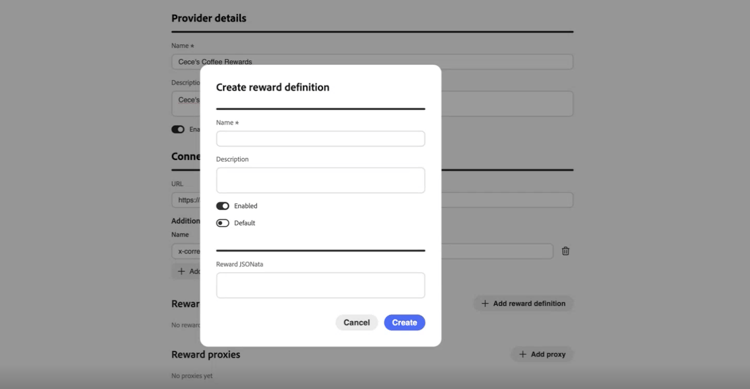
accordion Reward definitions Add one entry per reward type your provider supports (for example, program points, stars, or money credit). For each definition:
- Enter a Name and Description.
- Specify whether the definition is Enabled.
- Toggle Default to mark one definition as the default for this provider.
- Define the payload sent with fulfillment calls.
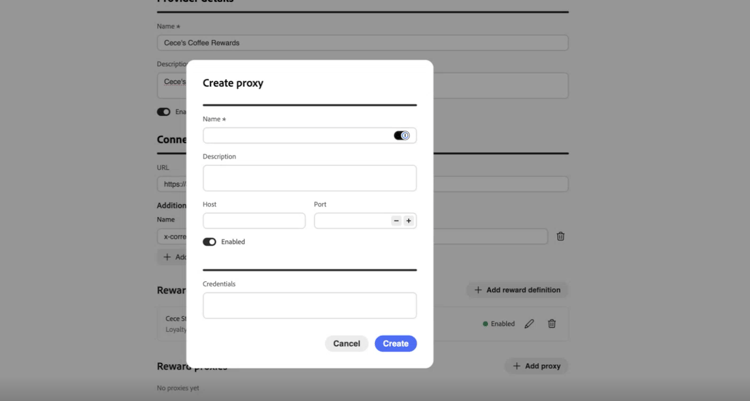
accordion Reward proxy Route fulfillment calls through an intermediate server instead of sending them directly to your endpoint. On the reward provider and Create proxy screens, use the Credentials field for proxy authentication.
-
Enter a Name and Description.
-
Enter Host and Port.
-
Specify whether the proxy is Enabled.
-
In Credentials, enter the proxy username and password as JSON. Credentials value typically looks like:
code language-json { "userName": "test", "password": "xxxx" }
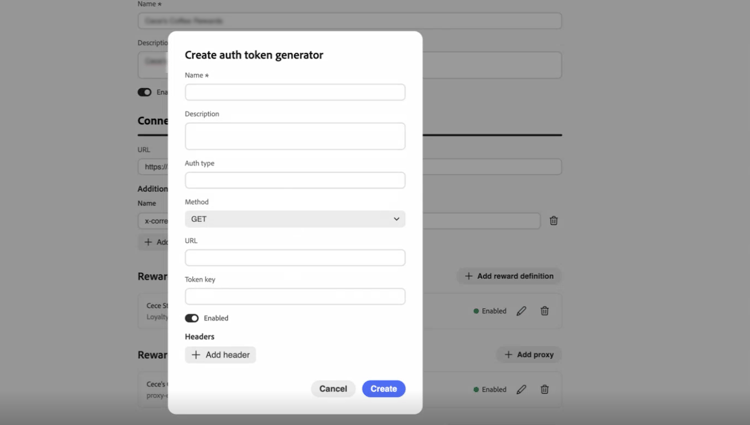
accordion Auth token generator Use when your API requires a bearer token or similar authentication.
- Enter a Name and Description.
- In Auth type, enter the authentication type (for example, Bearer).
- Select the HTTP method (for example, POST).
- Enter the token endpoint URL and the Token key in the response (for example,
access_token). - Specify whether the auth token generator is Enabled.
- Add any headers required by your token endpoint.
Journey Optimizer uses this configuration to obtain a fresh token before each call to your reward API.
-
Select Create reward provider. The provider and all configured resources are saved together.
After you save, the provider appears in the reward providers list. Marketers can select it when configuring challenge rewards. Learn how to configure challenge rewards
To edit a reward provider, open the Reward providers tab, select the provider, and update fields in place. Changes to reward definitions, proxies, and auth token generators are automatically saved when you update them.
Event definitions event-definitions
Event definitions tell Journey Optimizer which incoming Adobe Experience Platform experience events to process. For example, a purchase or a hotel check-in. Marketers reference these definitions when they create Custom event tasks in the task builder. Events that do not match any definition are ignored.
When your organization sends events in its own JSON format, Schema and Transformer help Journey Optimizer validate the payload, parse it, and decide whether to track the activity.
To create an event definition, follow these steps:
-
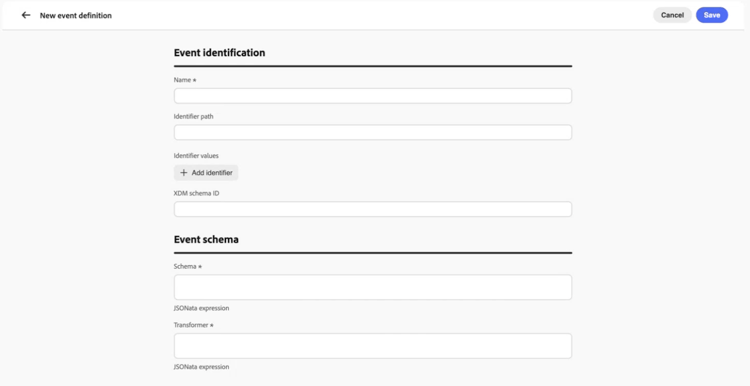
Open the Event definitions tab and create a new definition.
-
Enter a Name for the event (for example,
Coffee purchase). Marketers see this name when configuring a Custom event task. -
Specify how Journey Optimizer recognizes the event in incoming payloads. Provide an Identifier path, an XDM schema ID, or both:
- Identifier path — Path to a field in the payload (for example,
data.memberId). Use this when matching events by values in the payload. - Identifier values — Values at the identifier path that must be present for this definition to match.
- XDM schema ID — ID of the Experience Platform XDM schema for this event type. Use this when events are captured against a known schema.
- Identifier path — Path to a field in the payload (for example,
-
If needed, paste strings into Schema and Transformer:
- Schema — Validation string for the incoming payload.
- Transformer — Transformation expression (for example, JSONata) that maps your payload into the format Loyalty Challenges expects.
-
Save the event definition. It appears in the Event definitions list and is available when marketers create Custom event tasks. Learn how to create tasks
Product inventory product-inventory
The Product inventory tab groups catalog items so marketers can target them in tasks without entering every item ID. Upload a CSV file that maps each item identifier to one or more product groups (the same item can belong to several groups). Imported groups are available when configuring task eligibility. Learn how to create tasks
To upload a product inventory file, follow these steps:
-
Prepare a CSV file that maps each item identifier to one or more product groups. Expand the section below to see an example.
accordion Product inventory CSV example 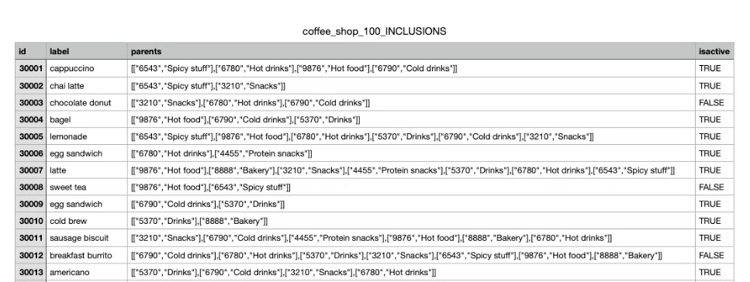
-
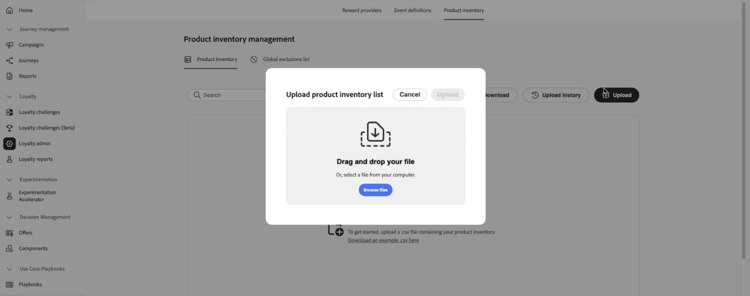
Open the Product inventory tab.
-
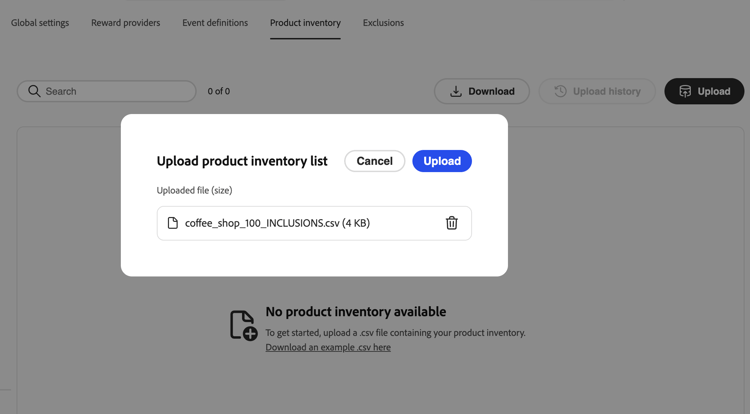
Select Upload and choose your CSV file.
-
Review the imported data in the inventory list. The list shows one row per item. The Groups included in column shows every product group for that item as a pill, or several pills when the item belongs to multiple groups.
-
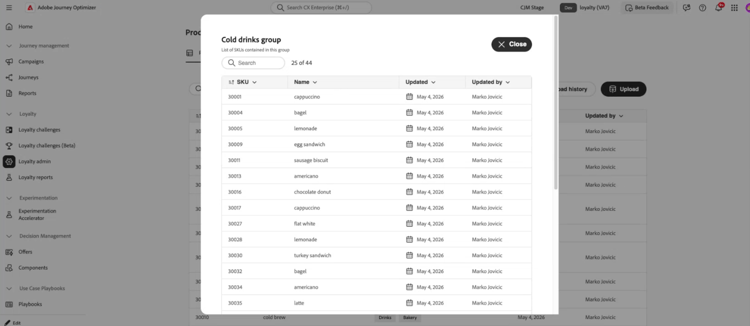
To see all items in a product group, select that group’s pill in the Groups included in column on any row. The group details view lists every item in the group.
-
Open Upload history to view previous CSV uploads.
Exclusions exclusions
The Exclusions tab defines catalog items and groups that are excluded program-wide, so marketers do not have to list the same exclusions on every task. Upload a CSV file that maps each item identifier to one or more exclusion groups (the same item can belong to several groups).
After import, excluded items and groups appear in the task builder when marketers configure Eligible items & exclusions. Learn how to define eligible items and exclusions on tasks
To upload exclusions, follow these steps:
-
Prepare a CSV file that maps each item identifier to one or more exclusion groups. Expand the section below to see an example.
accordion Exclusions CSV example 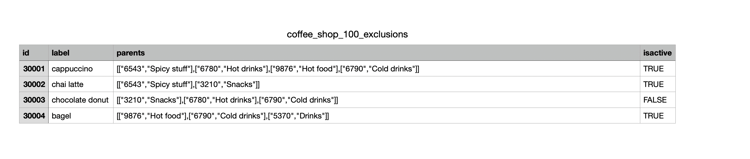
-
Open the Exclusions tab.
-
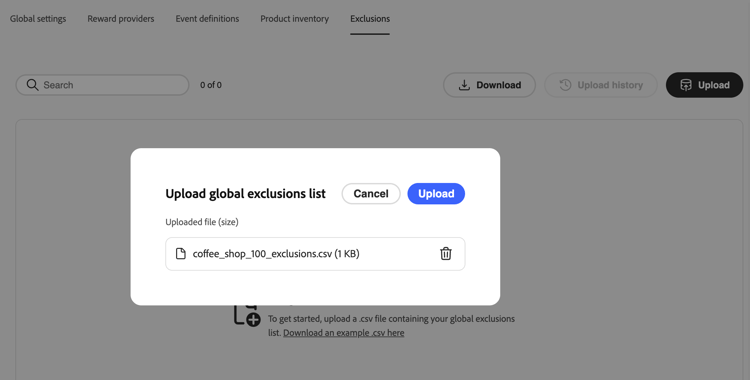
Select Upload and choose your CSV file.
-
Review the imported data in the exclusions list. The list shows one row per item. The Groups included in column shows every exclusion group for that item as a pill, or several pills when the item belongs to multiple groups.
- To see all items in an exclusion group, select that group’s pill in the Groups included in column on any row. The group details view lists every item in the group.
- Open Upload history to view previous CSV uploads.