[Private beta]{class="badge informative"}
Access & manage challenges and tasks access-loyalty-challenges
Table of contents
Access & manage challenges and tasks
To access Loyalty Challenges, navigate to Journey Optimizer and select Loyalty Challenge (Beta) under the Journey management section. The Loyalty Challenges interface provides a centralized location to view, manage, and organize all your challenges and tasks.
The interface provides access to two main inventories:
- Challenges: View and manage all loyalty challenges, monitor their status, and perform quick actions such as viewing, editing, duplicating, or deleting challenges
- Tasks: Browse reusable tasks that can be used across multiple challenges, and manage task definitions independently
Challenges inventory challenges-tab
The Challenges tab displays all challenges sorted by last modified date, with the most recently modified challenges appearing first.
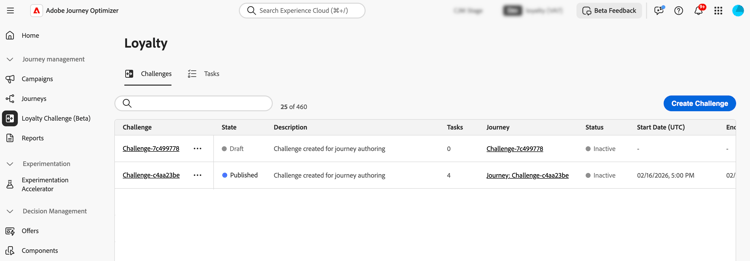
Key information displayed:
- State: Current state of the challenge (Draft or Published)
- Tasks: Number of tasks configured in the challenge
- Journey: Link to the auto-generated journey associated with the challenge
- Status: Current status of the auto-generated journey that delivers the challenge.
- Start/End Date (UTC): When the challenge becomes active and expires
From the Challenges tab, you can perform actions on challenges:
-
View challenge: Select the challenge name to open its details page
-
Duplicate a challenge: Select the

-
Delete a challenge: Select the
note important IMPORTANT You can delete a challenge even when it is published. Consider the impact before deleting. -
Edit a challenge: Select the challenge name to open its details page and make the desired changes.
When you open a published challenge for editing, you first need to revert it to Draft state. Any customizations made directly to the auto-generated journey will be lost. After making your changes, save and publish the challenge again, then publish the associated journey. Learn how to launch a challenge
note important IMPORTANT Reverting a published challenge to draft cannot be undone. Consider the impact on your active journey before proceeding.
Tasks inventory tasks-tab
The Tasks tab displays all reusable tasks that can be used across multiple challenges. Tasks created here become available for selection when creating or editing any challenge.
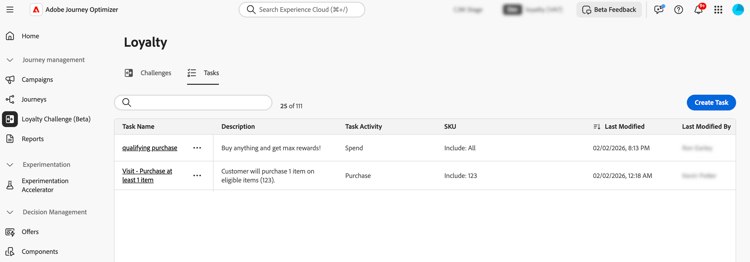
Key information displayed:
- Description: Brief description of what the task requires
- Task Activity: Type of activity (Purchase, Spend)
- SKU: Eligible and/or excluded items
- Used in challenges: Number of challenges currently using this task
From the Tasks tab, you can perform actions on tasks:
-
View/Edit a task: Select the task name to view the full configuration and edit the task
-
Duplicate a task: Select the
-
Delete a task: Select the
note important IMPORTANT You can delete a task even when it is used in one or more challenges. Consider the impact on challenges that reference the task before deleting.