Table of contents
Tasks define the specific actions or milestones that customers must complete to earn rewards in a loyalty challenge. You can configure purchase and spend tasks, or Custom event tasks that track Adobe Experience Platform experience events your organization already captures.
Each task represents a measurable action that contributes toward challenge completion. Tasks are reusable components that can be created independently and then added to one or more challenges, or created directly within a challenge.
Create a task create-task
You can create tasks from two entry points. The configuration process is the same regardless of where you start.
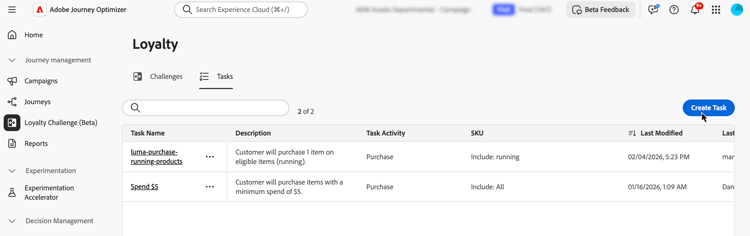
Select the Tasks tab and select Create Task. Tasks created from the inventory are saved and available for reuse across multiple challenges.
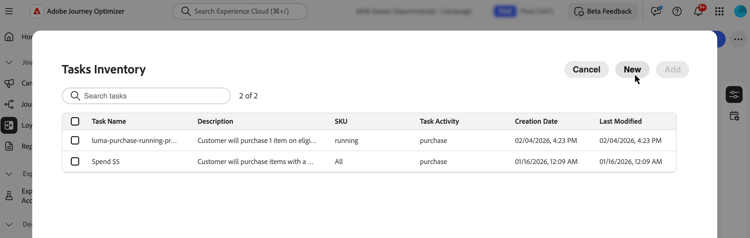
Open an existing challenge or create a new one. Select Add task and click the New button. Tasks created this way are automatically added to your challenge and also saved to the Tasks inventory for reuse in other challenges.
Choose customer activity choose-activity
Select the type of activity that customers must perform to complete this task:
- Purchase: Customers must purchase one or more items to complete this task
- Spend: Customers must spend a specified amount to complete this task
- Custom event: Customers must perform an activity represented by an Adobe Experience Platform experience event. For example, a hotel check-in, mobile app action, or review submission. The underlying event must already be captured in Experience Platform and mapped through an event definition in the Loyalty admin menu. Learn how to configure event definitions
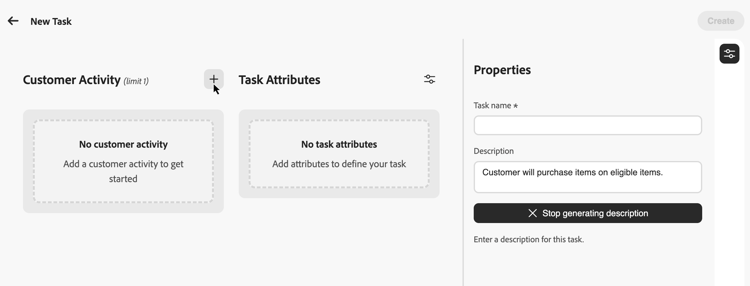
To select an activity, click the + icon and select the customer activity that best aligns with your outcome goals. Each activity type has specific configurable attributes to further define and shape the task requirements.
Define the task attributes define-attributes
Configure the task attributes based on the selected activity type. Browse the tabs below to see available attributes for each activity type:
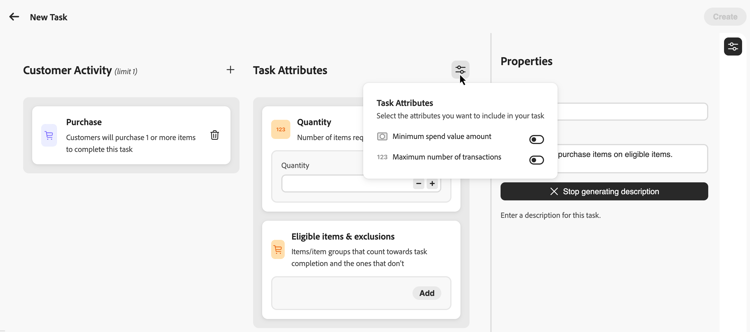
Available attributes for Purchase activities:
- Quantity: Enter the number of items that must be purchased to complete this task.
- Eligible items & exclusions: Define items or item groups that count toward task completion and those that don’t, or choose Bring your own data to drive eligibility from your external data. Learn more
- Minimum spend value amount: Set a minimum purchase amount requirement.
- Maximum number of transactions: Limit how many transactions can be used to complete the task.
Available attributes for Spend activities:
- Amount: Enter the total spend amount required to complete the task.
- Eligible items & exclusions: Define items or item groups that count toward task completion and those that don’t. Learn more on eligible items and exclusions
- Maximum number of transactions: Specify how many transactions are allowed to meet the spend requirement. You can activate this attribute from the parameters icon.
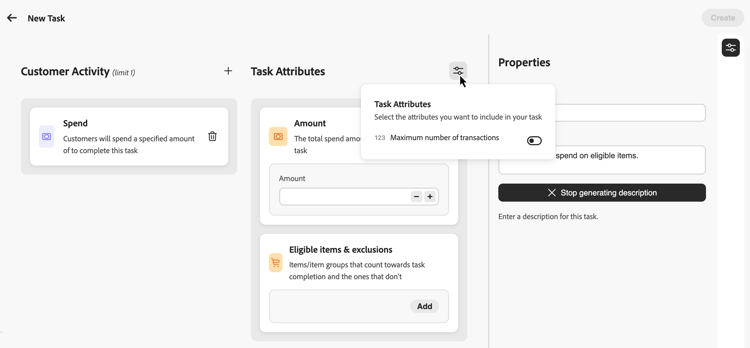
Available attributes for Custom event activities:
- Custom event values: Enter the values for the custom event that customers must complete. Use a comma to separate each value. These values must match event definitions configured in the Loyalty admin menu. Learn how to configure event definitions
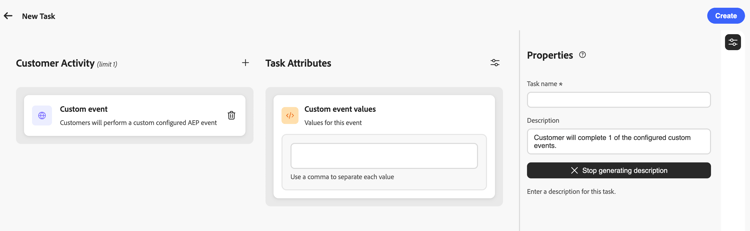
Define eligible items and exclusions eligible-items-exclusions
For Purchase and Spend activities, you can use the Eligible items & exclusions section to define which items and groups are eligible and which are excluded. This allows you to target specific products, categories, or locations to align with your challenge goals.
The items and groups available in the picker are defined by administrator users in the Loyalty admin menu. Administrators upload the product inventory used for eligible items, and configure organization-wide exclusions that are automatically applied when marketers build tasks. Learn how to configure product inventory and exclusions
Custom event tasks do not use eligible items and exclusions; completion is driven by the Custom event values you configure.
For example, you can limit a task to specific product categories, or exclude gift cards or promotional items from counting toward task completion.
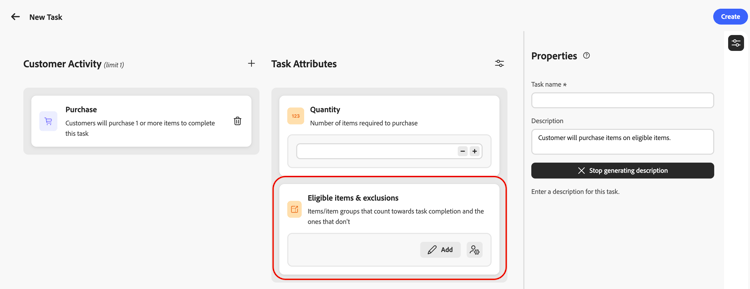
Set eligible items for the task
To define eligible items, select Add from the Eligible items & exclusions section.
In the picker, select the items or groups that should count toward task completion, then select Include. Included items and groups are added to the eligible list.
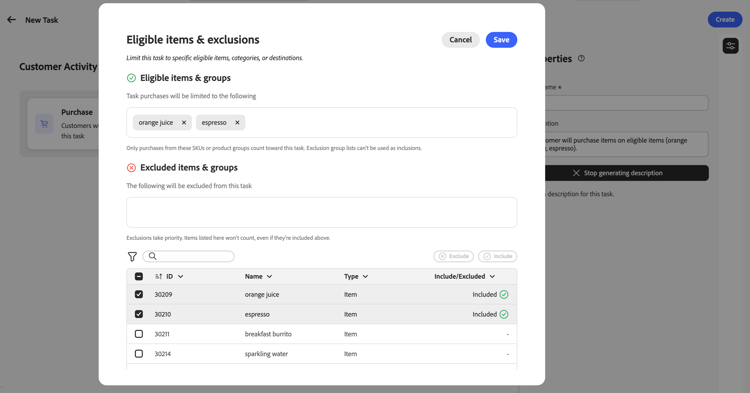
If no eligible items or groups are selected, purchases are not limited to a specific inventory set unless exclusions are configured.
Exclude items from the task
To exclude items from the task, select Add from the Eligible items & exclusions section.
Select the items or groups that should not count toward task completion, then select Exclude.
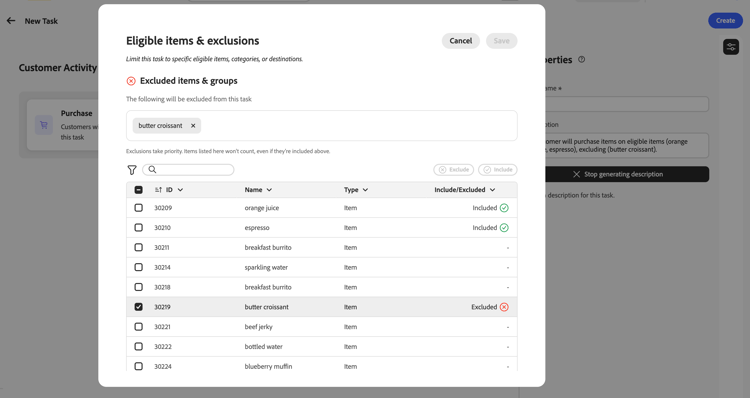
Items from the global exclusions list are automatically added as exclusions. Exclusions take priority over inclusions: items listed as excluded do not count, even if they are also part of an included group.
Bring your own data for eligibility & exclusions byod-personalization
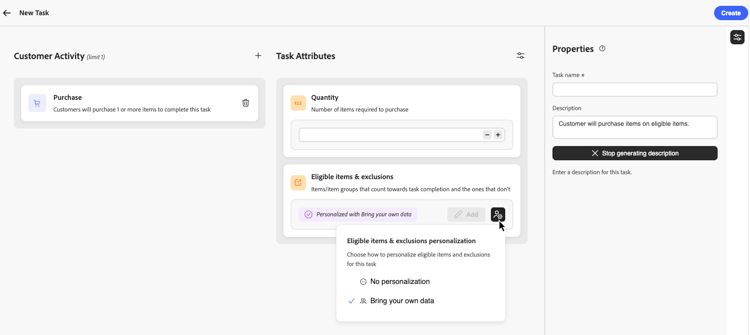
In addition to selecting items and groups in Journey Optimizer, you can also drive eligibility from your external Loyalty Challenges data at runtime using the Bring your own data option.
When Bring your own data is selected, eligibility per participant is resolved at runtime from data synchronized with your Loyalty Challenges environment instead of a list of item IDs.
To use this option, select the personalization icon in Eligible items & exclusions, then choose Bring your own data.
Define task properties define-task-properties
In the task Properties pane, configure the basic task information:
- Task name: Enter a descriptive name for the task.
- Task description: The description is automatically generated based on the configured activity and attributes. To enter a custom description, toggle off the automatic generation option and enter your description in the text field.
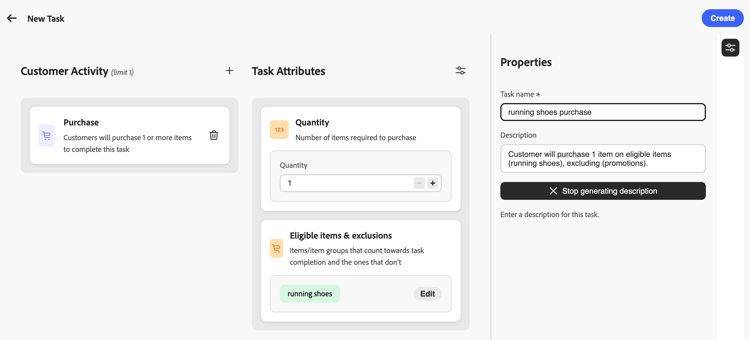
After configuring all attributes and properties, select Create to save the task. The task is saved to your Tasks inventory and, if created from within a challenge, is automatically added to that challenge.