On this page: Learn how to use AI in Adobe Journey Optimizer to generate, refine, and select on-brand images for your email, web, landing page, and push notification content.
Use AI to generate compelling visual content that enhances your messages across email, web, landing pages, and push notifications. Generate Content helps you optimize and improve your assets, ensuring a more user-friendly and engaging experience for your audience.
For Email and Web Channels email-web-channels
Generate Content can generate complete visual experiences for your email campaigns, web experiences, and landing pages. This capability allows you to produce on-brand, attention-grabbing images that resonate with your audience across digital touchpoints.
Access and configure access-configure
To start generating images with Generate Content, first set up your campaign or journey and open the content editor. Follow the steps below to prepare your workspace and access the Generate Content panel.
-
Create and configure your campaign or journey:
- Email: After creating and configuring your email campaign, click Edit content. Learn more
- Web: After creating and configuring your web page, click Edit web page. Learn more
- Landing Page: After creating and configuring your landing page, click Open designer. Learn more
-
Select the asset you want to change with Generate Content.
-
From the right-hand menu, select Generate Content (or Show Content Assistant for web).
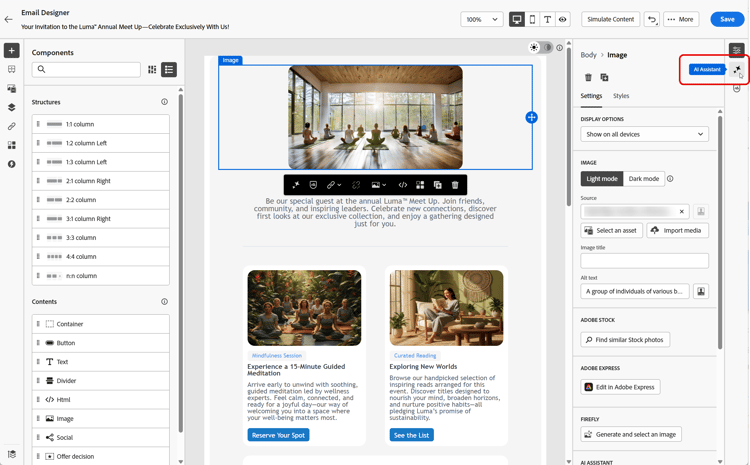
Generate image generate-content
Learn how to craft effective prompts and configure image settings to generate visually compelling images with Generate Content. Customize parameters such as aspect ratio, visual intensity, and lighting to create images that align with your brand and campaign objectives.
-
Enable the Reference style option for Generate Content to personalize new content based on the reference content. You can also upload an image to add context to your variation.
-
Select your Brand to ensure AI-generated content aligns with your brand specifications. Learn more on Brands.
-
Fine tune the content by describing what you want to generate in the Prompt field.
If you are looking for assistance in crafting your prompt, access the Prompt Library which provides a diverse range of prompt ideas to improve your campaigns.

-
Tailor your prompt with the Image settings option:
-
Mode: How images are sourced from your Digital Asset Management library and reference content. Learn more
- Assets: Uses matching images from the Digital Asset Management as reference content, otherwise add reference content manually.
- Balanced: Reference content first, then AI if needed.
- Creative: Generative AI without relying directly on the Digital Asset Management.
-
Generative model: Select from the ready-to-use Adobe model, the Partner model for specialized capabilities, or Custom models trained on your brand assets. Learn more. To use the partner (Gemini) model with text overlays on generated images, see Use Gemini as generative model for text-overlay image.
-
Aspect ratio: This determines the width and height of the asset. You have the option to choose from common ratios such as 16:9, 4:3, 3:2, or 1:1, or you can enter a custom size.
-
Content type: This categorizes the nature of the visual element, distinguishing between different forms of visual representation such as photos, graphics, or art.
-
Visual intensity: You can control the image’s impact by adjusting its intensity. A lower setting (2) will create a softer, more restrained appearance, while a higher setting (10) will make the image more vibrant and visually powerful.
-
Color & tone: The overall appearance of the colors within an image and the mood or atmosphere it conveys.
-
Lighting: This refers to the lightning present in an image, which shapes its atmosphere and highlights specific elements.
-
Composition: This refers to the arrangement of elements within the frame of an image

-
-
From the Reference content menu, click Upload file to add any brand asset which contains content that can provide additional context to Generate Content or select a previously uploaded one.
Previously uploaded files are available in the Uploaded reference content drop-down. Simply toggle the assets you wish to include in your generation.
-
Once you are satisfied with your prompt configuration, click Generate.
Refine and finalize refine-finalize
After generating image variations, you can review the results, check brand alignment, edit in Adobe Express, and select the best option for your content.
-
Browse the Variation suggestions to find the desired Asset.
-
Click the percentage icon to view your Brand Alignment Score and identify any misalignments with your brand.
Learn more on Brand alignment score.

-
Click Preview to view a full-screen version of the selected variation or Apply to replace your current content.
-
Navigate to the Refine option within the Preview window to access additional customization features:
-
Generate Similar to view related images to this variant.
-
Edit in Adobe Express to further customize your asset.
-
Save to store the assets for later access.

-
-
Click Select once you found the appropriate content.
-
After defining your message content, use either simulation method to control the rendering and check personalization settings: click Simulate content to test content variations with sample input data or AI auto-generation, or click Simulate content, then select Simulate content (AEP profiles) from the dropdown to preview with test profiles. Learn more
-
Review and activate your content:
- Email: When you have defined your content, audience and schedule, you are ready to prepare your email campaign. Learn more
- Web: Once you defined your web campaign settings and edited your content as desired, you can review and activate your web campaign. Learn more
- Landing Page: Once your landing page is ready, you can publish it to make it available for use in a message. Learn more
For mobile channels mobile-channels
Generate Content enables you to generate engaging images for push notifications, helping you create visually compelling mobile communications that capture attention and resonate with your audience.
Access and configure mobile-access-configure
To use Generate Content for push notifications, you will need to set up your push delivery and navigate to the content editor. These steps will guide you through creating your delivery and accessing the Generate Content features.
-
After creating and configuring your push notification delivery, click Edit content.
For more information on configuring your push delivery, refer to this page.
-
Personalize your push notification as needed. Learn more
-
Access the Show Generate Content menu.
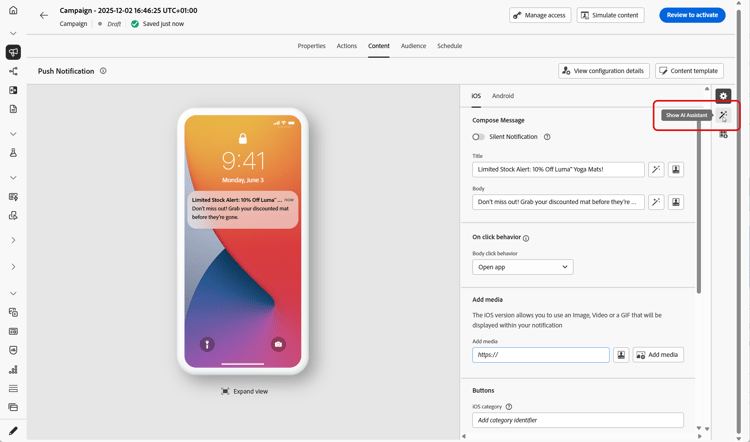
Generate image mobile-generate-content
After accessing Generate Content, you can adjust the generation settings to create images that align with your brand and support your push notification objectives. Configure the prompt and image parameters to generate visuals optimized for mobile displays.
-
Select your Brand to ensure AI-generated content aligns with your brand specifications. Learn more on Brands.
-
Fine tune the content by describing what you want to generate in the Prompt field.
If you are looking for assistance in crafting your prompt, access the Prompt Library which provides a diverse range of prompt ideas to improve your campaigns.

-
Select Image as field to generate.
-
Choose your Image settings:
-
Mode: How images are sourced from your Digital Asset Management library and reference content. Learn more
- Assets: Uses matching images from the Digital Asset Management as reference content, otherwise add reference content manually.
- Balanced: Reference content first, then AI if needed.
- Creative: Generative AI without relying directly on the Digital Asset Management.
-
Generative model: Select from the ready-to-use Adobe model, the Partner model for specialized capabilities, or Custom models trained on your brand assets. Learn more. To use the partner (Gemini) model with text overlays on generated images, see Use Gemini as generative model for text-overlay image.
-
Content type: This categorizes the nature of the visual element, distinguishing between different forms of visual representation such as photos, graphics, or art.
-
Visual intensity: You can control the image’s impact by adjusting its intensity. A lower setting (2) will create a softer, more restrained appearance, while a higher setting (10) will make the image more vibrant and visually powerful.
-
Color & tone: The overall appearance of the colors within an image and the mood or atmosphere it conveys.
-
Lighting: This refers to the lightning present in an image, which shapes its atmosphere and highlights specific elements.
-
Composition: This refers to the arrangement of elements within the frame of an image

-
-
From the Reference content menu, click Upload file to add any brand asset which contains content that can provide additional context to Generate Content or select a previously uploaded one.
Previously uploaded files are available in the Uploaded reference content drop-down. Simply toggle the assets you wish to include in your generation.
-
Once your prompt is ready, click Generate.
Refine and finalize mobile-refine-finalize
After generating image variations for your push notifications, you can fine-tune the results to ensure they meet your exact requirements. Review the brand alignment, edit in Adobe Express if needed, and select the best image for your mobile campaign.
-
Browse through the generated Variations.
-
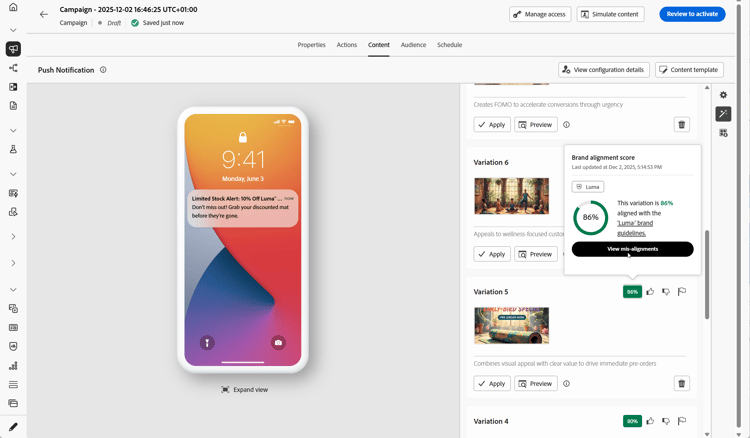
Click the percentage icon to view your Brand Alignment Score and identify any misalignments with your brand.
Learn more on Brand alignment score.
-
Click Preview to view a full-screen version of the selected variation or Apply to replace your current content.
-
Open the Brand Alignment tab to see how your content aligns with your brand guidelines.
-
Click Select once you found the appropriate content.
When you have defined your content, audience and schedule, you are ready to prepare your push campaign. Learn more