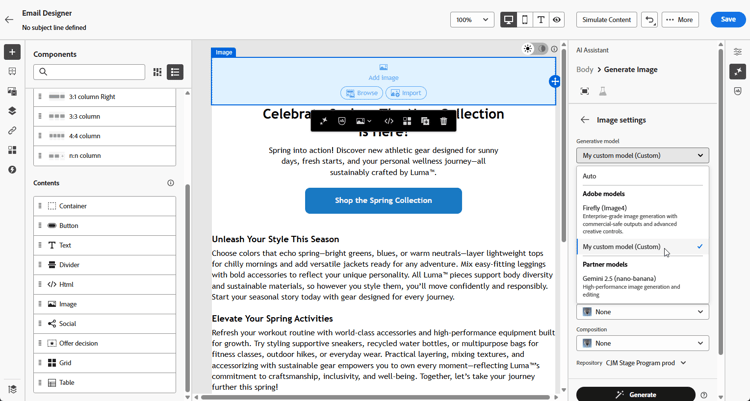
On this page: Learn how to add, configure, and manage the built-in, partner, and custom Firefly generative models used for AI image generation in Adobe Journey Optimizer.
Expand your AI image creation capabilities with built-in models, custom Firefly models, and third-party image generation providers to meet your specific needs and improve brand alignment.
Choose the right model for your needs:
-
Adobe model, powered by Firefly Image Model 4, is provided out of the box and ready to use for immediate image generation without additional setup.
-
Partner model, powered by Gemini 2.5 Flash, offers specialized capabilities for specific use cases. For a step-by-step workflow that uses Gemini with text overlays on images in Generate Content, see Use Gemini as generative model for text-overlay image.
-
Custom models are brand-specific models trained on your own assets and added by your organization.
Learn more on Custom models in Adobe Firefly documentation
Once configured, you can select any of your generative models when creating images in your content. Learn more about generating images.
Manage generative models
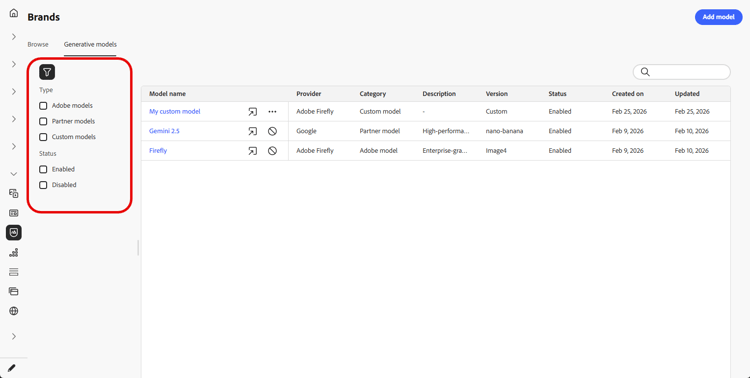
Manage your generative models from a centralized location. View all available models, filter and search to find specific ones, and configure their settings for your brands.
-
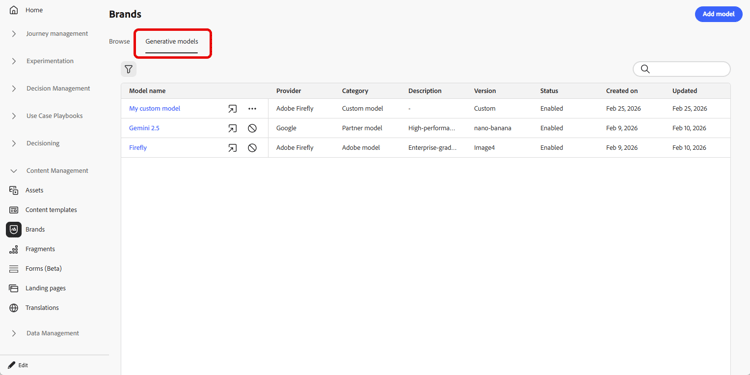
From the Brands menu, select the Generative models tab.
-
Click the

-
Use the search bar to find a specific generative model by name.
-
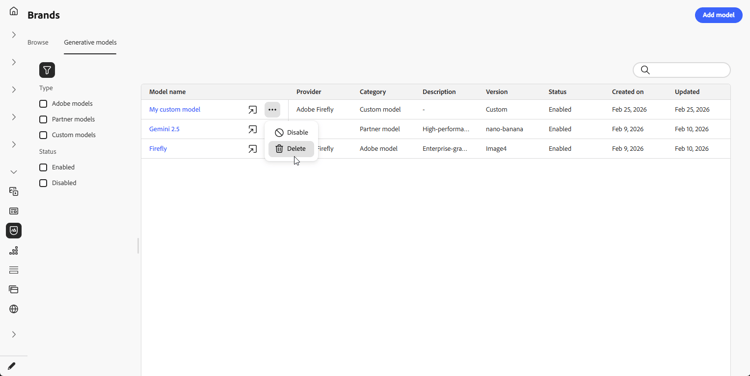
Click the

Note that only Custom models can be deleted.
-
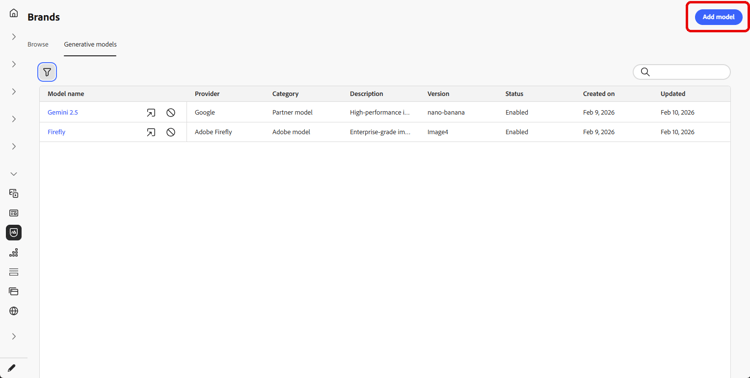
Click Add model to create a new generative model from scratch.
You can now select any of your generative models when creating images in your content. Learn more about generating images.
Add a generative model
Custom Firefly models are brand-specific AI models trained on your own assets, enabling you to generate images that align precisely with your brand identity, style, and visual guidelines.
By creating custom Firefly model providers, you can expand your AI capabilities beyond the default models and ensure that generated content consistently reflects your brand’s unique aesthetic and requirements.
➡️ Learn how to train your custom model
-
From the Brands menu, access the Generative Models tab and click Add model.
-
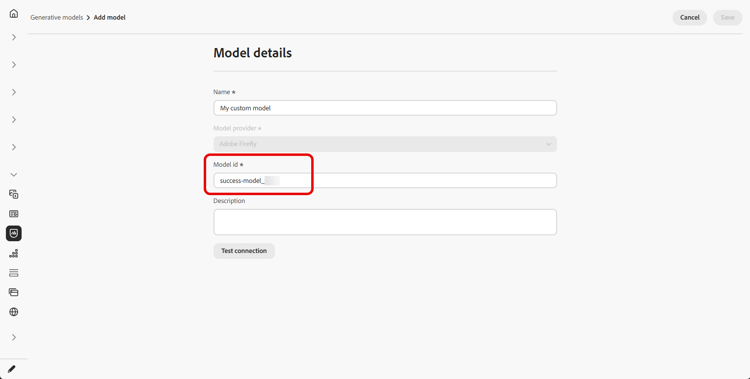
Enter a Name for your model.
-
Enter your Model ID.
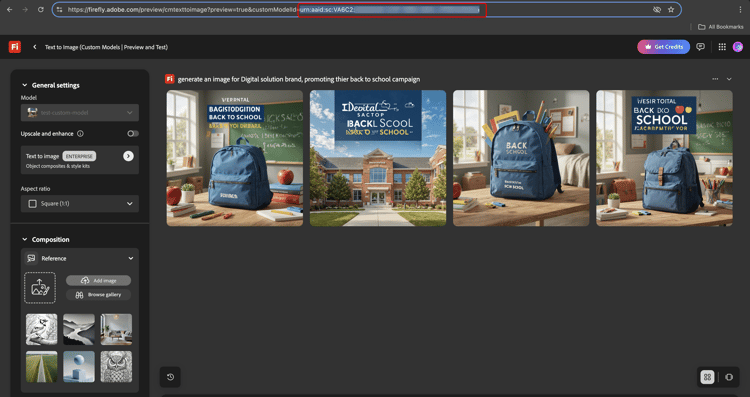
accordion Find your Firefly model ID - Access the Firefly website and navigate to your trained models.
- Access the Preview & test menu.
- In the URL, locate the value after
customModelId=. Copy this value to use as your model ID.
For more information, refer to the Firefly custom models documentation.
-
Optionally, enter a Description to help identify the model.
-
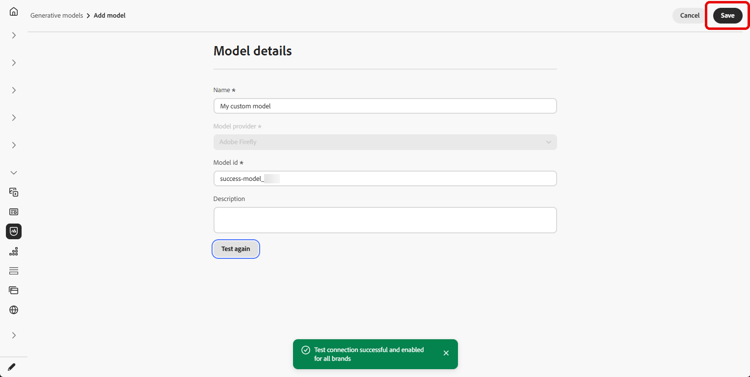
Click Test connection to verify the model configuration.
-
Once the connection test is successful, click Save to save your model configuration.
-
After saving, your custom model is added to your models list. You can disable or delete it at any time.
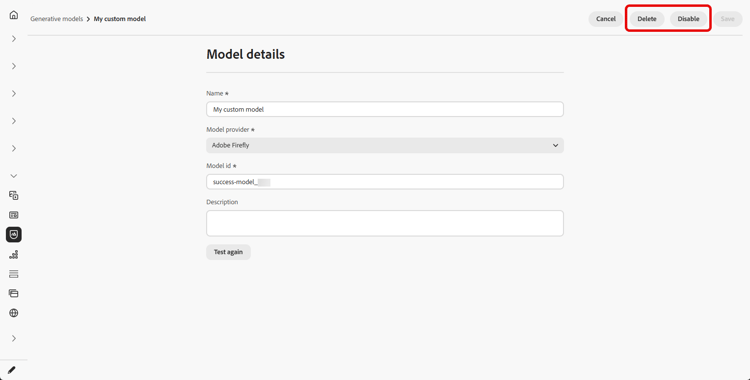
Once configured, you can select any of your custom generative models when creating images in your content. Learn more about generating images.