On this page: Learn how to preview, test, review, and activate your In-app message in Adobe Journey Optimizer before sending it to your audience.
Preview on device preview-device
If you want to get a sneak peek of the In-app notification before it goes live for all users, you have the ability to preview it on a specific device. This functionality allows you to ensure that the notification looks and functions as intended on the chosen device, providing a better user experience for your audience.
To perform this, follow the steps below:
-
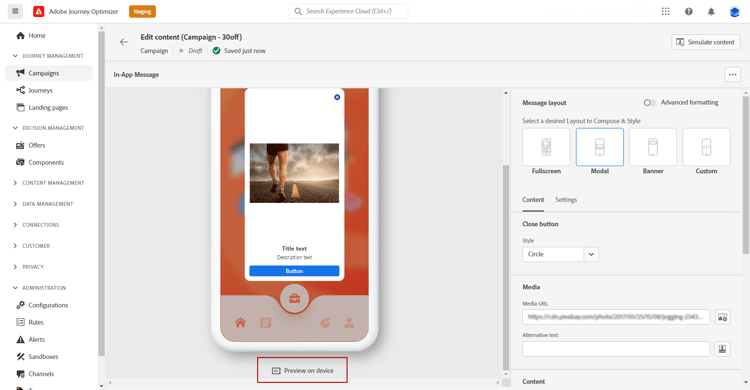
Click Preview on device.
-
From the Connect to device window, click Start.
-
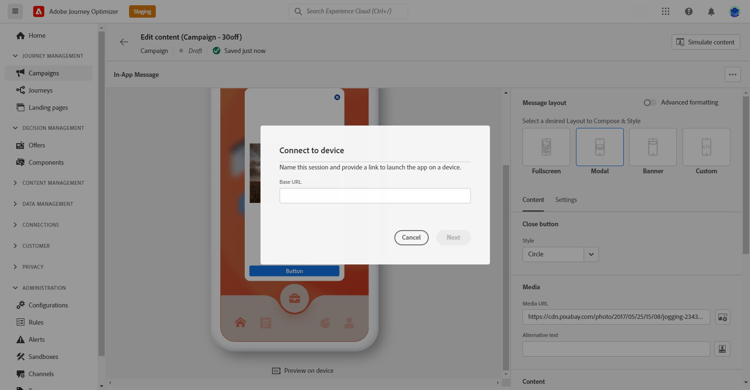
Enter the Base URL of your application and click Next.
-
Scan the QR code with your device and enter the PIN code displayed.
Your In-app message can now be triggered directly on your device allowing you to preview and review your message on an actual device.
Preview with test profiles simulate
Once your in-app message has been defined, you can preview it using either simulation method:
- Click Simulate content to test content variations with sample input data or AI auto-generation. Learn how to simulate content variations
- Click Simulate content, then select Simulate content (AEP profiles) from the dropdown to preview with test profiles and add a test profile to check your message.
Detailed information on how to select test profiles and preview your content is available in the Content Management section.
Review and activate your In-app notification in-app-review
Once your In-app message is created, and its content defined and personalized, you can review and activate it.
To perform this, follow the steps below:
-
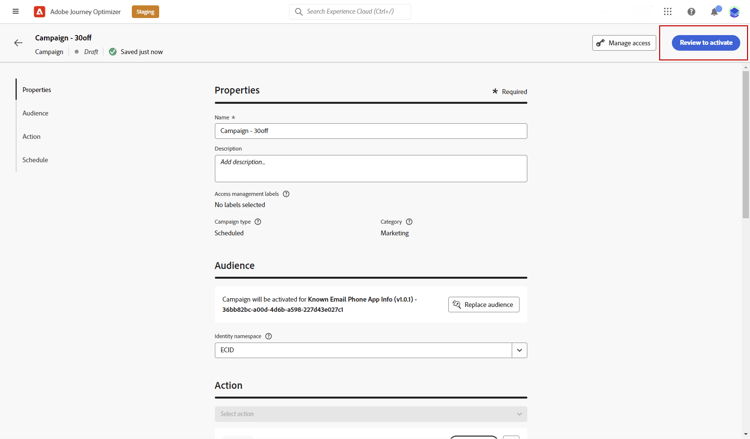
Use the Review to activate button to display a summary of your message.
The summary allows you to modify your campaign if necessary, and to check if any parameter is incorrect or missing.
-
Check that your campaign is correctly configured, then click Activate.
Your campaign is now activated. The In-app notification configured in the campaign is sent immediately, or on the specified date.
Once sent, you can measure the impact of your In-app messages within the Campaign or Journey reports. For more on reporting, refer to this section.
Related topics:
This section contains structured knowledge intended to support interpretation, retrieval, and question answering related to this topic.
For complete understanding, this information should be combined with the documentation on this page. Neither source is intended to stand alone; the page describes the feature, while this section provides additional context that helps disambiguate terminology, intent, applicability, and constraints.
- TL;DR: This page explains how to preview, test, review, and activate an In-app message in Journey Optimizer before it is sent to your audience.
Intents:
- Preview the In-app notification on a specific device using Preview on device
- Preview the message using Simulate content with sample input data or AI auto-generation
- Preview with test profiles using Simulate content (AEP profiles)
- Review the message summary and activate the campaign
- Understand when the In-App notification is sent and where to measure its impact
Glossary:
- Preview on device: A function that lets you trigger and preview the In-app notification on a specific physical device by connecting via a Base URL, QR code scan, and PIN code (product-specific)
- Simulate content: A method to test content variations with sample input data or AI auto-generation (product-specific)
- Simulate content (AEP profiles): An option selected from the Simulate content dropdown to preview with test profiles by adding a test profile to check your message (product-specific)
- Review to activate: A button that displays a summary of the message so you can modify the campaign and check for incorrect or missing parameters (product-specific)
- Approval policy: A policy that, when a campaign is subject to it, requires you to request approval before you can send the In-App notification (product-specific)
Guardrails:
- If your campaign is subject to an approval policy, you must request approval before you can send the In-App notification.
- Once activated, the In-App notification is sent immediately, or on the specified date.
Terminology:
- Canonical name: In-app notification — Acronym: n/a — variants: In-app message, In-App notification
- Do not confuse: “Preview on device” (preview on a specific physical device) ≠ “Simulate content” (test content variations with sample input data or AI auto-generation) ≠ “Simulate content (AEP profiles)” (preview with test profiles)
- Do not confuse: “Review to activate” (display the message summary) ≠ “Activate” (activate the campaign to send the notification)
FAQ:
- Q: How do I preview the message on a real device? — Click Preview on device, start the connection, enter your application Base URL, then scan the QR code and enter the displayed PIN code to trigger the message on your device.
- Q: What is the difference between the two simulation options? — Simulate content tests content variations with sample input data or AI auto-generation, while Simulate content (AEP profiles) previews with test profiles by adding a test profile.
- Q: What does Review to activate show? — A summary of your message that lets you modify the campaign and check whether any parameter is incorrect or missing.
- Q: When is the In-App notification sent after activation? — Immediately, or on the specified date.
- Q: What if my campaign is subject to an approval policy? — You must request approval before you can send the In-App notification.