On this page: Learn how to trigger an Orchestrated campaign with a signal from the REST API or from another campaign’s End activity, and how to pass payload parameters that become variables for targeting, conditions, and expressions.
You can start an Orchestrated campaign with a signal instead of a fixed schedule. When the campaign receives the signal, it runs and you can pass parameters in the payload. They become available as variables for targeting, conditions, or expressions.
The signal can come from either of the following:
- REST API — Your application or integration calls the trigger endpoint (see Publish and trigger the campaign and the API reference).
- Another Orchestrated campaign — The End activity of an upstream campaign sends the same kind of signal when a branch completes. Learn how to configure the End activity.
This page explains how to set up the campaign that receives the signal (schedule, parameters, test, publish), then how to fire it from the API or from an End activity. Once the variables are available, for details on how to use them in rules and Test conditions, see Use variables in Orchestrated campaigns.
For the full REST specification of the trigger endpoint (paths, headers, body, responses, and errors), see Trigger Orchestrated campaigns API in the Adobe Journey Optimizer API documentation.
End-to-end process to trigger an Orchestrated campaign using a signal:
orchestrated-campaign.publish). See Built-in permissions.Schedule the campaign to be triggered by a signal configure-signal
To set an orchestrated campaign to start on a signal instead of a schedule, follow these steps:
-
Open the Orchestrated campaign you want to trigger using a signal.
-
Open the schedule configuration. Learn how to schedule an Orchestrated campaign.
-
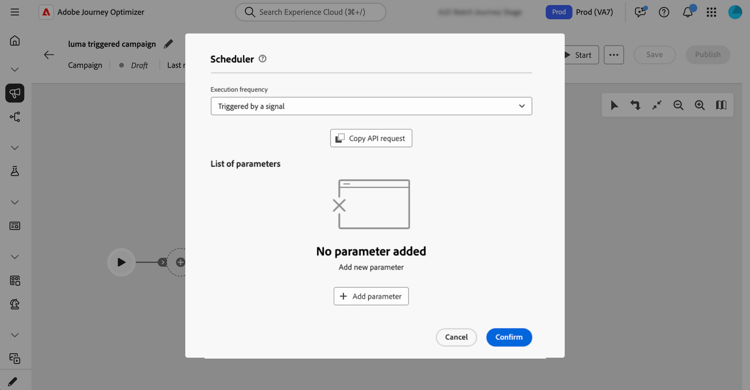
Select Triggered by a signal so that the campaign waits for a signal instead of running on a schedule.
Add parameters for the signal payload (optional) parameters
You can pass parameters in the trigger signal and use them in your campaign in the execution context — for example, in targeting, conditions, or expressions. Define each parameter in the schedule settings first, then pass its value when you call the trigger API or when you map parameters from an upstream campaign’s End activity (see below).
-
Open the campaign scheduler and select Add parameter.
-
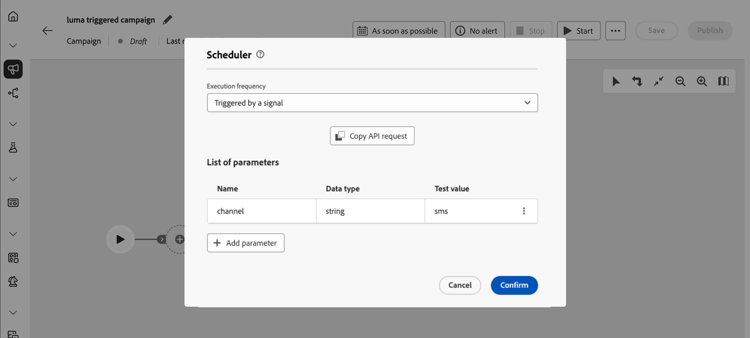
Define each parameter’s name and data type to send in the signal payload. You can also provide Test values that will be used when you trigger the campaign in test mode. Learn how to test a triggered campaign.
Test the campaign build-and-test
Build your campaign on the canvas, then test it in Draft before you publish by sending the signal through the REST API.
-
Orchestrated campaigns triggered by the REST API — Use the steps below to run the campaign in draft and validate targeting, parameters, and delivery logic before publication.
-
Orchestrated campaigns triggered by an End activity — You cannot run the full chain end-to-end in draft: once the upstream campaign is published, its End activity only starts a published downstream campaign. To test the downstream side before both campaigns are published, keep that campaign in Draft, set Test values for your signal parameters in the scheduler (Add parameters for the signal payload), then follow the API steps below. The trigger API call uses the same payload as an End activity at runtime, so you can validate parameter routing and canvas logic before you publish the downstream campaign and configure the upstream End activity (Trigger from another campaign’s End activity).
-
Add and connect activities (audience, targeting, deliveries) on the canvas. Learn how to orchestrate campaign activities
-
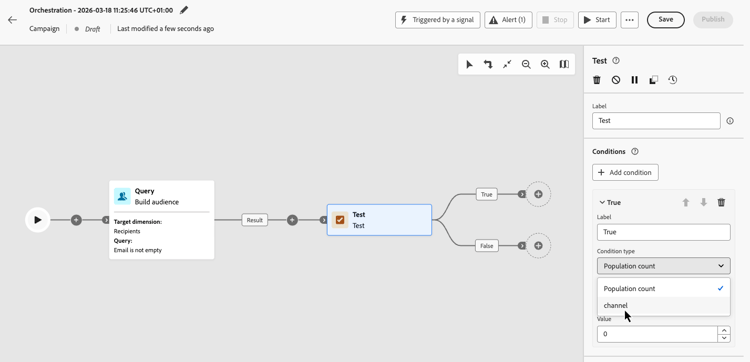
If you’ve defined parameters in the signal, you can wire them into your canvas logic (for example, in conditions or targeting). In this example, the “channel” parameter is used as a condition in a Test activity.
To use a signal parameter in the expression editor (for example, to build a query in a Build audience activity), type
$(vars/@<parameterName>)in the expression field. Replace<parameterName>with the parameter name defined in the scheduler—for example,$(vars/@channel). Learn how to work with the expression editor. -
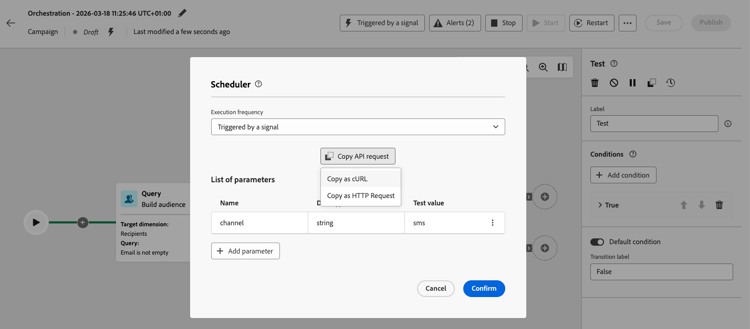
Open the campaign scheduler, select Copy API request and choose the format (cURL or HTTP Request).
The copied information includes the orchestrated campaign ID, sandbox name, organization ID, and test values for your parameters if you have added some.
accordion Sample cURL request with a parameter and a test value code language-bash POST https://platform.adobe.io/ajo/campaign-orchestration/orchestratedCampaigns/1c7529c7-7a8c-491a-a2c6-3d8131d2e17d/trigger Headers: Authorization: Bearer ## Access token ## Content-Type: application/json x-api-key: ## Provide API Key here ## x-api-version: 1 x-gw-ims-org-id: 123456ABCDEFG@LumaOrg x-sandbox-name: prod Body: { "variables": { "channel": "sms" } } -
Click Start to start the campaign.
-
Send the trigger API call using the sample request you have copied from the scheduler. See Trigger Orchestrated campaigns API for request and response details.
When you are satisfied with the test results, publish the campaign.
Publish and trigger the campaign publish
After you have tested the campaign, publish it so it can receive a signal from your application or from another campaign’s End activity. Learn more on starting and monitoring the campaign.
You can then trigger it from the REST API or from another campaign’s End activity. See the sections below.
Send the signal with the REST API publish-api
After publication, follow these steps each time you trigger the campaign from your own application:
-
Open the campaign scheduler, select Copy API request and choose the format (cURL or HTTP Request).
The copied information includes the orchestrated campaign ID, sandbox name, organization ID, and parameters if you have added some.
-
Call the trigger API from your system. Refer to Trigger Orchestrated campaigns API for the live endpoint specification.
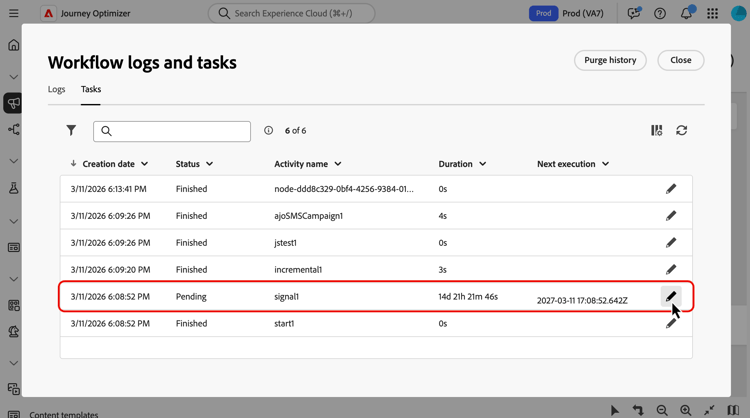
note important IMPORTANT For a live orchestrated campaign, a throttle guardrail enforces a minimum interval of one hour between two API trigger executions. If you call the API again before that interval has elapsed, the API returns HTTP 429 (Too many requests). This guardrail is not applied when you trigger a draft version to test it. If you added parameters to the signal payload, the values you pass in the API call are exposed as campaign event variables when the campaign runs. To inspect them, open the campaign logs from the campaign canvas toolbar. In the Tasks tab, identify the task corresponding to the signal and click the pencil icon to access the related event variables. Learn how to access logs and tasks.
Send the signal from another campaign’s End activity signal-end
Use this path to chain Orchestrated campaigns: when the upstream campaign finishes a branch, the End activity sends a signal to a downstream campaign that is already set to Triggered by a signal. That lets you reuse smaller campaigns and pass a different payload from each caller.
- You can use several End activities on the same canvas and configure each one to trigger a different downstream campaign.
- Several campaigns can trigger the same downstream campaign. Each call can send a different payload.
Follow these steps on the campaign that should run first:
-
Open the Orchestrated campaign that should send the signal and select an End activity at the end of the branch that must complete before the downstream campaign starts.
-
In the External signal section, select the downstream campaign to trigger.
-
Optionally, add parameters: use the same names as on the downstream campaign’s schedule, and set each value.

-
To test the downstream campaign in draft mode before publishing it, follow the steps in the test the campaign section to trigger it in draft with the REST API.
The downstream campaign must be live before you can publish the upstream campaign that references it in an End activity. If the signal is sent while the target campaign is not published, execution will fail. Publish the downstream campaign, then resume or restart as needed.