On this page: Learn how to set variables from a signal or from global definitions and use them to drive targeting, conditions, and Test activity logic in Orchestrated campaigns.
How to set variables set
In an Orchestrated campaign, you can work with variables, i.e. values that drive targeting, Test conditions, and other canvas logic. Those values can come from two places:
-
A signal — If the campaign schedule is Triggered by a signal, you can pass parameters when you fire the campaign. Those parameters become available as variables in the triggered Orchestrated campaign for that run. Learn how to trigger an Orchestrated campaign using a signal
-
Global variables — You can define name–value pairs directly on the campaign using the Edit variables menu, with no API or signal required. Learn how to define global variables in Orchestrated campaigns
Use variables in the canvas use
Variables are available in the following places on the canvas:
-
Rule builder — Open the expression editor for a rule and use the event variables picker to select a variable and insert its reference into your expression. Learn how to edit expressions
In the example below, a variable named
brandwas passed in, and the rule uses it as a filter condition.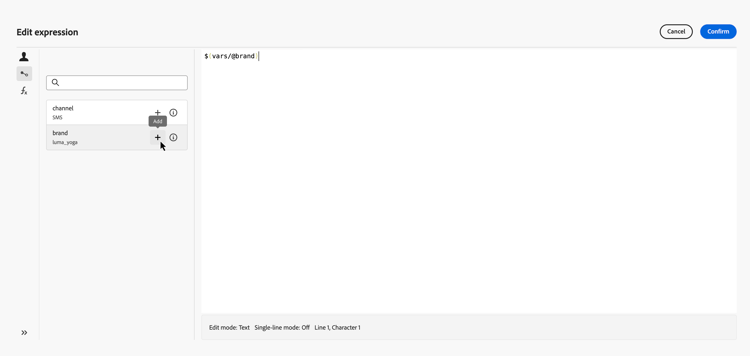
-
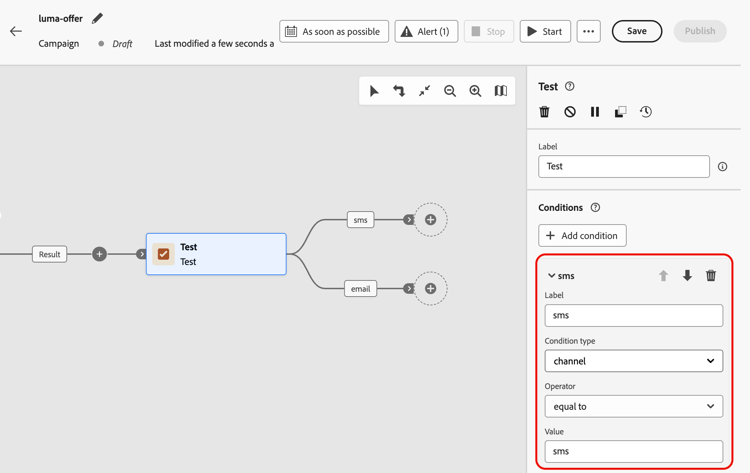
Test activity — When you define a condition, the Condition type drop-down lists all variables in scope alongside Population count. Select a variable to use it as the basis for a test branch. Learn how to configure the Test activity
In the example below, the
channelvariable is used to route the flow to different transitions depending on its value.