On this page: Learn how to use the Test flow control activity to branch an Orchestrated campaign by activating different transitions based on the conditions you define.
The Test activity is a Flow control activity. Use it to branch your campaign flow by activating different transitions depending on conditions you define. Each condition can evaluate data from the inbound transition and you can choose which transition runs first by the order in which conditions are evaluated.
Configure the Test activity test-configuration
To set up the Test activity:
-
Drop a Test activity into your Orchestrated campaign canvas.
-
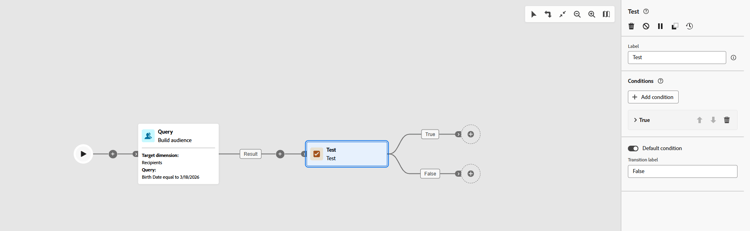
By default, the activity provides a single boolean test: when the “True” condition is met, that transition is activated; otherwise the “False” (default) transition is activated.
-
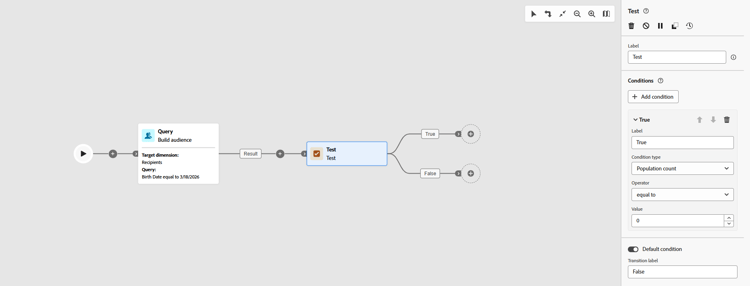
Define the condition for a transition by completing these fields:
-
Label: A name for the transition so you can identify it on the canvas.
-
Condition type: The data to evaluate, by default, population count. Variables (coming from global variables or a trigger signal) are also listed here and can be selected to base a condition on a variable value. Learn how to use variables in Orchestrated campaigns
-
Operator: The comparison to apply, e.g. equal to, greater than, less than. The list of operators depends on the condition type’s data type.
-
Value: The value to compare the condition type against.
-
-
To branch on more than two outcomes, click Add condition and define a label and condition for each additional transition.
-
At run time, the campaign evaluates conditions in order and follows the first one that matches. When no condition matches, execution follows Default condition if one is set; otherwise the campaign stops at the Test activity.
Example example
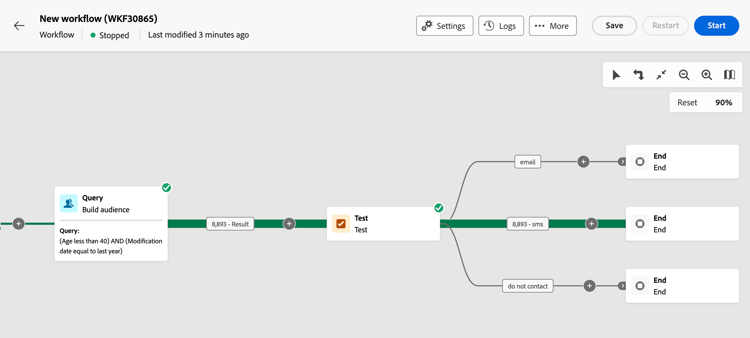
In this example, different transitions are activated based on the number of profiles targeted by a Build audience activity. Conditions are evaluated in order; the last transition is the default and is used when no previous condition matches.
- If more than 10,000 profiles are targeted, an email message is sent.
- Default (no condition matched): when the count is 10,000 or fewer, the population is directed to a “do not contact” transition.