On this page: Learn how to use the expression editor to manually build rules with database fields, variables, and helper functions for manipulating dates, strings, and numeric values in your Orchestrated campaigns.
Work with the expression editor edit
Editing an expression involves manually entering conditions to form a rule. This mode allows you to use advanced functions, which let you manipulate the values used to carry out specific queries, such as manipulating dates, strings, numerical fields, and sorting.
The expression editor is available from the rule builder Edit expression button, available for the Attribute and Value fields when configuring a custom condition.


The expression editor provides:
-
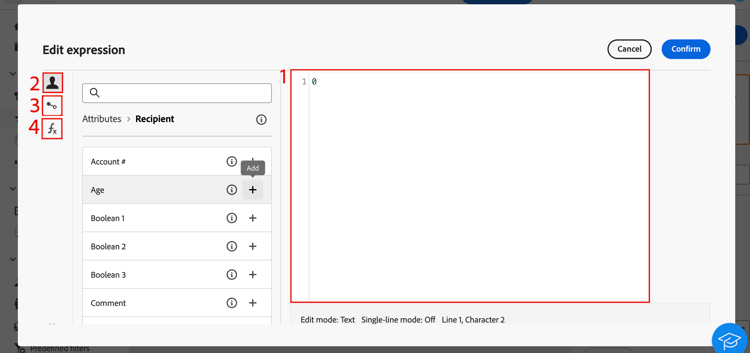
An input field (1) where the expression is defined.
-
A list of available fields (2) that can be used in the expression and correspond to the targeting dimension of the query.
-
A list of available variables (3) that can be used in the expression. This menu is available for the Value field. Learn how to use variables in Orchestrated campaigns
-
Helper functions (4), sorted by category.
Edit the expression by entering an expression directly in the input field. To add a field, a variable or a helper function, place your cursor in the expression where you want to add it and click the + button.
Helper functions
The query editing tool allows you to use advanced functions to carry out complex filtering depending on the desired results and the types of manipulated data. The following functions are available:
Aggregate
Aggregate functions perform calculations on a set of values.
Date
Date functions manipulate date or time values.
Geomarketing
The geomarketing functions are used to manipulate geographical values.
Numeric
The numeric functions are used to convert text to numbers.
Others
This table contains the remaining functions available.
String
The string functions are used to manipulate a set of strings.
Window
This section contains structured knowledge intended to support interpretation, retrieval, and question answering related to this topic.
For complete understanding, this information should be combined with the documentation on this page. Neither source is intended to stand alone; the page describes the feature, while this section provides additional context that helps disambiguate terminology, intent, applicability, and constraints.
- TL;DR: This page explains how to use the expression editor to manually build rule conditions with fields, variables, and helper functions for manipulating dates, strings, numbers, and other values in Orchestrated campaigns.
Intents:
- Open the expression editor from the Attribute or Value field when configuring a custom condition in the rule builder.
- Enter an expression directly in the input field, or insert a field, variable, or helper function using the + button.
- Use helper functions (Aggregate, Date, Geomarketing, Numeric, Others, String, Window) to manipulate dates, strings, numeric values, and sorting.
- Insert variables into an expression from the Value field.
Glossary:
- Expression editor: a mode accessed from the rule builder Edit expression button that lets you manually enter conditions to form a rule, using advanced functions (product-specific)
- Helper functions: functions sorted by category (Aggregate, Date, Geomarketing, Numeric, Others, String, Window) available in the expression editor to manipulate values (product-specific)
- Fields: items available in the expression editor that correspond to the targeting dimension of the query (product-specific)
- Variables: items available in the expression editor, from the Value field menu, that can be used in an expression (product-specific)
Guardrails:
- The expression editor is available from the rule builder Edit expression button, for the Attribute and Value fields, when configuring a custom condition.
- The variables menu in the expression editor is available only for the Value field, not for the Attribute field.
- The DateOnly function takes into account the server’s timezone, not the operator’s.
Terminology:
- Canonical name: expression editor — variants: Edit expression
- Do not confuse: “fields” (correspond to the targeting dimension of the query) ≠ “variables” (listed in a separate menu, available from the Value field)
FAQ:
- Q: Where is the expression editor available from? — The rule builder Edit expression button, for the Attribute and Value fields, when configuring a custom condition.
- Q: How do I add a field, variable, or helper function to an expression? — Place your cursor in the expression where you want to add it and click the + button.
- Q: What categories of helper functions are available? — Aggregate, Date, Geomarketing, Numeric, Others, String, and Window.
- Q: Does the DateOnly function use my local timezone? — No, it takes into account the server’s timezone, not the operator’s.
- Q: Can I use variables from the Attribute field? — No, the variables menu is available only for the Value field.
Related pages:
- For using variables in an expression from the Value field: Learn how to use variables in Orchestrated campaigns (orchestrated/variables-orchestrated-campaigns.md)
Personas:
- marketer: Can open the expression editor from the Attribute or Value field when configuring a custom condition, and enter an expression directly in the input field. Can place the cursor and select the + button to add a field, variable, or helper function. Can use helper functions sorted by category, such as Aggregate, Date, Geomarketing, Numeric, Others, String, and Window, to manipulate dates, strings, numeric values, and sorting. The page states that the variables menu is available only for the Value field. Where: “Work with the expression editor”.
Onboarding:
- Level: Experienced
- First minimal step: Select the Edit expression button for the Attribute or Value field when configuring a custom condition.
- Next: Learn how to use variables in the expression editor: Use variables in Orchestrated campaigns (orchestrated/variables-orchestrated-campaigns.md)