On this page: Learn how to build an Orchestrated campaign by adding, configuring, and connecting activities on the visual canvas.
Once that you have created an Orchestrated campaign, you can start orchestrating the differents tasks it will perform. To do this, a visual canvas is provided, allowing you to construct an Orchestrated campaign canvas. Within this canvas, you can add various activities and connect them in a sequential order.
Add activities add
At this stage of the configuration, the Orchestrated campaign canvas is displayed with a start icon, representing the beginning of your Orchestrated campaign. To add your first activity, click the + button connected to the start icon.
A list of activities that can be added to the Orchestrated campaign canvas appears. The available activities depend on your position within the Orchestrated campaign canvas. For example, when adding your first activity, you can start your Orchestrated campaign by defining an audience (for example, with Build audience, Read audience, or Load file), splitting the Orchestrated campaign path, or setting a Wait activity to delay the Orchestrated campaign execution. On the other hand, after a Build audience activity, you can refine your target with targeting activities, send a delivery to your audience with channel activities, or organize the Orchestrated campaign process with flow control activities.

Once an activity has been added to the canvas, a right pane appears, allowing you to configure it with specific settings. Detailed information on how to configure each activity is available in this section.

Repeat this process to add as many activities as desired depending on the tasks that you want your Orchestrated campaign to perform. Note that you can also insert a new activity between two activities. To do this, click the + button on the transition between the activities, select the desired activity and configure it in the right pane.
You have the option to customize the name of the transitions between each activity. To do this, select the transition and change its label in the right pane.

The canvas toolbar toolbar
The canvas toolbar provides options to easily manipulate the activities and navigate in the canvas:


Manage activities manage
When adding activities, action buttons are available in the properties pane, allowing you to perform multiple operations.


You can use any activity in the canvas as a breaking point to pause the campaign execution. This means the campaign will run only until this activity, then pause execution. While pausing the execution, the segmentation engine keeps temporary data available for you to preview. You can select the inbound transition just before the paused activity to view the transpported data. Learn more on this section: Visual flow monitoring


Several Targeting activities, such as Combine or Deduplication, allow you to process the remaining population and include it into an additional outbound transition. For example, if you are using a Split activity, the complement consists of the population that did not match any of the previously defined subsets. To use this capability, activate the Generate complement option.
Copy-paste activities copy
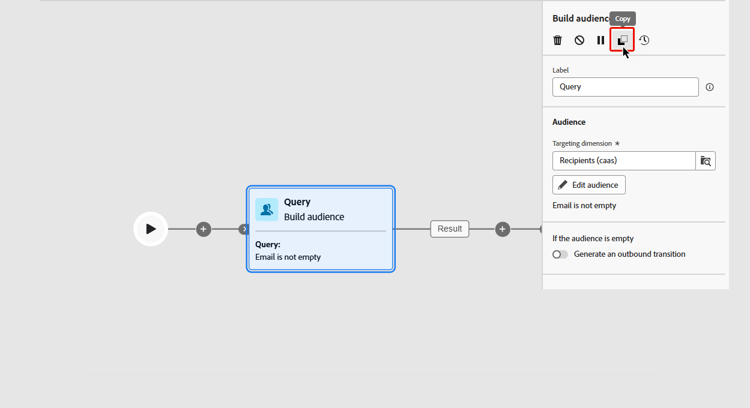
You can copy activities and paste them in any Orchestrated campaign canvas. The destination campaign can be in a different browser tab.
- To copy one activity, click the
- To copy multiple activities, click the
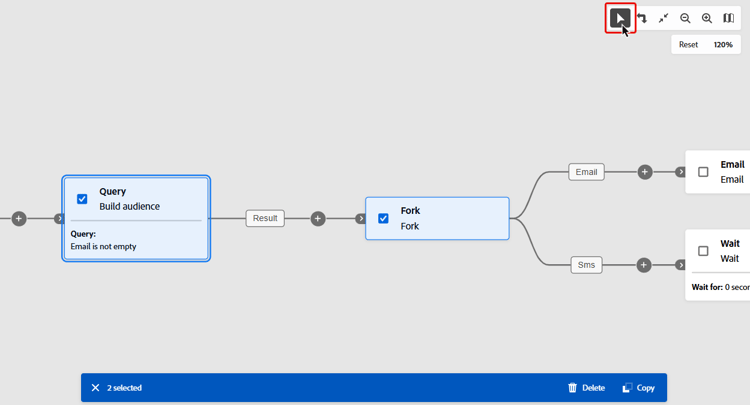
To paste the activities, click the + button on a transition and select “Paste x activity”.

Canvas example example
Here is an Orchestrated campaign example designed to send an email to all customers that have made a purchase of at least 100$, while excluding all customers that have less than 50 loyalty points.

To achieve this, activities below have been added:
-
A Fork activity divides the Orchestrated campaign into three paths.
-
Build audience activities target the three sets of customers:
- Customers with an email,
- Customers who have made a purchase of at least 100$,
- Customers who have less than 50 loyal points.
-
A Combine activity groups together customers with an email and those who’ve made a purchase of at least 100$,
-
A Combine activity excludes customers with less than 50 loyalty points,
-
An Email delivery activity sends an email to the resulting customers.
When you reach the end of a branch, you can add an End activity to mark completion on the canvas. You can also configure that End activity to send a signal to another Orchestrated campaign that is set to Triggered by a signal, and pass parameters in the payload. Learn more.
Next steps next
After you add channel activities to the canvas, learn how to add personalization in email, mobile, and other messages.
When the canvas is ready, execute the Orchestrated campaign and track the progress of its tasks. Learn how to start an Orchestrated campaign and monitor its execution
This section contains structured knowledge intended to support interpretation, retrieval, and question answering related to this topic.
For complete understanding, this information should be combined with the documentation on this page. Neither source is intended to stand alone; the page describes the feature, while this section provides additional context that helps disambiguate terminology, intent, applicability, and constraints.
- TL;DR: This page explains how to build an Orchestrated campaign by adding, configuring, connecting, and managing activities on the visual canvas, including the canvas toolbar, activity action buttons, copy-paste, and a canvas example.
Intents:
- Add activities to the Orchestrated campaign canvas and configure them in the right pane.
- Insert a new activity between two existing activities and customize transition labels.
- Use the canvas toolbar to select multiple activities (to delete or copy them), rotate the canvas, zoom in or out, or open a snapshot showing your current location in the canvas.
- Delete, disable/enable, pause/resume, or copy an activity using the action buttons in the properties pane.
- Copy-paste one or multiple activities within or across Orchestrated campaign canvases.
- Use a breaking point activity to pause campaign execution and preview transported data.
Glossary:
- Orchestrated campaign canvas: the visual canvas used to construct an Orchestrated campaign by adding and connecting activities (product-specific)
- Fork: an activity that divides the Orchestrated campaign into separate paths, as shown in the canvas example, which uses a Fork activity to create three paths (product-specific)
- Combine: a targeting activity that groups together or excludes populations from different paths (product-specific)
- Generate complement: an option on activities such as Combine or Deduplication that includes the remaining, unmatched population into an additional outbound transition (product-specific)
- Breaking point: any activity used in the canvas to make campaign execution run only until that activity, then pause, keeping segmentation engine temporary data available for preview (product-specific)
- End activity: an activity added at the end of a branch to mark completion on the canvas, which can also be configured to send a signal to another Orchestrated campaign set to Triggered by a signal, passing parameters in the payload (product-specific)
Guardrails:
- The available activities to add depend on your position within the Orchestrated campaign canvas: when adding the first activity, you can define an audience (Build audience, Read audience, or Load file), split the path, or set a Wait activity; after a Build audience activity, you can use targeting activities, channel activities to send a delivery, or flow control activities to organize the process.
- When an Orchestrated campaign is executed, disabled activities and the following activities on the same path are not executed and the Orchestrated campaign is stopped.
- When an Orchestrated campaign is executed, it pauses at a paused activity; that activity and all those that follow it in the same path are not executed.
- Several targeting activities, such as Combine or Deduplication, allow processing of the remaining population into an additional outbound transition when the Generate complement option is activated.
- When using a Split activity, the complement consists of the population that did not match any of the previously defined subsets.
Terminology:
- Canonical name: Orchestrated campaign canvas
- Canonical name: Activity
- Do not confuse: “Disable/Enable” (disabled activities and following activities on the same path are not executed, and the Orchestrated campaign is stopped) ≠ “Pause/Resume” (execution pauses at the paused activity; that activity and all following activities on the same path are not executed)
FAQ:
- Q: What determines which activities I can add at a given point? — The available activities depend on your position within the Orchestrated campaign canvas: for example, the first activity can define an audience, split the path, or set a Wait activity, while activities after a Build audience activity can refine the target, send a delivery, or organize the process.
- Q: What happens when I disable an activity? — The disabled activity and the following activities on the same path are not executed, and the Orchestrated campaign is stopped.
- Q: What happens when I pause an activity? — Execution pauses at the paused activity; that activity and all those that follow it in the same path are not executed.
- Q: What can I do with a breaking point during execution? — You can use any activity as a breaking point so the campaign runs only until that activity, then pauses; while paused, the segmentation engine keeps temporary data available for you to preview by selecting the inbound transition just before the paused activity.
- Q: Can I copy activities to a different campaign? — Yes, you can copy one or multiple activities and paste them in any Orchestrated campaign canvas, including one in a different browser tab.
- Q: What does the Generate complement option do? — It includes the remaining population that was not otherwise processed into an additional outbound transition, available on targeting activities such as Combine or Deduplication.
Examples:
- Canvas example: a Fork activity divides the Orchestrated campaign into three paths; Build audience activities target customers with an email, customers who made a purchase of at least 100$, and customers with less than 50 loyalty points; a Combine activity groups customers with an email and those with a purchase of at least 100$; a second Combine activity excludes customers with less than 50 loyalty points; an Email delivery activity then sends an email to the resulting customers.
Related pages:
- For detailed configuration of each activity type: Work with Orchestrated campaign activities (orchestrated/activities/about-activities.md)
- For sending a signal from an End activity to another Orchestrated campaign: Trigger an Orchestrated campaign using a signal (orchestrated/trigger-orchestrated-campaign.md)
- For adding personalization to channel activities after building the canvas: learn how to add personalization (orchestrated/add-personalization.md)
- For reviewing transported data at a breaking point during execution: Visual flow monitoring (orchestrated/start-monitor-campaigns.md)
- For starting and monitoring the Orchestrated campaign after the canvas is ready: Learn how to start an Orchestrated campaign and monitor its execution (orchestrated/start-monitor-campaigns.md)
Personas:
- marketer: Can add activities to the Orchestrated campaign canvas by selecting the + button, then configure each activity in the right pane. Can insert a new activity between two existing activities and customize transition labels. The page states that disabled activities and the following activities on the same path are not executed, and the campaign is stopped. Where: “Add activities”.
Onboarding:
- Level: Intermediate
- First minimal step: Select the + button connected to the start icon to add your first activity.
- Success check: A right pane appears, allowing you to configure the activity with specific settings.
- Previous: After creating an Orchestrated campaign: Key steps to create an Orchestrated campaign (orchestrated/gs-campaign-creation.md)
- Next: After adding channel activities to the canvas: Add personalization in Orchestrated campaigns (orchestrated/add-personalization.md); When the canvas is ready: Start and monitor Orchestrated campaigns with Adobe Journey Optimizer (orchestrated/start-monitor-campaigns.md)