[Limited Availability]{class="badge informative"}
Web experience design
After you create a web experience, use the content design space to define the modifications that you want to apply to your web pages.
Prerequisites
Before you can design web experiences, ensure that the following requirements are met:
-
A product administrator has configured one or more web channels to define the URLs (pages) to be included for a web experience. For more information, see Web channel configurations.
-
Your website has the Adobe Experience Platform Web SDK (
alloy.js) implemented for visitor identification and content delivery. Adobe Experience Platform Web SDK version 2.16 or above is required. -
You have the necessary permissions to create and manage web experiences in a journey:
- Author B2B Web Experiences
- Manage B2B Person Journeys
- Manage B2B Account Journeys
Web experience editors
Journey Optimizer B2B Edition provides two types of editors for designing web modifications:
In the web experience properties, use the Visual editor option to determine the type of editor. Enable the option to use the visual editor, or disable it to use the non-visual editor.
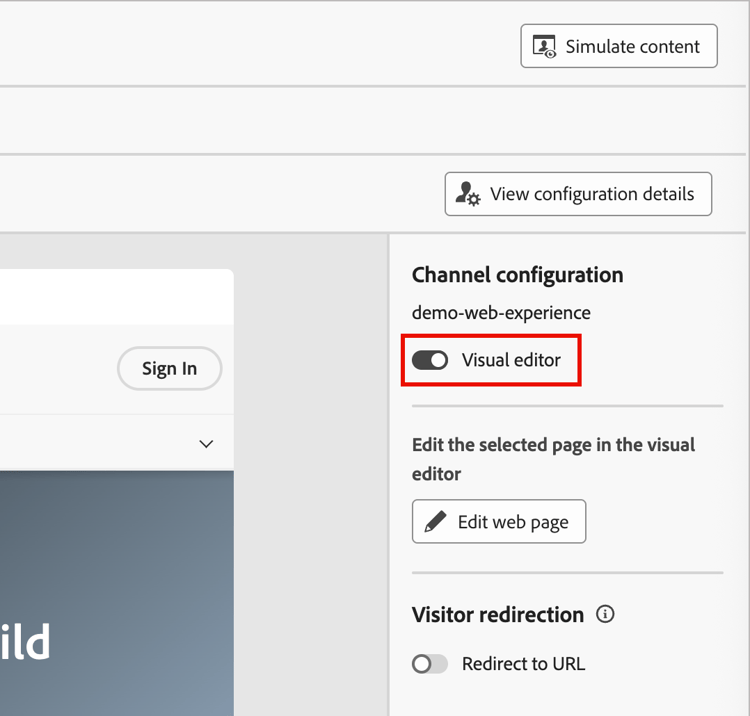
Visual editor visual-editor
The visual editor loads the web pages within an iframe, where you can select elements and apply modifications directly in the page preview. Complete the following steps to use the visual editor for designing your web experience:
-
With the Content tab displayed in the web experience details page, click Edit web experience in the right panel.
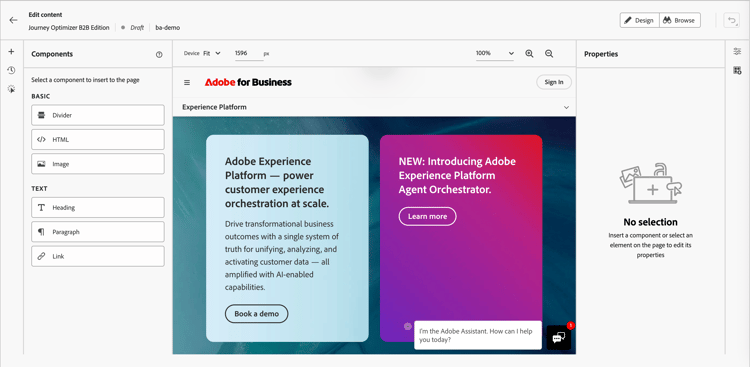
The visual editor loads your website based on the web channel configuration.
-
If needed, click Browse at the top right and use the site navigation bar to load the specific page that you want to modify.
You can also enter the page URL in the field at the top.
note NOTE Ensure that the loaded page matches the URL patterns defined in your web channel configuration. Click View configuration details at the top right to view the URL or page matching rules for the selected web channel configuration. 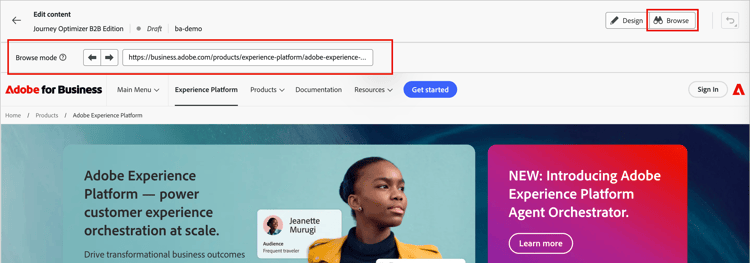
Click Design at the top right to load the page in the design space.
-
To define how you want the displayed page to be modified for the web experience, you can:
-
Insert new components (divider, HTML, image, heading, paragraph, or link) to the page for the web experience.
-
Select any existing element from the page and modify it for the web experience.
-
Add click tracking for elements to measure engagement and gather insights.
-
-
Repeat step 2 to load other pages that you want to include in the web experience. Repeat step 3 to define the page modifications.
-
Review your modifications and make any adjustments that are needed.
-
When your modifications are complete, click the left arrow above the editor to return to the web experience properties.
Modify elements
Click an element in the displayed page to select it. A blue border indicates the selected element and a contextual toolbar appears with modification options.
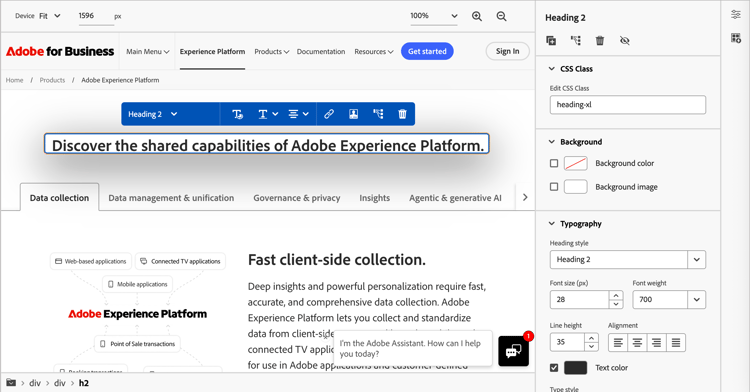
The toolbar options depend on the selected component type:
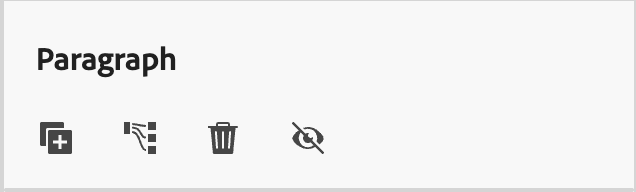
For a selected element, the properties in the right panel change to reflect the available styling and actions. Click an action icon at the top of the panel to duplicate, click-track, delete, or hide the selected element.
-
Select a text element on the page.
-
Enter new text content, or select a text string and enter your replacement text.
-
(Optional) Use the text formatting options, such as bold, italic, and alignment.
-
Click outside the text element to apply the change.
For more information about text styling options for text components, see Content components.
-
Select an image element on the page.
-
Click the Choose image icon in the contextual toolbar or the right panel.
-
Browse and select an image from your assets library.
-
Use the image styling options in the right panel as needed.
-
Select a button element on the page.
-
(Optional) Enter new text for the button, or select the text string and enter your replacement text.
You can use personalization to alter the button text using data from account or person profiles.
-
Use the button styling options in the right panel as needed.
-
Select a container element on the page.
-
Use the container styling options in the right panel as needed.
Insert new components
When you select the + icon in the design left navigation for the visual editor, you can add the following component types to the page as a web experience modification:
- Divider - Use this component to insert a dividing line to organize the layout and content of your email. You can adjust styling attributes such as the line color, style, and height from the properties in the right panel. See Divider in Content components for more information.
- HTML - Use this component to copy-paste HTML code in the existing structure. It enables you to create free modular HTML components to reuse some external content. See HTML in Content components for more information.
- Image - Use this component to insert an image file into the page. You can adjust styling attributes such as the width and height from the properties in the right panel. See Image in Content components for more information.
- Heading - Use this component to insert heading class text. You can adjust styling attributes such as the text color, style, font, and size from the properties in the right panel. See Text in Content components for more information.
- Paragraph - Use this component to insert a standard text element. You can adjust styling attributes such as the text color, style, font, and size from the properties in the right panel. See Text in Content components for more information.
- Link - Use this component to insert a freestanding text link to a specified URL. You can adjust styling attributes from the properties in the right panel.
Select a component type on the left and then hover over an element that is adjacent to where you want to add it.
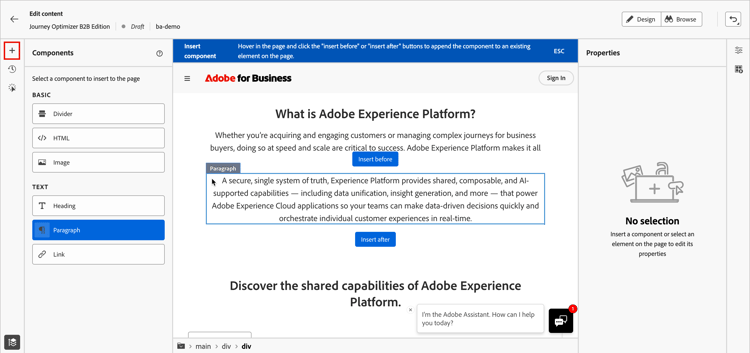
Click one of the displayed buttons to place the component:
- Insert before - Insert the component before the selected element.
- Insert after - Insert the component after the selected element.
To unselect a component type for insertion, click ESC in the contextual blue banner displayed at the top of the page.
Non-visual editor non-visual-editor
Use the non-visual editor when you need to make modifications that cannot be easily accomplished in the visual editor. This code-based approach gives you precise control over element targeting and modification. Complete the following steps to use the non-visual editor for designing your web experience:
-
With the Content tab displayed in the web experience details page, click Add modification in the right panel.
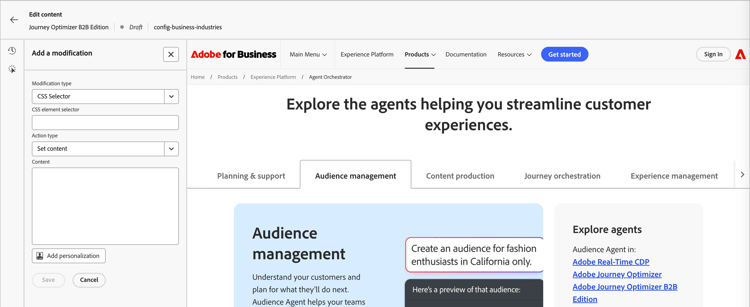
The non-visual editor loads a page based on the web channel configuration.
-
Define the first modification that you want to make.
The left side panel displays a list of existing modifications (if any). Click Add to define a new modification. If there are no modifications defined, the panel defaults to the Add Modification options.
-
Choose the Modification type:
table 0-row-2 1-row-2 2-row-2 Type Description CSS Selector Target elements using a CSS selector string. Page Insert custom HTML, CSS, or JavaScript into page-level elements, such as <head>or<body>. -
Configure the modification parameters according to the type:
- CSS Selector - Enter a valid CSS selector to target specific elements.
- Action type - Choose the action to perform (edit, hide, delete, insert, replace).
- Content - Provide the content or styling to apply.
-
-
Click Save to apply the modification.
CSS selector modifications
CSS selector modifications allow you to target elements precisely using standard CSS selector syntax.
-
Choose CSS Selector as the modification type.
-
Enter the selector in the CSS Element Selector field.
Example selectors:
table 0-row-2 1-row-2 2-row-2 3-row-2 4-row-2 Selector Targets #hero-bannerElement with ID hero-banner.cta-buttonAll elements with class cta-buttonheader nav aLinks within the navigation, inside the header [data-offer="premium"]Elements with a specific data attribute -
Choose an Action Type and specify the required information / content.
-
Set Content - Enter the text in the Content field for the element identified by the CSS Element Selector value.
-
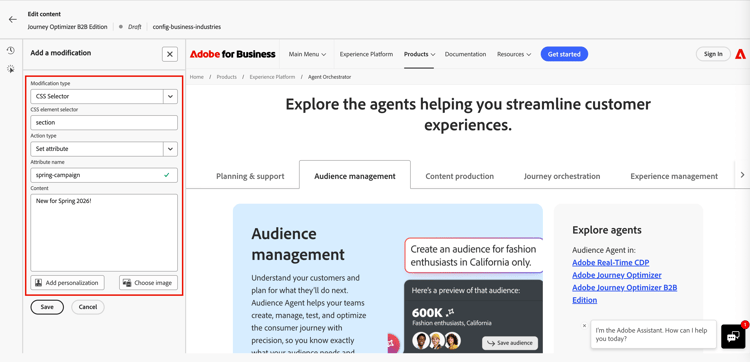
Set Attribute - Specify an attribute to associate with the current CSS selector so that you can identify the element by this attribute. Enter a name in the Attribute name field and a value in the Content field. If the attribute already exists, the value is updated; otherwise, a new attribute is added with the specified name and value.
-
-
(Optional) Click Add personalization and use the personalization editor to create a customized personalization for the content.
Page modifications
You can add custom code using the Page <head> modification type. The <head> element is a container for metadata (data about data) and is placed between the <html> tag and the <body> tag. In this case, code does not wait for body or page-load events - it is executed at the beginning of the page load.
The <head> element is commonly used to add JavaScript or CSS code to the top of the page. Selectors for subsequent visual actions depend on the HTML elements added in this tab.
-
Choose Page
<head>as the modification type. -
Add your custom code in the Content box.
note caution CAUTION You can only add <script>and<style>elements to the<head>section. Adding<div>tags and other elements might cause remaining<head>elements to populate within the<body>.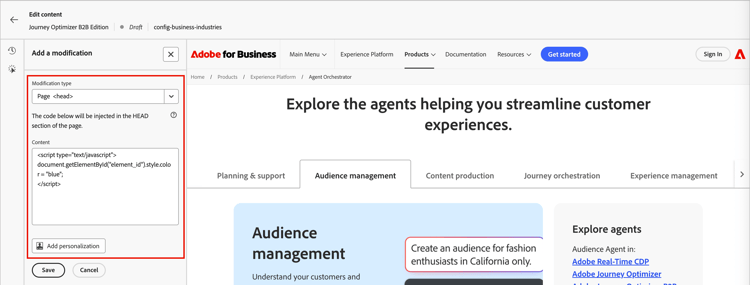
-
(Optional) Click Add personalization and use the personalization editor to create a customized personalization for the content.
Manage modifications manage-modifications
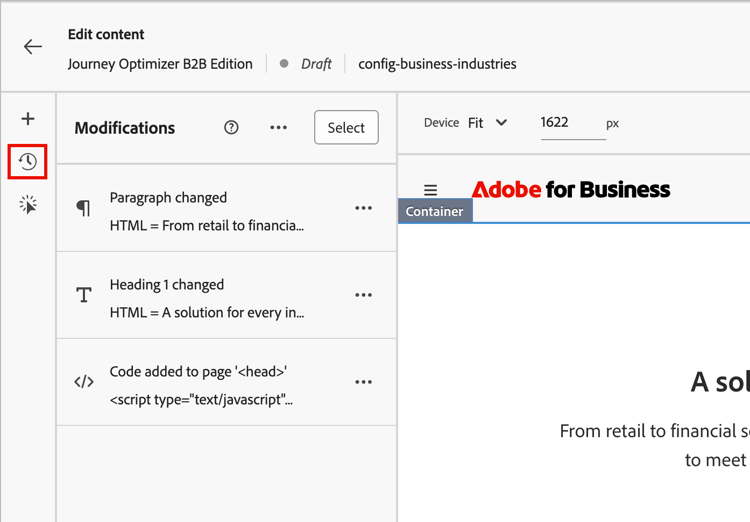
All modifications that you create are tracked and can be managed from the Modifications panel of both the visual editor and non-visual editor. Click the Modifications icon in the left toolbar to view all modifications.
Each modification record includes:
- The target element or selector
- The modification type (such as edit, hide, or insert)
- A preview of the change
Edit a modification
-
In the Modifications list, find the modification that you want to edit.
-
Click the More menu ( … ) icon and choose Edit.
-
Update the modification properties as needed.
-
Click Save to save your changes.
Delete a modification
-
In the Modifications list, find the modification that you want to remove.
-
Click the More menu ( … ) icon and choose Delete modification.
-
Confirm the removal when prompted.
Preview your modifications
Before publishing, preview how your modifications appear to visitors.
Use the device preview options at the top of the visual editor to view your modifications on:
- Desktop
- Tablet
- Mobile
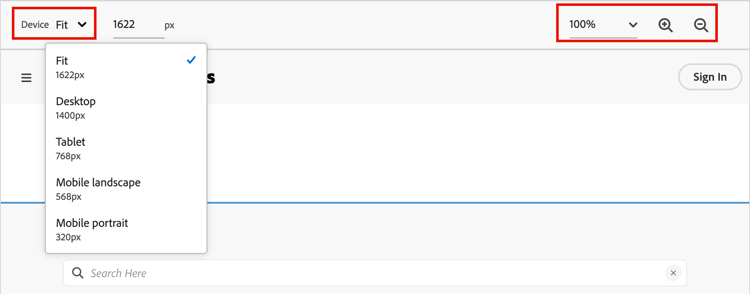
The preview updates to show how modifications render on each device size.
Use the URL bar to navigate to different pages within your web channel configuration. Then, verify that the modifications apply in the correct way to the targeted pages based on your URL matching rules.
Click tracking for web experiences web-click-tracking
Track user interactions with elements to measure engagement and gather insights. The click tracking data is available in your engagement reports and can be used to measure the effectiveness of your web experience modifications.
When your web experience is activated (live), you can also build reports using the Adobe Customer Journey Analytics (which requires a product subscription). To improve your web experience monitoring, you can also track the clicks on any specific element of your website. Tracking allows you to display the number of clicks for that element in the web reports.
For more information about Customer Journey Analytics and building web reports, see the Customer Journey Analytics documentation.
-
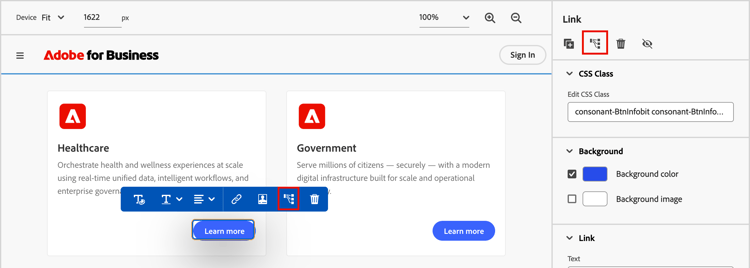
Select an element in the web experience editor, such as an image or link.
-
In the element properties or contextual toolbar, click the Click track element icon.
-
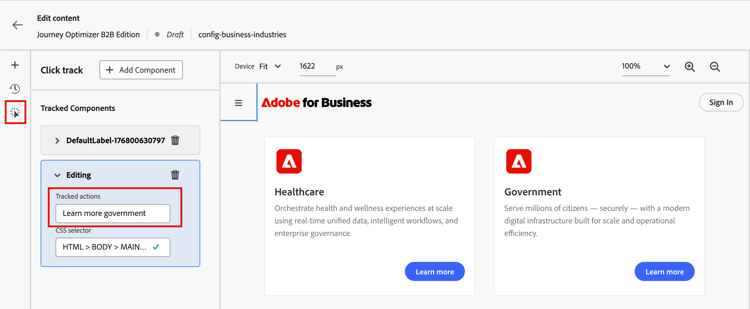
Open the Click track list in the left panel and modify the Tracked actions value to identify this interaction in your reports.