Content personalization add-personalization
Adobe Journey Optimizer B2B Edition personalization capabilities allow you to adapt your email messages to each specific recipient by leveraging the data and information you have about them. It can be their first name, industry, title, and more.
Using the personalization editor, you can select, arrange, customize, and validate all the data to create a customized personalization for your content. Use various tools, such as helper functions, to tailor messages. The editor uses an inline personalization syntax based on Handlebars, where expressions are constructed with contents enclosed by double curly braces {{}}.
When processing the message, Journey Optimizer B2B Edition replaces the expression with the data contained in the Adobe Experience Platform dataset and local system values. For example, Hello {{profile.person.name.firstName}} {{profile.person.name.lastName}} dynamically becomes Hello John Doe.
Using this syntax, you can personalize messages across multiple fields, including email subject lines, message bodies, and sender information.
Personalization tokens
In Journey Optimizer B2B Edition, you can build your dynamic email content using personalization tokens:
-
Account tokens - These tokens are based on the account attributes, such as account name, industry, and number of employees. Use these tokens to populate attribute data managed by the XDM Business Account Details schema, which is defined in Adobe Experience Platform.
-
Person tokens - These tokens are based on the business person attributes, such as first name, job title, and company name. Use these tokens to populate attribute data managed by the XDM Business Person Details schema, which is defined in Adobe Experience Platform.
-
System tokens - These tokens are based on the system field values, such as date, time, and unsubscribe link.
-
My tokens (when defined for the journey) - The custom tokens defined for the journey where the email resides.
Personalization editor
The personalization editor is available in every context where you need to define personalization in email content. In the editor, you can select, arrange, customize, and validate all the data to create a customized personalization for your content.
Add personalization in any field or content component by clicking the Add personalization (

Tokens and helper functions
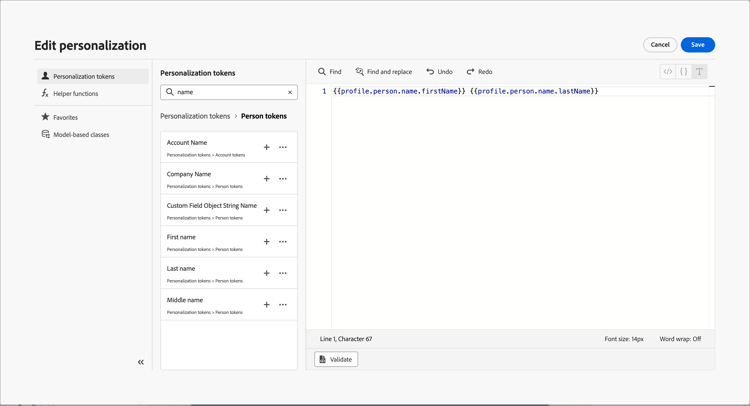
To use a personalization token or helper function, locate it in the left navigation pane and click + to add it to the expression.
Click the More menu ( … ) icon (next to the Add ( + ) icon) to view more details for each attribute and to add your most frequently used attributes to the favorites. Attributes added to favorites are accessible from the Favorites menu in the left navigation of the editor.
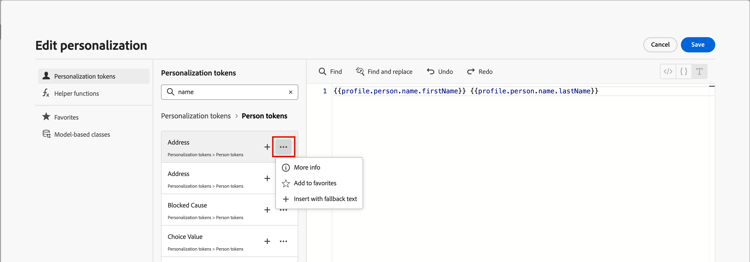
You can also define a default fallback text string that is displayed if a string-type profile attribute is empty. Click the More menu ( … ) icon for the attribute and select Insert with fallback text. Enter the text that should be displayed when the attribute’s value is empty for a profile, and then click Add.
It is a best practice to validate the expression before you insert it into the content. Click Validate at the bottom of the editor to check your syntax and ensure that there are no errors.
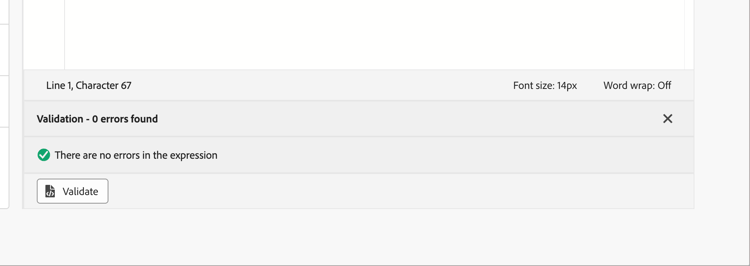
When the expression is complete and free of errors, click Save.
Custom datasets
[Beta]{class="badge informative" title="Beta feature"}
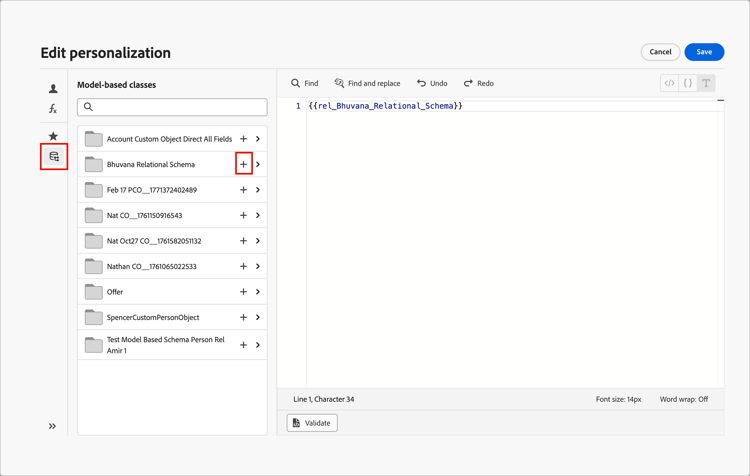
You can use relational schemas for email personalization. The custom objects are defined within relational schemas, and a product administrator can configure relational schema fields in Journey Optimizer B2B Edition. These fields are accessible in the personalization editor. Only custom objects that have a one-to-many (1:M) relationship to People or Account are available.
When you define personalization using custom objects, you can access all variables in script-accessible objects across the Personalization tokens (person/lead, account, system, and My Tokens) and the Custom objects (relational schemas). With custom objects selected, you can view the fields by clicking the custom object folder. Click + for each field that you want to add to the expression.