[Limited Availability]{class="badge informative"}
Web experiences
The web channel in Adobe Journey Optimizer B2B Edition allows you to create personalized experiences directly on your website, helping you connect with customers in meaningful ways. This feature offers a flexible set of tools that you can use to enhance engagement with tailored content and seamlessly integrate it with other channels, such as email and SMS.
Web experiences enable you to:
- Deliver personalized content modifications to targeted website visitors
- Customize website elements like banners, text, images, and buttons with account attributes
- Target specific pages or apply changes across multiple pages using URL matching rules
- Track engagement and monitor the impact of your web personalization efforts
Prerequisites
Before you can create web experiences, ensure that the following requirements are met:
-
A product administrator has configured one or more web channels to define the URLs (pages) to be included for a web experience. For more information, see Web channel configurations.
-
Your website has the Adobe Experience Platform Web SDK (
alloy.js) implemented for visitor identification and content delivery. Make sure that the Adobe Experience Platform Web SDK version is 2.16 or above. -
You have the necessary permissions to create and manage web experiences in a journey:
- Author B2B Web Experiences
- Manage B2B Person Journeys
- Manage B2B Account Journeys
-
You have the Adobe Experience Cloud Visual Editing Helper browser extension installed for your web browser. This extension is required to open, author, and preview your web pages reliably in the Journey Optimizer B2B Edition content design space.
note NOTE Google Chrome and Microsoft Edge are currently the only browsers that support authoring web pages in Journey Optimizer B2B Edition.
Install the Visual Editing Helper extension
-
Open a new tab in your browser (Google Chrome or Microsoft Edge).
-
Go to the Google Chrome Web Store.
If you are using Microsoft Edge, select Allow extensions from other stores on the top banner. Enabling this option allows you to add extensions from the Chrome Web Store to Microsoft Edge.
-
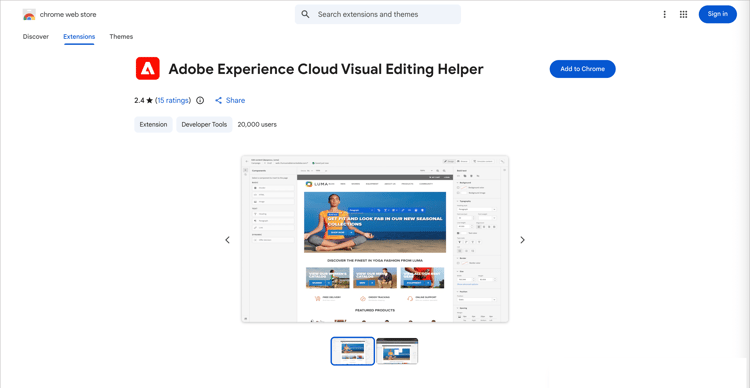
Search and navigate to the Adobe Experience Cloud Visual Editing Helper browser extension.
-
Click Add to Chrome, and then click Add Extension in the confirmation dialog.
If you are using Microsoft Edge, this action adds the extension to Edge.
-
Make sure that the Visual Editing Helper browser extension is correctly enabled in your browser toolbar.
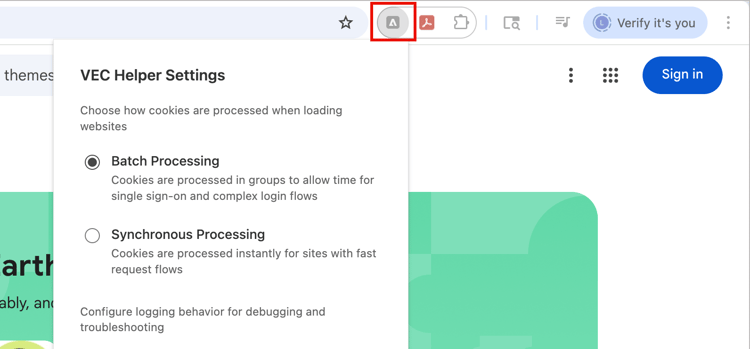
The Adobe Experience Cloud Visual Editing Helper is now automatically enabled when a website is opened in the Journey Optimizer B2B Edition visual editor for web experiences. The extension does not have any conditional settings and handles all the settings automatically, including SameSite cookies settings.
- The website has strict security policies.
- The website is in an iframe.
- The customer QA or stage site is not available externally (the site is internal).
Create a web experience
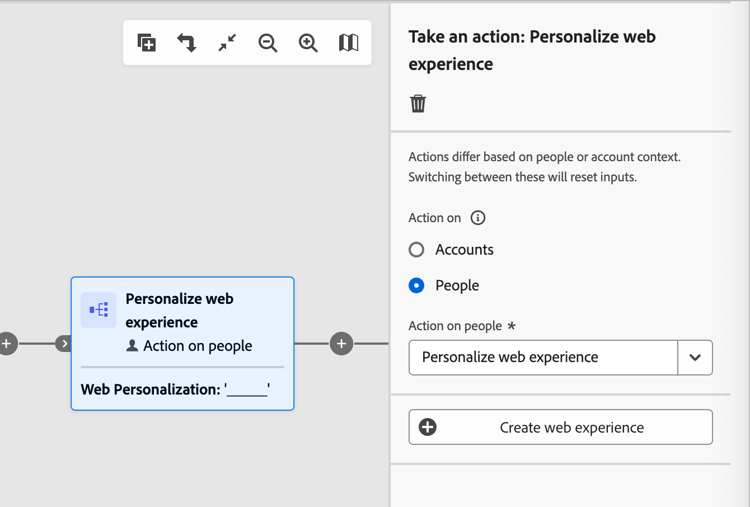
You can set up web experiences in a journey when you add a Take an action node and do the following:
-
For the Action on target, choose People.
-
For the Action on people, choose Personalize web experience.
-
Click Create web experience.
-
In the Create web experience dialog, enter a useful Name and Description (optional).
-
Name - Maximum of 100 characters, must be unique, case-insensitive
-
Description - Maximum of 300 characters
note NOTE Name and description fields support alpha, numeric, and special characters. Reserved characters ( \ / : * ? " < > |) are not allowed.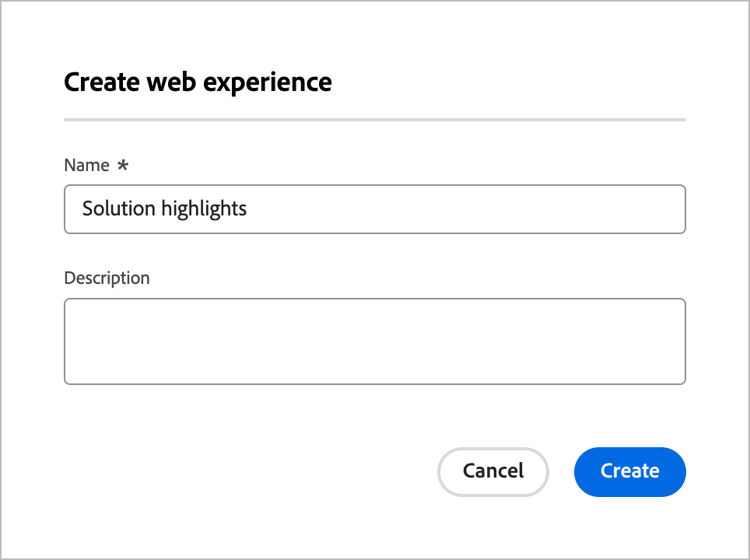
-
-
In the Properties tab, enter the description for the web experience.
-
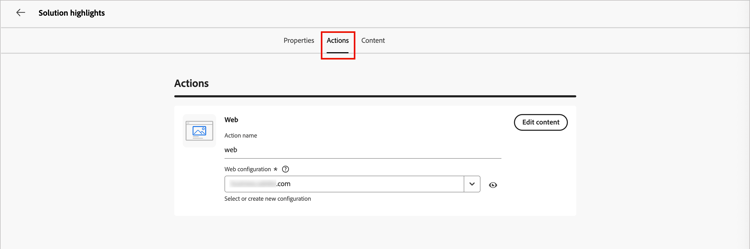
Click the Actions tab and select the Web channel to use for the web experience.
The web channel configuration determines where the content modifications are applied based on the configured page matching rules. See Web channel configurations for more information.
-
To define the web modifications, click Edit content.
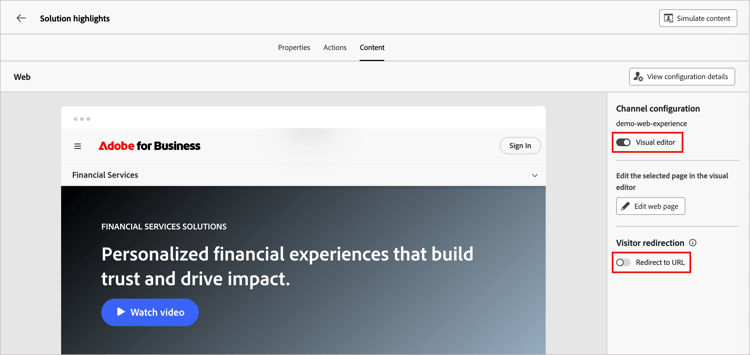
The editor opens in the Content tab, where you can define the modifications for your web experience. See Web experience design for detailed information about using the design tools to add the web experience content modifications.
-
In the right panel, set the web experience properties according to how you want to define and manage it.
- Visual editor - Toggle between the visual and non-visual editor for the web experience modification design.
- Visitor redirection - Enable this option to redirect visitors to another existing URL rather than authoring a new variation in the content tab.
-
Click Edit web page to design your web modifications.
-
When the modifications are complete, click the left arrow above the editor to return to the content tab and personalized web experience node properties.
Click the left arrow at the top to return to the journey canvas.
Edit a web experience
-
Open the journey and select the Personalize web experience action node.
-
To make changes to the web channel configuration or content, click Edit web experience.
-
Select the Actions tab and change the web configuration as needed.
-
Select the Content tab and use the visual design tools as needed.
- Visual editor - Click Edit Content.
- Non-visual editor - Click Add a modification.
See Web experience design for detailed information.
-
When the modification definitions are complete, click the left arrow above the editor to return to the content tab and web experience properties.
Click the left arrow at the top to return to the journey canvas.
Redirect to URL
When creating a web experience, you can redirect visitors to another existing URL rather than authoring a new variation in the content editor. This option is useful when you want to run a content experiment comparing two different experiences instead of changing a few elements within a page.
For example, create a web campaign with two treatments:
In Treatment A, author a web experience using the content editor for half of your targeted population.
In Treatment B, select the Redirect to URL option for the other half of the targeted population. Enter the URL of a page with an alternate design that you authored outside of Journey Optimizer B2B Edition.
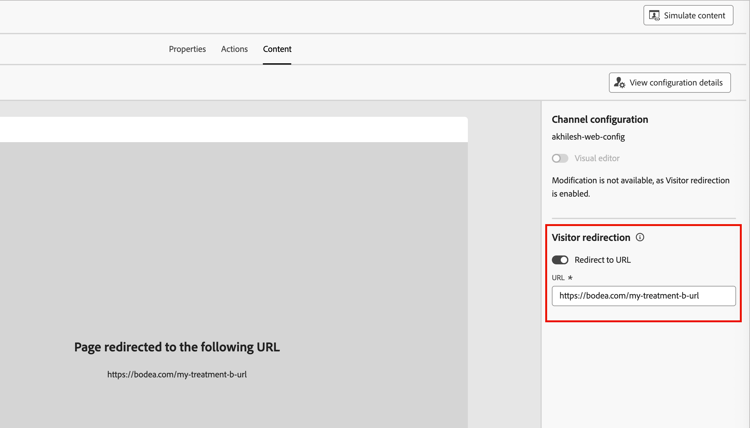
When your web campaign is live, you can track how the web experience that you defined in Journey Optimizer B2B Edition is performing against web experiences that use a redirection to the alternative page.
Test the web experience
After the content design is complete for the web experience, you can use the Simulate content feature to preview your web page modifications. If you inserted personalized content, you can use test profile data to check how the content is rendered. The simulation tools are available from the Content tab for the web experience, or the content visual design editor.
-
Click Simulate content at the top right.
-
Select a test profile.
-
To check your web page using the test profile data, add a test profile.
Activate your web experience
Your web experience is activated and made visible to the audience when you publish the journey. Before you activate a web experience through a journey, consider the following:
-
If you publish a journey with a web experience that impacts the same pages as another journey that is already live, all the changes are applied to the web pages.
-
If multiple journeys update the same elements of your website, the most recently applied change takes precedence.
Delivery requirements
To enable web experience delivery, the following settings must be defined:
-
In the Adobe Experience Platform Data Collection, make sure that you have a datastream defined. Ensure the Adobe Journey Optimizer B2B Edition option is enabled under the Adobe Experience Platform service.
This configuration ensures that the Adobe Experience Platform Edge can handle the inbound events correctly. Learn more
-
In Adobe Experience Platform, make sure that you have one merge policy with the Active-On-Edge Merge Policy option enabled.
Select a policy under the Customer > Profiles > Merge Policies menu in Experience Platform. Learn more
Journey Optimizer B2B Edition inbound channels use this merge policy to activate and publish inbound web experiences correctly on the edge. Learn more
Troubleshooting
You can use the Edge Delivery view within Adobe Experience Platform Assurance to troubleshoot the delivery of Journey Optimizer B2B Edition Web experiences. This plugin enables you to inspect request calls in detail, verify the expected edge calls, and examine profile data. This profile data includes identity maps, segment memberships, and consent settings. You can also review the qualified and unqualified activities for the request.
For more information about the Edge Delivery view in Assurance, see the Experience Platform documentation.