[Limited Availability]{class="badge informative"}
Web channel configurations
A web configuration is a web property identified by a URL where the content is delivered. It can match a single page URL or multiple pages so that web experiences can deliver modifications across one or several web pages. These configurations are required for marketers to add web personalization action nodes in journeys and to design the experience modifications for a campaign.
Prerequisites
To use web channels, your website must have the Adobe Experience Platform Web SDK (alloy.js) implemented for visitor identification and content delivery. Make sure that the Adobe Experience Platform Web SDK version is 2.16 or above.
Web channel configuration in Journey Optimizer B2B Edition requires the following permission:
- Manage B2B Channels Configurations
Create a web channel configuration
-
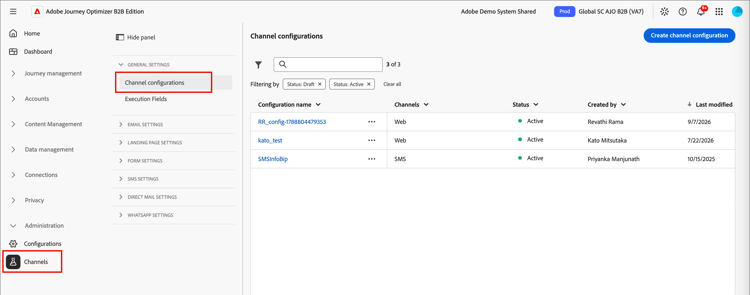
In the left navigation, go to Administration > Channels.
-
Under General Settings in the navigation panel, select Channel configurations.
-
Click Create channel configuration at the top right.
-
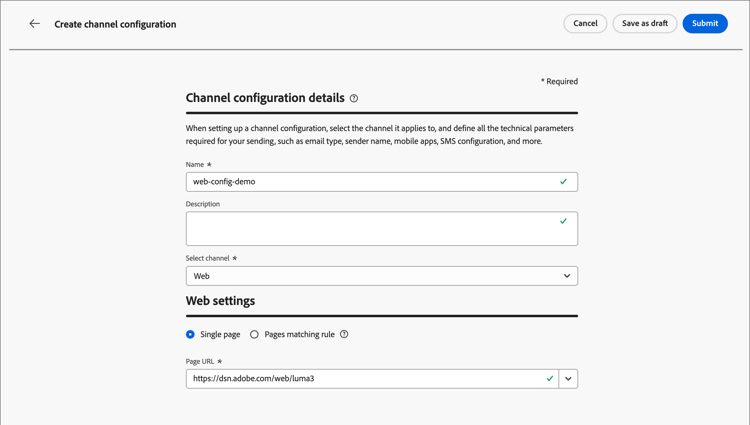
Enter a Name (required) and a Description (optional) for the configuration.
note NOTE Names must begin with a letter (A-Z) and can only contain alphanumeric characters. You can also use underscore _, dot., and hyphen-characters. -
In the Web settings section, select one of the following options:
-
Single page - If you want to apply the changes to a single page only, enter or select a Page URL.
-
Pages matching rule - To target multiple URLs matching the same rule, build a pages matching rule and enter a Default authoring and preview URL.
-
-
Click Submit to save your changes.
After you save the configuration, it is in a Draft status and is available to marketers when they use a web channel in their journeys. You can continue to edit the configuration as long as it remains in draft state. You can also delete a draft web channel configuration by clicking the More icon (…) next to the name and choosing Delete.
As soon as the web channel is used in a journey, it moves to an Active status. In this state, you can edit the name and description for the configuration. You cannot change the web settings or delete the configuration.
Pages matching rules pages-matching-rule
When creating a web configuration, you can build a Pages matching rule to target multiple URLs that match the same rule. These rules allow you to apply the same content changes across multiple pages.
For example, apply changes to a hero banner across an entire website, or add a top image that is displayed on all product pages.
Build a rule
-
When you create a web channel configuration, choose Page matching rule.
-
Define your criteria for the Domain and Page fields using the different operators in each section to build the rule.
accordion Domain operators Use the following operators for matching domains according to the string value that you enter:
table 0-row-3 1-row-3 2-row-3 3-row-3 4-row-3 5-row-3 Operator Description Examples Equals Exact match of the domain. Starts with Matches all domains (including subdomains) that start with the string entered. Starts with: devmatches all domains and subdomains that start withdev, such asdev.example.com,dev.products.example.com, anddeveloper.example.comEnds with Matches all domains (including subdomains) that end with the string entered. Ends with: example.commatches all domains and subdomains that end withexample.com, such asstage.example.com,prod.example.com, andmyexample.comWildcard matching Allows you to define a wildcard match in the middle of the string, such as dev.*.example.com. The validation rules require that the value contains one and only one wildcard (asterisk) when the operator is wildcard matching.Wildcard matching: dev.*.example.commatches domains such asdev.products.example.com,dev.mytest.products.example.com, anddev.blog.example.comAny Matches all domains. It is useful when testing a particular path across domains. accordion Path operators Use the following operators for matching paths according to the string value that you enter:
table 0-row-3 1-row-3 2-row-3 3-row-3 4-row-3 5-row-3 6-row-3 Operator Description Examples Equals Exact match of the path. Starts with Matches all paths (including subpaths) that start with the string. Ends with Matches all paths (including subpaths) that end with the string. Any Matches all paths. It is useful when targeting all paths under one or multiple domains. Wildcard matching Allows you to define an internal wildcard inside the path, such as /products/*/detail. The wildcard character*in the path component matches any sequence of characters until the first/character. And/*/matches any sequence of characters (including subpaths).Wildcard matching: /products/*/detailmatches paths such asexample.com/products/yoga/detail,example.com/products/surf/detail,example.com/products/tennis/detail, andexample.com/products/yoga/pants/detailContains The value is translated to a wildcard, such as *mystring*, and matches all paths that contain the sequence of characters.Contains: productmatches all paths that contain the stringproduct, such asexample.com/products,example.com/yoga/perfproduct,example.com/surf/productdescription, andexample.com/home/product/pageFor example, to support content changes on all the LumaSecure solution pages of your Bodea website, select Domain > Starts with >
bodeaand Page > Contains >lumasecure.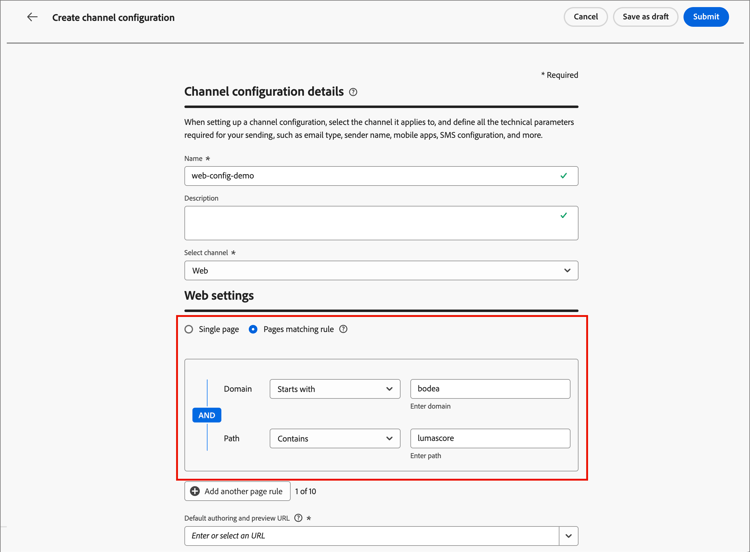
-
If your use case requires multiple rules, click Add another page rule and repeat the previous step.
-
You can define up to 10 rules.
-
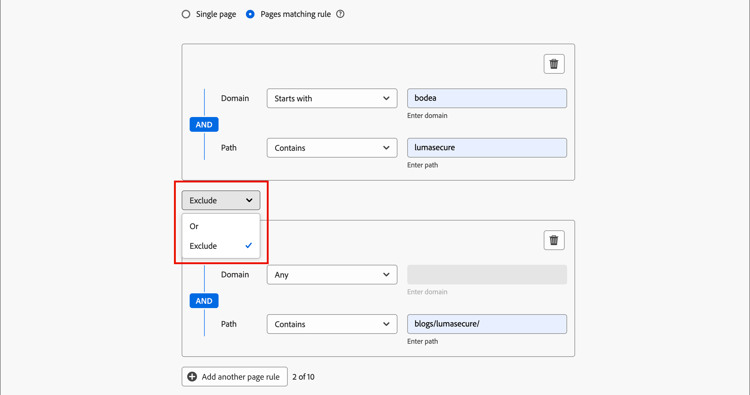
Use the Or or Exclude operators between the different rules.
Or The Or operator is the default operator for defining multiple rules and is useful for adding multiple criteria definitions that can be matched.
Exclude The Exclude operator is useful when one of the pages that match the defined rule should not be targeted. For example, you can target all
bodea.compages that containlumasecure, but exclude blog pages (such asbodea.com/blogs/lumasecure/latest-release).
-
-
Enter the Default authoring and preview URL.
This step ensures that the pages generated or matched by the rule have a designated URL for both web experience content design and preview purposes.
Duplicate a web channel
You can duplicate an existing web channel configuration and change it to create a new web channel based on an existing one. An active web channel configuration saved to the library cannot be modified.
-
Click the More menu icon (…) for the variant and choose Duplicate.
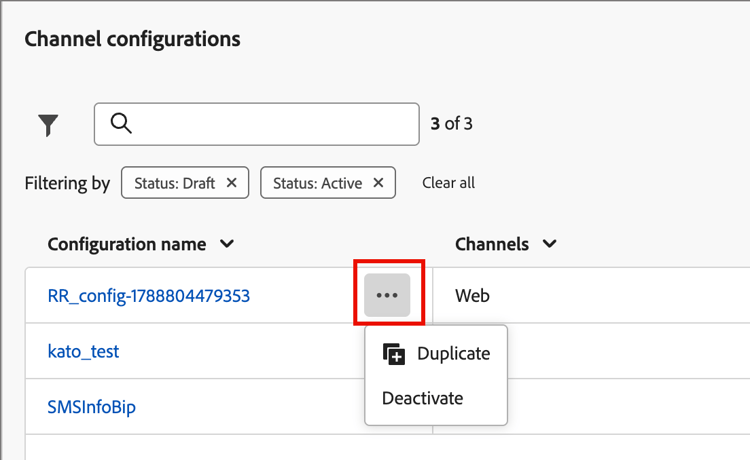
This action creates a duplicated web channel with
_Copy_nnnappended to the name. -
Click the name of the duplicated web channel to edit the parameters.
- To match the purpose or items in the rule, change the name and description.
- If needed, change the single page URL.
- If needed, change the pages matching rule according to your requirements.
-
When the configuration is complete, click Submit.