AI Assistant for landing page content generative-full-content
AI Assistant for landing page content in Adobe Journey Optimizer B2B Edition uses Adobe’s AI-powered content generation capabilities and revolutionizes the way marketers create professional and brand-consistent landing page content. With advanced generative AI models and deep understanding of brand guidelines, AI Assistant auto-generates personalized, engaging, and effective content. It uses your marketing objective and optimizes the content for brand outlined styles, layouts, tone, and more. AI Assistant makes campaign and program creation and execution more intuitive, simple, and efficient. Adding this capability to your workflows can save you time, improve efficiency, and drive better results.
You can generate complete content experiences for your landing pages, including both text and images. This robust functionality helps you create compelling, on-brand content that connects with your audience.
Guidelines and limitations
Before you start using this capability, review the guidelines and limitations. User agreement acceptance is also required before you can use AI capabilities in Journey Optimizer B2B Edition. For more information, contact your Adobe representative.
To promote transparency in generative AI, Adobe applies content credentials to Firefly-generated assets upon download or export.
The following limitations and guidelines apply to AI Assistant features used for landing page content generation in Journey Optimizer B2B Edition:
- English is the only supported language.
- Generated content might not be accurate — share your feedback so that Adobe engineers can refine the models.
- You can upload multiple content reference assets, but can leverage only one for a specific generation.
- Use a brand specific or custom template for generating content for a full landing page. Landing page templates with up to 8-10 images are recommended.
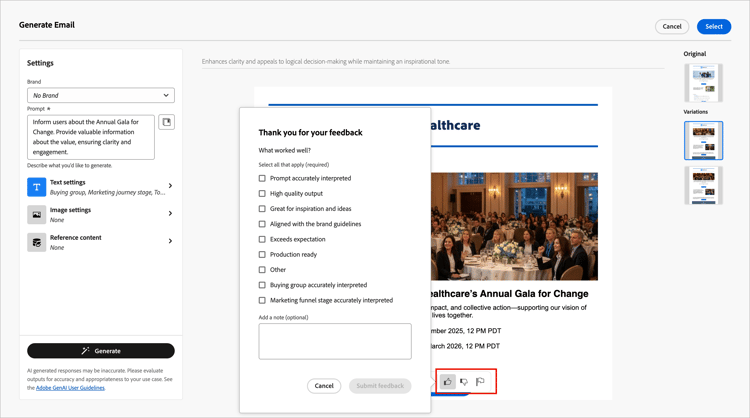
- Make sure to report any problematic outputs using the thumb up, thumb down, or flag icons when selecting generated variants.
Input and settings for content generation
You can generate full content for a landing page, or for selected components in the page. When using AI Assistant, provide input, prompts, reference content, and settings for text and images.
Prompts
Use well-defined prompts for the generative AI model to interpret with accuracy. The marketing objective/prompt you provide impacts the quality of the generated content.
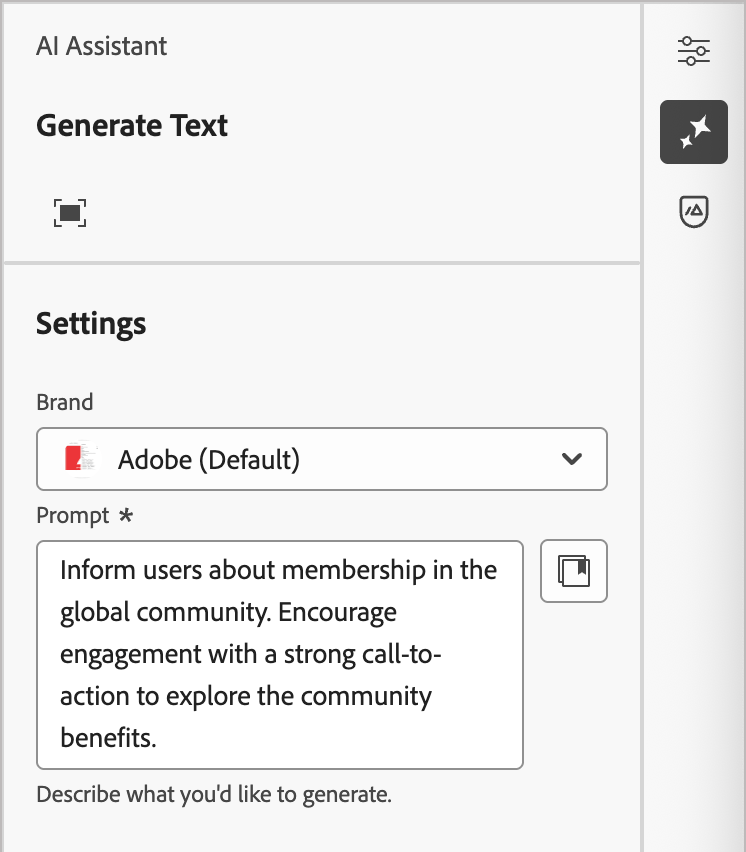
For more information about creating effective prompts, see Prompt best practices.
Prompt Library
An effective prompt is essential for generating the best possible content. If you want assistance with crafting your prompt, click the Prompt library

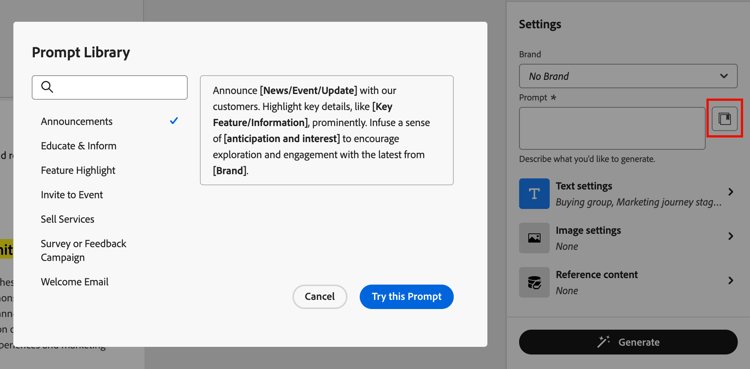
Select the prompt that best reflects your intended goals and click Try this Prompt. In the Prompt field, replace placeholders (such as [Key Feature/Information]) with your brand, offering, campaign, and use case details.
Text settings
Expand the Text settings in the right panel and set the options for generated text.
- Buying group - Choose the buying group role to use for targeting your messaging.
- Marketing journey stage - Choose the buying group stage to use for targeting the messaging.
- Communication strategy - Choose the most suitable communication style for your generated text.
- Language - Choose the language of your generated content.
- Tone - The tone that resonates with your audience. For example, you can adjust the message to sound informative, playful, or persuasive.
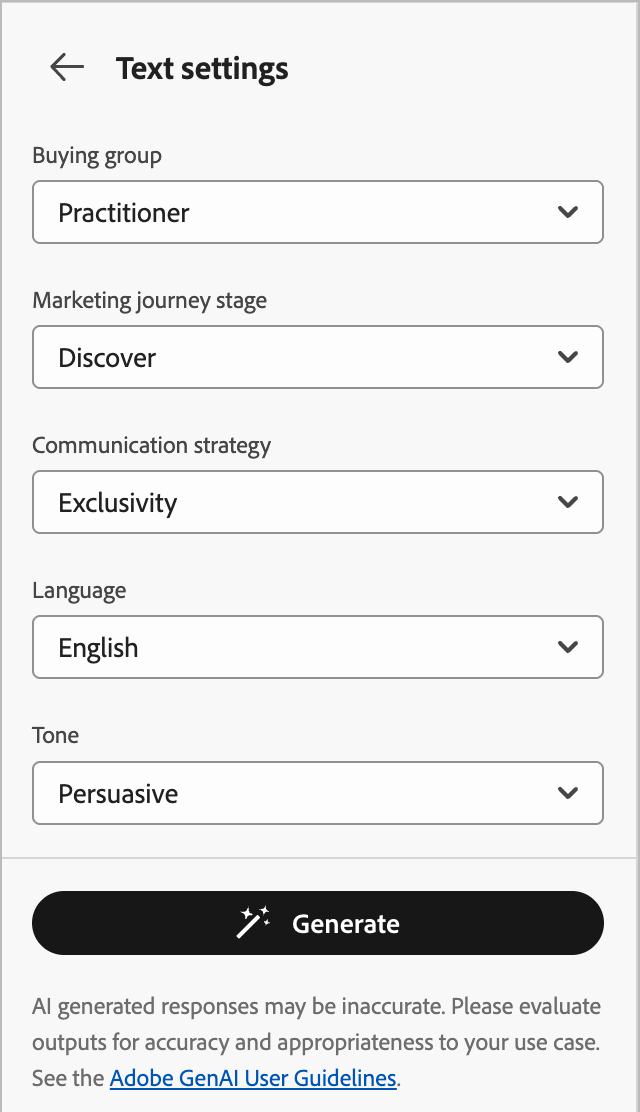
Click the left arrow to return to the main Settings.
Image settings
To include images in your generated content, expand the Image settings in the right panel and set the options.
The system disables the Generate images using AI option by default. Enable this feature and set the following options to include generated images in the proposed content variations:
- Generative model: Select from the ready-to-use Adobe-provided model, the partner model for specialized capabilities, or configured custom models trained on your brand assets. For more information about generative models, see Generative AI models for brand alignment.
- Aspect ratio: When an image component is selected, this setting determines the width and height of the asset. Choose from common ratios like 16:9, 4:3, 3:2, or 1:1, or enter a custom size.
- Content type: The type categorizes the nature of the visual element, distinguishing between different forms of visual representation, such as photos, graphics, or art.
- Visual intensity: Control the image’s impact by adjusting its intensity. A lower setting (such as 2) creates a softer, more restrained appearance, while a higher setting (such as 10) makes the image more vibrant and visually powerful.
- Color and tone: The overall appearance of the colors within an image and the mood or atmosphere it conveys.
- Lighting: The lighting style used for the image, which shapes its atmosphere and highlights specific elements.
- Composition: The arrangement of elements within the frame of an image.
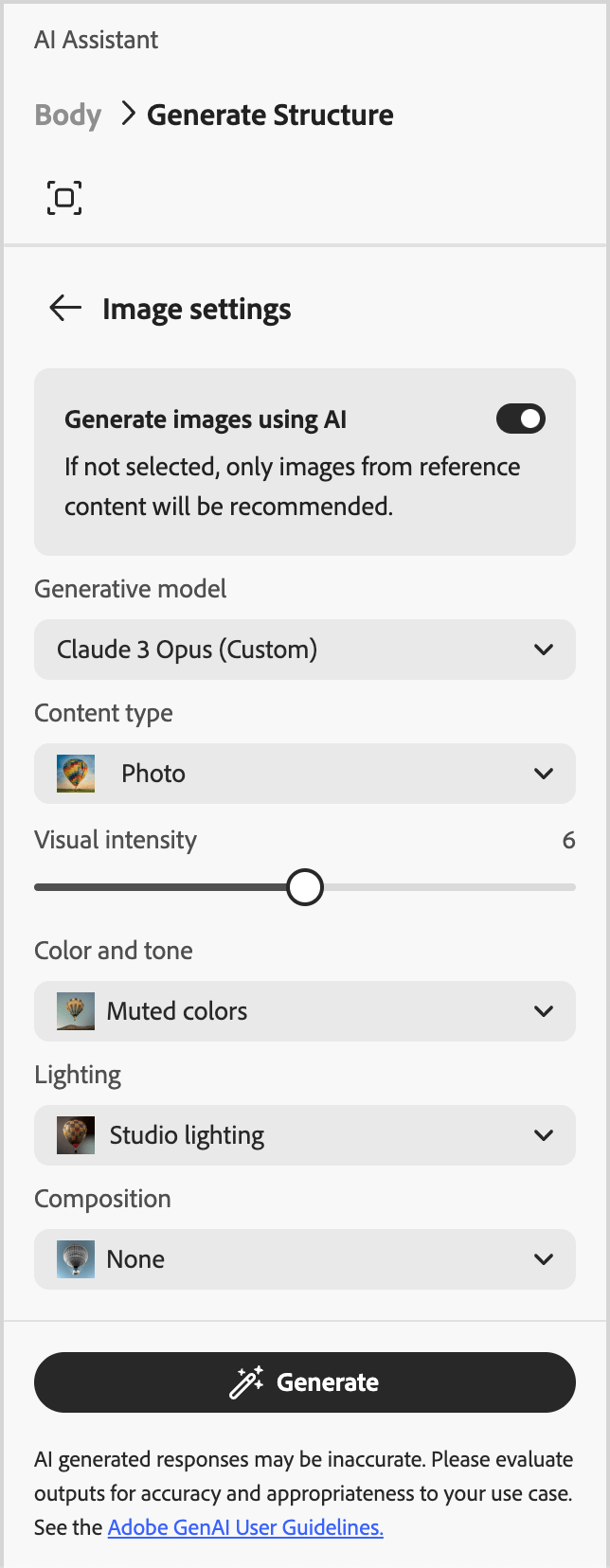
Click the left arrow to return to the main Settings.
Reference content
Upload reference content assets to generate accurate, on-brand content. Otherwise, generated content is based on publicly available information. Reference content serves as the source for content generation and image recommendations. For guidelines and best practices, see Optimized reference content.
From the Reference content settings, click Upload file to add any asset that contains content you want to use for additional context.
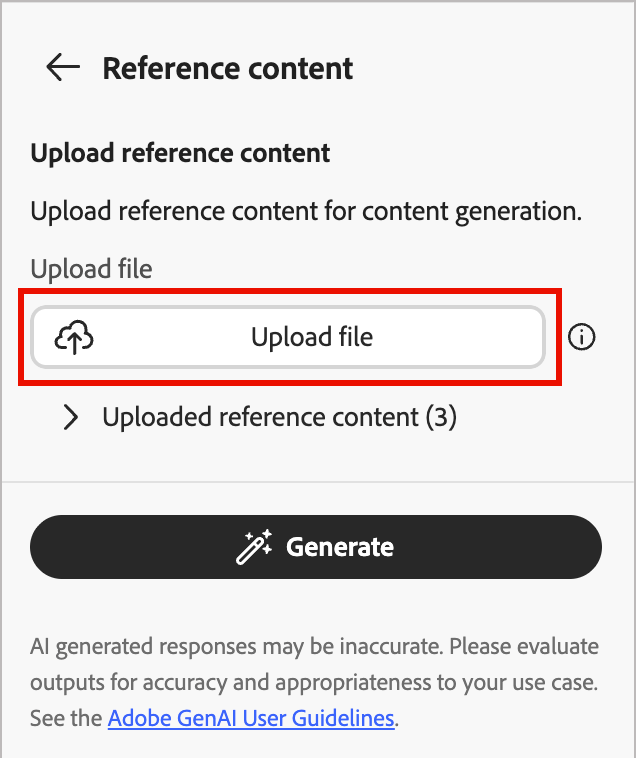
The file to upload can be in the following formats: PDF, JPEG, PNG, or ZIP files (containing supported file formats). The maximum size for an uploaded brand asset is 50MB. Larger files or a large number of images can work, but this increases the processing time.
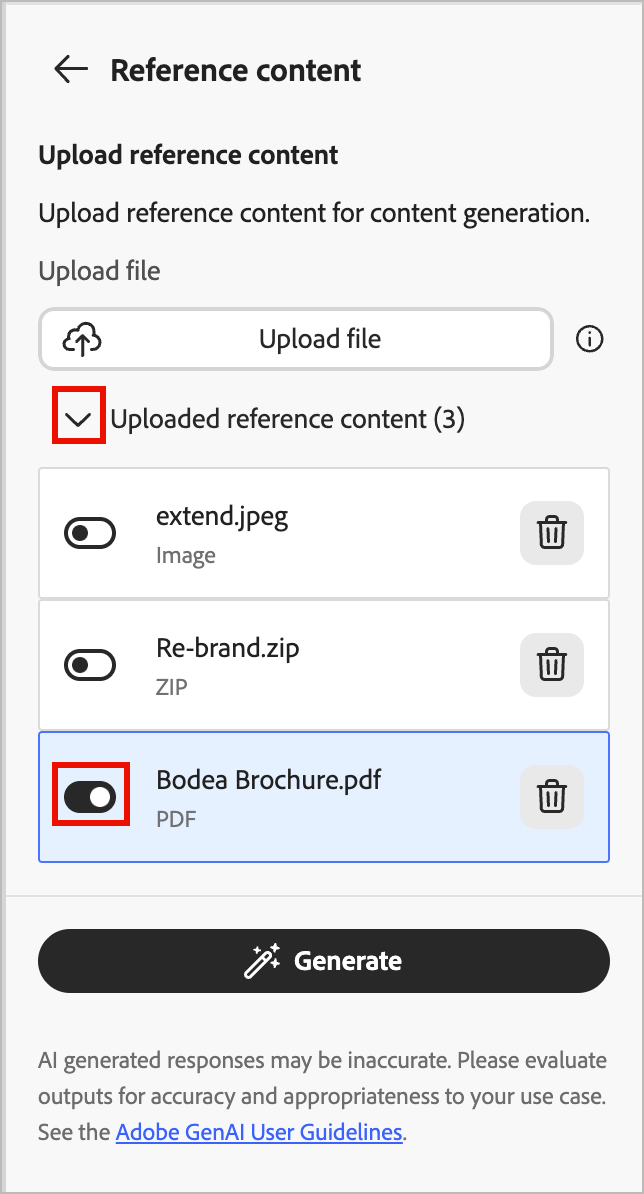
If you want to select a previously uploaded file, expand the Uploaded reference content list and enable the asset that you want to use for your content generation.
Use the generative AI tools gen-ai-tools
To begin generating your content, open the content editor for the landing page and access the generative AI tools on the outer rail of the right panel. Select the AI Assistant (

Use the following steps according to the type of landing page content generation that you want to use:
To generate a full landing page by refining an existing template, follow these steps:
-
After creating the landing page, click Edit landing page.
-
Select a template.
Full content generation requires a template. It can be a standard template provided by Adobe, or a saved template. You can also use the Import HTML option to import a template.
For more information about using a landing page template, see Select a template.
-
On the outer rail of the right panel, select the AI Assistant (
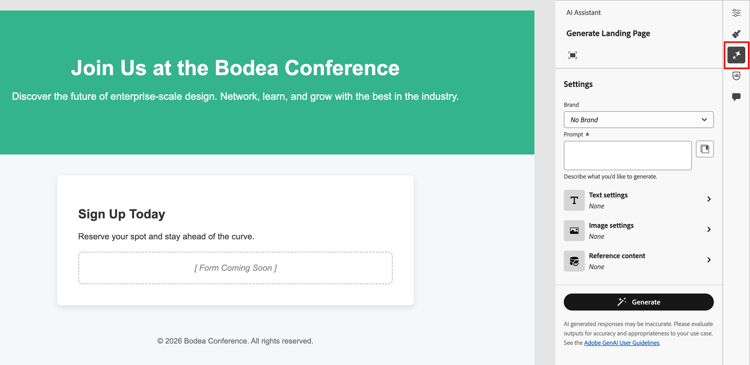
The AI Assistant settings on the right reflect the generation settings for the full landing page.
-
(Beta) Select your Brand to ensure that the AI-generated content aligns with your brand specifications.
If there are no published brands, click Create a brand to define your reusable brand guidelines.
-
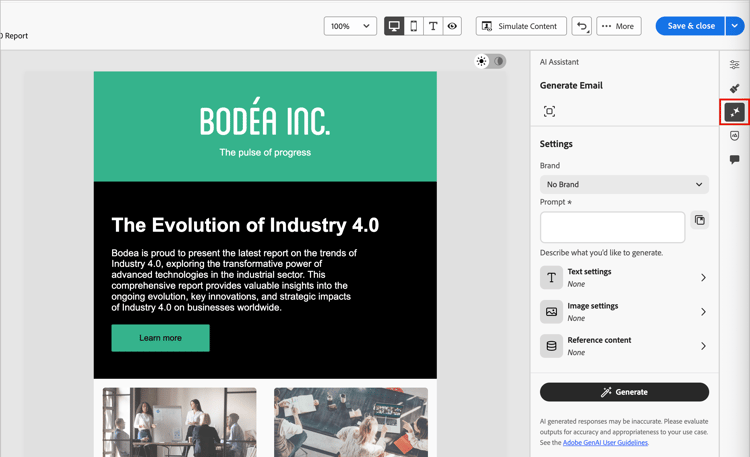
In the Prompt field, enter a description of what you want to generate.
Use the Prompt Library if you need some help with crafting an effective prompt.
note tip TIP If you are new to prompting for generated content, review the Prompting best practices. -
To tailor the generated content, complete the content guidance settings:
- Text settings - Provide guidance for the generated text content.
- Image settings - If you want to include images in the generated content, enable image generation and provide guidance.
- Reference content - Provide the content asset that serves as the source for content generation.
-
When your prompt and settings are ready, click Generate.
-
Scroll down in the AI Assistant panel and browse through the generated variations to determine which one is the most suitable.
-
Click the Full screen (

-
If needed, use the refinement actions to fine-tune the variation to ensure that it meets your exact requirements.
-
Submit feedback for the generated variants by clicking the Thumbs Up, Thumbs Down, or Flag icon and choose the reason that best summarizes your feedback.
-
-
Click Select to replace the template contents with the selected variant and return to the landing page design space.
You can use the editing and formatting tools on the canvas to alter the generated content, as well as the Settings and Style options on the right.
To refine or enhance text content for an existing landing page, follow these steps:
-
In the landing page design space, select a Text component to target the specific content.
-
On the outer rail of the right panel, select the AI Assistant (
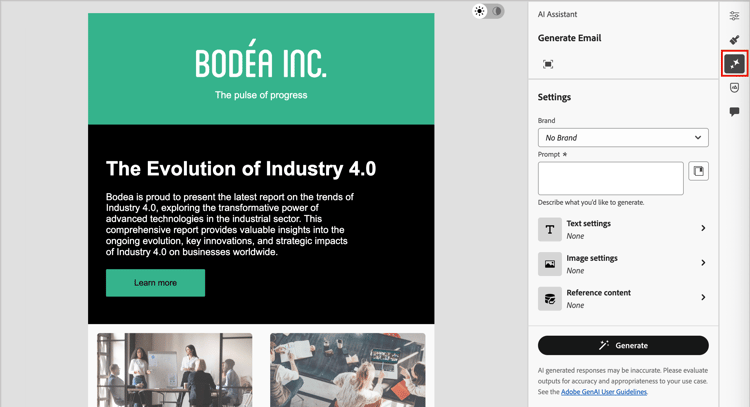
The settings on the right reflect the content generation settings for the text component.
-
(Beta) Select your Brand to ensure that the AI-generated content aligns with your brand specifications.
If there are no published brands, click Create a brand to define your reusable brand guidelines.
-
In the Prompt field, enter a description of what you want to generate.
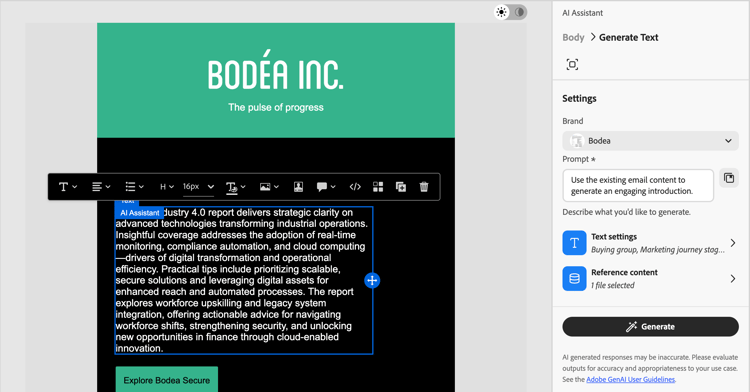
Use the Prompt Library if you need some help with crafting an effective prompt.
-
To tailor the generated content, complete the content guidance settings:
-
Text settings - Provide guidance for the generated text content.
-
Reference content - Provide the content assets that serve as the source for content generation.
-
-
When your prompt and settings are ready, click Generate.
-
Scroll down in the AI Assistant panel and browse through the generated variations to determine which one is the best fit.
-
Click the Full screen (
-
If needed, use the refinement actions to fine-tune the variation to ensure that it meets your exact requirements.
-
Submit feedback for the generated variants by clicking the Thumbs Up, Thumbs Down, or Flag icon and choose the reason that best summarizes your feedback.
-
-
When you have the content that you want, click Select to replace the text with the selected variant and return to the landing page design space.
You can use the editing and formatting tools on the canvas to alter the text, as well as the Settings and Style options on the right.
To refine or enhance image content for an existing landing page, follow these steps:
-
In the landing page design space, select an Image component to target the specific content.
-
On the outer rail of the right panel, select the AI Assistant (
The AI Assistant settings on the right reflect the generation settings for the image component.
-
(Beta) Select your Brand to ensure that the AI-generated content aligns with your brand specifications.
If there are no published brands, click Create a brand to define your reusable brand guidelines.
-
Enter a description of what you want in the Prompt field.
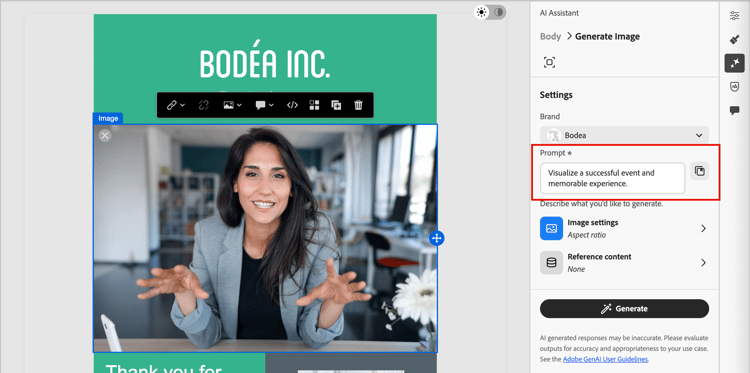
Use the Prompt Library if you need some help with crafting an effective prompt.
-
To tailor the generated content, complete the content guidance settings:
-
Image settings - If you want to include images in the generated content, enable image generation and provide guidance.
-
Reference content - Provide the content assets that serve as the source for content generation.
-
-
When you are satisfied with your prompt and settings, click Generate.
AI Assistant processes the request and generates best suited images based on the prompt and other inputs.
note important IMPORTANT If there are no images in the reference content or there are no images relevant to the input prompt, the output is empty. -
Browse through the generated variations or click the Full screen (
The dialog provides additional space to compare the variations, adjust your image and reference content settings (if needed), and to regenerate the variations.
You can select a variation and click Generate Similar to generate additional images that are similar to the selected variant. Or, click Edit in Adobe Express to make your own changes to the image. See Quick actions in Adobe Express for more information about using Adobe Express to refine your images.
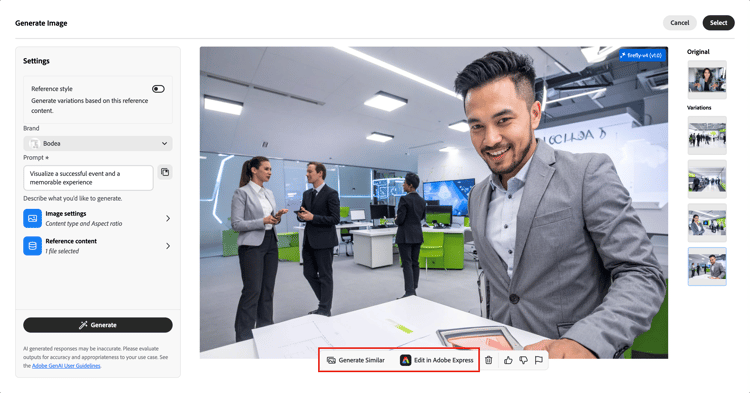
You can also submit feedback for the generated variations.
-
Highlight the image that you want and click Select to replace the image or placeholder with the selected item and return to the landing page design space.
You can use the editing and formatting tools on the canvas to alter the image, as well as the Settings and Style options on the right.
Preview and content refinement refine-finalize
After generating content variations, you can fine-tune the results to ensure that they meet your exact requirements. Review the brand alignment, adjust tone and language, and prepare the content for a reviewable draft. You can also submit feedback for a variation to help train AI Assistant and improve future output.
Open the full screen view
-
After the initial content generation, browse through the Variations.
-
Identify the variation that is the best match for your goals and click the Full screen (
-
When you are satisfied with the selected variation, click Select to apply it to your canvas.
Refine a variation
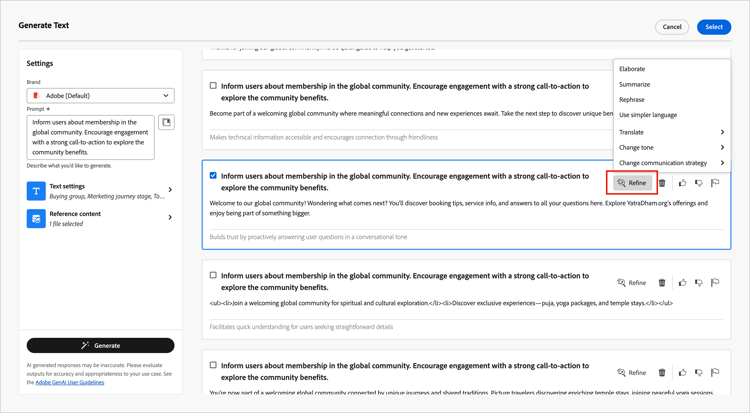
Click the Refine option to access additional customization features for landing page and text variations:
-
Elaborate - AI Assistant can help you expand on specific topics, providing additional details for better understanding and engagement.
-
Summarize - Lengthy information can overload page viewers. Use AI Assistant to condense key points into clear, concise summaries that attract attention and encourage recipients to read further.
-
Rephrase - Rewrite the message while preserving its meaning. This option helps you generate alternative wording, improve flow, or adjust phrasing without changing the core message.
-
Use simpler language - Simplify the language, ensuring clarity and accessibility for a wider audience.
-
Translate - Translate the text to another language. (Currently, English is the only supported language.)
-
Change tone - Adjust the tone of the message to align with your communication style, such as making it more friendly, professional, urgent, or inspirational.
-
Change Communication strategy - Modify the messaging approach based on your objectives, such as creating urgency, or emphasizing exciting appeal.
Submit variation feedback
Provide feedback for the generated variants by clicking the Thumbs Up, Thumbs Down, or Flag icon and choose the reason that best summarizes your feedback.
Check your brand alignment (Beta)
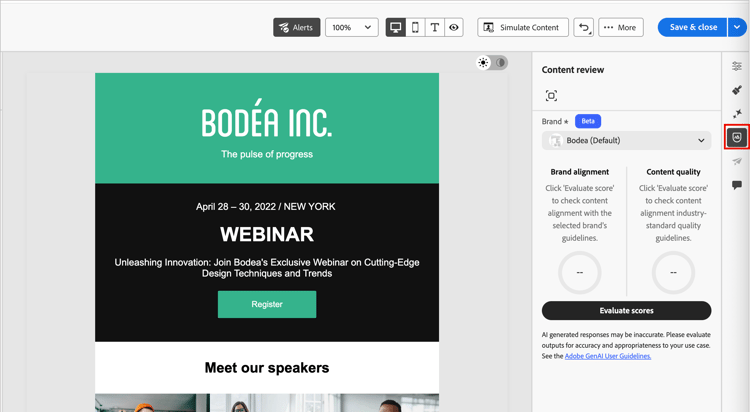
The brand alignment evaluation and scoring help you to ensure consistency in tone, messaging, and visual identity across your campaigns, while also serving as a quality check before your content goes live. When the landing page content is complete, click the Brand alignment (

For detailed information, see Brand alignment score