Create and publish landing pages
As a marketer, you can define and publish pages that you want to incorporate into your account and person journeys. When you add a new landing page, you configure the primary page and any subpages, design the content, test it, and publish it.

Landing page prerequisites landing-page-prerequisites
Before marketers can create landing pages to support their journeys and campaigns, the following configurations and assets must be in place:
- Landing page subdomain - Set up a subdomain dedicated to hosting your landing pages.
- Landing page preset - A preset defines the subdomain and other settings applied to your landing pages.
- Form (for data capture use cases) - Required when you want to embed a form on a landing page and submit data to Experience Platform.
Create a landing page create-landing-page
-
Go to the left navigation and select Content Management > Landing pages.
-
Click Create landing page at the top right.
-
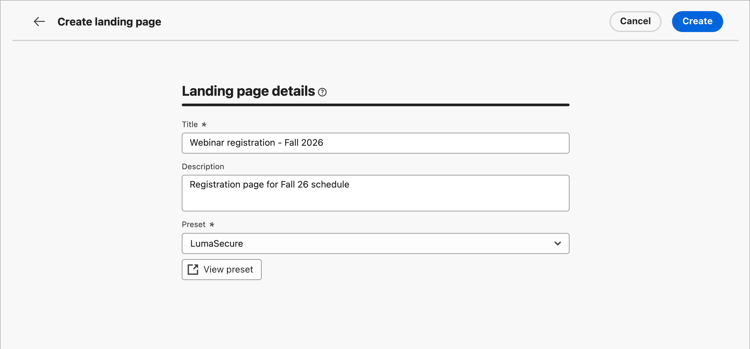
On the page, enter a useful Title (required) and Description (optional).
Title and description criteria:
-
Title - Maximum of 100 characters, must be unique, case-insensitive
-
Description - Maximum of 300 characters
-
Alpha, numeric, and special characters are allowed
-
Reserved characters are not allowed:
\ / : * ? " < > |
-
-
Select a Preset.
A product administrator configures a preset to define the subdomain and other settings used for landing pages. You can select a preset and then click View preset to open the preset details and check the settings to make sure that it matches your landing page requirements.
-
Click Create.
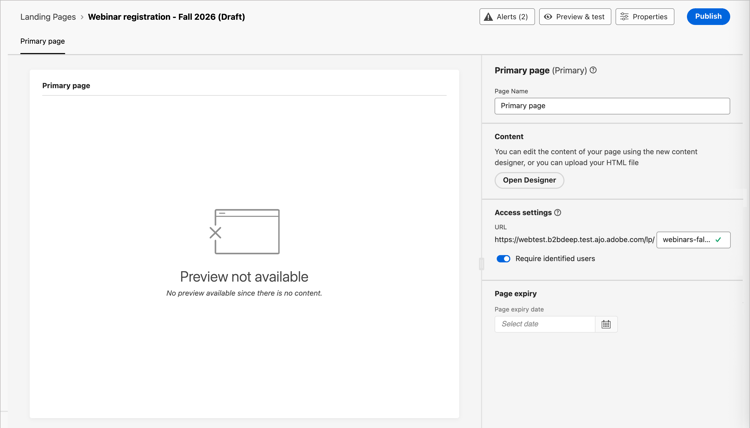
The primary page and its properties are displayed.
Configure the primary page configure-primary-page
-
Change the Page Name according to your needs, which is Primary page by default.
-
Define the ending portion of the page URL.
The preset that you selected determines the first part of the URL.
note caution CAUTION The landing page URL must be unique. You cannot access your landing page by simply copy-pasting this URL into a web browser, even if published. Test it using the preview function. -
If you want an anonymous landing page, disable the Require identified users option.
-
Click the Calendar (

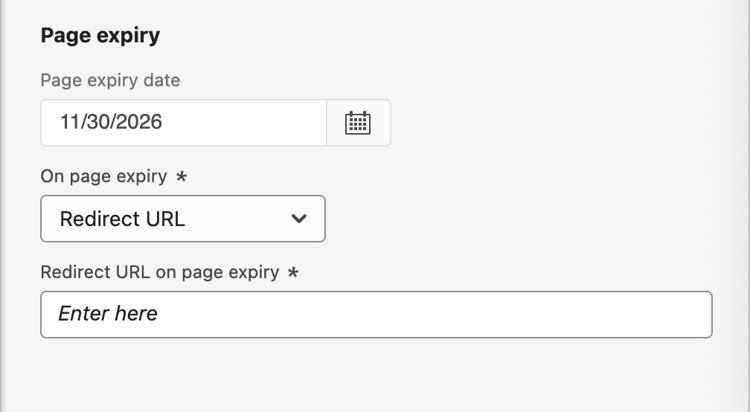
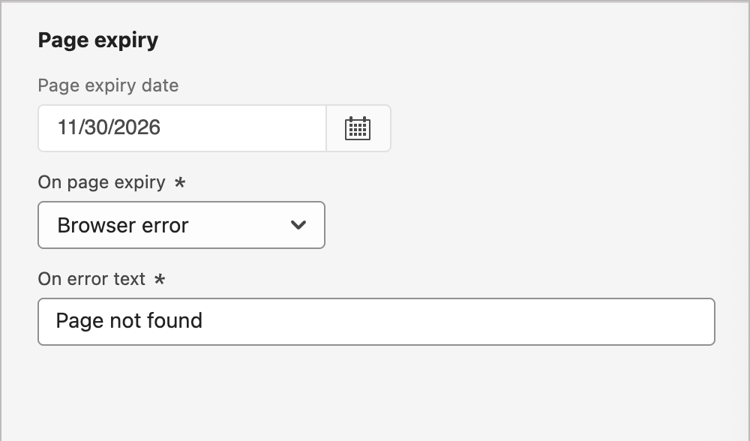
After you select an expiry date, choose the action upon page expiration:
-
Redirect URL - Enter the URL of the page to use as a redirect.
-
Browser error - Enter the error text to display in place of the page.
-
Choose the content design type choose-design-type
To add the Content for the page, click Open Designer. The Create your primary landing page home page loads and the design process begins with choosing how you want to start the design:
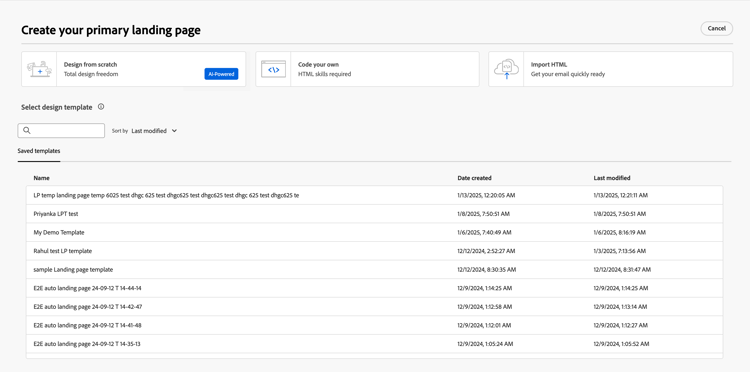
After you select your preferred method for starting the landing page design, use the visual design tools to complete the page content.
Design from scratch design-from-scratch
Use the visual content editor to define the structure of the landing page content. By adding and moving structural components with simple drag-and-drop actions, you can design the shape of the page content within seconds.
-
From the Create your primary landing page home page, select the Design from scratch option.
-
Choose how you want to manage styling for the page content:
-
Use Themes - Choose this option to create the page content in Theme mode. In this mode, you can use a defined brand theme to streamline the content authoring process and make sure that the design aligns with defined standards.
-
Manual Styling - Choose this option to create the page content in Manual mode. In this mode, you manually set the styling for all structure and content components that you add to the blank canvas.
-
-
Click Confirm.
-
Add structure and content to the page.
Code your own code-your-own
Code your own lets you write or paste raw HTML to build the page content directly in the design space. Use this mode when you need full control over markup. Using this mode requires that you have HTML skills.
After you choose this mode, you stay in the code editor; you cannot switch to the visual editor.
-
From the Create your primary landing page home page, select the Code your own option.
-
Enter or paste your raw HTML code.
If you want to clear your page content and start from a new design, select Change your design from the options menu.
Import HTML import-html
Adobe Journey Optimizer B2B Edition allows you to import existing HTML content to design your landing pages.
Imported content can be:
-
An HTML file with an incorporated style sheet
-
A .zip file that includes an HTML file, the style sheet (.css), and images
note NOTE There are no constraints on the .zip file structure. However, references must be relative and fit with the tree structure of the .zip folder. The images are always uploaded to the connected Marketo Engage assets repository. If you want to manage the image files in Experience Manager Assets, upload them separately in that app interface and change the image links in the email design space.
To import a file containing HTML content:
-
From the Design your template home page, select the Import HTML option.
-
Drag and drop the HTML or .zip file containing your HTML content and click Import.
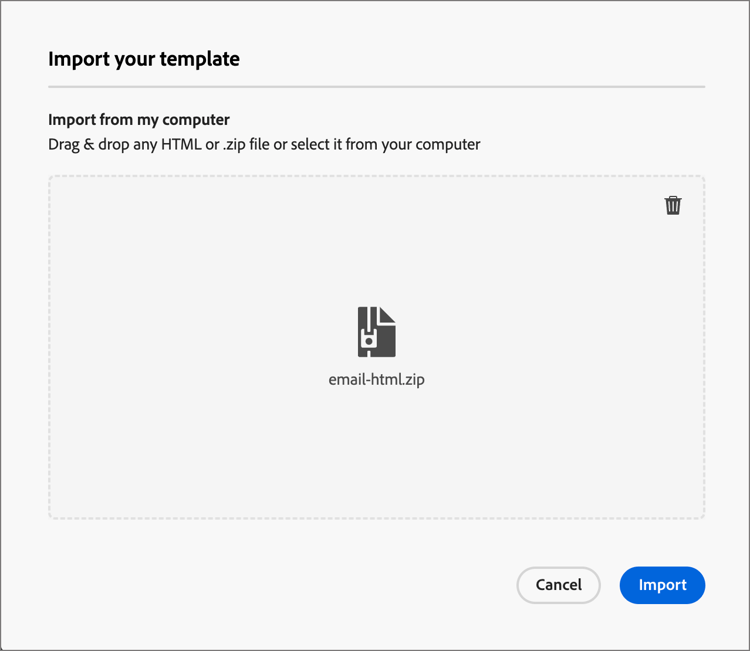
<table> tag as the first layer in an HTML file can cause style loss, including background and width settings in the top layer tag.You can personalize the imported content as needed with the visual design space.
Select a template select-template
[Beta]{class="badge informative" title="Beta feature"}
If you want to use a landing page template, you can choose from:
-
Sample templates. The Journey Optimizer B2B Edition interface offers a collection of out-of-the-box landing page templates that you can use as a starting point for your landing page design.
-
Saved templates. Use a saved custom template created by a member of your organization using the Templates menu
Use the Select design template section to start building your content from a template. You can use a sample template or a saved custom landing page template from your Journey Optimizer B2B Edition instance.
The Create your primary landing page home page displays the Sample templates tab by default. To use a custom template, select the Saved templates tab.
The list of all saved landing page templates is displayed. You can sort them by Name, Last modified, and Last created.
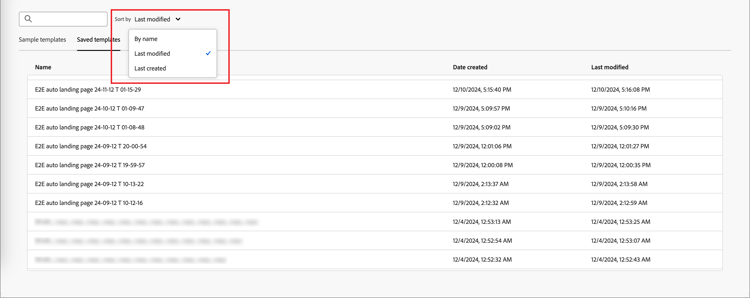
Select a template thumbnail to display a preview. In preview mode, you can navigate between all the templates of one category (sample or saved, depending on your selection) using the right and left arrows.
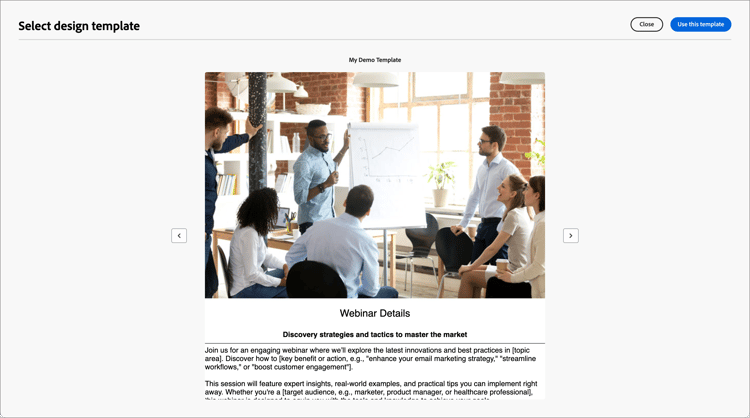
When the display matches what you want to use, click Use this template at the top right of the preview window.
This action copies the content into the visual design space, where you can edit the content as needed.
Adobe Journey Optimizer B2B Edition offers a selection of out-of-the-box landing page templates, which can be used for creating your own landing pages and landing page templates.
Check alerts check-alerts
As you design your landing page content, alerts appear at the top right when key settings are missing.
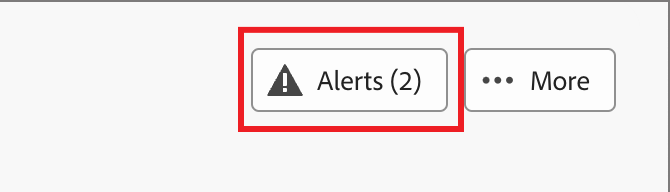
If you do not see this button, there are no detected issues.
There are two types of alerts:
-
Warnings that refer to recommendations and best practices, such as:
-
Placeholder links are present in the landing page body: Do not forget to replace the placeholders with valid links. -
Text version of HTML is empty: Do not forget to define a text version of your page body, which is used when HTML content cannot be displayed. -
Empty link is present in page body: Check that all the links in your page are correct.
-
-
Errors that prevent you from testing or activating the journey/campaign as long as they are not resolved, such as:
The landing page content is empty: Page content is mandatory.
Test the landing page test-landing-page
When the landing page settings and content are defined, you can use test profiles to preview the page. If you inserted personalized content, you can check how this content is displayed in the landing page, using test profile data.
-
Click Preview & test to open the test profile selection.
note NOTE You can also use Simulate content when you are in the visual design space. -
From the Simulate screen, select a test profile.
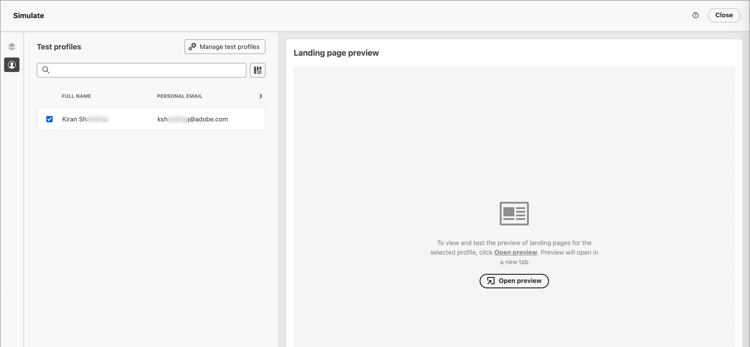
If the profiles that you need are not listed, click Manage test profiles to use a known test profile email address and add it to the list.
accordion Add test profiles For Identity namespace, click the Select (

Emailnamespace to use to test profiles.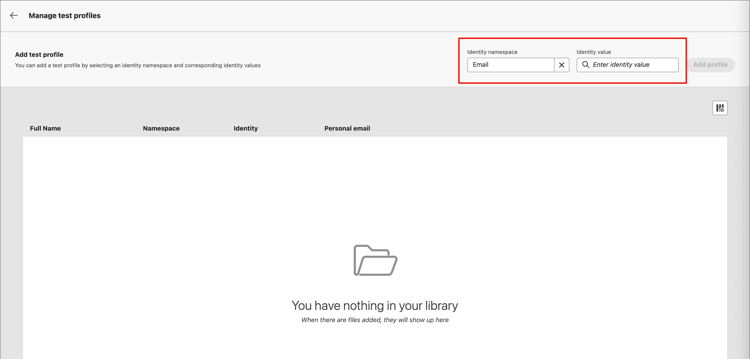
In the Identity value field, enter the email address to identify the test profile and click Add profile. You can repeat this to add multiple profiles.
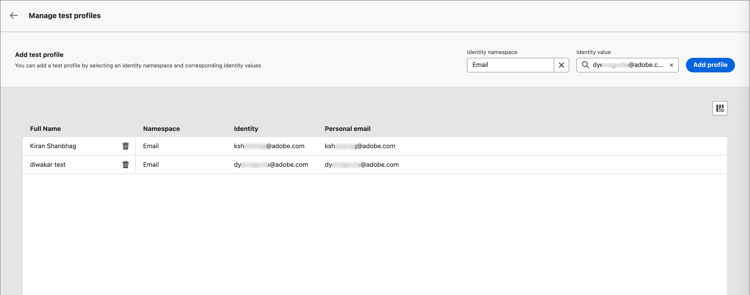
Click the back arrow at the top left to return to the Simulate page.
-
Select Open preview to test your landing page.
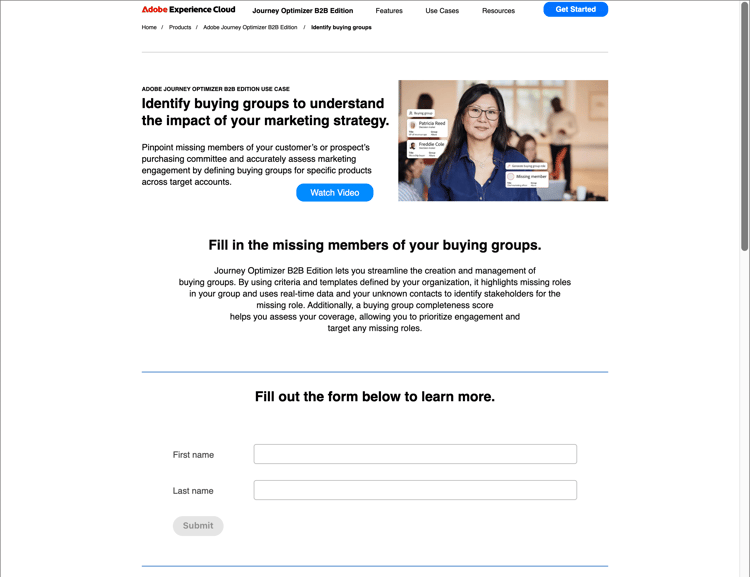
The landing page preview opens in a new tab. The selected test profile data replaces personalized elements.
-
Select other test profiles to preview the rendering for each variant of your landing page.
Publish the page publish-landing-page
When the draft page meets your criteria and you want to make the page available to link from journey messages, click Publish at the top right. And in the confirmation dialong, click Publish.
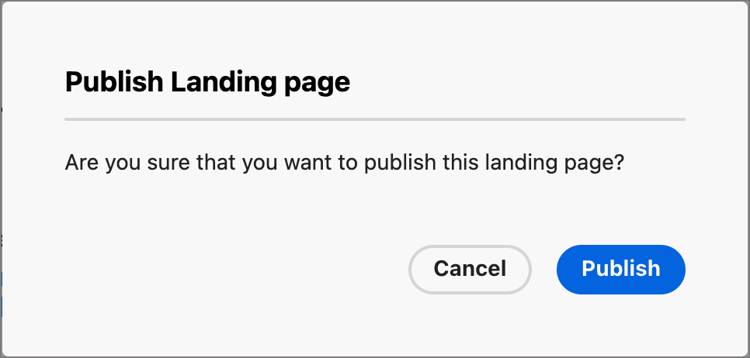
When the landing page is published, it is displayed in the landing page list with the Published status. This means that it is live and ready to be used in an email, SMS, or WhatsApp message sent through a journey.
You cannot access the published landing page by copy-pasting the URL into a web browser. You can test it at any time using the preview function.
You can monitor your landing page impacts through specific reports.