[Beta]{class="badge informative" title="This feature is currently in a limited beta release"}
Landing page configuration
Administrators should ensure that the landing page configurations are in place for the marketers who author and publish these pages. There are two configuration types required for crafting landing pages that reflect a brand and track engagement effectively:
- Subdomains — Set up where landing pages are hosted. Manage landing page subdomains to delegate, configure, or undelegate domain settings.
- Presets — Define reusable configurations (including subdomain and other channel settings) so that marketers can create and manage landing pages consistently.
Subdomains lp-subdomains
To review the configured landing page subdomains, go to Administration > Channels. Under Landing Pages in the navigation pane, select Landing Page Subdomains.
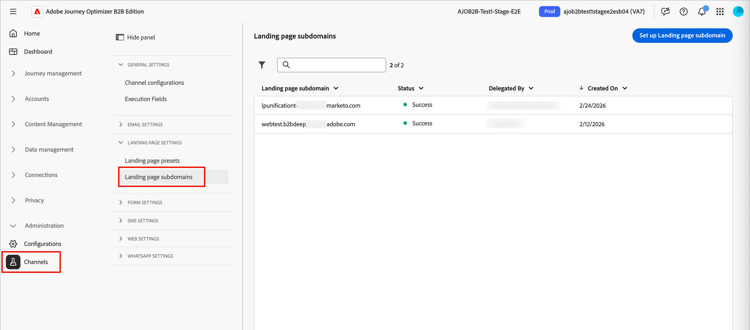
The Status column provides information on the subdomain creation and delegation process:
- Draft: The subdomain delegation is saved as a draft. Click the subdomain name to resume the creation process.
- Processing: The subdomain is in progress through several configuration checks, which are required before it can be used.
- Success: The subdomain passed through the checks successfully and can be used to deliver messages.
- Failed: One or several checks failed after the subdomain delegation was submitted.
A landing page subdomain configuration is common to all environments. Therefore:
-
To access and edit landing page subdomains, you must have the Manage Landing Page Subdomains permission on the production sandbox.
-
Any modification to a landing page subdomain also impacts the production sandboxes.
Configure a new subdomain lp-new-subdomain
-
Click Set up landing page subdomain.
-
For Configuration type, choose Add your own domain.
-
Specify the subdomain to delegate.
note important IMPORTANT -
You cannot use an existing landing page subdomain.
-
Capital letters are not allowed in subdomains.
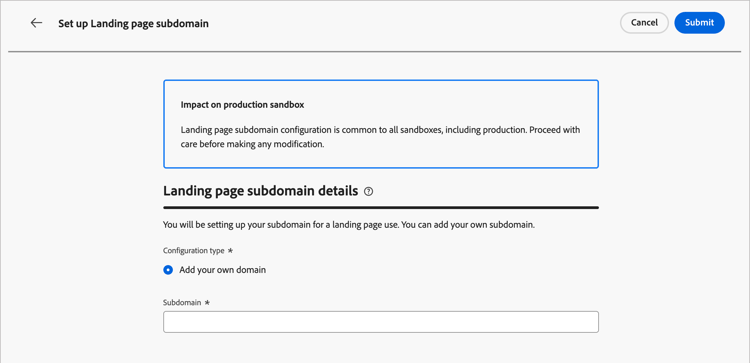
Delegating an invalid subdomain to Adobe is not allowed. Make sure you enter a valid subdomain which is owned by your organization, such as marketing.yourcompany.com.
For landing pages, multi-level subdomains are supported. For example, you can use
email.marketing.yourcompany.com. -
-
Copy the displayed record, or download a CSV file, then navigate to your domain-hosting solution to generate the matching DNS record.
The record to be placed in your DNS servers displays.
-
Make sure that the DNS record was generated into your domain-hosting solution.
If everything is configured properly, select the confirmation checkbox and click Submit.
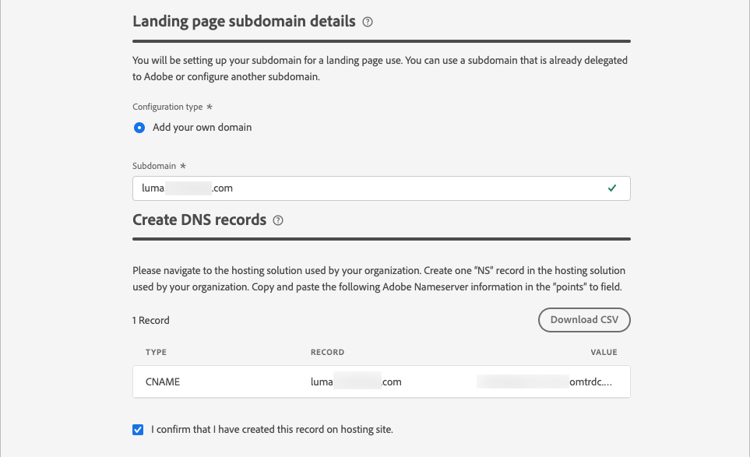
When you configure a new landing page subdomain, it always points to a CNAME record.
When the subdomain delegation is submitted, the subdomain displays in the list with the Processing status.
note important IMPORTANT The subdomain is not ready for use until Adobe performs the required checks, which can take up to 4 hours. When the checks are successful, the subdomain is listed with the Success status and it is ready to use for creating landing page presets.
The subdomain is marked as Failed if you did not create the validation record on your hosting solution.
Undelegate a subdomain undelegate-subdomain
-
In Journey Optimizer, unpublish all the landing pages associated with the subdomain.
-
If the landing page subdomain points to a CNAME record, delete the CNAME record from your hosting solution (do not delete the original email subdomain, if any).
-
Contact your Adobe representative with the subdomain you want to undelegate.
After Adobe handles your request, the subdomain inventory page no longer displays the undelegated domain.
Presets lp-presets
When marketers create a landing page, they must select a landing page preset to be able to build the landing page and leverage it through Journey Optimizer B2B Edition. The preset includes the subdomain to use for the landing page.
Before you configure a preset, ensure that there is at least one configured landing page subdomain with the Success status.
To review the configured landing page presets, go to Administration > Channels. Under Landing Pages in the navigation pane, select Landing page presets.
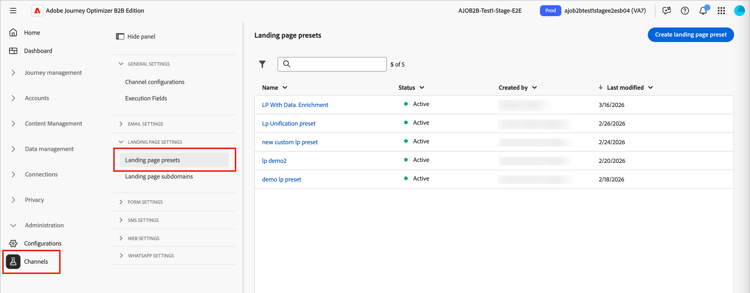
Click any preset name to access the landing page preset details.
Create a landing page preset lp-create-preset
-
Click Create landing page preset.
-
Enter a name and a description for the preset.
Names must begin with a letter (A-Z), and only contain alpha-numeric characters, underscore
_, dot.and hyphen-characters. -
Select a landing page subdomain.
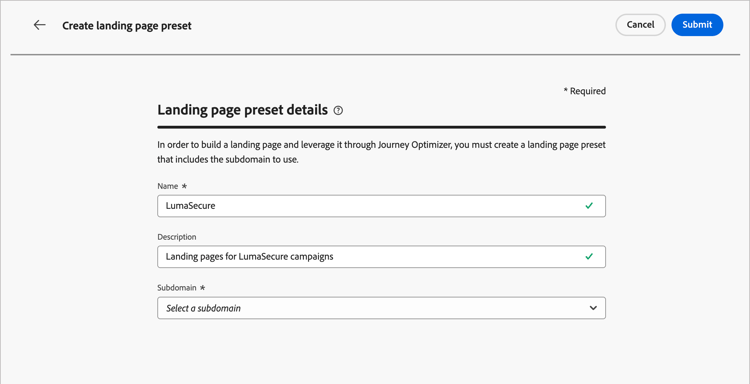
note NOTE To be able to select a subdomain, ensure you have previously configured at least one landing page subdomain. The settings corresponding to the selected subdomain display.
-
You can select the landing page subdomain for the Tracking URL by checking the Same as landing page subdomain option.
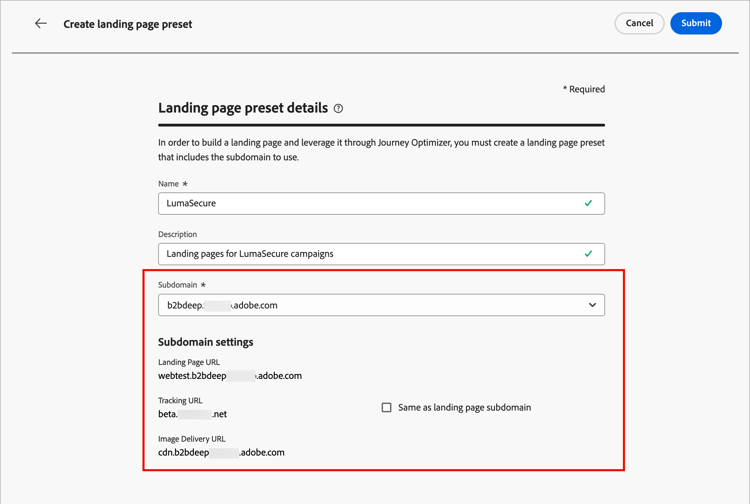
For example, if the landing page URL is
pages.mail.luma.com, and the tracking URL isdata.mail.luma.com, you can choosepages.mail.luma.comto be used as the tracking subdomain. -
Click Submit to confirm the landing page preset creation.
When the landing page preset is created, it is displayed in the list with the Active status and is ready to use for creating landing pages.