Test profiles test-profiles
Test profiles are required to preview and test landing page content in Journey Optimizer B2B Edition. You can define a set of test profiles by creating a schema, creating the dataset, and uploading a CSV file.
Creating a test profile is similar to creating regular profiles in Adobe Experience Platform. For more information, refer to the Real-time Customer Profile documentation.
Create a schema create-schema
To create profiles, you first need to create a schema in Journey Optimizer B2B Edition.
-
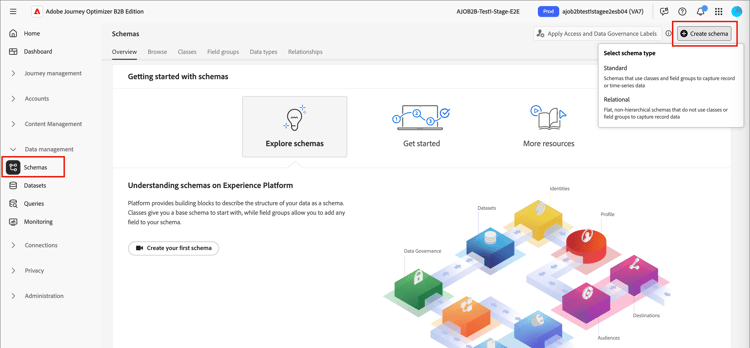
Expand Data Management in the left navigation, select Schemas, and click Create schema at the top right.
-
Select Standard as the schema creation option.
-
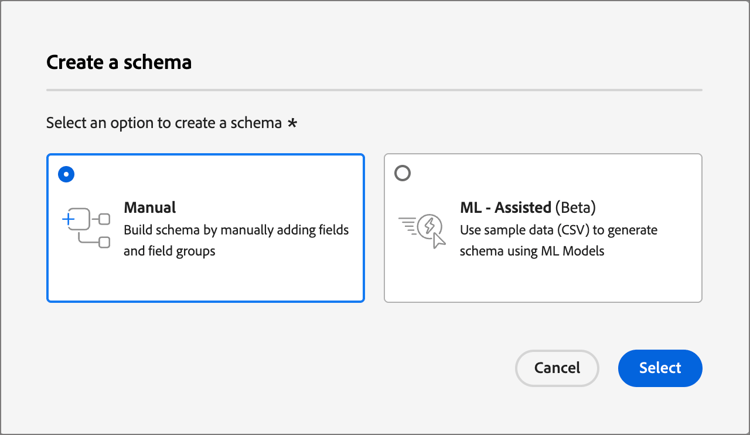
Select a schema type, for example Manual, and click Select.
-
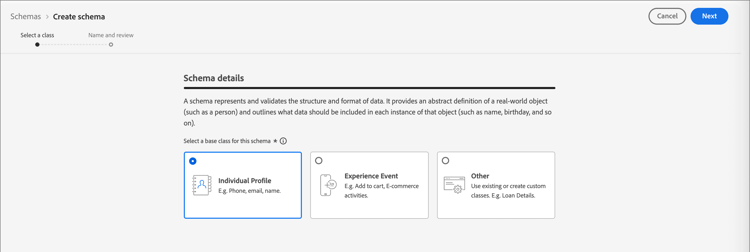
Select a schema type, for example Individual Profile, and click Next.
-
Enter a name (required) and description (optional) for the schema and click Finish.
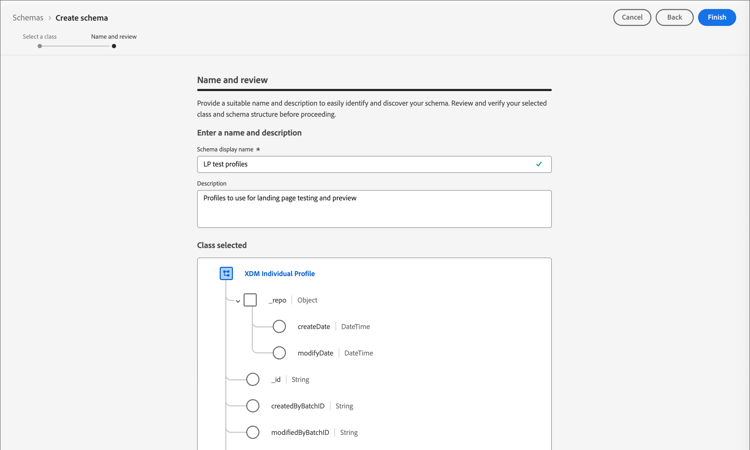
The schema structure is displayed, with the Composition panel on the left.
-
In the Field groups section, click Add and select the appropriate field groups.
Use the search tool to locate and select the Profile test details field group.
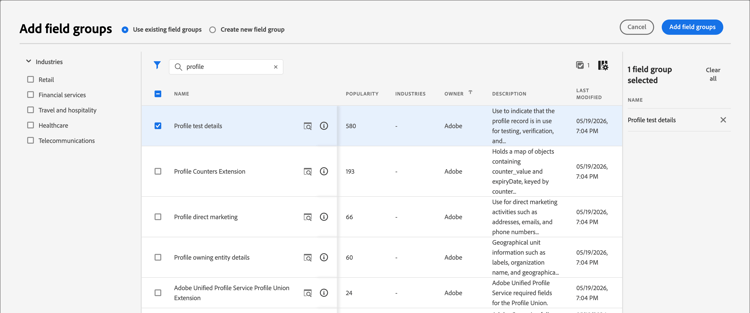
When complete, click Add field groups and the list of field groups is then displayed on the schema overview screen.
Repeat this step to add additional field groups that you want to use for test profiles, such as Person Contact Details and Work Contact Details.
-
In the list of fields, click the field that you want to define as the primary identity.
-
In the Field properties right pane, check the Identity and Primary Identity options and select a namespace.
If you want the primary identity to be an email address, choose the Email namespace.
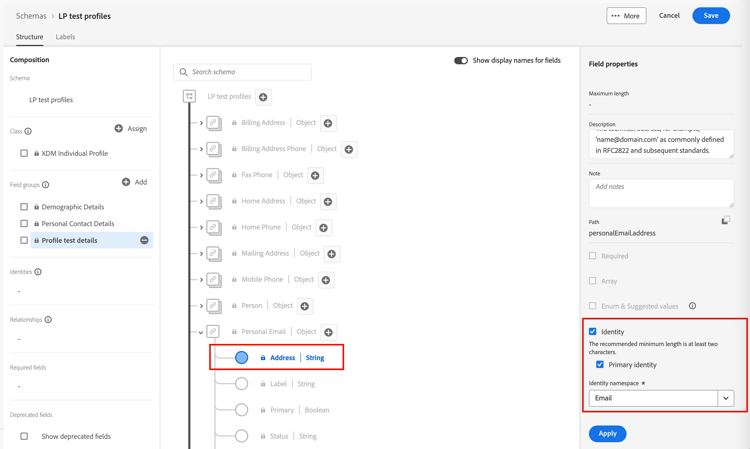
Click Apply.
-
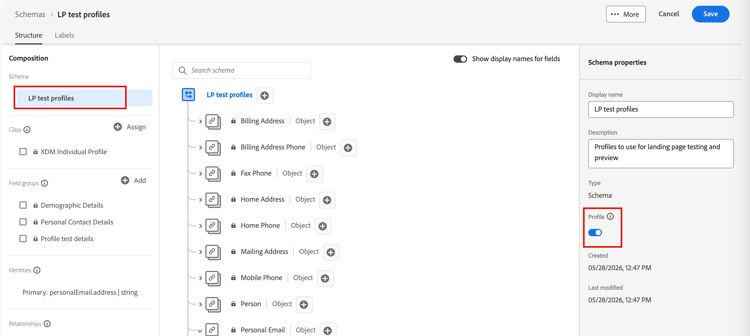
Select the schema and enable the Profile option in the Schema properties pane.
-
Click Save.
For more information about schema creation, refer to the XDM documentation.
/personID) for the intended namespace. If the identity descriptor is missing or incorrectly configured, profiles ingested into this dataset may not be flagged as test profiles (testProfile = true), even if the ingestion process completes successfully.- Review the schema associated with your dataset.
- Confirm that the primary identity field has the correct identity descriptor for your namespace.
- If the descriptor is missing, update the schema to add the identity descriptor and re-ingest your data.
Create a dataset create-dataset
After you create the schema, create the dataset that is used to import the profiles. For more information about dataset creation, refer to the Catalog Service documentation.
-
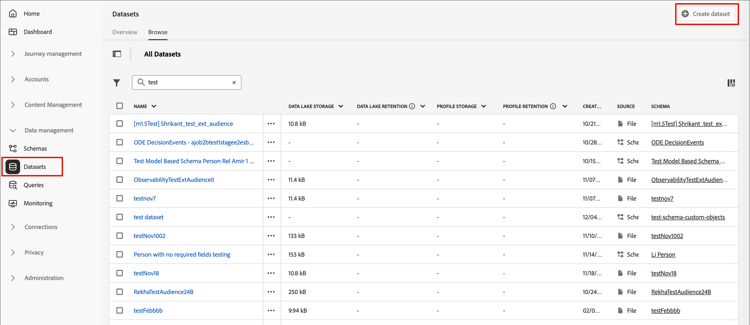
Under Data Management in the left navigation, select Datasets.
-
At the top right, click Create dataset.
-
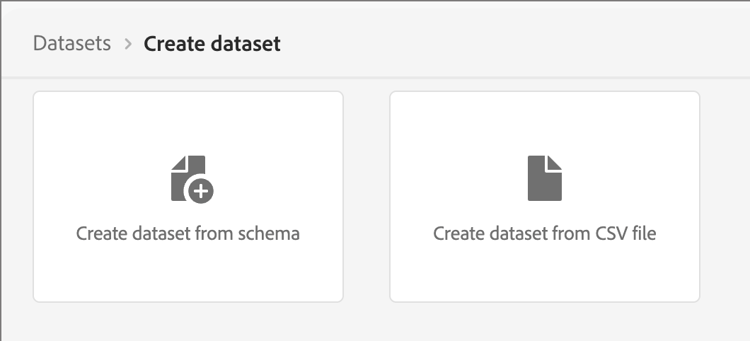
Choose Create dataset from schema.
-
Select the previously created schema and click Next.
-
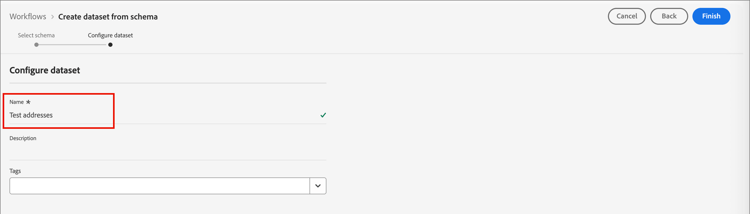
Choose a name and click Finish.
-
In the right panel, enable the Profile option.
Create test profiles using a CSV file create-test-profiles-csv
In Adobe Experience Platform, you can create profiles by uploading a CSV file containing the different profile fields into your dataset. This is the easiest method.
-
Create a simple CSV file using a spreadsheet software.
-
Add one column for each required field.
Make sure that you add the primary identity field (
personID, for example) and thetestProfilefield set totrue. -
Add one line per profile and the values for each field.

-
Save the spreadsheet as a csv file, making sure that commas are used as separators.
-
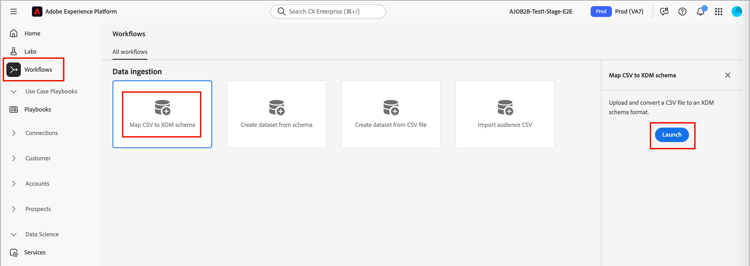
In Adobe Experience Platform, navigate to Workflows.
-
Choose Map CSV to XDM schema and click Launch.
-
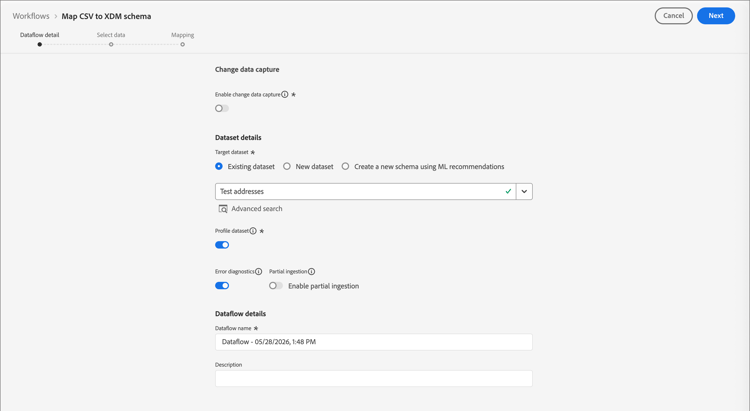
Select the dataset to use for the import and click Next.
-
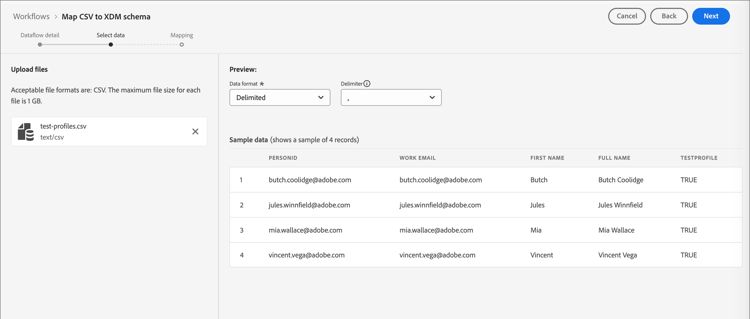
Click Choose files and select the CSV file, or drag and drop the file from your system.
After the file upload is complete, click Next.
-
Map the source csv fields to the schema fields, then click Finish.
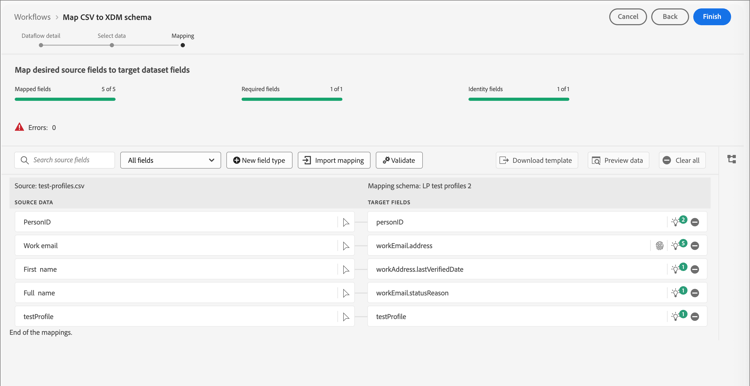
The data import begins. The status moves from Processing to Success.
-
At the top right, click Preview dataset and check that the test profiles added to the dataset are correct.
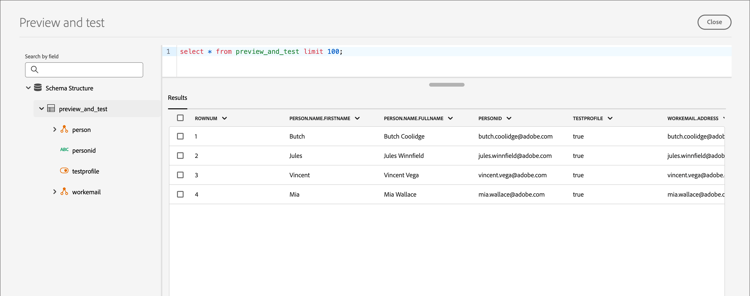
The test profiles can then be used to test landing page content.