SFTP connection
Connect to your SFTP server to export data files from Adobe CX Enterprise applications.
If you arrived to this page from Real-Time CDP Collaboration, see Activate audiences from Real-Time CDP Collaboration for the details specific to that application.
Supported Adobe CX Enterprise applications supported-applications
This destination is available in the following Adobe CX Enterprise applications:
Destination changelog changelog
With the July 2023 Experience Platform release, the SFTP destination provides new functionality, as listed below:
- Dataset export support.
- Additional file naming options.
- Ability to set custom file headers in your exported files via the improved mapping step.
- Ability to customize the formatting of exported CSV data files.
Overview overview
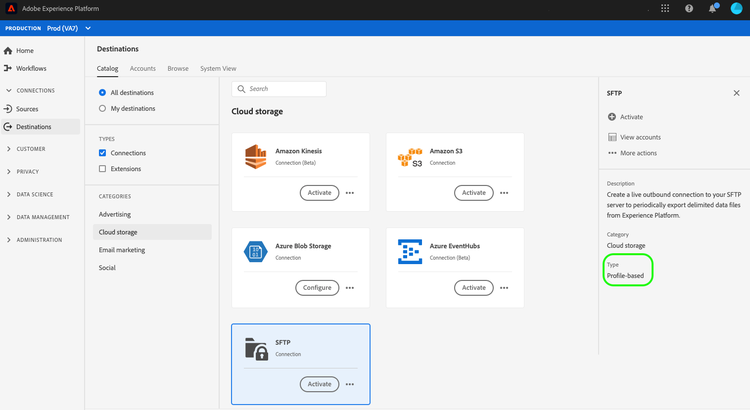
Create a live outbound connection to your SFTP server to periodically export delimited data files from Adobe Experience Platform.
Connect to SFTP through API or UI connect-api-or-ui
- To connect to your SFTP storage location using the Experience Platform user interface, read the sections Connect to the destination and Activate audiences to this destination below.
- To connect to your SFTP storage location programmatically, read the Activate audiences to file-based destinations by using the Flow Service API tutorial.
Supported audiences supported-audiences
This section describes which types of audiences you can export to this destination. The supported audiences differ depending on the Adobe CX Enterprise application from which you activate them to this destination.
Real-Time CDP supported-audiences-rtcdp
The following audiences are supported when you activate from Real-Time CDP:
This category includes all audience origins outside of audiences generated through the Segmentation Service. Read about the various audience origins. Some examples include:
- custom upload audiences imported into Experience Platform from CSV files,
- look-alike audiences,
- federated audiences,
- audiences generated in other Experience Platform apps such as Adobe Journey Optimizer,
- and more.
Supported audiences by audience data type:
Real-Time CDP Collaboration supported-audiences-collaboration
In Real-Time CDP Collaboration, you can source audiences from Adobe Experience Platform or other cloud sources. Audiences in Real-Time CDP Collaboration are made up of match keys. You can use these audiences within a Collaboration for data collaboration or paid media activities.
Export type and frequency export-type-frequency
See the table below for information about the destination export type and frequency.
Export datasets export-datasets
This destination supports dataset exports. For complete information on how to set up dataset exports, read the tutorials:
File format of the exported data file-format
When exporting audience data, Experience Platform creates a .csv, parquet, or .json file in the storage location that you provided. For more information about the files, see the supported file formats for export section in the audience activation tutorial.
When exporting datasets, Experience Platform creates a .parquet or .json file in the storage location that you provided. For more information about the files, see the verify successful dataset export section in the export datasets tutorial.
File encryption file-encryption
Encryption standard
When you provide an Encryption key, Experience Platform encrypts each exported file with standard OpenPGP, as defined by RFC 4880. The encrypted file is a binary OpenPGP message with a .gpg extension. You can decrypt the file with any standard OpenPGP client, including GnuPG with the gpg --decrypt command.
The implementation uses standard OpenPGP without a proprietary variant.
Key handling
SFTP uses hybrid encryption:
- A random AES-128 session key encrypts the file content.
- The session key is encrypted with your RSA public key. RSA does not encrypt the file content directly.
- A new session key is generated for each file. Each encrypted file starts with a random 16-byte prefix that randomizes the cipher state, so no key material is reused across an export.
Encryption process
The encryption process uses AES-128 in OpenPGP CFB mode. The payload is ZLIB-compressed before encryption. GCM and CBC modes are not supported. No RSA key size restriction is enforced. You can use 2048-bit, 3072-bit, or 4096-bit RSA keys. Provide the public key as a Base64-encoded key or a raw ASCII-armored PGP public key block.
Key custody
Adobe stores only your public key. Adobe does not request, transmit, or store your private key. Experience Platform encrypts outbound files but does not decrypt them.
Integrity protection
Files are encrypted but not digitally signed. Integrity is protected by the OpenPGP Modification Detection Code (MDC), which uses SHA-1 for this packet type. The MDC detects tampering and is not a digital signature. This protection does not rely on SHA-1 collision resistance.
Transport encryption
File encryption applies to all destinations. Encryption is applied as a stream while each file is written to the destination, so no unencrypted file is ever placed in your SFTP location. File encryption is separate from transport encryption. SFTP delivery uses SSH.
SFTP server connection requirements sftp-connection-requirements
To ensure successful data exports, you must configure your target SFTP server to allow a sufficient number of concurrent connections. If your SFTP server limits the number of simultaneous connections, you may experience export job failures, especially when exporting multiple audiences or datasets at the same time.
Recommendation
For optimal performance, your SFTP server should allow at least one concurrent connection for each audience or dataset being exported. At a minimum, the server should support at least 30% of the total number of audiences or datasets scheduled for export at the same time.
Example
If you schedule exports for 100 audiences or datasets simultaneously, your SFTP server should allow at least 30 concurrent connections.
Properly configuring your SFTP server’s connection limits helps prevent failed exports and ensures reliable data delivery from Adobe Experience Platform.
Supported SSH algorithms supported-ssh-algorithms
If your SFTP server restricts which SSH algorithms it accepts, ensure it supports at least one algorithm from each category in the table below. The connection negotiates the standard intersection of the client and server algorithm lists. No additional algorithm restrictions are imposed. Each list is in order of preference.
curve25519-sha256, curve25519-sha256@libssh.org, ecdh-sha2-nistp256, ecdh-sha2-nistp384, ecdh-sha2-nistp521, diffie-hellman-group-exchange-sha256, diffie-hellman-group16-sha512, diffie-hellman-group18-sha512, diffie-hellman-group14-sha256ssh-ed25519, ecdsa-sha2-nistp256, ecdsa-sha2-nistp384, ecdsa-sha2-nistp521, rsa-sha2-512, rsa-sha2-256aes128-ctr, aes192-ctr, aes256-ctr, aes128-gcm@openssh.com, aes256-gcm@openssh.comThe same ciphers apply in both directions, client to server and server to client.
hmac-sha2-256-etm@openssh.com, hmac-sha2-512-etm@openssh.com, hmac-sha1-etm@openssh.com, hmac-sha2-256, hmac-sha2-512, hmac-sha1AES-GCM ciphers do not use a separate MAC.
ssh-ed25519, ecdsa-sha2-nistp256, ecdsa-sha2-nistp384, ecdsa-sha2-nistp521, rsa-sha2-512, rsa-sha2-256The SFTP destination uses an SSH library embedded in the application. It does not use the OpenSSH client, so ~/.ssh/config and equivalent files do not apply. Adobe acts as the SSH client. You or your SFTP provider manage the server configuration.
For a restricted SFTP server, run a test export before using the connection in production. Verify a test export with your own OpenPGP tooling before relying on the connection in production.
Connect to the destination connect
To connect to this destination, follow the steps described in the destination configuration tutorial. In the configure destination workflow, fill in the fields listed in the two sections below.
Authentication information authentication-information
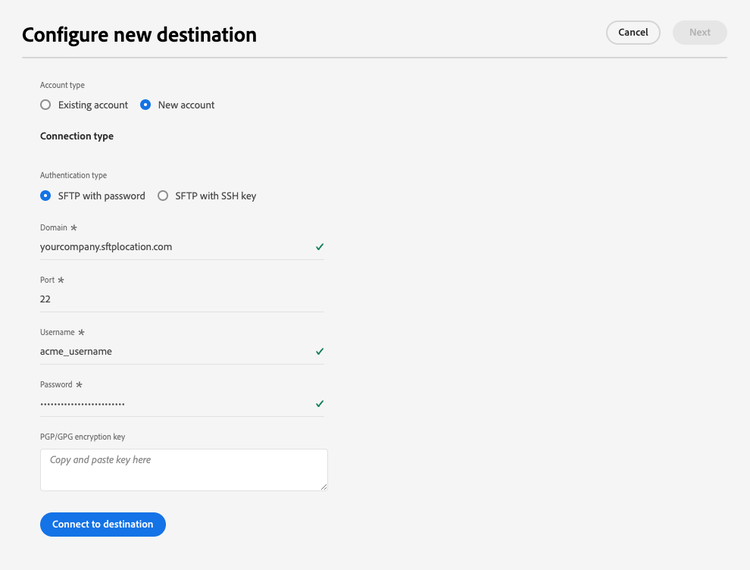
If you select the SFTP with password authentication type to connect to your SFTP location:
-
Domain: The address of your SFTP storage location.
-
Username: The username to log into your SFTP storage location.
-
Port: The port used by your SFTP storage location.
-
Password: The password to log into your SFTP storage location.
-
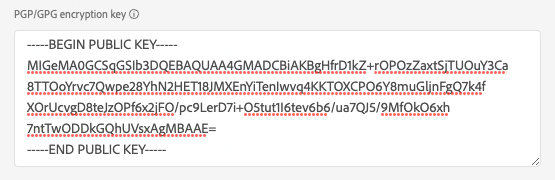
Encryption key: Optionally, you can attach your RSA-formatted public key to add encryption to your exported files. View an example of a correctly formatted encryption key in the image below.
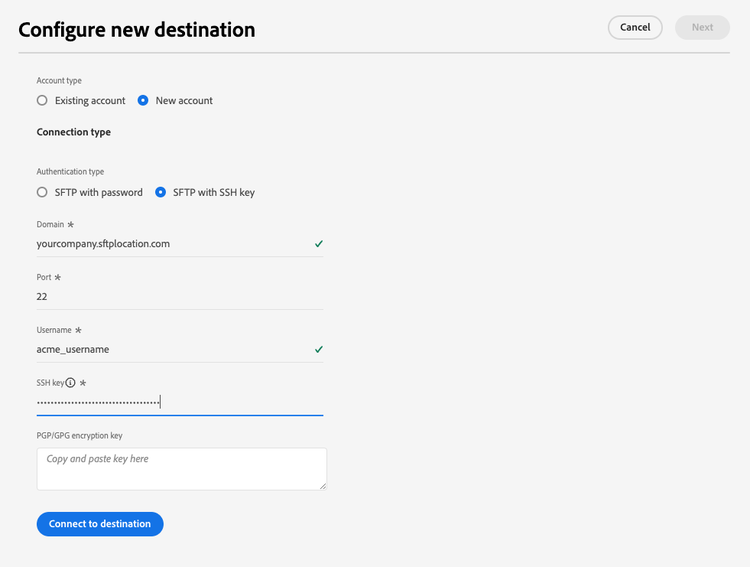
If you select the SFTP with SSH key authentication type to connect to your SFTP location:
-
Domain: Fill in the IP address or the domain name of your SFTP account.
-
Port: The port used by your SFTP storage location.
-
Username: The username to log into your SFTP storage location.
-
SSH Key: The private SSH key used to log into your SFTP storage location. The private key must be an RSA-formatted, Base64-encoded string, and must not be password-protected.
-
Encryption key: Optionally, you can attach your RSA-formatted public key to add encryption to your exported files. View an example of a correctly formatted encryption key in the image below.
Destination details destination-details
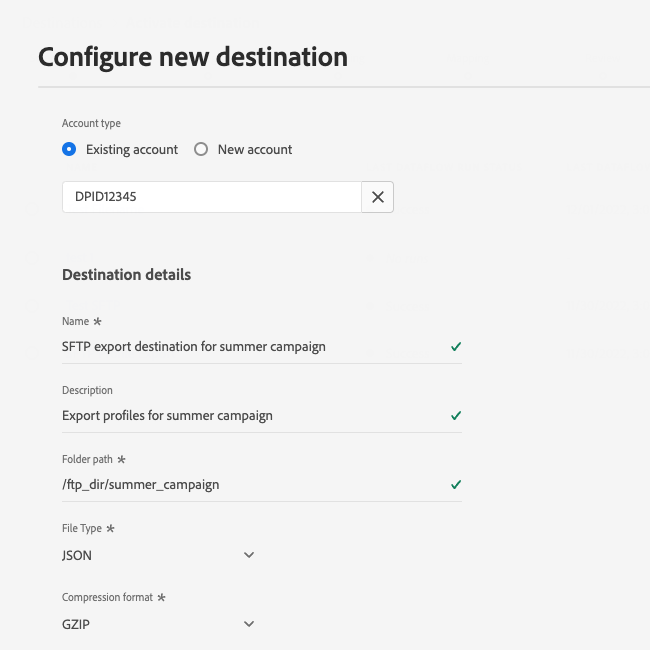
After establishing the authentication connection to the SFTP location, provide the following information for the destination:
-
Name: Enter a name that helps you identify this destination in the Experience Platform user interface.
-
Description: Enter a description for this destination.
-
Folder path: Enter the path to the folder in your SFTP location where the files will be exported.
-
File type: Select the format Experience Platform should use for the exported files. When selecting the CSV option, you can also configure the file formatting options.
-
Compression format: Select the compression type that Experience Platform should use for the exported files.
-
Include manifest file: Toggle this option on if you’d like the exports to include a manifest JSON file that contains information about the export location, export size, and more. The manifest is named using the format
manifest-<<destinationId>>-<<dataflowRunId>>.json. View a sample manifest file. The manifest file includes the following fields:flowRunId: The dataflow run which generated the exported file.scheduledTime: The time in UTC when the file was exported.exportResults.sinkPath: The path in your storage location where the exported file is deposited.exportResults.name: The name of the exported file.size: The size of the exported file, in bytes.
Activate audiences to this destination activate
You can activate audiences to this destination from Real-Time CDP or from a Real-Time CDP Collaboration project.
Activate audiences from Real-Time CDP activate-rtcdp
- To activate data, you need the View Destinations, Activate Destinations, View Profiles, and View Segments access control permissions. Read the access control overview or contact your product administrator to obtain the required permissions.
- To export identities, you need the View Identity Graph access control permission.
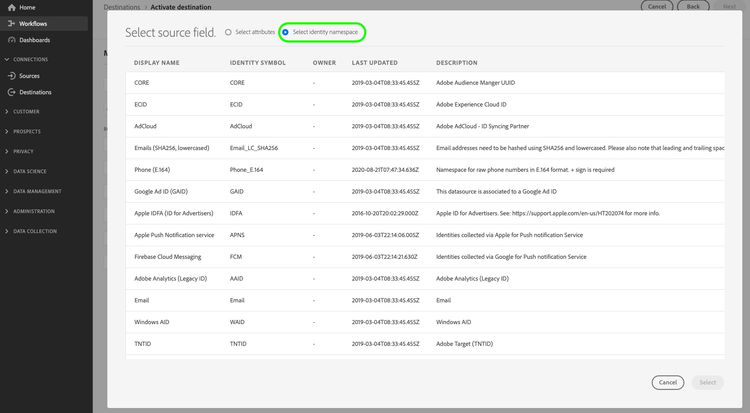
See Activate audience data to batch profile export destinations for instructions on activating audiences to this destination.
Activate audiences from Real-Time CDP Collaboration activate-collaboration
For instructions on activating audiences to this destination from a Real-Time CDP Collaboration project, see the Real-Time CDP Collaboration destinations overview.
Validate successful data export exported-data
To verify if data has been exported successfully, check your SFTP storage and make sure that the exported files contain the expected profile populations.
IP address allowlist ip-address-allow-list
Refer to the IP address allowlist article if you need to add Adobe IPs to an allowlist.