[AEM Forms]{class="badge positive" title="Applies to AEM Forms)."}
Text Box Component in Interactive Communication Editor
1. Introduction
The Text Box component in the Interactive Communication Editor allows authors to input and display text content within a communication. It is one of the most fundamental and widely used components, commonly used to collect names, comments, feedback, or custom data when designing interactive communications or communication fragments.
The Text Box supports data binding, enabling authors to combine static and dynamic content seamlessly, for example: “User’s name: @name”, where @name is a bound data field that dynamically populates when the document is saved as a PDF. Additionally, it supports rich text formatting and flexible positioning for precise layout control.
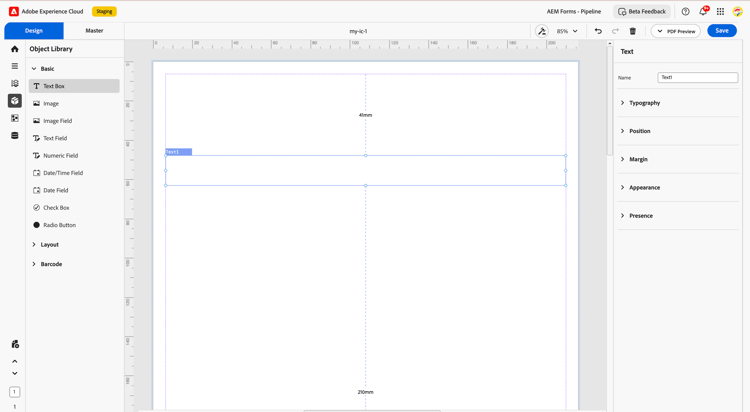
2. Display Pattern
You can assign a display pattern to a Text Box field from the Properties panel. Display patterns control how field values are presented to end users in the canvas preview and in generated output — for example, masking a text entry as a phone number: (555) 123-4567.
The configured pattern is immediately reflected in the canvas preview and is preserved across save and reload cycles. For advanced use cases, you can define a custom XFA picture clause to achieve any desired output format.
Configure a display pattern
- Select the Text Box component on the design canvas.
- Open the Properties panel.
- In the Display Pattern section, choose a predefined pattern or enter a custom picture clause.
- Preview the formatted value on the canvas.
Custom pattern example (Text)
text{(999) 999-9999}Picture clause symbols (Text):
Best practices
- Choose a pattern that matches how end users expect to read the value (phone, ID, postal code).
- Validate sample data in canvas preview before publishing.
- Use custom picture clauses only when predefined patterns do not meet your formatting needs.
3. Properties
The text box component provides a wide set of properties to help configure its look, feel, and behavior.
2.1 Typography
Font Family: Allows selection of font styles such as Arial, Helvetica, Times New Roman, etc.
Font Validation: Optional input constraints can be applied to ensure only text, numeric, or special formats are accepted.
Text Alignment: Options include left, right, center, or justified alignment.
Text Styling: Enable text formatting with bold, italic, strikethrough and underline features.
Lists: Supports insertion of ordered (numbered) and unordered (bulleted) lists.
2.2 Position
Width & Height: Set the dimensions of the text box in pixels or percentage relative to the container.
2.3 Margin
Define spacing around the text box:
-
Top (Up)
-
Bottom (Down)
-
Left
-
Right
2.4 Appearance
-
Text Fill: Customize color and transparency for text.
-
Fill: Set background color of the text box.
-
Stroke: Add borders with customizable:
-
Width (thickness)
-
Style (solid, dashed, dotted)
-
Edge (rounded or sharp corners)
-
2.5 Presence
Visible: Default setting; text box is displayed to the user.
Hidden: Text box is included in the form but not shown.
4. Usage
The Text Box is used for:
-
Collecting customer information like names, comments, or feedback.
-
Entering alphanumeric values.
-
Integrating personalized messages using bound data models.
-
Embedding inside fragments for repeated use across documents.
Authors can drag the Text Box from the component Library into the Design View, or master view and configure its behavior using the Properties Panel.
5. Best Practices
-
Always associate Text Boxes with meaningful field labels to improve accessibility.
-
Use appropriate input validations to prevent data entry errors.
-
Ensure responsive layout by setting margins and widths relative to parent containers.
-
Avoid excessive font styles that could hinder readability.
By configuring the Text Box properties thoughtfully, authors can create interactive, responsive, and user-friendly communication experiences within AEM’s Interactive Communication Editor.