[AEM Forms]{class="badge positive" title="Applies to AEM Forms)."}
Numeric Field Component in Interactive Communication Editor
1. Introduction
The Numeric Field component in the Interactive Communication (IC) editor enables authors to collect numerical input from users in a controlled format. Whether capturing phone numbers, PIN codes, policy IDs, or financial figures, this field ensures that only numeric values are accepted. The component also supports styling, formatting, validation, and data binding, making it essential for structured communications.
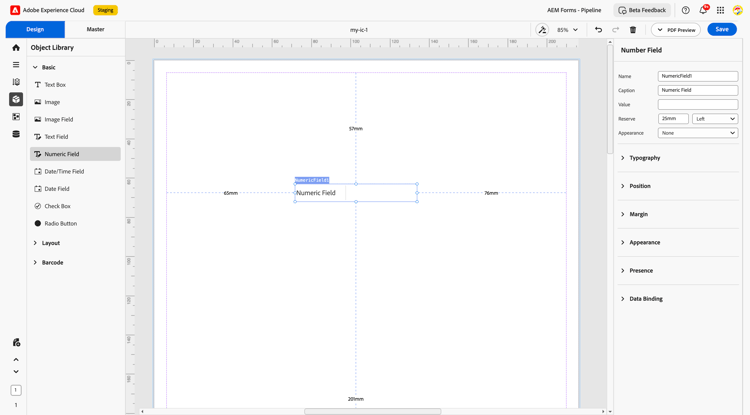
2. Display Pattern
You can assign a display pattern to a Numeric field from the Properties panel — for example, rendering a value as currency: $1,234.21.
The configured pattern is immediately reflected in the canvas preview and is preserved across save and reload cycles. For advanced use cases, you can define a custom XFA picture clause to achieve any desired output format.
Configure a display pattern
- Select the Numeric Field component on the design canvas.
- Open the Properties panel.
- In the Display Pattern section, choose a predefined pattern or enter a custom picture clause.
- Preview the formatted value on the canvas.
Custom pattern example (Numeric)
num{$z,zzz,zz9.99}Picture clause symbols (Numeric):
Best practices
- Choose a pattern that clearly represents the unit of the value (currency symbol, percentage, etc.).
- Validate sample data in canvas preview before publishing.
- Use custom picture clauses only when predefined patterns do not meet your formatting needs.
3. Properties
2.1 Basic Field
-
Name: Define a unique identifier for the field, used in data models, rules, and scripts.
-
Caption: Display the onscreen label shown to users (e.g., “Contact Number” or “Employee ID”).
-
Value: Allow users to enter numeric input such as phone numbers, IDs, quantities, or monetary values.
-
Reserve: Set the alignment of the numeric value—left, right, top, or bottom—or specify a custom position using units like millimeters (e.g., 20 mm).
-
Appearance: Set the appearance of the value box as None, Solid Box, or Underline based on the desired visual layout.
2.2 Typography
Controls the visual style of the numeric characters entered by the user:
-
Font Validation: Apply constraints to ensure only valid numeric input is accepted—such as integers, decimals, or number ranges—based on the intended data type.
-
Font Size: Adjust the size of the numeric text using point values like 10 pt, 12 pt, or 20 pt to maintain consistency and readability across the form.
2.3 Position
Controls the spatial placement of the numeric field on the canvas.
-
X and Y coordinates: Define exact field placement.
-
Width and Height (in mm): Determines the size of the input box.
2.4 Margin
Defines spacing around the numeric field’s boundary for clean alignment.
-
Top (Up)
-
Bottom (Down)
-
Left
-
Right
2.5 Appearance
Styles the numeric input field container to match the desired visual layout:
-
Fill: Set the background color of the numeric field. This helps visually separate it from other elements or match it with the overall theme.
-
Stroke: Add borders around the numeric field with the following customizable options:
-
Width: Define the thickness of the border to suit visual emphasis.
-
Style: Choose a border pattern—solid, dashed, or dotted.
-
Edge: Select between rounded or sharp corners for the border.
-
Radius: Adjust the corner roundness using specific radius values (e.g., 4 px, 10 px) to soften or sharpen the field’s appearance.
2.6 Presence
Controls the visibility of the numeric field during runtime.
-
Visible: Default state; field is displayed normally.
-
Hidden (keeps space): Field is invisible but space is retained in layout.
2.7 Data Binding
Data Binding Type: Connects the numeric field to a data source (XML or JSON) for real-time integration.
Use Name: Binds field to its unique name for simple value capture.
Use Global Data: Links field to a shared data node across forms or fragments.
No Data Binding: Keeps the field static for visual-only use or temporary input.
4. Usage
Numeric Fields are ideal in scenarios where only digits are valid input. Common use cases include:
-
Capturing mobile numbers, OTPs, and PINs
-
Inputting policy numbers or employee IDs
-
Collecting numeric quantities or monetary values
-
Enabling step-based number fields (e.g., counters or score entries)
Authors can place numeric fields inside layout containers or subforms and apply validation (like length, minimum, or maximum value constraints) to improve data quality.
5. Best Practices
-
Clearly label numeric fields with units if required (e.g., “Amount in ₹”).
-
Apply format validation (like 10-digit limits for phone numbers) for better accuracy.
-
Use reserve values when fields are mandatory but dynamic data might be missing.
-
Bind numeric fields thoughtfully to schema paths to support backend processing.
-
Keep consistent appearance and typography to match brand guidelines.
The Numeric Field component in the Interactive Communication editor is a precise, reliable tool for digit-based data collection. With robust formatting, visibility controls, and data-binding options, it ensures that numerical inputs are cleanly captured and seamlessly integrated into digital forms. When styled and configured correctly, it significantly enhances form usability and overall data accuracy.