[AEM Forms]{class="badge positive" title="Applies to AEM Forms)."}
Data Binding in Interactive Communication Editor
1. Introduction
Data Binding in the Interactive Communication Editor connects on-canvas fields with a governed data layer so that communications render with real, contextual information. By linking components to a Form Data Model (FDM), authors can ensure accuracy, reduce manual work, and deliver dynamic, personalized experiences.
Beyond simply connecting values, Data Binding in IC supports visual mapping, prefill, and synchronization, enabling authors to design faster while staying aligned with backend systems and data models.
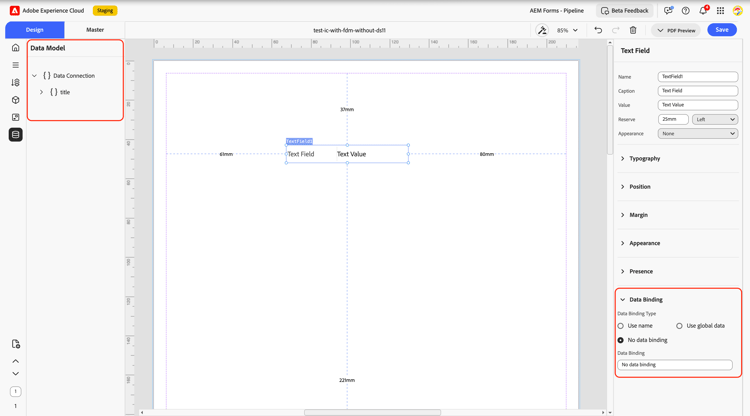
2. Properties
2.1 Managing Data Connections (FDM)
-
Select the FDM: Choose the appropriate Form Data Model (e.g., customers, accounts, or policies). This establishes the authoritative schema for fields, arrays, and objects used in the communication.
-
Create Data Binding: Once bindings are enabled, each field can be associated with FDM paths, minimizing errors and ensuring consistent integration.
-
Binding Fields to Data Model: Point fields to specific nodes (e.g., customer.name, policy.holder.id) to drive rendering with live data and to support validations or conditional logic.
2.2 Creating Data Binding
-
Visual Mapping: Drag-and-drop mapping between fields and FDM nodes helps non-technical users avoid mistakes.
-
Field Association: Define the target path, data type (text, number, date, boolean, image), and optional formatters (e.g., date mask, currency).
-
Bind Preview: Test bindings with sample data sets to validate formatting and correctness before publishing.
3. Usage
Data Binding is commonly used when communications must display authoritative records or capture user inputs. Examples include:
-
Personalization: Populate customer details like name, address, or account balance.
-
Conditional Content: Show/hide sections based on model values (e.g., active vs inactive customers).
-
Collections and Tables: Render histories, transactions, or itemized lists from arrays.
-
Images and Media: Bind profile photos, company logos, or product images.
-
Review and eSign: Pre-fill forms with data and allow updates through two-way sync.
Authors typically select the FDM early in the project, visually map fields during design, and test with sample data before publishing.
4. Best Practices
-
Define schema early: Finalize the FDM before binding to avoid remapping later.
-
Use visual mapping: Prevent typos and mismatched paths by relying on drag-and-drop.
-
Validate data types: Apply formatters for currency, dates, or phone numbers to ensure consistency.
-
Keep bindings explicit: Each field should map clearly to a single data node.
-
Test with sample data: Preview both common and edge cases (e.g., empty values, long arrays).
-
Limit two-way sync: Use only when edits or approvals are required.
-
Modularize collections: Use template rows for repeatable structures.
-
Secure sensitive data: Apply masking, encryption, and least-privilege access for PII or payment details.
By configuring Data Binding carefully, authors create a reliable bridge between design and data—accelerating communication authoring, ensuring accuracy, and delivering highly personalized experiences at scale.