[AEM Forms]{class="badge positive" title="Applies to AEM Forms)."}
Rule Editor in Interactive Communication Editor
1. Introduction
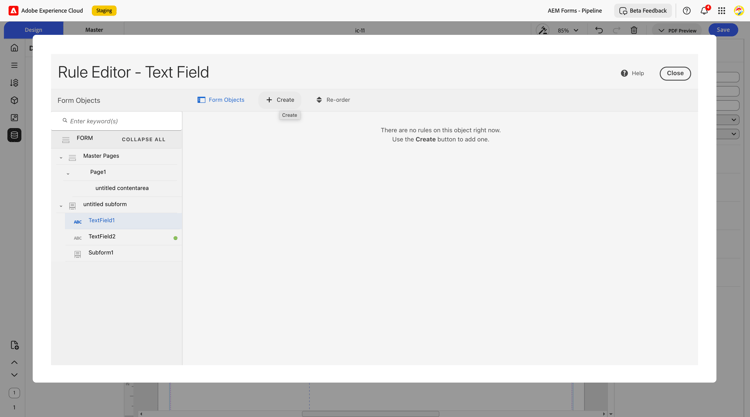
Rule Editor in the Interactive Communication Editor allows authors to define dynamic behaviors that make communications interactive and intelligent. Rules control how fields behave, display, or calculate based on user actions or underlying data, ensuring each communication is personalized and context-aware.
From simple visibility settings to complex conditional logic, rules empower authors to deliver experiences that adapt in real time, enhancing usability, accuracy, and engagement.
2. Properties
2.1 Setting Up Field Properties and Behaviors
-
Input Types: Define the type of data a field accepts, such as text, numbers, dates, or boolean values, ensuring proper validation and formatting.
-
Visibility Rules: Control whether a field is visible, hidden, or dynamically displayed based on conditions (e.g., “Show discount field only if promo code is applied”).
-
Default Values: Predefine values in fields (e.g., today’s date, customer name from data model) to save time and improve accuracy.
2.2 Implement Calculations, Validations, and Rule Logic
-
Field Logic: Automate calculations and field relationships, such as calculating invoice amounts or auto-populating dependent fields.
-
Custom Rules: Create advanced logic using the Rule Editor for complex scenarios like eligibility checks or tier-based pricing.
-
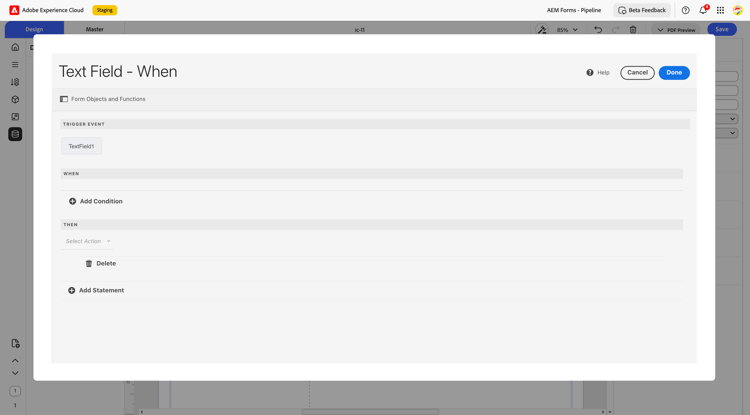
Conditional Actions: Define triggers that respond to user input or data values, such as enabling/disabling fields, showing messages, or branching to different sections.
3. Usage
Rule Editor is widely used to ensure forms and communications are responsive and context-driven:
-
Dynamic Display: Hide or reveal sections based on customer type or selected options.
-
Validation: Prevent errors by checking formats, ranges, or mandatory inputs.
-
Auto-Calculations: Simplify user tasks with formulas (e.g., tax, totals, or discounts).
-
Workflow Control: Enable specific buttons, fields, or actions only when prerequisites are met.
-
Personalization: Adapt the communication to the recipient’s profile, preferences, or eligibility criteria.
4. Best Practices
-
Keep rules simple: Break complex logic into smaller, modular rules for easier maintenance.
-
Prioritize visibility logic: Hide unnecessary fields early to streamline the user experience.
-
Test thoroughly: Preview rules with multiple data sets to confirm accuracy and avoid conflicts.
-
Use default values wisely: Pre-fill fields that rarely change, but allow flexibility for edits.
-
Leverage conditional actions: Apply them to enhance interactivity but avoid overwhelming users.
-
Document rules: Maintain a record of business logic to ensure clarity for developers and stakeholders.
By configuring rules thoughtfully, authors can build communications that respond intelligently to data and user actions—streamlining processes, reducing errors, and delivering a seamless, personalized experience.