[AEM Assets]{class="badge positive" title="Applies to AEM Assets)."}
Navigate to files and folders and view assets view-assets-and-details
Understand the Assets view user interface understand-interface-navigation
Assets view provides a clean, organized user interface that makes assets and related information easy to locate, browse, and manage. The layout is designed so that both frequently used actions and navigation controls remain readily accessible.
When you log into Assets view, the following interface elements are displayed.
Assets view interface elements
The interface is organized around a set of labeled controls, each mapped to a specific navigation or asset-management task:
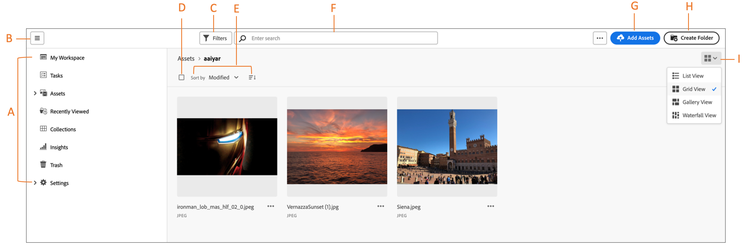
- A — Left sidebar: Browse the repository and access additional navigation options.
- B — Sidebar toggle: Display or collapse the left sidebar to increase the asset-viewing area, so you can focus on the content itself.
- C — Filter: Filter search results to narrow down displayed assets.
- D — Select all: Select all contents of the currently selected folder in a single action.
- E — Sort options: Choose how assets are ordered within the view.
- F — Search box: Search for assets across the repository.
- G — Add Assets: Upload or drag and drop files using the
Add Assetsbutton. - H — New folder: Create a new folder to organize assets.
- I — View switcher: Switch between different views to change how assets are presented.
Browse and view assets and folders browse-repository
You can browse the folders from the main user interface or from the left sidebar. Experience Manager Assets displays visual previews of folder contents on the folder thumbnail when browsing or searching for content. These visual previews improve the discoverability of assets stored within the Adobe Experience Manager (AEM) Assets repository. The folder thumbnail reduces the time spent locating specific assets within a folder, because you can identify relevant content visually before opening the folder.
When browsing through assets in a folder, you can use the interface to view asset thumbnails to visually browse the repository or view asset details to quickly find the asset you want. The options available in the left sidebar are:
-
My Workspace: Assets now includes a customizable workspace that provides widgets for convenient access to key areas of the Assets user interface and information that is most relevant to you. This page serves as a one-stop solution to provide an overview of your work items and to give quick access to key workflows. This convenient, centralized access increases your efficiency and accelerates content velocity.
-
Tasks: You can view the tasks assigned to you under My tasks tab. Whereas, the tasks that are created by you can be viewed under Assigned tasks tab. Also, the tasks that you complete are located under Completed tasks tab.
-
Assets: List of all folders in a tree view, that you have access to.
-
Recently Viewed: List of assets that you previewed recently. Assets view displays only the assets that you preview. It does not display the assets that you scroll past when browsing the repository files or folders.
-
Collections: A collection is a set of assets, folders, or other collections within Adobe Experience Manager Assets view. Use collections to share assets between users, which streamlines collaboration across teams. Unlike folders, a collection can include assets from different locations. You can share multiple collections with a user. Each collection contains references to assets. The referential integrity of assets is maintained across collections.
-
Insights: In Assets view, you can view real-time insights on your dashboard. Assets view enables you to view real-time data for your Assets view environment with the Insights dashboard. You can view real-time event metrics for the last 30 days or the last 12 months.
-
Trash: List the assets deleted from the root Assets folder. You can select an asset in the Trash folder to restore it to its original location or permanently delete it. You can specify a keyword or apply filters such as asset status, file type, mime type, image size, asset creation, modification, and expiration dates, as well as filtering by assets discarded by the current user. You can also apply custom filters to search appropriate assets within the Trash folder.
The assets are not deleted automatically from the Trash folder. You need to delete them manually.
For more information on using standard and custom filters, see how to search assets in Assets view.
-
Settings: You can configure various options of Assets view using Settings, such as, Metadata forms, Reports, and Taxonomy Management.
You can open or collapse the left sidebar to increase the available asset-viewing area.
In Assets view, you can view assets, folders, and search results in four different layout types. Each layout supports a distinct browsing preference, from dense listings to visual, image-forward displays:
-

-

-

-

To locate an asset, you can sort the assets in ascending or descending order of Name, Relevancy, Size, Modified, and Created.
To navigate in a folder, double-click the folder’s thumbnails or select the folder from the left sidebar. To view details of a folder, select it and click Details from the toolbar at the top. To navigate up and down the hierarchy, either use the left sidebar or use the breadcrumbs at the top.
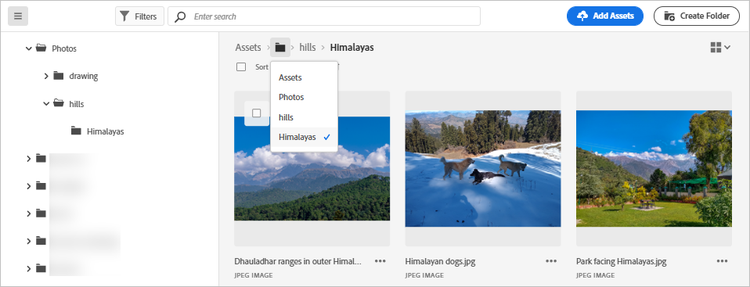
Figure: To browse the hierarchy, use the breadcrumbs at the top or the left sidebar.
Preview assets preview-assets
Before you use, share, or download an asset, view it more closely first. The preview feature displays not only images but also several other supported asset types, so you can confirm you have the correct file before committing to an action.
Preview an asset
To preview an asset:
- Select the asset you want to inspect.
- Click Details

In the preview, you not only view the asset but also inspect its detailed metadata and perform additional actions such as assigning tasks, commenting, annotating, and managing versions and renditions — all without leaving the preview screen.
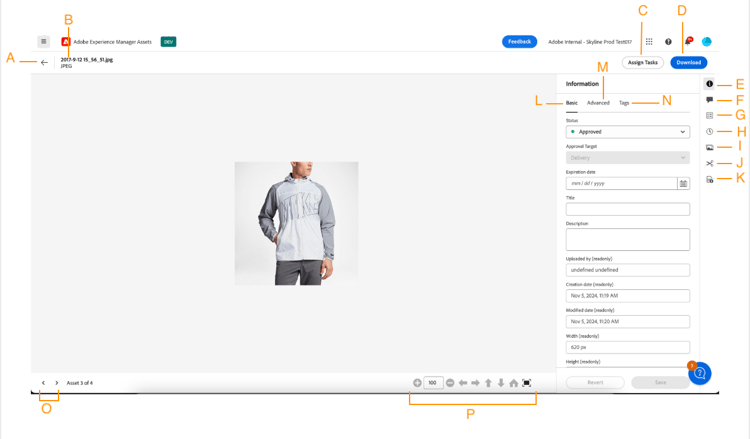
Preview toolbar options (A–P)
The preview toolbar provides the following controls and panels:
- A: Return to the current folder or current search result in the repository.
- B: Name and format for the file you are previewing.
- C: Assign tasks.
- D: Advanced metadata.
- E: Keywords and smart tags.
- F: Comment and annotate.
- G: View tasks related to the selected asset.
- H: View and manage versions.
- I: View renditions of the image.
- J: Edit image.
- K: View Dynamic Media renditions, including Smart Crop and Dynamic Media with OpenAPI capabilities renditions.
- L: Basic metadata.
- M: Advanced metadata.
- N: Keywords and smart tags.
- O: Proceed to the previous or next asset in the current folder without going back to the folder.
- P: Preview more closely. Zoom, full screen, and other options.
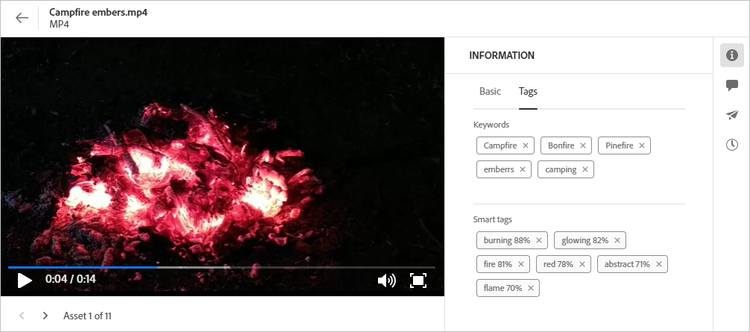
Preview videos and recently viewed assets
You can also preview videos, not just static images.
When you explicitly preview an asset, Assets view records it and displays it as a recently viewed asset, making it easier to return to files you have recently opened.
Next Steps next-steps
After managing asset versions, take the following actions to share input, resolve issues, and continue building expertise with Assets view:
-
Provide product feedback using the Feedback option available on the Assets view user interface to help improve the product experience and shape future capabilities
-
Provide documentation feedback using Edit this page


-
Contact Customer Care for assistance with technical issues, account questions, or additional support
See also
Explore these related Assets view topics to translate, manage, search, and publish digital assets more effectively:
- Translate Assets
- Assets HTTP API
- Assets supported file formats
- Search assets
- Connected assets
- Asset reports
- Metadata schemas
- Download assets
- Manage metadata
- Manage Dynamic Media templates
- Manage reports in Assets view
- Search facets
- Manage collections
- Bulk metadata import
- Publish Assets to AEM and Dynamic Media