Get started
This guide walks you through setting up Adobe Commerce Optimizer from start to finish. While this guide covers all roles, see the developer documentation for detailed developer-specific content.
Instance types and environment isolation
Adobe Commerce Optimizer uses separate instances for different environments, such as sandbox and production. Each instance has its own instance ID and its own isolated data, including catalog views, policies, search configuration, and product recommendations.
When integrating with Adobe Commerce as a Cloud Service, third-party commerce platforms, or Edge Delivery Services storefronts, always match environments:
- Connect sandbox Optimizer instances to non‑production commerce and storefront environments.
- Connect production Optimizer instances to production commerce and storefront environments.
Mixing sandbox environments with production environments causes inconsistent catalog data, unexpected search and merchandising behavior, and unreliable metrics. Use the instance type and instance ID in Commerce Cloud Manager as your source of truth when configuring integrations.
Prerequisites
Before you begin, ensure you have:
- Adobe Experience Cloud account with Adobe Commerce Optimizer entitlements
- Organization admin access to create instances and manage users
- GitHub account for loading sample data and storefront development
- Basic understanding of e-commerce concepts
Quick start guide
Follow these essential steps to get your Adobe Commerce Optimizer environment running:
Step 1. Create an Instance
-
Log in to Adobe Experience Cloud.
-
Navigate to Commerce > Commerce Cloud Manager.
-
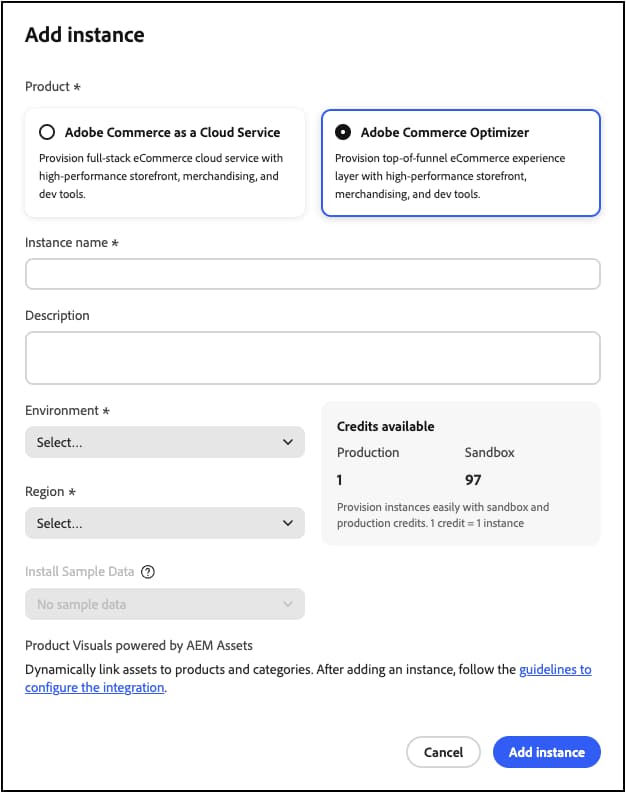
Click Add Instance > Commerce Optimizer.
-
Configure instance settings:
- Instance Name: Descriptive name (for example, “My Company Sandbox”)
- Description: Brief description of purpose
- Environment Type: Start with a Sandbox environment for testing
- Region: Select your preferred region
-
Click Add Instance.
The Cloud Manager updates to include your new instance. For details on accessing and managing it, see Manage an instance.
Step 2. Set up your environment
After creating your instance:
- Manage your instance from Commerce Cloud Manager.
- Configure user access using the User Management Guide.
Step 3. Add sample data (Optional)
For testing and learning, follow the Load Sample Data instructions.
Role-Based workflows
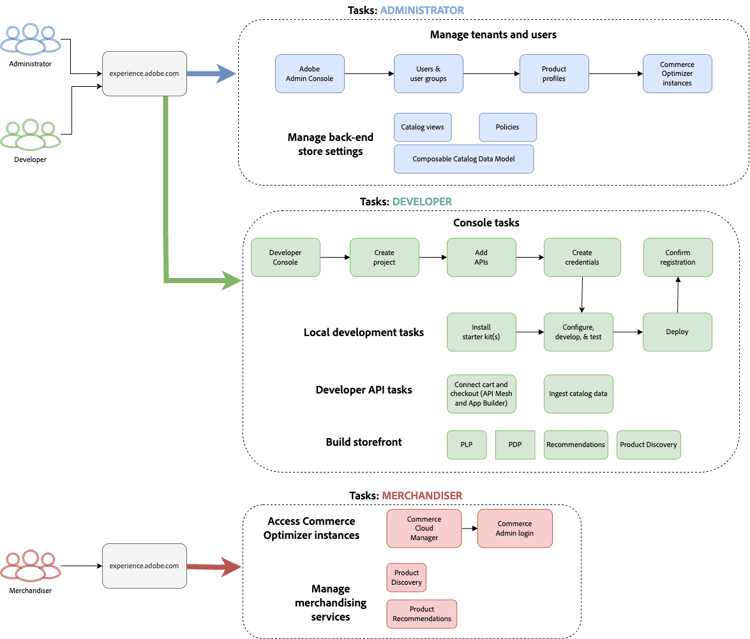
Adobe Commerce Optimizer setup and management rely on three key roles. Each role has specific tasks and responsibilities:
Administrator tasks
Administrators manage instances, users, and organizational settings.
Developer tasks
Developers handle technical implementation and data integration, including platform architecture tasks.
To ingest data from Commerce on cloud or on premises environments or other third-party systems, see the Integrations topic.
Merchandiser tasks
Merchandisers optimize and personalize the shopping experience through product discovery and recommendations. They also use shopper data and analytics to make strategic decisions about product placement, pricing, and promotions on the storefront.
Manage instances
Manage instances from the Commerce Cloud Manager.
-
Log in to Adobe Experience Cloud.
-
Open Commerce Cloud Manager:
- Under Quick access, click Commerce.
- View your available instances.
Search and filter instances
After you log in, the dashboard shows all Commerce product instances available in the organization.
The Product column indicates which Commerce application the instance is provisioned for.
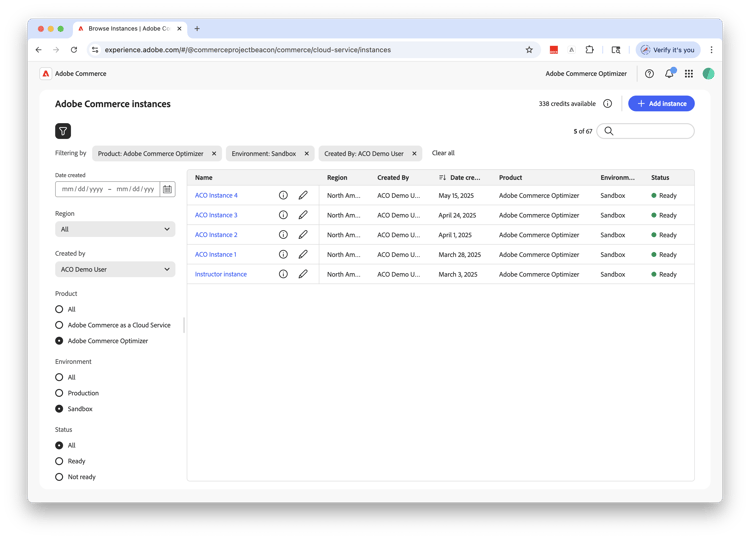
Use the Filter and Search tools to quickly find specific instances by date created, region, creator, product type, environment, or status.
Access the Adobe Commerce Optimizer Studio admin interface
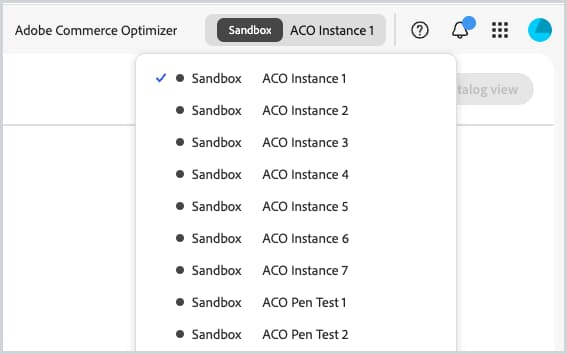
After the app is open, easily switch between environments like sandbox and production to view data and settings for each one without returning to the Commerce Cloud Manager.
-
From the Commerce Cloud Manager, click the instance name to open Adobe Commerce Optimizer Studio.
-
Switch between Adobe Commerce Optimizer instances without leaving the application.
-
Click the instance drop-down to view all Optimizer instances available in the organization.
-
- Select the instance to view.

Get instance details
View the instance details by clicking the information icon next to your instance name.
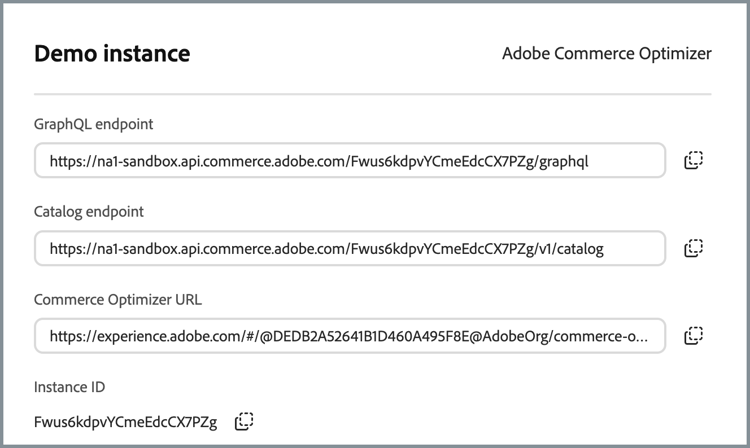
Note the following key information:
- GraphQL endpoint GraphQL endpoint your storefront uses to query catalog and merchandising data from this instance using the Merchandising Service API
- Catalog endpoint REST API endpoint you use to ingest products and prices into Adobe Commerce Optimizer from your commerce or PIM system. See the Data Ingestion API
- Commerce Optimizer URL Opens the Adobe Commerce Optimizer Studio admin UI to configure and manage catalog views, policies, and merchandising.
- Instance ID: Unique identifier (tenant ID) for this Adobe Commerce Optimizer instance, used by storefronts, APIs, and tools to connect to the correct environment.
If you are a developer, you need these details to set up your development environment and connect to the Adobe Commerce Optimizer APIs.
Edit Instance Name and Description
Update the instance name and description as needed.
- Click the Edit icon next to an instance name.
- Update the Instance name and Description as needed.
- Click Save.
Add sample data
Adobe provides a GitHub repository with sample data and tools to help you learn and test Adobe Commerce Optimizer features.
The sample data is based on the Carvelo business scenario and includes:
- Product catalog with automotive parts
- Multiple price books and pricing scenarios
- Catalog views and policies for different dealers
- Complete end-to-end workflow examples
Load the sample data:
-
Access the Sample Catalog Data Ingestion GitHub repository.
-
Follow the setup instructions in the repository’s README file to complete the following tasks:
- Set up your environment
- Complete the data ingestion process
- Create catalog views and policies using the sample data
- Verify the data ingestion by checking the Catalog Service data on the Data Sync page
Next steps
After completing the setup:
-
Set up your storefront:
- Configure Edge Delivery Services storefront
- Connect to your catalog data
-
Explore the Carvelo use case:
- Follow the end-to-end workflow
- Practice with real scenarios
-
Configure merchandising:
- Set up product discovery
- Create recommendations
-
Monitor performance:
- Track success metrics
- Analyze search performance
Troubleshooting
Common issues
Get help
- Developer Resources: Developer documentation
- Storefront Resources: Commerce storefront documentation
- Tutorials: Commerce Optimizer tutorials
- Support: Adobe Commerce Support resources