Private catalog views
By default, a catalog view is public. Restrict access to a catalog view so only requests with a valid signed token can retrieve its data.
A catalog view becomes private in one of two ways:
-
[Private Beta]{class="badge yellow" title="Requires the Adobe Commerce Optimizer Connector B2B extension, which is currently in private beta."} Automatically, for B2B shared catalogs—For Commerce deployments that use the Adobe Commerce Optimizer Connector integration with the B2B extension, private catalog views are created and configured for you automatically, based on the shared catalog configuration in Adobe Commerce. See Automatic private catalog views for B2B shared catalogs.
-
Manually, for any catalog view—To restrict access to a catalog view that would otherwise be public, including a B2C catalog view, follow the steps in Protect a catalog view. See Restricted access key use cases for examples, such as partner portals and pre-release previews.
Catalog protection applies to the selected catalog view only. It does not change the view’s policies or layers. It does restrict the view to a single price book—see Price book restriction on private catalog views.
Understand the protection boundary
Catalog protection applies only to the catalog view where it is enabled. It protects catalog and search requests but does not change the view’s policies or layers, protect other catalog views, or secure cart, checkout, or order operations.
The connected commerce backend must independently enforce purchase eligibility.
Price book restriction on private catalog views
A private catalog view can reference only one price book. This differs from a public catalog view, which can use multiple price books.
When Catalog Protection is enabled, the price book selector on the catalog view form switches from a multi-select control to a single-select (radio button) control.
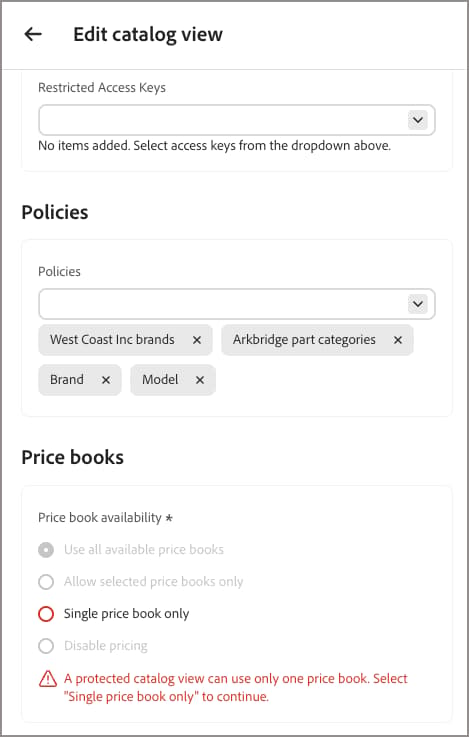
- If you enable Catalog Protection on a catalog view that has multiple price books assigned, you cannot save the view until you remove all but one price book.
- If you previously saved a private catalog view with multiple price book assignments before this restriction existed, the catalog view configuration is not automatically changed. However, the next time you edit the view, you must remove all but one price book before you can save the updates.
In each of these cases, Adobe Commerce Optimizer displays the following validation message: A protected catalog view can use only one price book. Select 'Single price book only' to continue.
Public catalog views are unaffected by this restriction and can continue to reference multiple price books.
Automatic private catalog views for B2B shared catalogs
[Private Beta]{class="badge yellow" title="Requires the Adobe Commerce Optimizer Connector B2B extension, which is currently in private beta."}
For deployments integrated with the Adobe Commerce Optimizer Connector for B2B to support shared catalogs, the extension creates and configures private catalog views automatically, based on the shared catalog configuration in Adobe Commerce. This configuration includes the catalog view, policy, an initial restricted access key, and a price book reference. With this configuration, you manage restricted access keys from the Commerce Admin Restricted Access Keys page (System > Data Transfer). For details, see B2B shared catalog changes in the Adobe Commerce Optimizer Connector Integration Guide.
If you are not using B2B shared catalogs—for example, to protect a catalog view for a partner portal or pre-release preview, use the instructions in Protect a catalog view to configure one manually.
Protect a catalog view
Before you begin, create a restricted access key from the public key your client application generates.
-
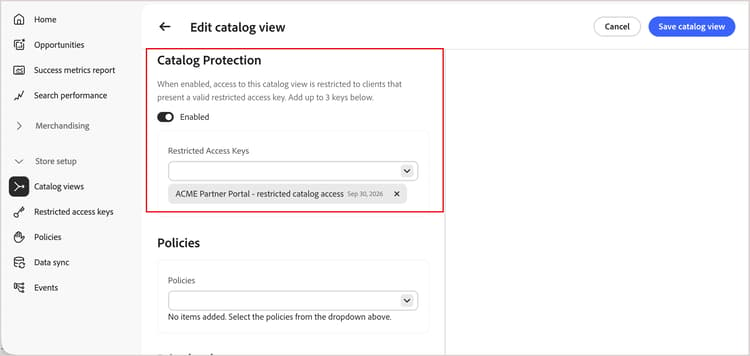
On the catalog view create or edit form, toggle Catalog Protection to Enabled.
-
Under Restricted Access Keys, select up to three restricted access keys to assign to this catalog view.
-
Click Save catalog view.
The catalog view is now protected. Only requests carrying a valid signed token from an assigned key can retrieve its data.
note NOTE Allow up to five minutes for Catalog Protection configuration changes to take effect.
Verify access is enforced
To confirm that a private catalog view rejects unauthorized requests, call its GraphQL endpoint with and without a signed token, using these headers:
AC-View-IDAC-Price-Book-IDAC-Catalog-View-Access-TokenA request without a valid token returns a GraphQL error instead of catalog data, for example:
{
  "errors": [
    {
      "message": "Access key validation failed: Missing token",
      "extensions": { "x-commerce-exception": "access-key-invalid" }
    }
  ]
}
A request carrying a token signed by an assigned, unexpired key returns the catalog data as expected. For details on signing a JWT and calling the Merchandising API, see the developer documentation.
Manage restricted access keys
If Catalog Protection is enabled and all assigned keys expire, the catalog view becomes inaccessible. Storefronts that rely on this catalog view cannot serve data from it. Assign a new, unexpired key to restore access. For instructions, see Rotate keys.
More like this
- Catalog views—Learn how catalog views organize your product catalog by business structure, policies, and pricing.
- Restricted access keys—Create, assign, and rotate the keys used to sign tokens for Catalog Protection.