Catalog views for Merchandising Services
A catalog view defines the products and pricing that a client can retrieve. It combines catalog sources, catalog layers, policies, and price books to support different brands, regions, business units, or channels.
What are catalog views?
Catalog views define how your product catalog is organized and displayed. They act as filters that determine:
- Which products are visible based on business structure (brands, regions, dealers)
- What pricing is shown through linked price books
- How products are filtered using policies (attributes like brand, model, category)
- What catalog source is used based on attributes like locale
- Who can access the view’s data through Catalog Protection and restricted access keys
For example, you can create separate catalog views for:
- A brand or business unit
- A geographic region
- A dealer or partner channel
- A customer segment with specific pricing
Create a catalog view
Before creating a catalog view, prepare the following items as needed:
- A catalog source
- Policies that define product filters
- Catalog layers if you need to override product attributes
- Price books for the pricing displayed in the view
- Restricted access keys if you want to create a private catalog view
Configuration
In this section, you create a catalog view, select a policy, and a price book.
-
From the left menu, go to Store setup, and click Catalog views.
-
Click Create catalog view.
-
Configure the catalog view details:
- Name—Enter the name of the catalog view, for example
Celport. - Catalog sources—Select the catalog source, for example
en-US. - Catalog layers—Review ingested layers and priority.
- Policies—Use the drop-down to select the relevant policies. For example, “Brand,” “Model”. Make sure you have already created a policy.
- Name—Enter the name of the catalog view, for example
-
Select the price book to link to the catalog view.
- Use all available price books—This option pulls pricing data from all available price books.
- Allow selected price books only—This option displays the Add allowed price books dialog. Use this dialog to select which specific price book to use for the catalog view.
- Single price book only—Select this option if only one price book applies. This option is required if you want to configure a private catalog view, which can reference only one price book. See Price book restriction on private catalog views.
- Disable pricing—This option is not available at this time.
note NOTE A price book ID controls which pricing is requested. It does not restrict access to the catalog view. To restrict access, enable Catalog Protection to create a private catalog view. -
(Optional) Toggle Catalog Protection to Enabled to restrict this catalog view’s data to clients with a valid signed token. See Protect a catalog view for setup steps.
-
Click Add to create the catalog view with the linked price books and policies.
The Catalog views page updates to display the new catalog view.
After you complete these steps, the catalog view is now configured to display products and pricing based on your selected sources and policies.
Specify catalog views for recommendations and product discovery rules
You can specify a catalog view when you create recommendation units or merchandising rules.
Catalog layers
Catalog layers let you override selected product attributes without changing the source catalog data. Use layers to customize names, descriptions, images, links, or metadata for a catalog view.
See Catalog layers.
Make a catalog view private
By default, a catalog view is public to client applications that can access the GraphQL Merchandising API. To restrict access, configure a private catalog view by enabling Catalog Protection.
To learn how to protect a catalog view and verify that access is enforced, see Private catalog views.
Manage catalog views
To update or view the properties of existing catalog views, follow these instructions.
Edit a catalog view
- In the Catalog views workspace, locate the catalog view.
- To open the actions menu, select (…).
- Select Edit to access the catalog view editor.
- Update the name, catalog sources, policies, price book information, and Catalog Protection settings (including assigned restricted access keys) as needed.
- Click Save.
Delete a catalog view
-
In the Catalog views workspace, locate the catalog view.
-
To open the actions menu, select (…).
-
Select Delete.
-
Confirm the deletion.
When the confirmation dialog appears, click Delete.
View catalog view details
This option provides a quick way to see all the catalog view parameters, while staying on the Catalog views table.
In the Catalog views workspace, select the

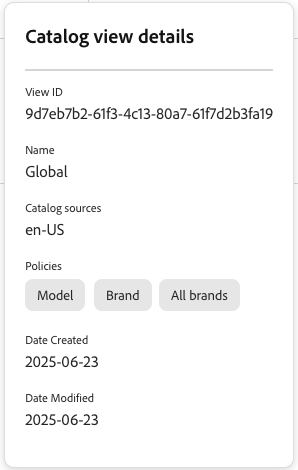
From here you can see catalog view configuration details, such as:
- View ID
- Name
- Catalog sources
- Policies
- Date Created
- Data Modified
Some of these configuration settings are needed as you set up your storefront or use the data ingestion API.
Architecture overview
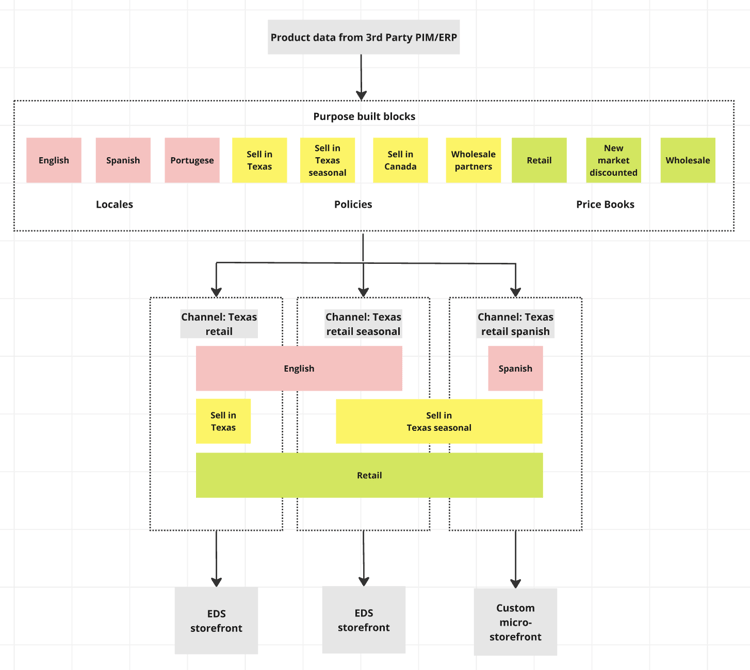
Catalog views are part of the Merchandising Services framework that replaces the website, store, storeview framework used in Adobe Commerce foundations with a more flexible model:
How it works
1. Data Ingestion
Catalog data from PIM, ERP, and other systems is ingested into the Merchandising Services framework. Each SKU contains locale information and product attributes that map to catalog views, policies, and locales. For more information about data ingestion, see the developer documentation.
2. Unified Base Catalog
The ingested data creates a unified base catalog in the Catalog Service data pipeline. This single source eliminates data duplication across business units.
3. Catalog Views
Multiple catalog views represent different business units (for example, “Texas Retail,” “Texas Retail Seasonal”). Locales, policies, and price books can be shared across catalog views for flexibility.
4. Multi-Channel Delivery
The filtered catalog data is delivered to destinations like Edge Delivery Services, marketplaces, advertising platforms, and custom micro-storefronts. For more information about catalog data delivery, see the developer documentation.
When a catalog view has Catalog Protection enabled, delivery to that destination requires a valid signed token from an assigned restricted access key; unauthorized requests are denied instead of receiving catalog data.
Key components
Data flow
- Ingest - Product data from PIM/ERP systems
- Process - Apply catalog views, policies, and pricing
- Deliver - Serve filtered catalog to storefronts, marketplaces, etc.
Key features
Use cases
Multi-brand conglomerate
Challenge: Manage multiple brands, countries, and languages
Solution: Single catalog with catalog views for each brand/region combination
Automotive parts dealer
Challenge: 3,000 dealers with same products but different pricing
Solution: One catalog with dealer-specific catalog views and price books
Multi-location retailer
Challenge: Different pricing and inventory per location
Solution: Location-based catalog views with region-specific policies
More like this
- Catalog sources—Define the authoritative scope of products, attributes, and categories for search, filter, and sort behavior
- Catalog layers—Learn how to modify product data without changing the original source
- Private catalog views—Create a private catalog view to restrict access to authorized clients
- Restricted access keys—Create, assign, and rotate the keys used to sign tokens for Catalog Protection
- Policies—Create policies to filter products in catalog views
- Price books—Manage pricing structures for different customer segments