Catalog layers
Catalog layers allow you to modify product data without changing the original source data. Layers modify product attributes, such as name, description, images, links, and metadata, by creating a layer on top of your base catalog. Your original product data remains intact, allowing you to customize products safely and revert changes at any time.
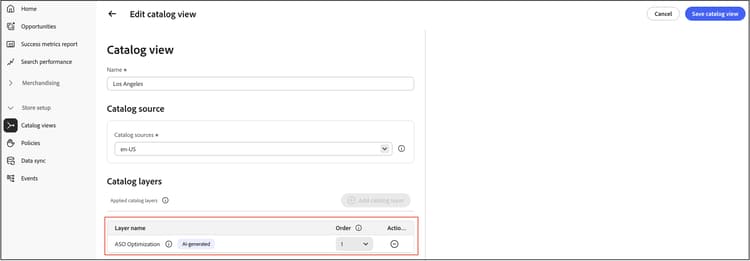
How catalog layers work
When a customer views your storefront, the system combines your base catalog data with active catalog layers to display the final product information. The process works as follows:
-
Layer application—When a request is made with a channel ID and environment ID, the store service retrieves the relevant catalog view.
-
Data merging—The system applies catalog layers to product data based on layer priority order.
-
Field handling—Different field types are processed differently:
- Override fields—Text fields like name, description, and meta titles are replaced with layer values, and the higher-priority layer takes precedence.
- Merge fields—Array fields like images, links, and attributes are combined from multiple layers, providing a unified response.
-
Priority resolution—The order field determines which layer takes precedence. When multiple layers modify the same field, the layer with the higher order number has higher priority (for example, order 10 is the highest).
Catalog layer use cases
Catalog layers are commonly used for:
- SEO optimization—Override product meta titles and descriptions based on AI recommendations from Sites Optimizer.
- Seasonal campaigns—Temporarily update product names, descriptions, or images for promotions without changing source data.
- Regional customization—Display different product information based on geographic location or language.
- A/B testing—Test different product presentations to optimize conversion rates.
- Multi-brand management—Customize product attributes for different brand catalog views.
- Product Visuals—Apply product images from AEM Assets as a layer on top of your base catalog.
AEM-Assets layer
When you enable Product Visuals, the AEM Assets Integration automatically creates and manages a catalog layer dedicated exclusively to AEM Assets content. The default layer name is AEM-Assets; however, you can specify a custom name during onboarding in the AEM Assets integration.
This layer contains product images synchronized from AEM Assets. Like other catalog layers, it is populated via the Product Layers API. The Assets Integration Service transforms AEM asset metadata and delivery URLs into the API format and sends the data automatically when assets are approved in AEM Assets.
The integration supports one source per tenant (one locale + one layer).
How the AEM-Assets layer works
-
Automatic creation: The layer is created when the AEM Assets Integration is configured for your Commerce Optimizer instance.
-
Image synchronization: When assets are approved in AEM Assets, Assets Integration Service transforms the asset data and updates the
AEM-Assetslayer via the Product Layers API. -
Layer assignment: Assign the
AEM-Assetslayer to catalog views where you want AEM Assets images to appear.
Assign the AEM-Assets layer to a catalog view
To display AEM Assets images on your storefront:
-
Navigate to Store setup, and click Catalog views.
-
Select the catalog view where you want to apply the layer.
-
In the catalog layers section, locate the AEM-Assets layer.
-
To enable the layer for this catalog view, activate it.
-
Click Save to apply the changes.
Once assigned, the storefront APIs (Catalog Service, Live Search, Product Recommendations, and Storefront GraphQL API) return both base catalog images, and AEM Assets images for products.
For more information about configuring Product Visuals, see Product Visuals with AEM Assets.
Add a catalog layer via data ingestion
You can add catalog layers to your products during the data ingestion process. This method is ideal for bulk operations or automated workflows.
Prerequisites:
- API credentials with permission to access the data ingestion service
- Product SKUs that already exist in your base catalog
Steps:
-
Prepare your layer data in the required format with the product attributes you want to modify.
-
Use the Product Layers API endpoint to ingest the layer data.
-
Verify the layer was successfully ingested by checking the catalog view configuration.
For detailed API specifications and payload examples, see Product Layers in the developer documentation.
Add a catalog layer manually in the UI
The catalog view UI allows you to create and manage layers manually, which is particularly useful for integrations like Sites Optimizer that generate AI-powered recommendations.
To create a manual layer:
-
Navigate to Store setup > Catalog views.
-
Select the catalog view where you want to apply the layer.
-
In the catalog layers section, click Add catalog layer.
-
Configure the layer properties:
- Layer name—Enter a descriptive name to identify the layer purpose.
- Products—Select the products to which this layer applies.
- Attributes—Choose which product attributes to modify (name, description, images, meta tags, and so on).
- Values—Enter the new values for each selected attribute.
-
Click Save to create the layer.
The new layer is added to the catalog view and is automatically assigned the next available order number.
Preview layer effects
Before activating layers or changing priorities, you can preview how they affect product data.
To preview layer changes:
-
Navigate to Store setup > Catalog views.
-
Select the catalog view with the layers you want to preview.
-
In the catalog layers section, select a specific product or use the preview function.
-
Review the combined product data showing how layers modify the base catalog values.
-
Make adjustments to layer content or priority order as needed.
Manage layer activation and deletion
You can enable or disable catalog layers without deleting them, allowing you to control when specific customizations are applied.
To activate or deactivate a layer:
-
Navigate to Store setup > Catalog views.
-
Select the catalog view containing the layer.
-
In the catalog layers section, locate the layer you want to toggle.
-
Click the activation toggle to enable or disable the layer.
- Active—The layer is applied to product data.
- Inactive—The layer is preserved but not applied to product data.
-
The change takes effect immediately on your storefront.
To delete a layer:
Use the data ingestion API to delete a catalog layer.
Manage layer priorities
The order in which layers are applied determines which values appear on your storefront when multiple layers modify the same product attribute. Managing priorities ensures the correct data is displayed.
Understanding priority order:
- Each layer is assigned an order number (1, 2, 3, and so on)
- Higher numbers indicate higher priority and override all other layers
- When multiple layers modify the same field, the layer with the higher order number takes precedence
- Priority only applies to override fields (name, description, meta tags)
- Merge fields (images, links, attributes) combine data from all layers
To reorder layer priorities:
-
Navigate to Store setup > Catalog views.
-
Select the catalog view containing the layers you want to reorder.
-
In the catalog layers section, locate the layer you want to move.
-
Drag and drop the layer to change its position, or use the reorder controls.
-
The system automatically updates order numbers based on the new sequence.
-
Click Save to apply the new priority order.
Best practices
Follow these recommendations when working with catalog layers:
-
Use descriptive names—Name layers clearly to indicate their purpose (for example, “Holiday 2025 Campaign” or “SEO Optimization — Product Pages”).
-
Limit layers—While the system supports multiple layers, using too many can impact performance. Consolidate layers when possible.
-
Document priority logic—Keep track of which layers take precedence to avoid unintended overrides.
-
Review Sites Optimizer layers—When using auto-fix from Sites Optimizer, the system creates layers at the highest priority. Be mindful when adding manual layers that override AI recommendations. Learn more about using Sites Optimizer.
-
Monitor performance—If you notice slow product page loads, review your layer configuration and consider consolidating layers.
More like this
- Catalog views—Configure catalog views for different storefronts
- Product Visuals—Use AEM Assets for product images
- Opportunities—Learn about AI-powered optimization using catalog layers
- Restricted access keys—Protect a catalog view with signed-token authentication