Configure AEM Assets for Adobe Commerce Optimizer
[SaaS only]{class="badge positive" title="Applies to Adobe Commerce Optimizer projects only."}
The AEM Assets Integration for Adobe Commerce Optimizer enables merchants to use AEM Assets as the centralized digital asset management solution for product images. This guide covers the configuration specific to Commerce Optimizer.
The following diagram is an overview of the product sync between Adobe Commerce Optimizer and the AEM Assets integration.
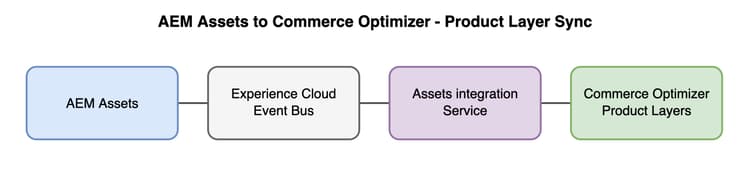
This integration has two independent event flows. Both use Adobe I/O Events to transfer events to the Assets Integration Service, but each direction uses its own event provider:
-
From AEM Assets to the Assets Integration Service: When an asset is approved, rejected, or removed, the event is delivered to the Assets Integration Service. The service matches assets to products using
match-by-SKU(metadata-driven) or a custom matcher (App Builder), then sends theproduct-assetmappings to Commerce Optimizer, where they are stored as product layers.note NOTE The AEM-Assetscatalog layer used by the integration is created automatically during onboarding. You do not need to create it beforehand. For background on how catalog layers work and how the AEM-Assets layer behaves, see AEM-Assets layer. -
From Adobe Commerce Optimizer to the Assets Integration Service: When a product is updated in Commerce Optimizer, the event is delivered to the Assets Integration Service. The service syncs any matching asset mappings back to Commerce Optimizer.
Limitations
The Commerce Optimizer integration has the following limitations:
Layer-related constraints
-
Use a dedicated layer for AEM Assets content.
Payloads sent from AEM Assets populate a Commerce Optimizer catalog layer. Values in that layer overwrite base catalog attributes where fields are supplied. When the integration omits a field in the payload, the corresponding values in that layer can be overwritten with empty values. Sharing a layer with unrelated Commerce workflows—or reusing a layer that already stores non–AEM-Assets product data—can cause unintended data loss or confusing overwrites. Reserve the layer name (for example the default
AEM-Assets) primarily for AEM-driven product image sync. -
The integration supports one catalog source per tenant: a single locale and one named layer. Configuring multiple AEM-Assets layers or multiple locales for the same tenant is not supported at this time.
-
Reusing an existing layer or sharing a layer with unrelated workflows is a frequent cause of preventable support cases.
Other constraints
- Images only: The integration does not support video or other media types at this stage.
- No category images: Category image synchronization is not available. Category images from AEM Assets for the Assets Selector (UI insertion) are not supported.
- No multi-site distinction: The integration does not handle multi-site; an image associated with a product is shown the same across all channels and policies.
- Image position / ordering: Image position and ordering are not supported.
- Product must exist: If the product does not exist in Commerce Optimizer, the layer is not created for that product-asset mapping.
Prerequisites
Before configuring the integration, ensure you have:
- An active Adobe Commerce Optimizer instance with the Product Visuals entitlement (bundles Dynamic Media with OpenAPI capabilities + AEM Assets Prime), or a customer-provided AEM Assets license (for example, AEM Assets Ultimate) with Dynamic Media enabled.
- Access to an AEM Assets as a Cloud Service environment.
- Both Commerce Optimizer and AEM Assets in the same Adobe IMS Organization.
- Dynamic Media with OpenAPI enabled on your AEM Assets environment (see Configure the AEM Assets project for enablement steps).
Configure AEM Assets first
To support the integration, configure the AEM Assets project and environments before you begin the process to onboard the AEM Assets Integration with Commerce Optimizer. This includes enabling Dynamic Media with OpenAPI capabilities, and making the Commerce metadata schemas, events, and UI available in your AEM project.
-
[Recommended]{class="badge positive"} On AEM release
2026.5.26309and later, enable the integration from Cloud Manager with no code deployment. Follow Enable the Commerce integration (self-service). -
On earlier AEM releases, deploy the
assets-commercepackage manually.
Follow Install the assets-commerce package manually.
Onboarding
assets-commerce package (or self-service equivalent) for metadata and events. Opening a ticket before AEM is configured can delay onboarding.To onboard AEM Assets Integration with Commerce Optimizer, Adobe Support must register your Adobe Commerce Optimizer instance with the Assets Integration Service and subscribe it to:
- AEM Assets events (asset approved, updated, removed)
- Commerce Optimizer catalog events (product created, updated)
To initiate this process, create a support ticket that includes the following information:
- Adobe Commerce Optimizer Tenant ID (Instance ID) found in your Commerce Optimizer URL or Commerce Cloud Manager UI.
- AEM Program ID and Environment ID that you set up when you configured AEM Assets for the integration.
- Matching rule: Match by SKU or external matcher (App Builder).
- Layer: The catalog layer name to register the tenant with (see Layer-related constraints). Specify a custom name only if intentional; otherwise the default
AEM-Assetsis used. - Locale: The catalog source locale to register the tenant with (for example,
en-US). This locale must match the locale you use in your catalog view and product catalog data.
Configure your catalog view
After the Commerce Optimizer tenant is registered, configure your catalog view so the storefront and APIs surface AEM-driven image data:
- Select the Catalog source (locale) — Select the same locale you specified in your support ticket (for example
en-US). The integration registers one locale per tenant; a mismatch prevents synced images from appearing in the intended catalog view. - Assign the Catalog layer — Assign the
AEM-Assetslayer (or your custom layer name from the ticket) to that catalog view.
If the locale or layer is not assigned correctly, image data does not appear or behaves unexpectedly—even though sync succeeded upstream.
Synchronization
Once configured, the integration synchronizes product-asset mappings automatically.
See Custom automatic matching for more information.
Match by SKU workflow example
A typical flow when adding an existing asset to a new product:
-
Create the product in Commerce Optimizer (via API or data ingestion). The product can exist without images initially.
-
In AEM Assets, open the asset you want to map to the product.
-
Add the product SKU to the commerce:skus metadata and assign image roles (for example,
thumbnail,image). -
Approve the asset for delivery. This triggers the event that the Assets integration service processes.
-
The Assets Integration Service sends the product-image mapping to Commerce Optimizer. The product in Commerce Optimizer is updated with the images from the asset.
-
Verify the image is visible. Wait a few minutes for the sync to complete, then check the product in the Commerce Optimizer UI or query the storefront APIs to confirm the image is returned.
Image role handling
When a product has multiple assets using the same image role (for example, two assets with the thumbnail role), the integration ensures only one asset retains that role to avoid duplicate roles in the Commerce Optimizer layer and unexpected storefront behavior.
Behavior: When an update is sent from AEM Assets, the most recently updated asset receives the image role (for example, thumbnail), and the role is removed from the previous asset that had it. This prevents duplicate image roles from appearing in the storefront.