Custom automatic matching
If the default automatic matching strategy (OOTB automatic matching) is not aligned with your specific business requirements, select the custom match option. This option supports the use of Adobe Developer App Builder to develop a custom matcher application that handles complex matching logic, or assets coming from a third-party system that cannot populate metadata into AEM Assets.
Configure custom automatic matching
-
From the Commerce Admin, navigate to Store > Configuration > ADOBE SERVICES > AEM Assets Integration.
-
Select Custom Matcher as the matching rule.
-
When you select this matching rule, Admin displays additional fields to configure the endpoints and the necessary authentication parameters for the custom matching logic.
workspace.json
The Adobe I/O Workspace Configuration field provides a streamlined way to configure your custom matcher by importing your App Builder workspace.json configuration file.
You can download the workspace.json file from the Adobe Developer Console. The file contains all the credentials and configuration details for your App Builder workspace.
workspace.json| code language-json |
|---|
|
- Drag and drop your
workspace.jsonfile from your App Builder project into the Adobe I/O Workspace Configuration field. Alternatively, you can click to browse and select the file.
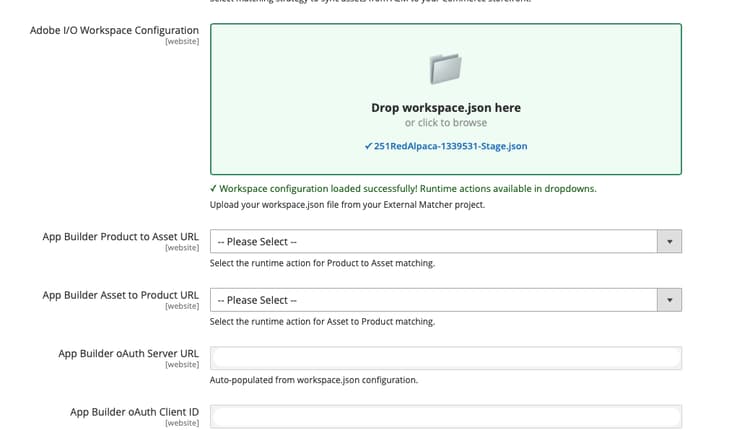
-
The system automatically:
- Validates the JSON structure
- Extracts and populates OAuth credentials
- Fetches available runtime actions for the workspace
- Populates dropdown options for the Product to Asset URL and Asset to Product URL fields
-
Select the appropriate runtime actions from the dropdown menus for each flow.
-
Click Save Config.
Async Config Save
If your Commerce instance has the Async Config Save option enabled, configuration changes are queued and applied by an asynchronous consumer instead of being saved immediately in the same request. To upload a workspace.json file for custom automatic matching in this mode, complete the following steps in order:
-
Confirm that Commerce Async Config Save is enabled.
-
From the Admin, go to Stores > Settings > Configuration > Adobe Services > AEM Assets Integration.
-
Upload the current App Builder
workspace.jsonfile. -
Save the configuration.
-
Wait for the asynchronous configuration consumer to finish processing the save.
-
Verify the OAuth values and the dependent integration configuration.
-
Verify that the external matcher registration reflects the update.
Troubleshoot Async Config Save
workspace.json file, and wait for queue processing to finish before checking the values again.workspace.json file and contains the expected App Builder credentials.Custom matcher API endpoints
When you build a custom matcher application using App Builder, the application must expose the following endpoints:
- App Builder asset to product URL endpoint
- App Builder product to asset URL endpoint
App Builder asset to product URL endpoint
This endpoint retrieves the list of SKUs associated with a given asset:
Example usage
const { Core } = require('@adobe/aio-sdk')

async function main(params) {

    // Build your own matching logic here to return the products that map to the assetId
    // var productMatches = [];
    // params.assetId
    // params.eventData.assetMetadata['commerce:isCommerce']
    // params.eventData.assetMetadata['commerce:skus'][i]
    // params.eventData.assetMetadata['commerce:roles']
    // params.eventData.assetMetadata['commerce:positions'][i]
    // ...
    // End of your matching logic

    // Set skip to true if the mapping hasn't changed
    const skipSync = false;

    return {
        statusCode: 200,
        body: {
            asset_id: params.assetId,
            product_matches: [
                {
                    product_sku: "<YOUR-SKU-HERE>",
                    asset_roles: ["thumbnail", "image", "swatch_image", "small_image"],
                    asset_position: 1
                }
            ],
            skip: skipSync
        }
    };
}

exports.main = main;
Request
POST https://your-app-builder-url/api/v1/web/app-builder-external-rule/asset-to-product
assetIdeventDataeventData.assetMetadata).Response
{
  "asset_id": "{ASSET_ID}",
  "product_matches": [
    {
      "product_sku": "{PRODUCT_SKU_1}",
      "asset_roles": ["thumbnail", "image"]
    },
    {
      "product_sku": "{PRODUCT_SKU_2}",
      "asset_roles": ["thumbnail"]
    }
  ],
  "skip": false
}
asset_idproduct_matchesskiptrue, the rule engine skips syncing for this asset (no product mapping update). When false or omitted, normal processing runs. See Skip sync processing.App Builder product to asset URL endpoint
This endpoint retrieves the list of assets associated with a given SKU:
Example usage
const { Core } = require('@adobe/aio-sdk')

async function main(params) {
    // return asset matches for a product
    // Build your own matching logic here to return the assets that map to the productSku
    // var assetMatches = [];
    // params.productSku
    // ...
    // End of your matching logic

    // Set skip to true if the mapping hasn't changed
    const skipSync = false;

    return {
        statusCode: 200,
        body: {
            product_sku: params.productSku,
            asset_matches: [
                {
                    asset_id: "<YOUR-ASSET-ID-HERE>", // urn:aaid:aem:1aa1d5i2-17h8-40a7-a228-e3ur588deee1
                    asset_roles: ["thumbnail", "image", "swatch_image", "small_image"],
                    asset_format: "image", // can be "image" or "video"
                    asset_position: 1
                }
            ],
            skip: skipSync
        }
    };
}

exports.main = main;
Request
POST https://your-app-builder-url/api/v1/web/app-builder-external-rule/product-to-asset
productSkueventDataResponse
{
  "product_sku": "{PRODUCT_SKU}",
  "asset_matches": [
    {
      "asset_id": "{ASSET_ID_1}",
      "asset_roles": ["thumbnail", "image"],
      "asset_position": 1,
      "asset_format": "image"
    },
    {
      "asset_id": "{ASSET_ID_2}",
      "asset_roles": ["thumbnail"],
      "asset_position": 2,
      "asset_format": "image"
    }
  ],
  "skip": false
}
product_skuasset_matchesskiptrue, the rule engine skips syncing for this product (no asset mapping update). When false or omitted, normal processing runs. See Skip sync processing.The asset_matches parameter contains the following attributes:
asset_idasset_rolesthumbnail, image, small_image, and swatch_image. With AEM Assets Integration extension 1.4.6 and later, custom image roles (such as hero or custom_role_1) are also accepted.asset_formatimage and video.asset_positionSkip sync processing
The skip parameter allows your custom matcher to bypass sync processing for specific assets or products.
When your App Builder application returns "skip": true in the response, the rule engine does not send update or remove API requests to Commerce for that asset or product. This optimization reduces unnecessary API calls and improves performance.