Opportunities
The Opportunities page helps you identify and implement optimizations to improve site traffic, user engagement, and conversion rates through integration with Adobe Sites Optimizer.
What are Opportunities?
Opportunities are AI-powered recommendations that help merchandisers identify and address issues impacting their commerce site performance. These recommendations are powered by Adobe Experience Manager Sites Optimizer, a cloud-based service that analyzes and improves website performance.
Key capabilities
- Automated issue detection—Sites Optimizer continuously scans product catalogs, search logs, and recommendation data to identify problems affecting discovery.
- AI-driven recommendations—Receive intelligent suggestions to resolve detected issues.
- Impact categorization—Issues are categorized by business impact (Search, Recommendations, Browse/Navigation, Product Data Quality).
- Dashboard reporting—View issue trends, top impacted products or queries, and improvements over time.
Get started
To enable Opportunities in Adobe Commerce Optimizer, contact your customer success manager (CSM). Opportunites are available with the Ultima Adobe Sites Optimizer license.
Quick tour
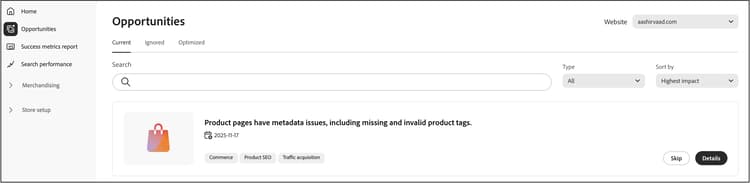
The Opportunities page is organized into three tabs that help you manage optimization recommendations:
- Current (Active)—Displays newly detected opportunities that require review and action. These are active issues that may be impacting your site performance.
- Skipped—Contains opportunities that you have chosen to dismiss or postpone. You can move opportunities here if they are not relevant to your current business objectives.
- Optimized (Done)—Shows opportunities that have been successfully addressed through auto-fix deployment. Any opportunities manually addressed do not appear on this tab. This tab helps you track your auto-fixed opportunities over time.
Auto-detect workflow
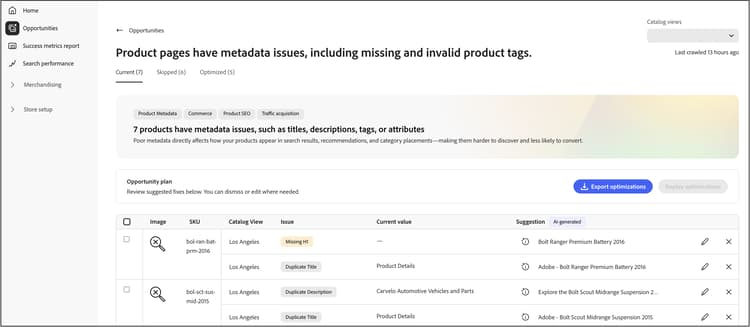
The auto-detect workflow uses AI-powered analysis to automatically identify optimization opportunities across your product catalog. This automated scanning process continuously monitors your product data, search logs, and recommendation performance to detect issues that could impact site performance, SEO, and customer engagement.
How it works
Auto-detect leverages Adobe Experience Manager Sites Optimizer to:
- Analyze product pages—The system examines the top 200 pages and filters for product detail pages to identify optimization targets.
- Extract metadata—Meta tags (titles, descriptions, H1 headers) are extracted from each page for analysis.
- Generate AI recommendations—Extracted data is processed through Adobe’s AI workflow to create actionable optimization suggestions.
- Populate opportunities—Auto-detected suggestions appear in the Current (Active) tab for your review.
Prerequisite
Before auto-detect can generate recommendations, your catalog data must be synchronized and up-to-date to ensure accurate recommendations.
What happens next
Once auto-detect identifies optimization opportunities, you can:
- Review suggested optimizations in the Current (Active) tab.
- Deploy fixes automatically using the auto-fix workflow (for supported opportunity types).
- Implement changes manually in your Commerce Admin.
- Ignore opportunities that do not align with your business objectives.
Auto-fix workflow
The auto-fix workflow allows you to quickly deploy AI-generated optimizations with a single click. When you apply an auto-fix, the system creates a catalog optimization layer that overrides specific product attributes without modifying the original product data. Your original product data remains intact, allowing you to safely apply optimizations and revert changes at any time. See How catalog layers work with auto-fix to learn more.
Supported opportunity types
The following lists the supported opportunity types:
- Title too long
- Title too short
- Duplicate Title
- Missing Title
- Empty Title
- Description too long
- Description too short
- Missing Description
- Empty Description
- Duplicate Description
- Missing H1
- Duplicate H1
- H1 too long
Prerequisites
Before using auto-fix, ensure:
- Your product catalog is fully ingested into Adobe Commerce Optimizer.
- The opportunity type supports auto-fix (some optimization types require manual implementation).
- You have appropriate permissions to create and manage catalog layers.
Deploy an auto-fix optimization
Follow these steps to implement an AI-suggested optimization:
-
Navigate to Manage Results > Opportunities.
-
In the Current (Active) tab, review available optimization suggestions.
-
Select an opportunity.
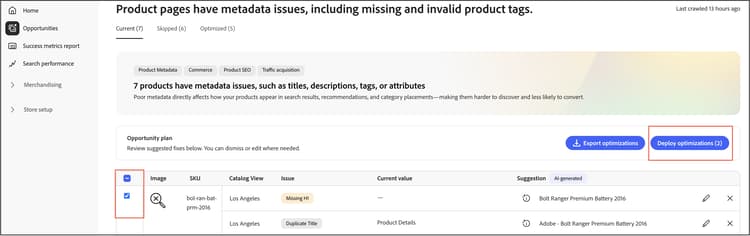
note NOTE The Deploy Optimization button is available only for supported suggestion types. For unsupported types, the checkbox is disabled, and you must apply fixes manually in your catalog. -
Click Deploy optimization then click Deploy to trigger the auto-fix process.
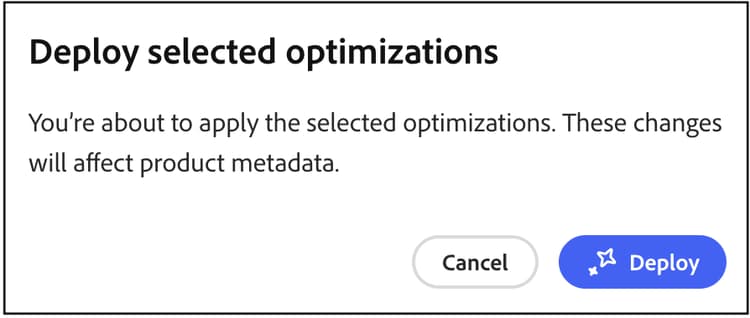
The system performs the following actions in the background:
- Creates a new catalog layer for the product (if one does not already exist).
- Updates the relevant attribute (such as meta title, description, or H1) based on the AI recommendation.
- Assigns the new layer as the highest priority (higher number) in the catalog view.
- Validates the change through the catalog storefront service.
-
Monitor the deployment status. The system updates the suggestion status automatically once validation is complete.
-
Once optimized, the suggestion moves to the Optimized (Done) tab with a status indicator:
- Green checkmark—The optimization layer is set as the first priority and is actively applied to your storefront.
- Warning icon—The layer exists but is not the top priority, meaning it may be overridden by another layer.
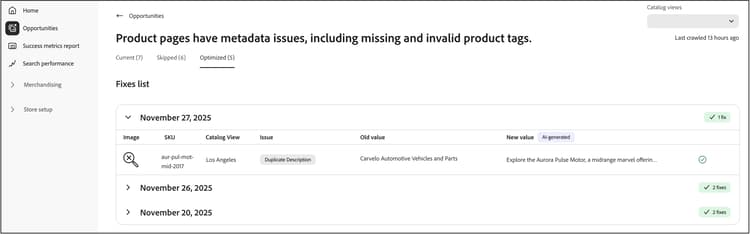
How catalog layers work with auto-fix
If an Adobe Sites Optimizer layer does not exist in your catalog view, auto-fix automatically creates one and assigns it as the highest priority (highest number). If you delete this layer, it will be recreated the next time auto-fix runs and will shift existing layers to lower order numbers. If the Adobe Sites Optimizer layer already exists at a different order number, auto-fix will not change its priority. If you want to keep an auto-fix layer, but not use it immediately, you can disable the layer. Learn more about how to manage catalog layers.
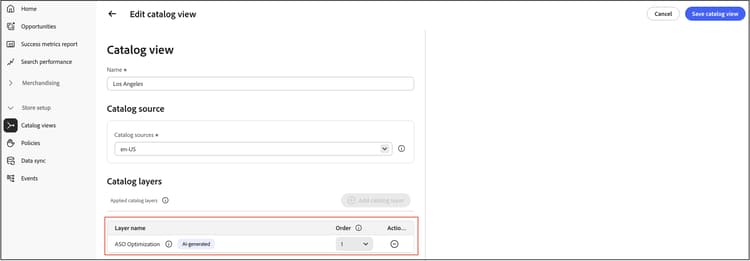
The diagram shows a single row called ASO Optimization. This entry represents all opportunities you choose to auto-fix. Whether you auto-fix a single opportunity or multiple opportunities, they all appear in this single ASO Optimization row. Layers are specific to each catalog view, so the Los Angeles catalog view shown here applies its ASO Optimization layer only when that view is active.
Important considerations
Keep the following in mind when using auto-fix:
-
The status shown for each suggestion reflects the state at the time the auto-fix worker ran. The status does not update dynamically if you manually reorder catalog layers afterward.
-
To ensure your optimizations remain active, avoid manually changing catalog layer priorities after deploying auto-fix recommendations.
Troubleshooting
If an optimization does not appear to be applied on your storefront:
- Check the status indicator in the Optimized (Done) tab.
- If you see a warning icon, verify the catalog layer priority settings.
- Ensure the optimization layer is set as the highest priority (highest number) in your catalog view.
- Confirm that catalog data synchronization is active and up-to-date.
- Allow time for changes to propagate. Even with a properly configured layer at the highest order number, changes may take time to appear on your storefront, similar to the delay when publishing new products.
How Sites Optimizer and success metrics work together
Success metrics monitors key performance indicators, such as product discovery and catalog business efficiency, while opportunities within Sites Optimizer lets you know how you can boost SEO, load speed, accessibility, and engagement. Together, merchandisers and marketers can improve operational efficiency, bringing faster end-to-end performance and conversion gains with minimal IT support. To learn how you can take advantage of these two technologies to improve your storefront performance and experience, see Using Success Metrics and Sites Optimizer together.
Learn more about Sites Optimizer
For detailed information about Sites Optimizer capabilities and features, see the Adobe Experience Manager Sites Optimizer documentation.
Additional resources:
- Opportunity types - Learn about available optimization opportunities.
- Sites Optimizer capabilities - Explore what Sites Optimizer can do.
More like this
- Success Metrics - Monitor key performance indicators.
- Search Performance - Analyze search terms and optimize relevance.
- Recommendation Performance - Monitor recommendation effectiveness.