Restricted access keys
Restricted access keys let authorized client applications access a private catalog view—only requests carrying a valid signed token from an assigned key can retrieve catalog data. All other requests are denied, including those from shoppers who haven’t been explicitly given access to this catalog view, and scripts probing the API.
Restricted access keys are provisioned in one of two ways:
-
[Private Beta]{class="badge yellow" title="Requires the Adobe Commerce Optimizer Connector B2B extension, which is currently in private beta."} Automatically, for B2B shared catalogs—For deployments integrated with the Adobe Commerce Optimizer Connector for B2B, the connector provisions and assigns the initial key. Then, you manage keys and key assignment from the Commerce Admin. See Catalog view authentication in the Commerce Admin Guide*.
-
Manually, for any catalog view—To protect a catalog view yourself—for example, for a partner portal or pre-release preview—follow the steps in this topic starting with Create a restricted access key.
Restricted access key use cases
In Adobe Commerce Optimizer, Price Book ID determines which prices a request sees—it scopes pricing, not who can make the request. Any client that knows a catalog view’s ID and price book ID can retrieve that data through the Merchandising API. Restricted access keys add a separate, complementary control: they scope who can access a catalog view at all, independent of which price book applies.
Restricted access keys are commonly used for:
- Contract-based B2B pricing—Restrict a catalog view linked to a negotiated price book so only the buyer it applies to can query it. Other buying organizations and the public cannot. For B2B shared catalogs, this is set up automatically. See Key management and rotation.
- Partner and reseller portals—Limit a subset of the catalog to approved partners integrating directly with the Merchandising API.
- Pre-release previews—Let a trusted internal or partner system preview upcoming products before they’re publicly visible.
How restricted access keys work
A restricted access key is the public component of an RSA key pair. Your client application generates and uses this key to prove it is authorized to read a private catalog view. In this context, client application refers to the backend system that authenticates shoppers—for example, custom logic on Adobe Commerce or a third-party backend—never the storefront frontend itself.
The following steps describe how a key pair and signed token move from creation to validation for catalog views that aren’t part of a B2B shared catalog.
- Your client application generates an RSA key pair and keeps the private key.
- You register the public key in Commerce Optimizer as a restricted access key.
- Your client application signs a JSON Web Token (JWT) with the private key and includes it with each request to a private catalog view.
- Commerce Optimizer validates the token’s signature against the registered public key and, if valid, returns the requested catalog data.
Create a restricted access key
For initial testing of private catalog views, generate a key pair using a tool such as OpenSSL. Keep the private key secret. Only the public key is uploaded to Commerce Optimizer.
openssl genrsa -out private-key.pem 2048
openssl rsa -in private-key.pem -pubout -out public-key.pem
The key size must be between 2048 and 8192 bits. public-key.pem contains the value you paste into the Public key field below.
Add a restricted access key to Commerce Optimizer
-
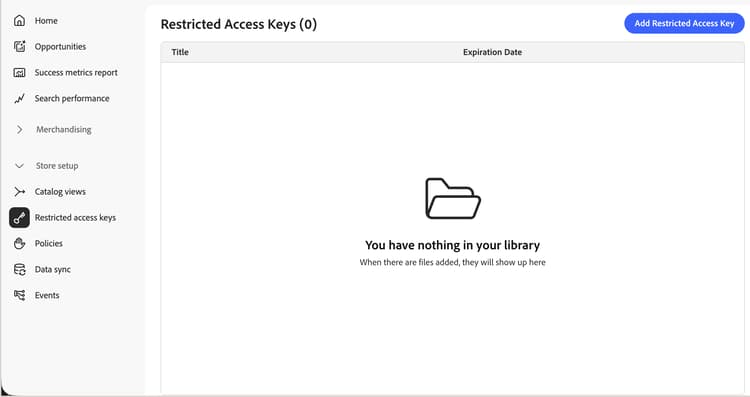
From the left menu in Adobe Commerce Optimizer Studio, go to Store setup, and click Restricted access keys.
-
Click Add Restricted Access Key.
-
Enter the key details:
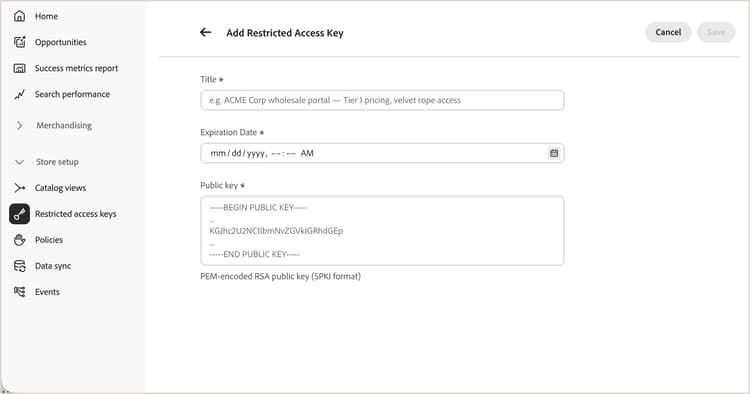
- Title—A label to identify the key, shown in the key list and the catalog view key picker, for example
ACME Corp wholesale portal — Tier 1 pricing. - Expiration date—Date and time (UTC) after which the key stops being honored, even for a token that hasn’t expired yet.
- Public key—The PEM-encoded RSA public key in Subject Public Key Info (SPKI) format, including the
-----BEGIN PUBLIC KEY-----and-----END PUBLIC KEY-----markers. Must be unique across the environment.
- Title—A label to identify the key, shown in the key list and the catalog view key picker, for example
-
Click Save.
Keys are immutable after creation. To change any value, delete the key and create a new one. See Rotate a key to do this without an access interruption.
Assign a key to a catalog view
A restricted access key only authenticates access after it is assigned to a catalog view with Catalog Protection enabled. See Protect a catalog view for setup steps.
Delete a key
-
On the Restricted access keys page, find the key you want to remove and click Delete.
If the key is assigned to one or more catalog views, a warning explains that client applications relying on that key lose access. The catalog views themselves remain protected—they don’t become publicly accessible.
-
Confirm the deletion.
Key management and rotation
Restricted access keys are managed in one of two ways, depending on how you use catalog protection:
-
Automatically, for B2B shared catalogs—[Private Beta]{class="badge yellow" title="Requires the Adobe Commerce Optimizer Connector B2B extension, which is currently in private beta."} For deployments integrated with the Adobe Commerce Optimizer Connector for B2B, the service automatically generates and assigns the first restricted access key when a catalog view is created. Each catalog view gets its own key. After that, you can manage each key from the Shared Catalog or Company Account pages. You can also view and manage keys from the Commerce Admin Restricted Access Keys page (System > Data Transfer). See Manage catalog view configuration.
Each combination of a shared catalog and a store view it’s assigned to is projected as a separate catalog view. A projection is the catalog view, policy, price book reference, and restricted access key configuration data that the connector exports to Adobe Commerce Optimizer for that combination. So a shared catalog assigned to multiple store views produces multiple catalog views, each with its own key. Edit or rotate a key for one catalog view without affecting the others.
Keys default to a long expiration period. If you need to rotate a key, add the replacement in the Admin and keep both active until you remove the old one. See B2B shared catalog changes.
-
Manually, for any catalog view—For catalog views that are not associated with a B2B shared catalog in the Adobe Commerce backend, key generation, token signing, and rotation are managed entirely by the backend client application that authenticates shoppers. Adobe Commerce Optimizer does not generate or rotate these keys on your behalf. Use the steps earlier in this topic to create, add, and delete keys. To rotate a key, see Rotate a key.
Rotate a key
To rotate a key without an access interruption, note that a catalog view can have up to three keys assigned at once:
- Generate a new key pair and add the new public key as a new restricted access key.
- Assign the new key to the catalog view alongside the existing key.
- Start signing new tokens with the new private key to complete the key rollover.
- Once all client applications are confirmed on the new key, remove and delete the old key.
Limits
See Catalog views and policy limits.
More like this
- Private catalog views—Learn how to protect a catalog view with restricted access keys.
- B2B shared catalog changes—Learn how the Adobe Commerce Optimizer Connector automates key management for B2B shared catalogs.