Monitor your deliveries in Campaign UI delivery-dashboard
Monitoring your deliveries is essential to ensure your campaigns are efficient and reach your customers. Adobe Campaign provides you with tools to access your deliveries and monitor their performance through the delivery list and the delivery dashboard.
Access the list of deliveries list-of-deliveries
You can access deliveries from the delivery list, via the Campaign Management > Deliveries node of the tree.
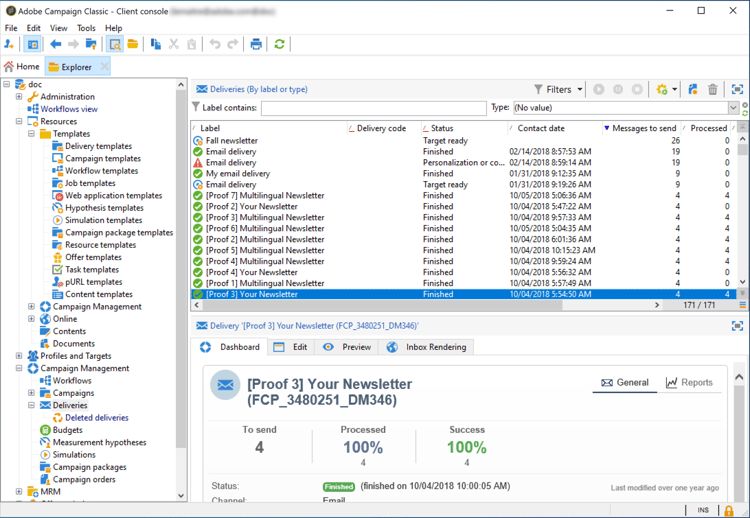
By default, the list of deliveries contains the names and statuses of the deliveries created in the selected node. It also shows the number of messages to send, processed and sent with success.
- The number of Messages to send corresponds to the number of recipients targeted after analysis and prior to delivery.
- The number of messages in the Success column corresponds to the number of messages sent by the server and received by the recipients.
- The number of Processed messages corresponds to the number of messages received plus the number of messages with errors.
Delivery dashboard overview delivery-dashboard-overview
The delivery dashboard is key to monitor your deliveries and eventual issues encountered during the sending of messages.
It allows you to retrieve information on a delivery and edit it if necessary. Note that tab contents may no longer be changed once the delivery has been sent.
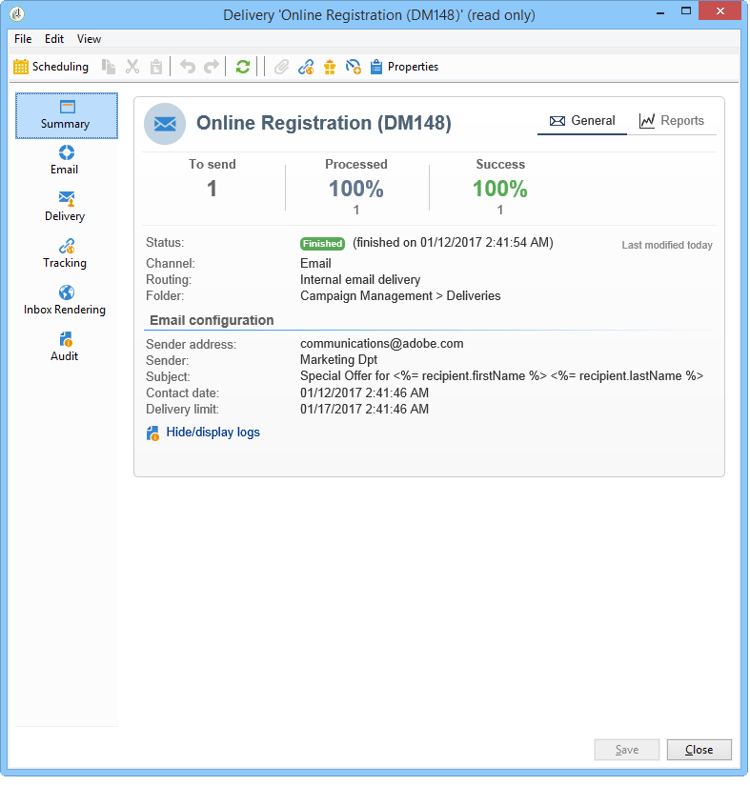
Here are the information you can monitor using the several tabs that are available in the dashboard:
Related topics:
Delivery summary delivery-summary
The Summary tab contains the characteristics of the delivery: delivery status, channel used, information about the sender, subject, information concerning execution.
Delivery reports delivery-reports
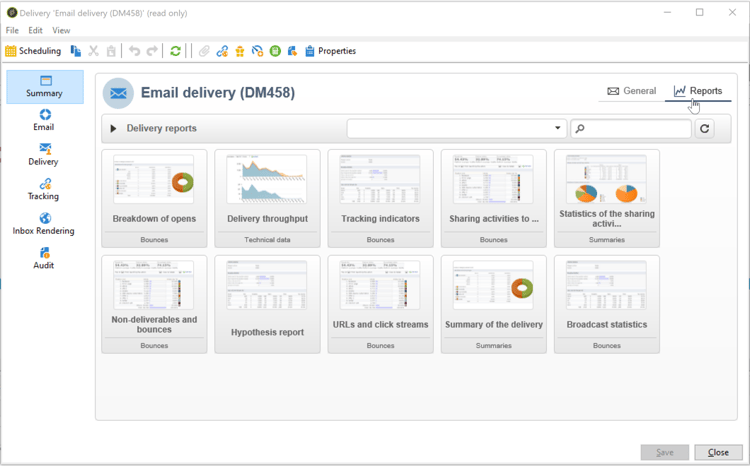
The Reports link, which is accessible from the Summary tab, lets you look at a set of reports related to the delivery action: general delivery report, detailed report, delivery report, distribution of failed messages, opening rate, clicks and transactions, etc.
The contents of this tab can be configured according to your requirements. For more on delivery reports, refer to this section.
Delivery logs, history and exclusions delivery-logs-and-history
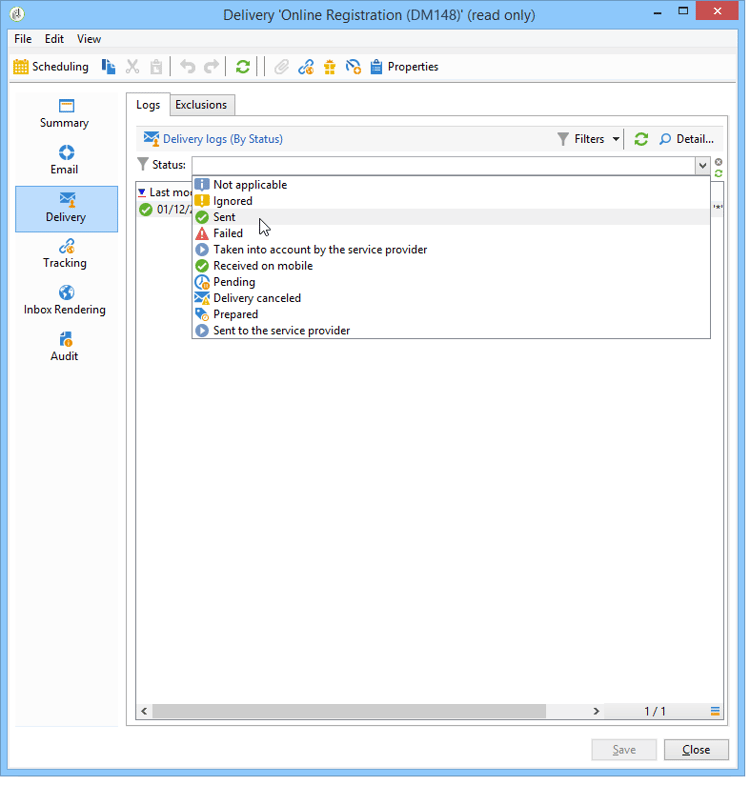
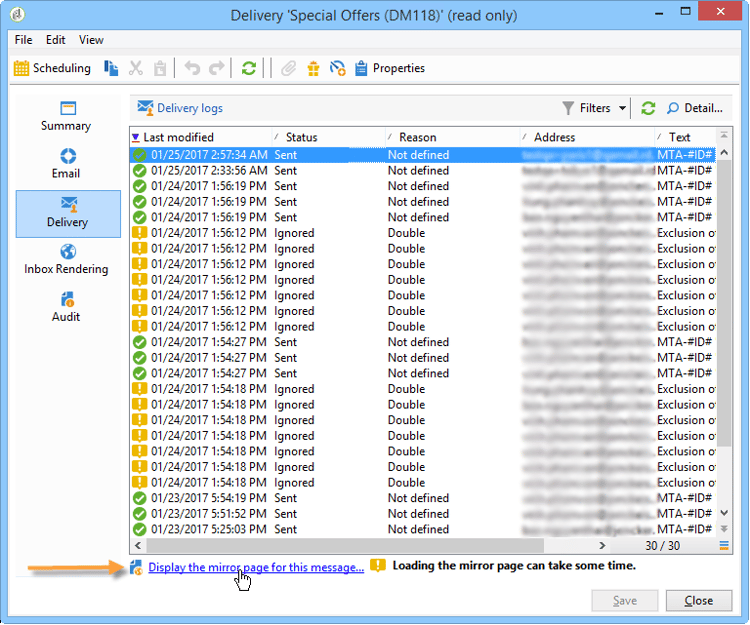
The Delivery tab gives a history of the occurrences in this delivery. It contains the delivery logs, i.e. the list of messages sent and their status and the associated messages.
For a delivery, you can display (for example) only recipients with a failed delivery or an address in quarantine. To do this, click the Filters button and select By state. Then select the state in the drop-down list. Various statuses are listed in the delivery statuses page.
The Display the mirror page for this message… link lets you view the mirror page for the contents of the delivery selected from the list in a new window.
The mirror page is available only for deliveries for which HTML content has been defined. For more on this, refer to Link to the mirror page.
Delivery tracking logs and history tracking-logs
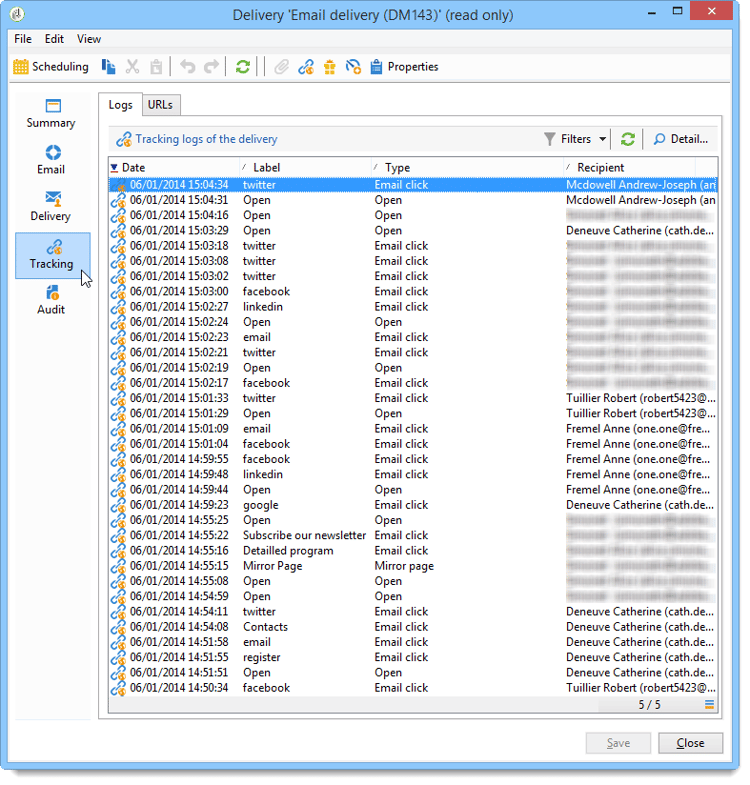
The Tracking tab lists the tracking history for this delivery. This tab displays tracking data for the messages sent, i.e. all URLs subject to tracking by Adobe Campaign. The tracking data is updated hourly.
Tracking configuration is performed at the appropriate stage in the delivery assistant. See How to configure tracked links.
Tracking data is interpreted in the delivery reports. See this section.
Inbox rendering delivery-rendering
The Inbox rendering tab allows you to preview the message in the different contexts in which it may be received and check the compatibility in major desktops and applications.
This way, you can make sure that your message will be displayed to the recipients in an optimal way on a variety of web clients, web mails and devices.
For more on inbox rendering, refer to this page
Delivery audit delivery-audit-
The Audit tab contains the delivery log and all the messages concerning the proofs.
The Refresh button lets you update the data. Use the Filters button to define a filter on the data.
Special icons enable you to identify errors or warnings. See Delivery analysis.
The Proofs sub-tab lets you view the list of proofs that have been sent.
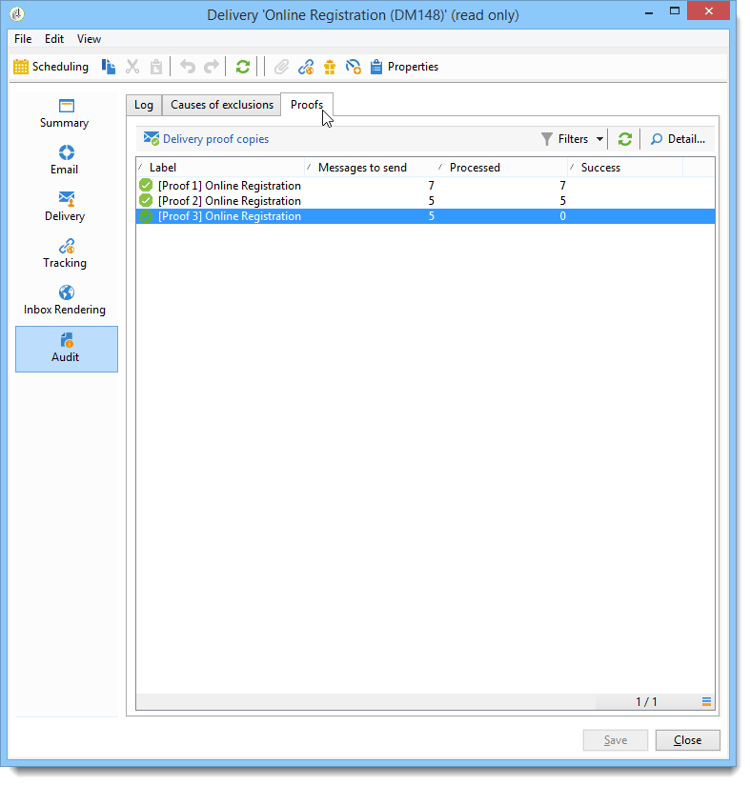
You can modify the information displayed in this window (and that of the Delivery and Tracking tabs) by selecting the columns to be displayed. To do this, click the Configure list icon located in the lower right-hand corner. For more on configuring list display, refer to this section.
Delivery dashboard synchronization delivery-dashboard-synchronization
From your delivery dashboard, you want to check the processed messages and delivery logs to be sure that your delivery was successfully sent.
Some indicators or status can be incorrect or not up-to-date, this may be resolved with the following solutions:
-
If your delivery status is incorrect, check that all necessary approvals have been done for this delivery or that the operationMgt and deliveryMgt technical workflows are running without errors.
-
If your delivery counter does not match your delivery, try to recompute the indicators by right-clicking the relevant delivery in the Adobe Campaign explorer and selecting Actions > Recompute delivery and tracking indicators to resynchronize. For more information on tracking indicators, refer to this section.
You can also track your deliveries with different reports via the delivery dashboard. For more on this, refer to this section.
Troubleshooting slow deliveries troubleshooting-slow-deliveries
If your delivery seems to take longer than usual after clicking the Send button, check the following potential causes:
IP address reputation issues
Some email providers might have added your IP addresses to a denylist. Check your delivery logs (broadlogs) in the Delivery tab for bounce messages indicating reputation issues. Consult the deliverability monitoring section for guidance on reputation management.
Delivery size and complexity
Your delivery might be too large to be processed quickly. This may occur with:
Heavy JavaScript personalization that requires significant data processing for each recipient.
Delivery weighing more than 60 kilobytes due to large HTML content, embedded images, or extensive personalization.
Refer to Delivery best practices to learn about content guidelines and personalization best practices. The recommended maximum size is about 35KB for optimal performance.
System performance
System issues can prevent servers from processing deliveries efficiently. If you suspect performance issues, check the delivery logs for timeout errors or communication issues.