Quarantine quarantine-management
Adobe Campaign manages a list of quarantined addresses for online channels (email, SMS, push notification). Some internet access providers automatically consider emails as spam if the rate of invalid addresses is too high. Quarantine therefore allows you to avoid being added to denylist by these providers. Moreover, quarantines help reducing SMS sending costs by excluding erroneous phone numbers from deliveries.
When their address or phone number is quarantined, recipients are excluded from the target during delivery analysis: you will not be able to send marketing messages, including automated workflow emails, to those contacts. If those quarantined addresses are also present in lists, they will be excluded when sending to those lists. An email address can be quarantined, for example, when the mailbox is full, if the address does not exist, or if the email server is unavailable.
Quarantine versus denylist
Quarantine applies only to an address, a phone number, or a device token, but not to the profile itself. For example, a profile whose email address is quarantined can update their profile and enter a new address, and could then be targeted by delivery actions again. Likewise, if two profiles happen to have the same phone number, they will both be affected if the number is quarantined. The quarantined addresses or phone numbers are displayed in the exclusion logs (for a delivery) or in the quarantine list (for the entire platform).
On the other hand, profiles can be on the denylist as after an unsubscription (opt-out), for a given channel: this implies that they no longer being targeted by any delivery. As a consequence, if a profile on the denylist for the email channel has two email addresses, both addresses will be excluded from delivery. You can check if a profile is on the denylist for one or more channels in the No longer contact section of the profile’s General tab. Learn more
Why is an email, phone or device sent to quarantine quarantine-reason
Adobe Campaign manages quarantine according to the type of delivery failure and its reason. These are assigned during error messages qualification. Learn more about delivery failure management on this page.
Two types or errors can be captured:
- Hard error: the email address, phone number or device is immediately sent to quarantine.
- Soft error: soft errors increment an error counter, and might quarantine an email, phone number or device token. Campaign performs retries: when the error counter reaches the limit threshold, the address, phone number or device token is quarantined. Learn more.
In the list of quarantined addresses, the Error reason field indicates why the selected address was placed in quarantine. Learn more.
If a user qualifies an email as a spam, the message is automatically redirected towards a technical mailbox managed by Adobe. The user’s email address is then automatically sent to quarantine with the Denylisted status. This status refers to the address only, the profile is not on the denylist, so that the user continues receiving SMS messages and push notifications. Learn more about Feedback loops in the Delivery Best Practices Guide.
Soft error management soft-error-management
As opposed to hard errors, soft errors do not send an address to quarantine immediately, but instead they increment an error counter. When the error counter reaches the limit threshold, the address is quarantined. Learn more about retries and error types in Understanding delivery failures.
The error counter is reinitialized if the last significant error occurred more than 10 days ago. The address status then changes to Valid and it is deleted from the list of quarantines by the Database cleanup workflow. Learn more about technical workflows.
Access quarantined addresses access-quarantined-addresses
Quarantined addresses can be displayed for a specific delivery or for the entire platform.
Quarantines for a delivery delivery-quarantines
Quarantine addresses are listed during the delivery preparation phase, in the delivery logs of the delivery dashboard.
For each delivery, you can also check the Delivery summary report: it shows the number of addresses in quarantine in the delivery target, and displays:
- The number of addresses placed in quarantine during the delivery analysis,
- The number of addresses placed in quarantine following the delivery action.
Learn more about delivery reports in this section.
Non deliverable and bounce addresses non-deliverable-bounces
To view the list of quarantined addresses for the entire platform, Campaign Administrators can browse to Administration > Campaign Management > Non deliverables Management > Non deliverables and addresses. This section lists quarantined elements for email, SMS and Push notification channels.
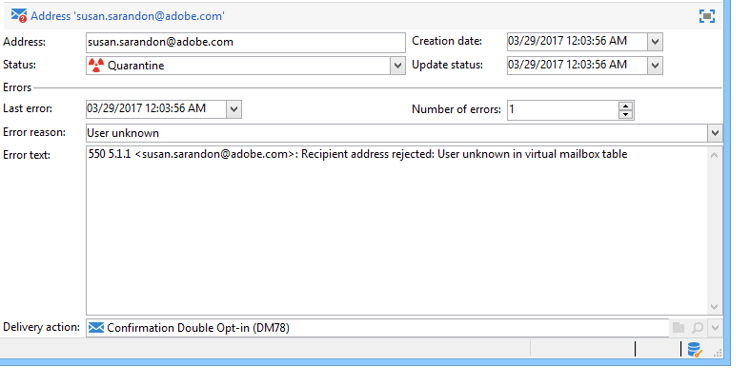
In addition, the Non-deliverables and bounces built-in report, available from the Reports section of this home page, displays information about the addresses in quarantine, the types of error encountered, and a failure breakdown by domain. You can filter data for a specific delivery, or customize this report as needed.
Learn more about bounce addresses in the Deliverability Best Practice Guide.
Quarantined email address quarantined-recipient
You can look up the status of the email address of any recipient.
To do this, select the recipient profile and click the Deliveries tab. For all deliveries to that recipient, you can find out whether the address failed, was quarantined during analysis, etc.
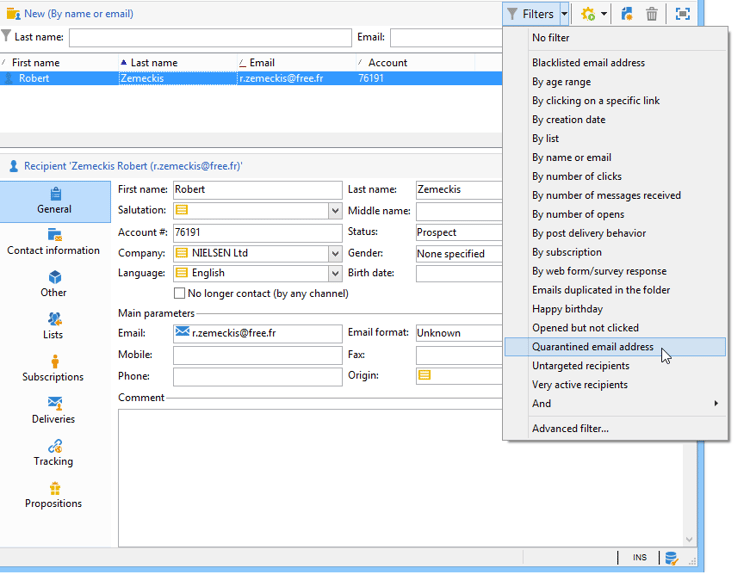
For each folder, you can display only the recipients whose email address is in quarantine, with the Quarantined email address built-in filter, as below:
Remove a quarantined address remove-a-quarantined-address
Automatic updates unquarantine-auto
Addresses that match specific conditions are automatically deleted from the quarantine list by the Database cleanup built-in workflow.
The addresses are automatically removed from the quarantine list in the following cases:
- Addresses in a With errors status will be removed from the quarantine list after a successful delivery.
- Addresses in a With errors status will be removed from the quarantine list if the last soft bounce occurred more than 10 days ago. For more on soft error management, see this section.
- Addresses in a With errors status that bounced with the Mailbox full error will be removed from the quarantine list after 30 days.
Their status then changes to Valid.
Manual updates unquarantine-manual
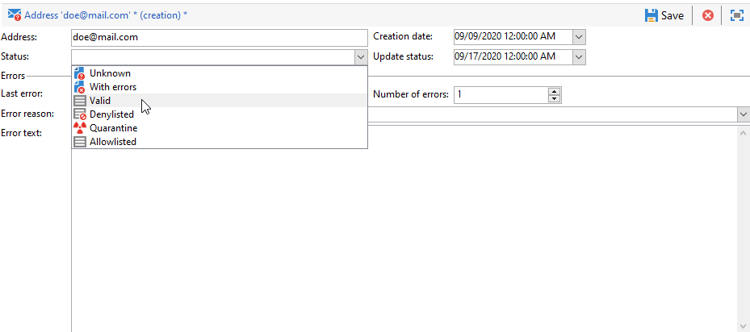
You can also manually remove an address from the quarantine list. To manually remove an address from quarantine, you can change its status to Valid from the Administration > Campaign Management > Non deliverables Management > Non deliverables and addresses node.
Bulk updates unquarantine-bulk
You might need to perform bulk updates on the quarantine list in specific situations, such as an ISP outage during which emails are wrongly marked as bounces because they cannot be successfully delivered to their recipient.
To perform a bulk update:
-
Create a workflow and add a query on the quarantine table (nms:address) to filter impacted recipients
-
Use query conditions to identify addresses that should be unquarantined, such as:
- Email domain (@domain) equals the affected ISP domain(s)
- Update status (@lastModified) within the timeframe of the outage
- Status (@status) equals quarantine status
-
Add an Update data activity to set the address status to Valid
The addresses will then be automatically removed from the quarantine list by the Database cleanup workflow and can be included in future deliveries.
Related topics
- Understanding delivery failures - Learn about the different types of delivery failures and how Campaign handles bounces
- Monitor deliveries - Access delivery logs and monitor delivery performance
- Delivery best practices - Best practices for maintaining good deliverability and avoiding quarantines