Create or edit configurations
Conversation Insights enables you to analyze conversations from the agent experiences you offer to your customers. Those agent experiences can be based on large language models (LLM) or based on human conversations. For example, a chatbot interacting with a customer or call center transcripts.
Through Conversation Insights you are able to understand the impact of agents on actual user outcomes.
Through the Conversation Insights configuration interface you can quickly create or edit a configuration and the associated artifacts (connection, data views, and more).
When you create or edit a Conversation Insights configuration, you specify the sandbox and the event datasets that contain prompts, responses and feedback data. You also select the Customer Journey Analytics connection to which you want to add these datasets. And the data view to which you want to add the Conversation Insights metrics and dimensions.
Only system administrators can create or edit Conversation Insights configurations.
You create or edit configurations from the Conversation Insights Configurations interface.
Restore missing blended dataset
If you edit a configuration and the blended dataset that has been generated for the configuration no longer exists, select Restore to regenerate the blended dataset.
Configuration steps
For each configuration:
-
In the Details section, specify the following information:

table 0-row-2 1-row-2 2-row-2 Field Description Name Specify a name for the configuration. Sandbox Select the Experience Platform sandbox that contains the prompts, responses and feedback event datasets that you want to add to your connection. -
In the Datasets section, specify the following information:
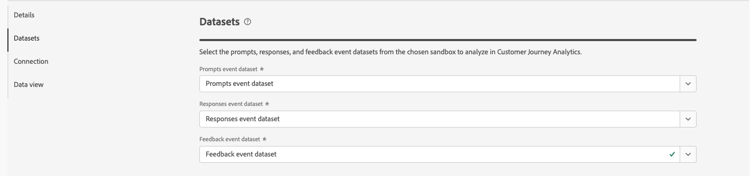
table 0-row-2 1-row-2 2-row-2 3-row-2 Field Description Prompts event dataset Select the dataset that contains the prompts event data. Responses event dataset Select the dataset that contains the responses event data. Feedback event dataset Select the dataset that contains the feedback event data. -
In the Connection section, if no connection is already configured, use Select a connection to select a connection.
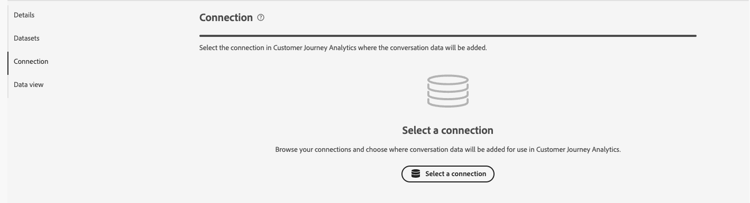
If a connection is already configured, select


In the Select a connection dialog:
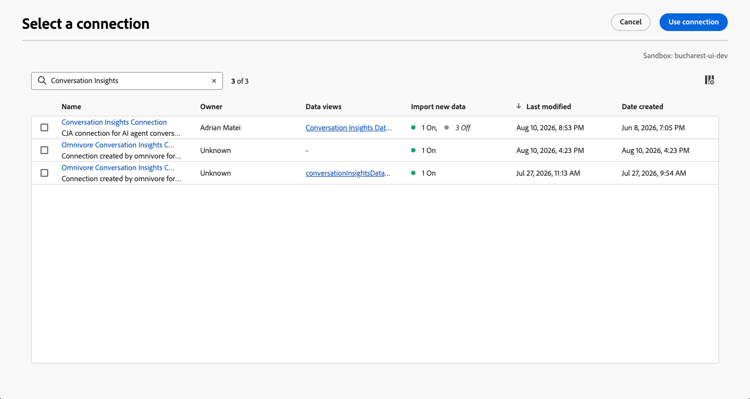
- Select the checkbox next to the connection to which you want to add the prompts, responses and feedback event datasets.
- Select Use connection.
- To search in the list of connections to select from, use the

- To configure which columns to display in the table, select

-
In the Data views section, if no data views are already configured, select Select data views to select data views.
If data views are already configured, select
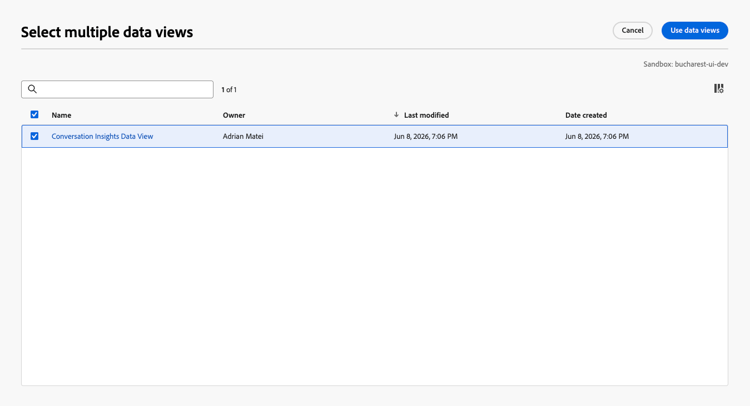
In the Select multiple data views dialog:
-
Select one or more data views you want to use for the Conversation Insights configuration.
-
Select Use data views to use the data views. Select Cancel to cancel.
- To search in the list of data views to select from, use the
- To configure which columns to display in the table, select
-
-
To finish the configuration:
-
Select Discard for a new configuration that is not created.
-
Select Save for later for a new configuration you want to save but you do not want to create the artifact for (updates to data views for example). You can revisit the configuration later and finish the actual creation of the configuration.
-
Select Create to create the new configuration.
-
Select Save to save the modified configuration.
-
Select Restore to restore the configuration to regenerate a new blended dataset for the configuration.
-
Select Exit to ignore any change to the configuration.
-
Data view verification
The data views you have configured in Configuration steps, have Conversation Insights as value for Integrations in Data views.
For each of the configured data views:
-
Containers: The Containers tab contains a new Container name: conversation with Display name: Container as an additional System Container type.
-
Components: You see additional schema field folders. For example: agentExperience and conversation. Additionally the following components are automatically added:
table 0-row-3 1-row-3 2-row-3 3-row-3 4-row-3 Metrics Schema data type Schema path Customer Feedbacks String eventType Positive Sentiments String Derived Fields Recommendations String eventType Turns String eventType table 0-row-3 1-row-3 2-row-3 3-row-3 4-row-3 5-row-3 6-row-3 7-row-3 8-row-3 9-row-3 10-row-3 11-row-3 12-row-3 13-row-3 14-row-3 15-row-3 16-row-3 17-row-3 18-row-3 19-row-3 20-row-3 21-row-3 22-row-3 23-row-3 24-row-3 25-row-3 Dimensions Schema data type Schema path Agent ID String agenticExperience.agents.agentIDAgent Name String agenticExperience.agents.nameConcierge Name String agenticExperience.nameConcierge Version String agenticExperience.versionConversation ID String conversation.conversationIDConversation Name String conversation.conversationNameConversation Signal Name String conversation.signals.nameConversation Summary Boolean Value Boolean conversation.signals.values.booleanValueConversation Summary Confidence Double conversation.signals.values.confidenceConversation Summary Metadata Key String conversation.signals.values.metadata.keyConversation Summary Number Value Double conversation.signals.values.numberValueConversation Summary Qualifiers String conversation.signals.values.qualifiersConversation Tone Signals String conversation.signals.attributes.tones.valuesEnvironment String agenticExperience.environmentFeedback Classification String Derived Fields Feedback Rating Classification String conversation.feedback.rating.classificationFeedback Section Purpose String conversation.feedback.raw.purposeFeedback Source String conversation.feedback.sourcePhrase String conversation.signals.attributes.subjects.values.phraseResponse Raw Text String conversation.response.raw.textResponse Source String conversation.response.sourceSentiment Classification String Derived Fields Skill Name String agenticExperience.agents.skills.nameSkill Version String agenticExperience.agents.skills.versionValue String agenticExperience.agents.skills.parameters.value