Manage data views
Once you have created or edited one or more data views, you can manage them in Data views.
Select Data Management > Data views from the main menu bar in Customer Journey Analytics.
The Data views interface shows a table of all data views available.
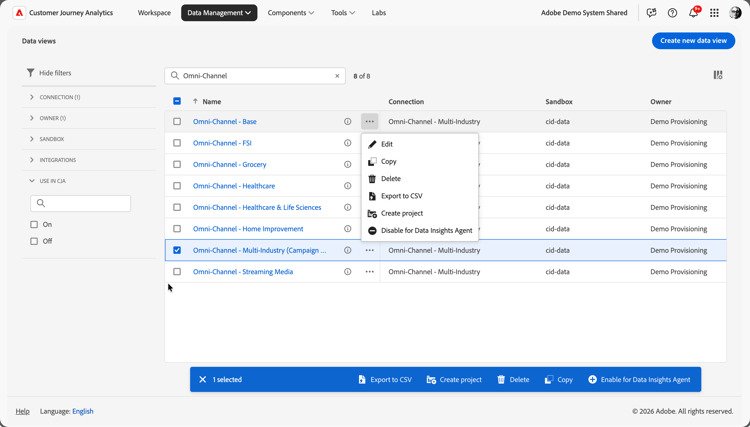
The following columns and icons are available in the table:

A pop-up window displays details about the data view.


Select
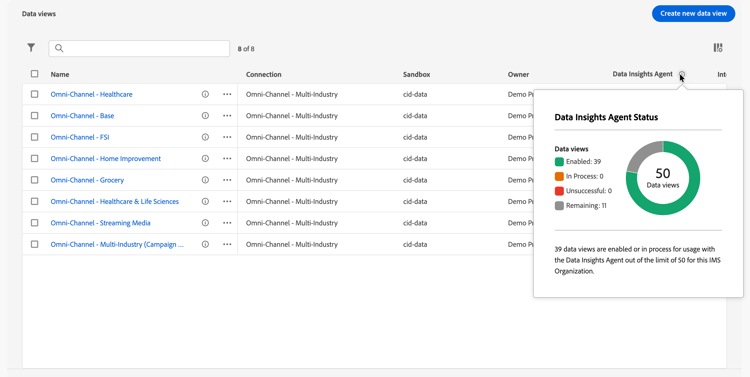
To configure which columns to display in the table, select

Search data views
You can quickly search for a data view using the

Filter data views
To apply a filter to the list of data views, select the

Select
Create a data view
To create a new data view, select Create new data view.
Edit data views
If you want to edit a data view:
- Select
- Select
Alternatively, you can:
- Select the data view row.
- Select
Copy data views
If you want to copy a data view:
- Select
- Select
Alternatively, you can:
- Select one or more data view rows.
- Select
The data view is copied and added to the list with (Copy) appended to the name.
Delete data views
If you want to delete a data view:
- Select
- Select
Alternatively, you can:
- Select one or more data view rows.
- Select
When you delete one or more data views, a Delete data view panel indicates which projects are affected.
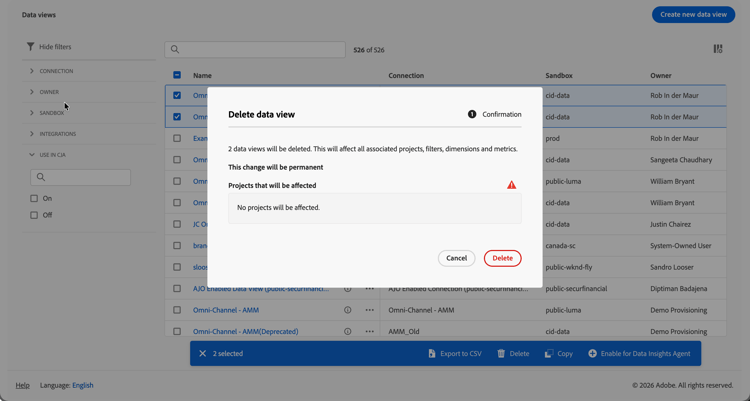
- In ➊ Confirmation, the implications of the deletion of the data views are shown.
- Select Delete to delete the data views permanently. Select Cancel to cancel.
Export data views to CSV
You can export a data view to a CSV file.
- Select
- Select
Alternatively, you can:
- Select one or more data view rows.
- Select
Details of the selected data views are exported to a CSV file named Data views List (x).csv in your browser’s Downloads folder.
Create project from data views
You can create a Workspace project directly from the Data views interface.
- Select
- Select
Alternatively, you can:
- Select a data view row.
- Select
Enable or disable data views for Data Insights Agent
You can enable or disable a data view for the Data Insights Agent.
- Select
- Select
Alternatively, you can:
- Select one or more data view rows that are either disabled or enabled for the Data Insights Agent.
- Select