
Content migration
To migrate content from one Document Authoring project to another, you use the Traverse, Import, and Bulk Operations apps. This page shows you how.
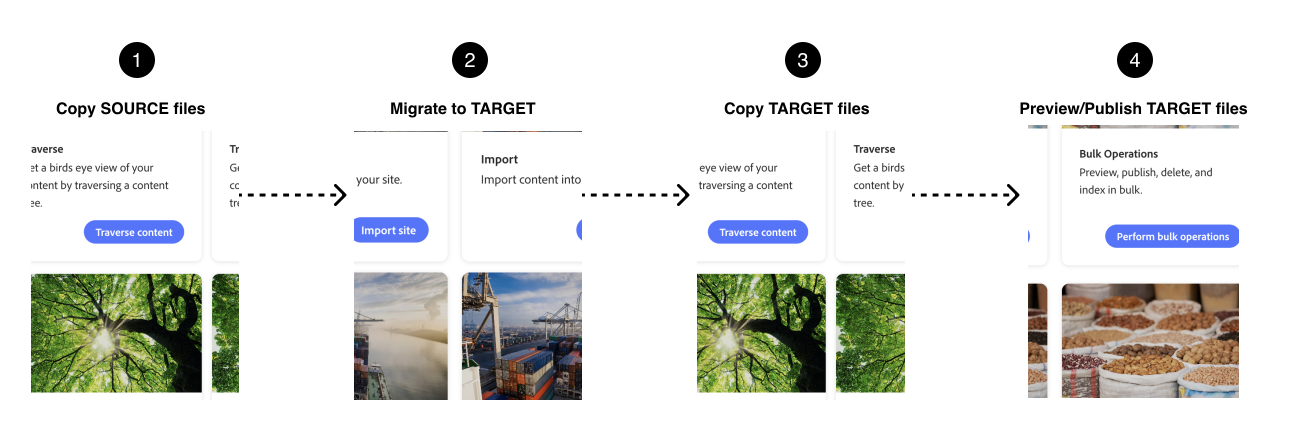
Before you start
Section titled “Before you start”You’ll need:
- Write access to both projects on DA.live
- The organization and site path for each project (for example,
/acme/storefront-stagingand/acme/storefront) - A target project that already exists with the right GitHub repository and Commerce backend
- Permission to preview and publish on the target, or a developer who can run Bulk Operations for you
Step-by-step
Section titled “Step-by-step”Traverse the source project
Section titled “Traverse the source project”-
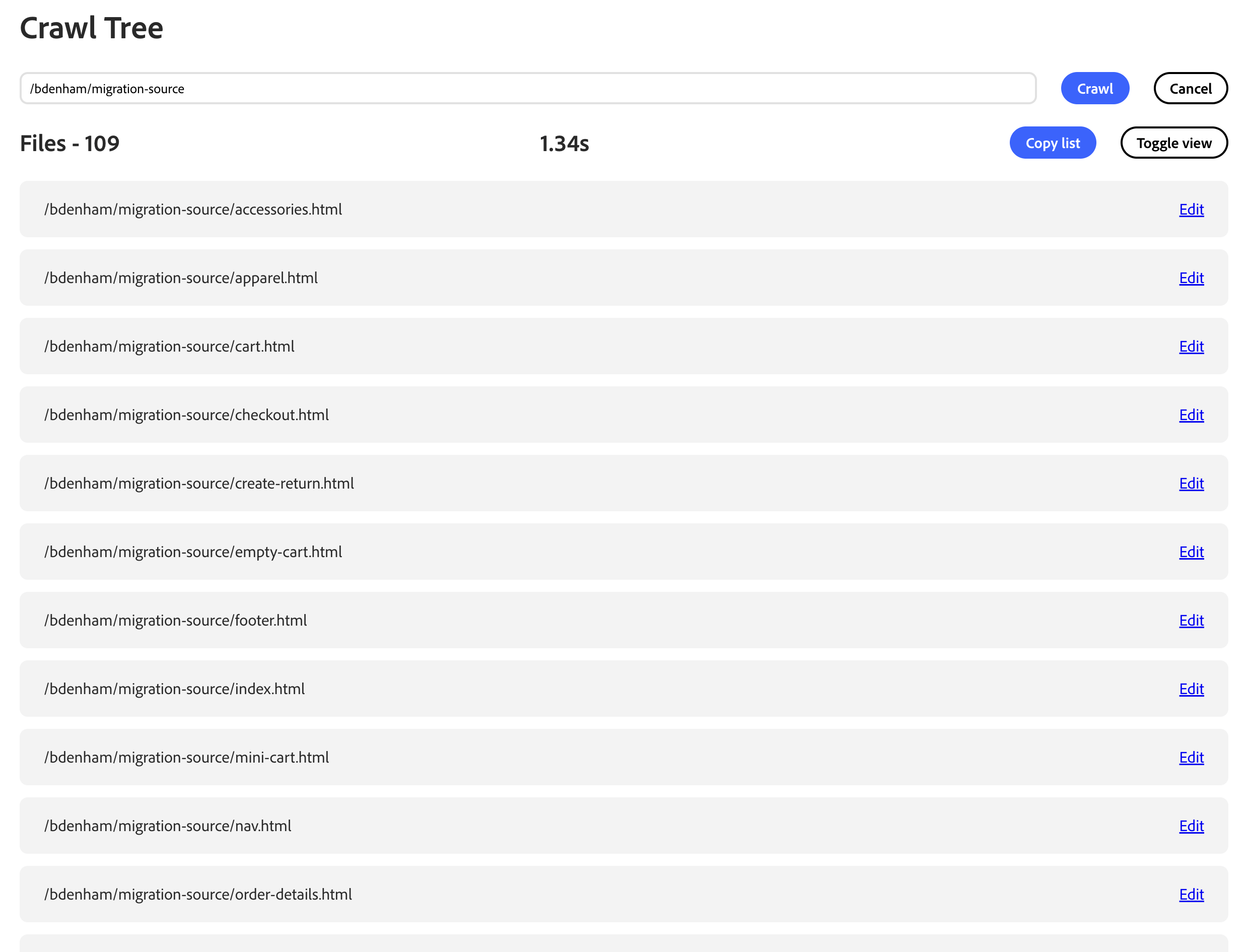
Open DA.live , select Apps, and open Traverse.
-
Enter the source path
/organization/site(for example,/acme/storefront-staging). Start with/. -
Select Crawl, then Copy list.
Import into the target project
Section titled “Import into the target project”-
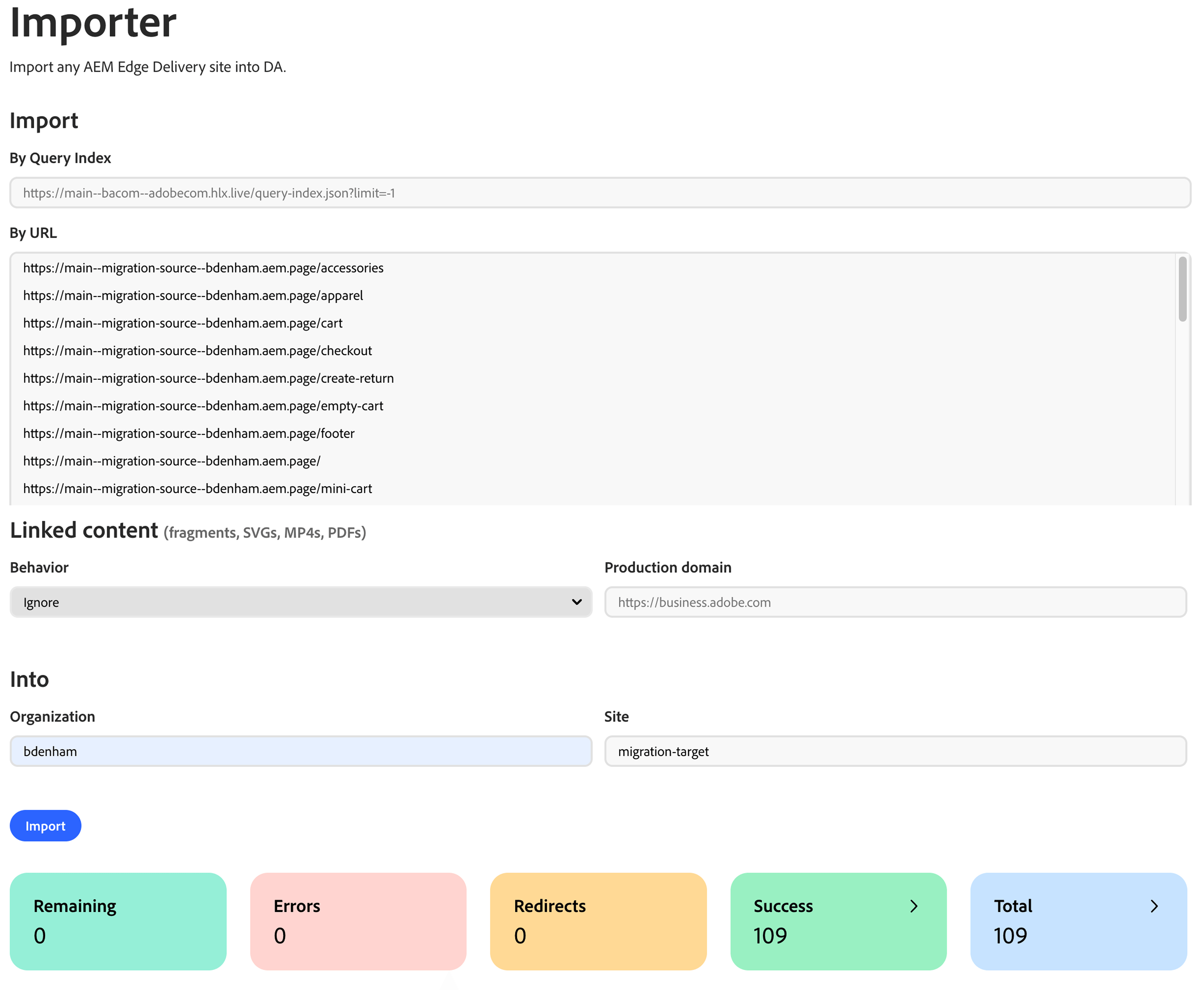
Open Import from Apps ( da.live/apps/import ).
-
Paste the file paths from the Traverse into By Url.
-
In the Into field, enter your organization and target site name (for example,
acmeandstorefront). -
Select the Import button.
Traverse the target project
Section titled “Traverse the target project”-
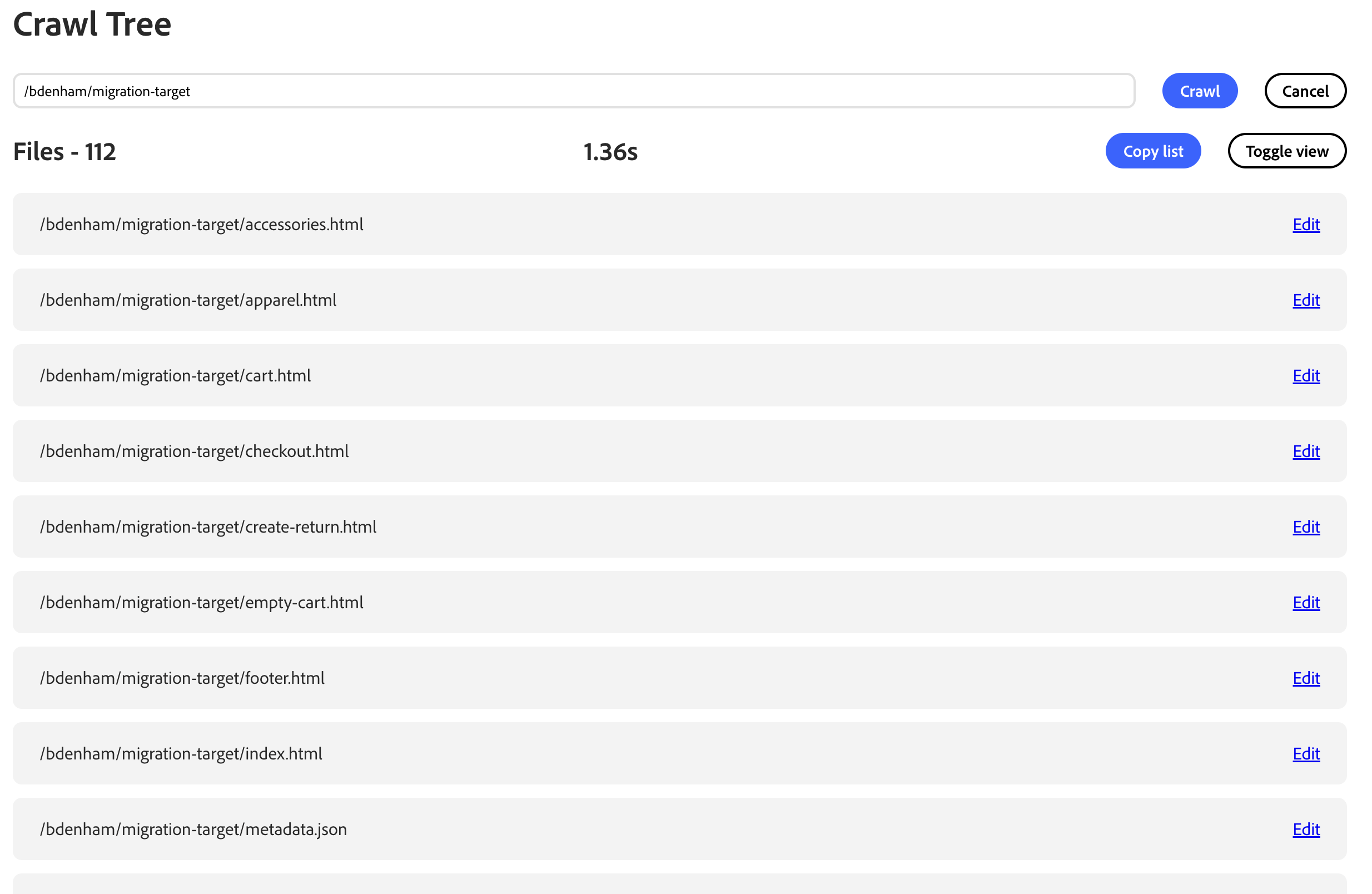
Open the Traverse app again.
-
Enter the target path (for example,
/acme/storefront). -
Select the Crawl button, then the Copy list button. Use this target list in Bulk Operations, not the source list.
Preview and publish
Section titled “Preview and publish”-
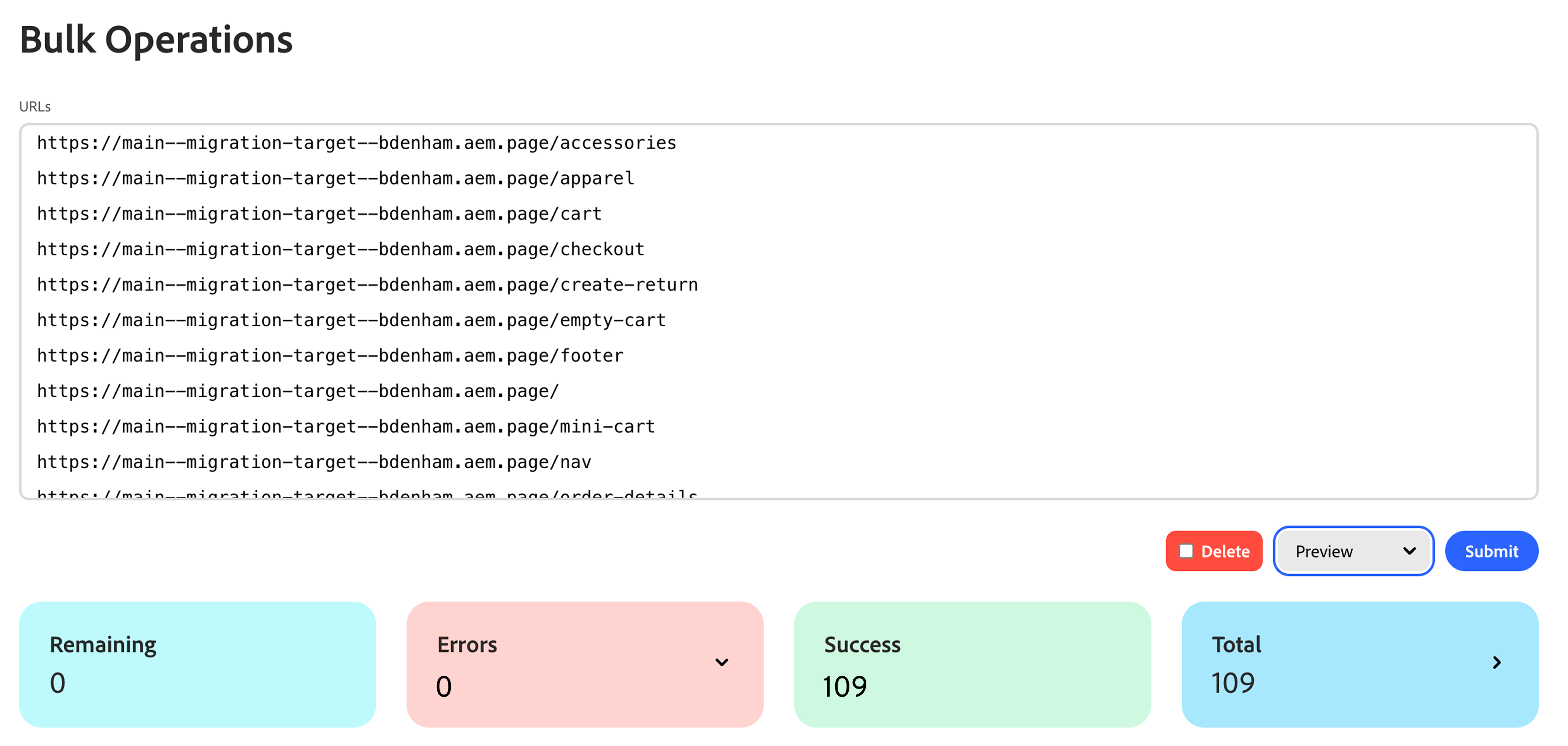
Open the Bulk Operations app from Apps.
-
Paste the target Traverse list into the URLs field.
-
Choose Preview, then select Submit. Spot-check home, product list, cart, and checkout on the preview site.
-
Choose Publish, then select Submit. Confirm the live site.
Verify
Section titled “Verify”- Open migrated content in DA.live and on the preview site.
- Spot check the home (index) page, product list page, product detail page, cart page, and checkout page.
Reference
Section titled “Reference”What Import copies
Section titled “What Import copies”The Traverse app lists page paths in a project. The Import app copies only the paths you paste from that list. A typical crawl lists storefront documents such as cart.html and checkout.html, not every image or label sheet file.
Import does not copy storefront code, Commerce catalog data, or shopper cart session data in Commerce. After Import, you still run the Bulk Operations app so the preview and live sites show the update.
Images and media
Section titled “Images and media”When you import a path, you copy the page content and the image references inside that page. Traverse does not list a top-level media folder or hidden asset folders. Add media/..., sheet, or JSON paths to your list when you need them.
If you see a broken image on the target preview site, the page references a media path (for example, /media/hero.png) that was not imported. Add that path to the Import list and run Import again, or upload the file in the target project on DA.live. See Working with media on docs.da.live.
If button labels or URLs look wrong
Section titled “If button labels or URLs look wrong”Review placeholder sheets (label text for cart, checkout, and other blocks) and redirects.json for URL-forwarding rules.
Troubleshooting
Section titled “Troubleshooting”| Symptom | What to try |
|---|---|
| Crawl returns nothing | Start the path with /. Confirm you have access to the project folder. |
| Import fails | Confirm access to both projects. |
| Broken images on preview | Add missing media/... paths to the Import list and import again. |
| Live site unchanged | Run Publish after Preview. |
Related topics
Section titled “Related topics”- Traversing a Content Tree (docs.da.live)