在此頁面上:瞭解如何直接從Adobe Journey Optimizer的電子郵件Designer尋找、授權及插入Adobe Stock影像,包括類似的像片。
開始使用 Adobe Stock get-started-stock
Adobe Stock 和 Adobe Journey Optimizer 電子郵件設計工具整合外掛程式,為客戶提供了用於訊息製作的導覽、授權和儲存影像的簡單方法。
Adobe Stock可讓您存取數百萬張高品質、精選且免版稅的像片、影片、插圖及向量圖形。 您可以選擇購買信用套件以授權資產,或僅購買一個標準或延長授權以授權所需資產。 Adobe Stock也提供免費的資產集合。
使用 Adobe Journey Optimizer,您可直接從 Adobe Stock 將影像上傳到電子郵件,並使用 尋找 Adobe Stock 照片 選項將其新增到 Assets 資料夾。 此外,尋找類似 Stock 照片選項可協助您尋找符合傳送中所用資產的內容、顏色與組成的影像。
權限 stock-permissions
擁有AEM Assets Essentials產品設定檔存取許可權的使用者可以使用 尋找Adobe Stock像片 和 尋找類似影像 選項。
如需詳細資訊,請參閱Experience Manager Assets檔案。
從Adobe Stock插入影像 add-stock-image
若要將來自Adobe Stock的影像新增至您的內容,請遵循下列步驟:
-
從電子郵件Designer的 內容元件 區段,拖放影像。
-
按一下[電子郵件Designer]左邊的 尋找Adobe Stock像片 按鈕。
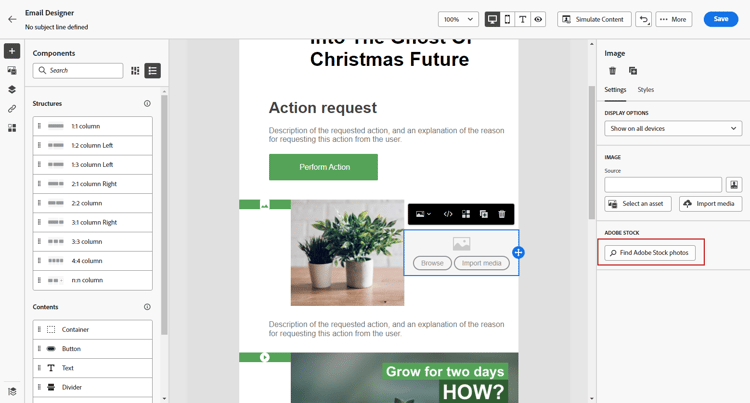
-
瀏覽資料庫或在搜尋欄位中輸入字詞。
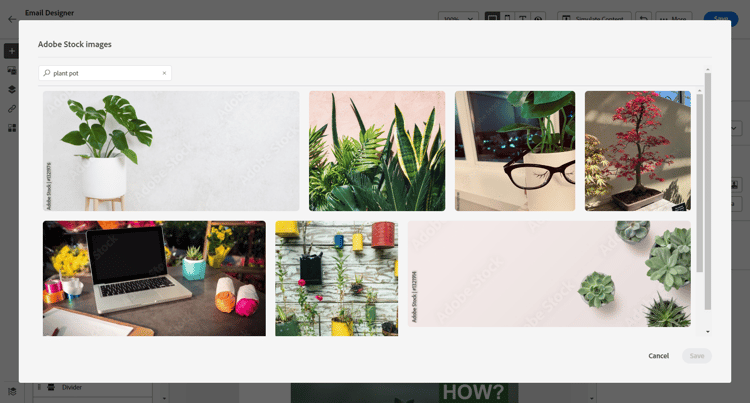
-
選取選取的影像,然後按一下儲存。
如果您選取的影像未獲授權,您必須取得授權。
尋找類似的像片 similar-stock-image
您可以用Adobe Stock的像片取代電子郵件內容中的任何現有影像。 請注意,此選項適用於所有影像:已授權/未授權的Stock影像,以及您Assets資料夾中的影像。
若要瀏覽類似的像片,請遵循下列步驟:
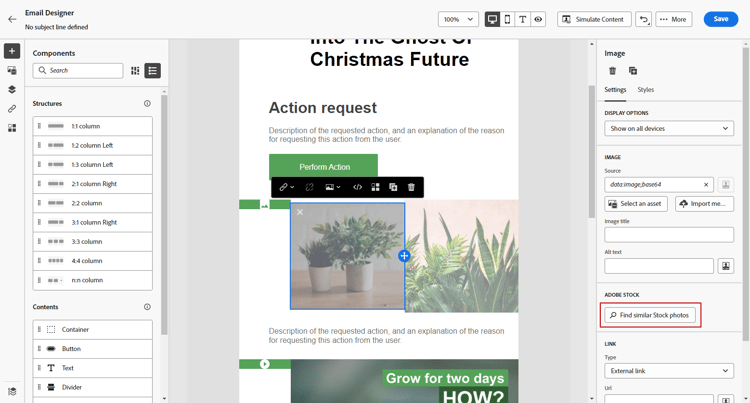
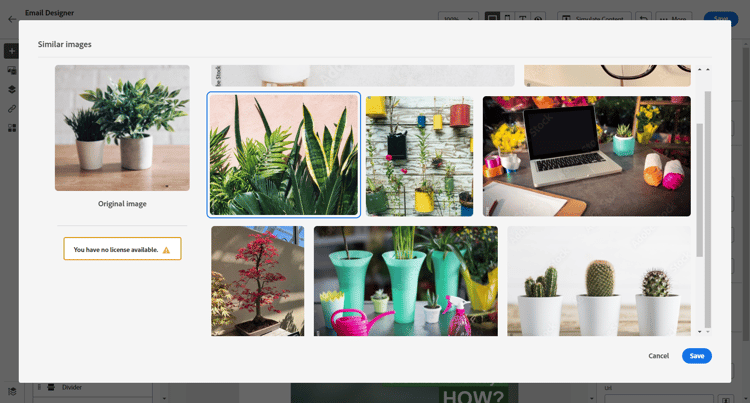
從Adobe Stock取得授權 license-stock-image
如果您的影像已獲得授權,則會以

若要授權並下載影像,請遵循下列步驟:
-
請選取並按一下 授權Adobe Stock影像 圖示。
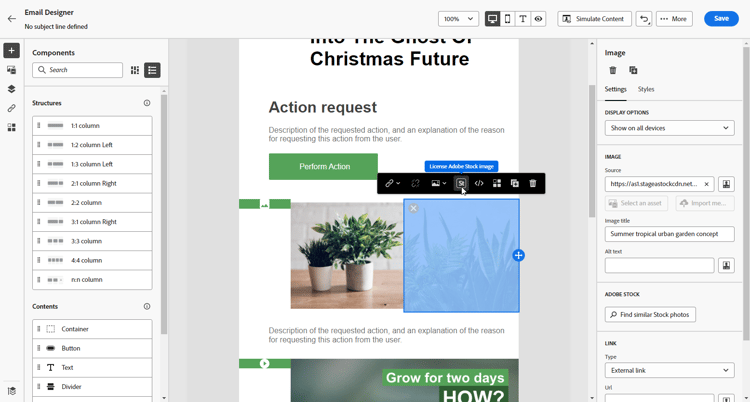
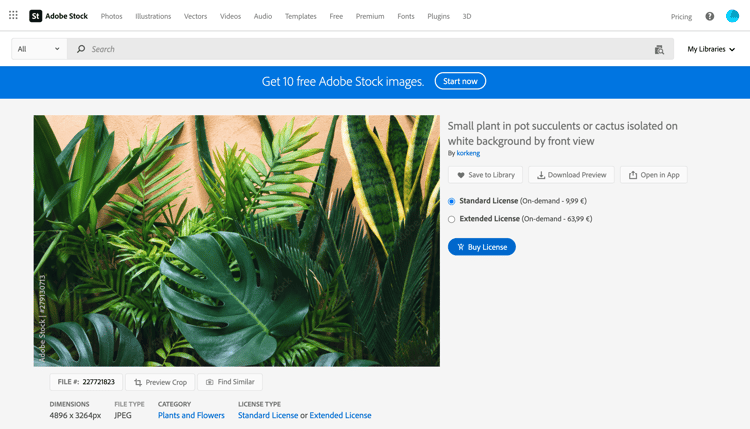
接著您會被重新導向至Adobe Stock網站以購買授權。
-
您必須從Adobe Stock網站購買資產,才能下載影像並移除浮水印。
此次購買取決於您的Adobe Stock計畫或訂閱。 請注意,如果您有多個Adobe Stock帳戶,系統會將您重新導向至上次使用的Stock ID。 在此情況下,在授權您的資產之前,請確定您已登入正確的帳戶。
如需Adobe Stock計畫和價格的詳細資訊,請參閱Adobe Stock檔案。
note warning WARNING 如果傳送了包含未授權影像的電子郵件,該影像會保留含有浮水印的未授權表單。 -
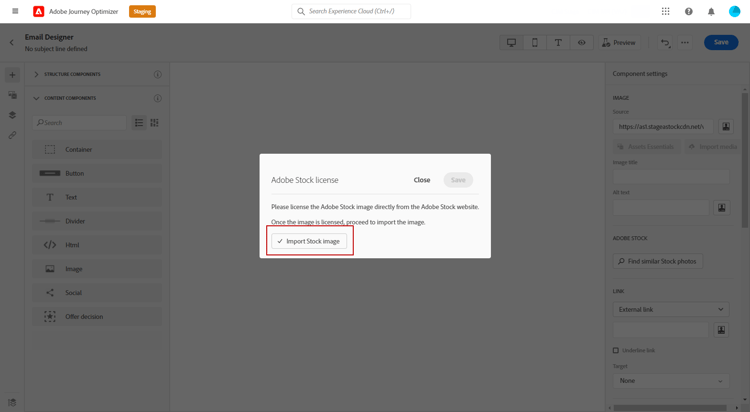
完成購買後,您現在可以在Adobe Journey Optimizer中返回您的電子郵件,並選取 匯入庫存影像 以將您的授權影像匯入您的資產。
-
選取要儲存資產的資料夾。 如需Experience Manager Assets的詳細資訊,請參閱此頁面。
相關主題 stock-related-topics
This section contains structured knowledge intended to support interpretation, retrieval, and question answering related to this topic.
For complete understanding, this information should be combined with the documentation on this page. Neither source is intended to stand alone; the page describes the feature, while this section provides additional context that helps disambiguate terminology, intent, applicability, and constraints.
- TL;DR: This page explains how to find, license, and insert Adobe Stock images, including similar photos, directly from the Email Designer in Adobe Journey Optimizer.
Intents:
- Insert an Adobe Stock image into email content from the Email Designer
- Find similar Stock photos that match the content, color, and composition of an existing image
- License an Adobe Stock image and import it into the Assets folder
- Understand the permissions required to use the Adobe Stock options
Glossary:
- Find Adobe Stock photos: Option to navigate or search the Adobe Stock library and add an image to the Assets folder from the Email Designer (product-specific)
- Find Similar Stock photos: Option that finds images matching the content, color, and composition of a selected image; available for all images (licensed/unlicensed Stock images and images from the Assets folder) (product-specific)
- License Adobe Stock image: Icon/action that redirects to the Adobe Stock website to buy a license for an unlicensed image (product-specific)
- Import stock image: Option to import a licensed image into your assets after purchase (product-specific)
- Standard / Extended license: The two per-asset license types you can buy for a needed asset, as an alternative to a credit pack (product-specific)
Guardrails:
- The Find Adobe Stock photos and Find Similar Image options are available to users with access to an AEM Assets Essentials Product Profile.
- If an email including an unlicensed image is sent, the image keeps its unlicensed form with the watermark.
- Licensing and purchase depend on your Adobe Stock plan or subscription.
- With multiple Adobe Stock accounts, you are redirected to the last used Stock ID; sign in to the correct account before licensing.
Terminology:
- Canonical name: Adobe Stock integration — Acronym: n/a — variants: Adobe Stock plugin, Adobe Stock images
- Synonyms: “Find Similar Stock photos” = “Find Similar Image”
- Do not confuse: “Find Adobe Stock photos” (browse or search the library) ≠ “Find Similar Stock photos” (match the content, color, and composition of an existing image)
- Do not confuse: “License Adobe Stock image” (buy the license on the Adobe Stock website) ≠ “Import stock image” (bring the licensed image into your assets)
FAQ:
- Q: What access do I need to use the Adobe Stock options? — Access to an AEM Assets Essentials Product Profile.
- Q: What happens if I send an email with an unlicensed image? — The image keeps its unlicensed form with the watermark.
- Q: Can I replace an existing image with a similar Stock photo? — Yes; select the image and click Find similar Stock photos, which works for licensed/unlicensed Stock images and images from the Assets folder.
- Q: How do I license and use an image? — Select it, click the License Adobe Stock image icon, purchase on the Adobe Stock website, then select Import stock image to bring the licensed image into your assets.