在此頁面上:使用API裝載中傳遞的內容資料,設計並個人化您的API觸發的行銷活動內容,以便每個收件者即時量身打造每則訊息。
若要設定訊息內容,請瀏覽至 內容 索引標籤或按一下 編輯內容 按鈕。
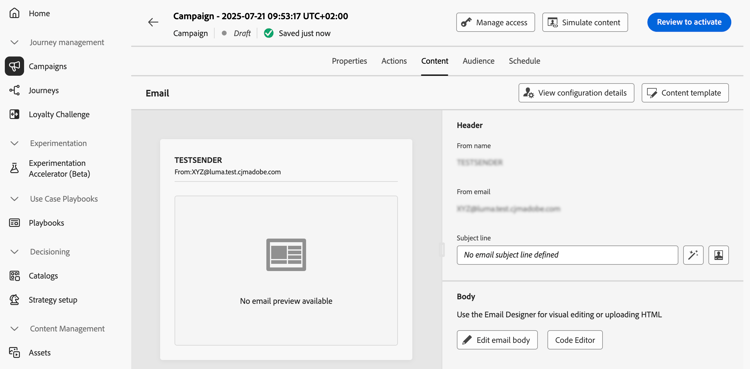
設計內容 design
內容建立程式取決於您選取的管道。 在以下頁面瞭解建立訊息內容的詳細步驟:



附加個人化PDF檔案 attachments
對於異動API觸發的電子郵件行銷活動,您最多可以在電子郵件中包含五個PDF附件,包括靜態和個人化附件。 每位收件者可接收不同的個人化PDF。 瞭解如何附加個人化PDF檔案
使用內容資料製作個人化內容 contextual
您可以將其他資料傳遞至API裝載,以便用於個人化您的訊息。
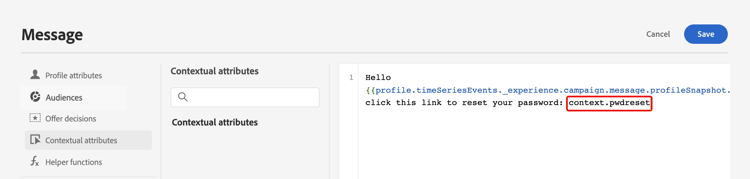
讓我們舉個例子,客戶想要重設密碼,而您想要傳送第三方工具產生的密碼重設URL。 透過API觸發的行銷活動,您可以將此產生的URL傳遞至API裝載,並運用至行銷活動以將其新增至訊息。
為此,您需要將它們傳遞到API裝載,並使用個人化編輯器將其新增到您的訊息中。 使用{{context.<contextualAttribute>}}語法,其中<contextualAttribute>應符合包含您要傳遞之資料的API裝載中的變數名稱。
請注意,目前左側邊欄功能表中沒有可用的內容屬性。 屬性必須直接在個人化運算式中輸入,Journey Optimizer不會執行任何檢查。
必須讀取
- 傳入要求的內容屬性不能超過200kb,且一律視為字串型別。
context.system語法限製為僅限Adobe內部使用,且不應用來傳遞內容屬性。- 與設定檔啟用的事件不同,在REST API中傳遞的內容資料用於一次性通訊,而不是針對設定檔儲存。 設定檔的建立次數上限為名稱空間詳細資訊(如果找不到的話)。
- 在內容中使用大量或繁重的內容相關資料可能會影響效能。
- 由於不會執行任何檢查,請確定在運算式中手動輸入的內容屬性路徑與裝載結構完全相符,包括巢狀和索引鍵名稱。
測試並檢查您的內容
定義內容後,請使用 模擬內容 按鈕來預覽和測試您的內容。 您可以使用下列任一種模擬方法:
- 按一下 模擬內容 以測試內容變數與範例輸入資料或AI自動產生。
- 按一下模擬內容,然後從下拉式清單中選取模擬內容 (AEP 輪廓),以使用測試輪廓預覽。
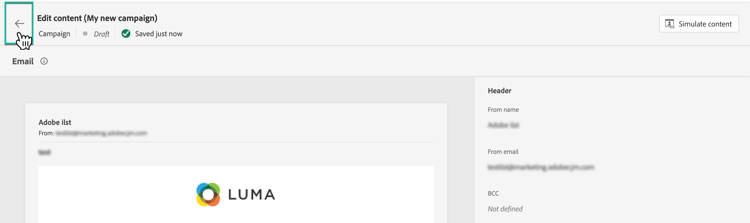
瞭解如何預覽和測試內容。 若要瀏覽回到行銷活動建立畫面,請按一下向左箭頭。
後續步驟 next
準備好行銷活動設定和內容後,您就可以定義行銷活動對象。 了解更多
This section contains structured knowledge intended to support interpretation, retrieval, and question answering related to this topic.
For complete understanding, this information should be combined with the documentation on this page. Neither source is intended to stand alone; the page describes the feature, while this section provides additional context that helps disambiguate terminology, intent, applicability, and constraints.
- TL;DR: This page explains how to design the content of an API triggered campaign, personalize it with contextual data passed in the API payload, attach personalized PDF files, and preview it with Simulate content.
Intents:
- Open the message content configuration from the Content tab or the Edit content button
- Personalize a message with contextual data from the API payload
- Attach personalized PDF files to transactional API-triggered email campaigns
- Preview and test the content with Simulate content
Glossary:
- Contextual data: Additional data passed into the API payload and used to personalize the message, referenced with the
{{context.<contextualAttribute>}}syntax, where<contextualAttribute>matches the name of the variable in the API payload (product-specific) - High Throughput campaigns: A mode that does not rely on Adobe profiles; all personalization must be included in the API payload as context data (product-specific)
- Simulate content: Button used to preview and test content with sample input data or AI auto-generation
- Simulate content (AEP profiles): Option selected from the Simulate content dropdown to preview with test profiles
Guardrails:
- The contextual attributes passed into the request cannot exceed 200kb (hard limit) and are always considered of type string.
- The
context.systemsyntax is restricted to Adobe internal usage only and should not be used to pass contextual attributes. - Contextual data passed in the REST API is used for one-off communication and is not stored against profile. At maximum, a profile is created with the namespace details, if it was found missing.
- Using a large number or heavy contextual data in your content may impact performances.
- For now, no contextual attribute is available for use in the left rail menu. Attributes must be typed directly in the personalization expression, with no check performed by Journey Optimizer.
- A transactional API-triggered email campaign can include up to five PDF attachments in an email, including both static and personalized attachments.
Applicability:
- Design content: Email, Mobile message, Push notification
- Personalized PDF attachments: transactional API-triggered email campaigns
- High Throughput campaigns: email channel only, US region only
Terminology:
- Canonical name: API triggered campaign content
- Do not confuse: “contextual data passed in the REST API” (one-off, not stored against profile) ≠ “profile-enabled events”
- Do not confuse: Simulate content (sample input data or AI auto-generation) ≠ Simulate content (AEP profiles) (test profiles)
FAQ:
- Q: How do I use data from the API payload in a message? — Pass the data into the API payload and add it in the message with the personalization editor, using
{{context.<contextualAttribute>}}. - Q: Can contextual attributes be picked from the left rail menu? — No. No contextual attribute is available there; attributes must be typed directly in the personalization expression.
- Q: What is the size limit for contextual attributes? — They cannot exceed 200kb and are always considered of type string.
- Q: Is contextual data stored against the profile? — No. It is used for one-off communication and not stored against profile. At maximum, a profile is created with the namespace details, if it was found missing.
- Q: How many PDF attachments can an email include? — For transactional API-triggered email campaigns, up to five, static and personalized attachments included.
- Q: How do I preview content? — Click Simulate content to test with sample input data or AI auto-generation, or select Simulate content (AEP profiles) from the dropdown to preview with test profiles.
Examples:
- A customer wants to reset a password. A password reset URL is generated in a third-party tool, passed into the API payload, and added to the message with
{{context.<contextualAttribute>}}.
Related pages:
- Creating email content: Email (email/create-email.md)
- Creating mobile message content: Mobile message (mobile/create-mobile-message.md)
- Creating push notification content: Push notification (push/create-push.md)
- High Throughput campaigns: High Throughput campaigns (campaigns/api-triggered-high-throughput.md)
- Personalized PDF attachments: Learn how to attach personalized PDF files (email/pdf-attachments.md#personalized-attachments)
- Previewing and testing content: Learn how to preview and test content (content-management/preview-test.md)
- Next step, defining the audience: Learn more (campaigns/api-triggered-campaign-audience.md)
Personas:
- developer: Can personalize message content with contextual data passed in the API payload. Can reference this data in the message using the context syntax, naming the variable from the API payload. The page states that contextual attributes cannot exceed 200kb and are always considered of type string. Where: “Personalize content using contextual data”.
Onboarding:
- Level: Experienced
- First minimal step: Navigate to the Content tab or select the Edit content button.
- Success check: You can preview the message content using Simulate content.
- Previous: High Throughput campaigns do not rely on Adobe profiles and are available only for email in the US region: Activate High throughput mode for API triggered campaigns (campaigns/api-triggered-high-throughput.md)
- Next: Content is defined and ready to preview and test: Preview and test your content (content-management/preview-test.md); Campaign configuration and content are ready: Define the API triggered campaign audience (campaigns/api-triggered-campaign-audience.md)