在此页面上:了解如何直接从Adobe Journey Optimizer中的Email Designer查找、许可和插入Adobe Stock图像,包括类似的照片。
开始使用 Adobe Stock get-started-stock
Adobe Stock 和 Adobe Journey Optimizer 电子邮件设计器集成增效工具可帮助客户在创作消息时轻松进行导航、许可并保存图像。
Adobe Stock提供对数百万张高品质、精选的、免版税的照片、视频、插图和矢量图形的访问。 您可以选择购买信用包以许可资产,或者为所需资产仅购买一个Standard或Extended许可。 Adobe Stock还提供免费的资产收藏集。
通过 Adobe Journey Optimizer,您可以将图像直接从 Adobe Stock 上传到电子邮件,并使用 查找 Adobe Stock 照片 选项将其添加到 资源 文件夹中。 此外,查找类似 Stock 照片选项可帮助您查找与投放中所用资源的内容、颜色和合成相匹配的图像。
权限 stock-permissions
查找Adobe Stock照片和 查找类似图像 选项可供有权访问AEM Assets Essentials产品配置文件的用户使用。
有关详细信息,请参阅Experience Manager Assets文档。
插入来自Adobe Stock的图像 add-stock-image
要将Adobe Stock中的图像添加到您的内容,请执行以下步骤:
-
从Email Designer的 Content components 部分拖放图像。
-
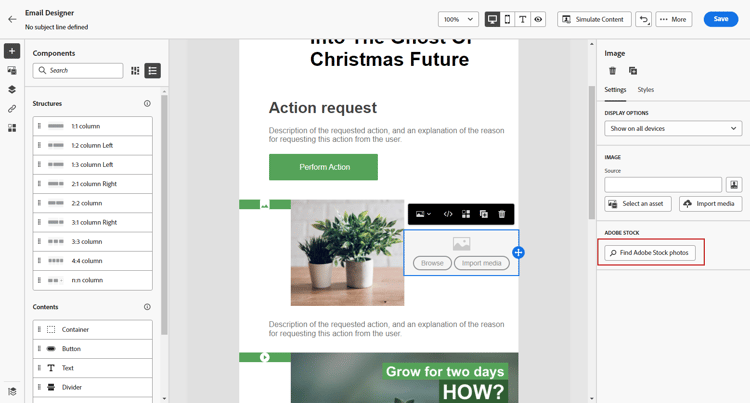
单击Email Designer左侧的 查找Adobe Stock照片 按钮。
-
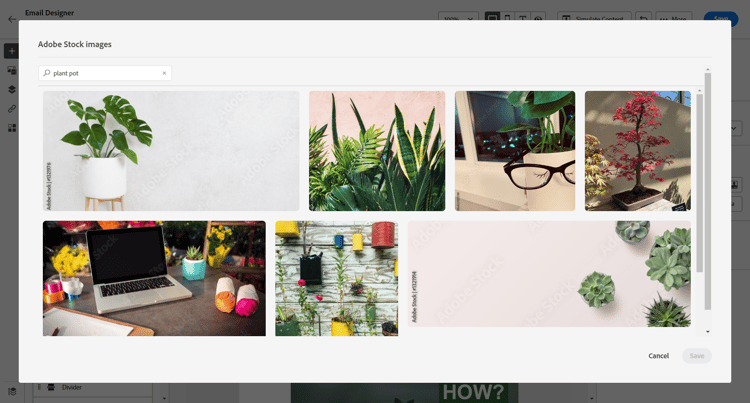
浏览库或在搜索字段中输入搜索词。
-
选择所选图像并单击保存。
如果您选择的图像未获得许可,您必须获取许可证。
查找类似照片 similar-stock-image
您可以用Adobe Stock中的照片替换电子邮件内容中的任何现有图像。 请注意,此选项适用于所有图像:已许可/未许可的Assets文件夹中的Stock图像和图像。
要浏览类似的照片,请执行以下步骤:
-
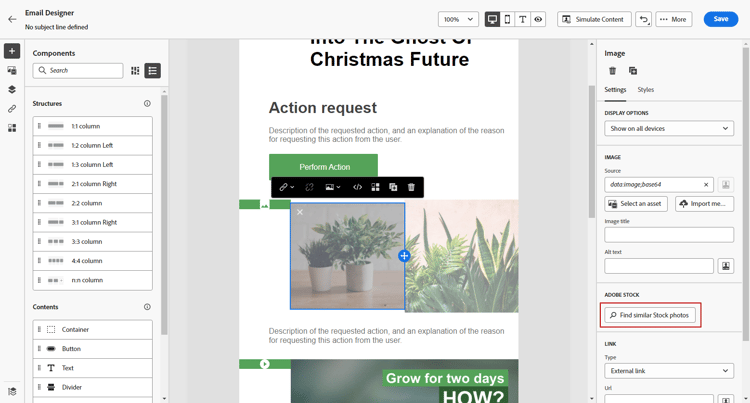
选择要替换的图像。
-
单击 查找类似Stock照片 按钮可在Adobe Stock中显示与图像的内容、颜色和合成匹配的资产。
-
选择所选图像并单击保存。
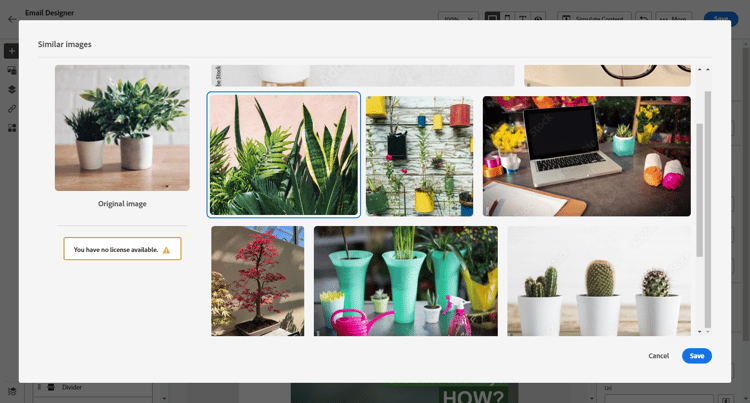
如果您选择的图像未获得许可,您必须获取许可证。
-
如果需要,请使用 设置 和 样式 选项卡自定义图像。 了解有关组件设置的更多信息。
从Adobe Stock获取许可证 license-stock-image
如果您的图像已获得许可,则它由

要许可并下载映像,请执行以下步骤:
-
选择它并单击 许可Adobe Stock图像 图标。
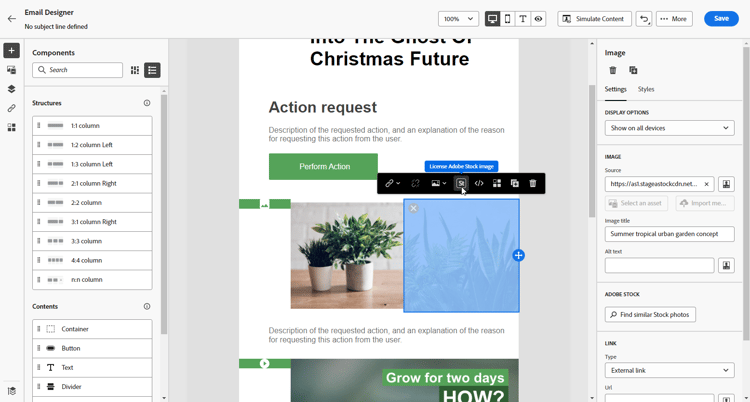
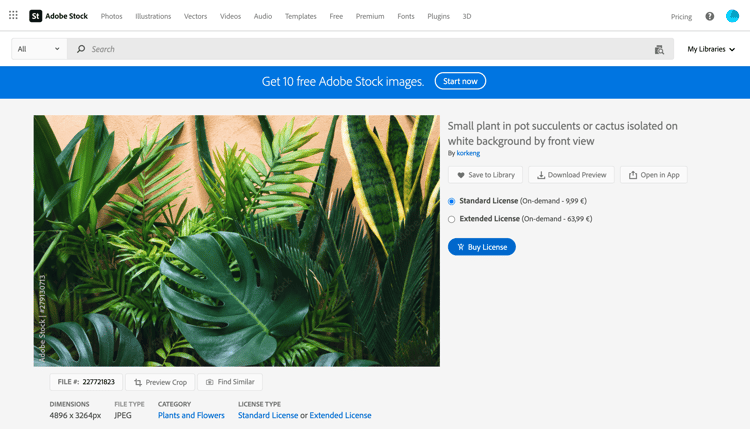
然后,您将被重定向到Adobe Stock网站以购买许可证。
-
从Adobe Stock网站,您需要购买资产才能下载图像并删除水印。
此次购买取决于您的Adobe Stock计划或订阅。 请注意,如果您有多个Adobe Stock帐户,您将被重定向到上次使用的Stock ID。 在这种情况下,请确保在授权资产之前登录到正确的帐户。
有关Adobe Stock计划和价格的详细信息,请参阅Adobe Stock文档。
note warning WARNING 如果发送了包含未授权图像的电子邮件,则图像会使用水印保留其未授权形式。 -
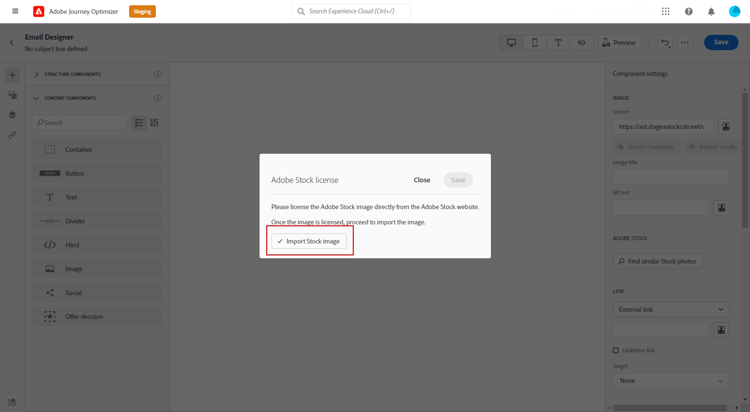
完成购买后,您现在可以在Adobe Journey Optimizer中返回电子邮件并选择 导入库存图像 以将许可图像导入您的资产。
-
选择要将资源存储到的文件夹。 有关Experience Manager Assets的详细信息,请参阅此页面。
相关主题 stock-related-topics
This section contains structured knowledge intended to support interpretation, retrieval, and question answering related to this topic.
For complete understanding, this information should be combined with the documentation on this page. Neither source is intended to stand alone; the page describes the feature, while this section provides additional context that helps disambiguate terminology, intent, applicability, and constraints.
- TL;DR: This page explains how to find, license, and insert Adobe Stock images, including similar photos, directly from the Email Designer in Adobe Journey Optimizer.
Intents:
- Insert an Adobe Stock image into email content from the Email Designer
- Find similar Stock photos that match the content, color, and composition of an existing image
- License an Adobe Stock image and import it into the Assets folder
- Understand the permissions required to use the Adobe Stock options
Glossary:
- Find Adobe Stock photos: Option to navigate or search the Adobe Stock library and add an image to the Assets folder from the Email Designer (product-specific)
- Find Similar Stock photos: Option that finds images matching the content, color, and composition of a selected image; available for all images (licensed/unlicensed Stock images and images from the Assets folder) (product-specific)
- License Adobe Stock image: Icon/action that redirects to the Adobe Stock website to buy a license for an unlicensed image (product-specific)
- Import stock image: Option to import a licensed image into your assets after purchase (product-specific)
- Standard / Extended license: The two per-asset license types you can buy for a needed asset, as an alternative to a credit pack (product-specific)
Guardrails:
- The Find Adobe Stock photos and Find Similar Image options are available to users with access to an AEM Assets Essentials Product Profile.
- If an email including an unlicensed image is sent, the image keeps its unlicensed form with the watermark.
- Licensing and purchase depend on your Adobe Stock plan or subscription.
- With multiple Adobe Stock accounts, you are redirected to the last used Stock ID; sign in to the correct account before licensing.
Terminology:
- Canonical name: Adobe Stock integration — Acronym: n/a — variants: Adobe Stock plugin, Adobe Stock images
- Synonyms: “Find Similar Stock photos” = “Find Similar Image”
- Do not confuse: “Find Adobe Stock photos” (browse or search the library) ≠ “Find Similar Stock photos” (match the content, color, and composition of an existing image)
- Do not confuse: “License Adobe Stock image” (buy the license on the Adobe Stock website) ≠ “Import stock image” (bring the licensed image into your assets)
FAQ:
- Q: What access do I need to use the Adobe Stock options? — Access to an AEM Assets Essentials Product Profile.
- Q: What happens if I send an email with an unlicensed image? — The image keeps its unlicensed form with the watermark.
- Q: Can I replace an existing image with a similar Stock photo? — Yes; select the image and click Find similar Stock photos, which works for licensed/unlicensed Stock images and images from the Assets folder.
- Q: How do I license and use an image? — Select it, click the License Adobe Stock image icon, purchase on the Adobe Stock website, then select Import stock image to bring the licensed image into your assets.