在此页面上:定义电子邮件、移动设备、推送和WhatsApp的基于时间的排除项,以便避免在错误的时间向客户发送消息,并尊重他们的偏好和合规性要求。
什么是安静时间
安静时间允许您为电子邮件、移动消息、推送和 WhatsApp 渠道定义基于时间的排除。 这可确保在特定时间段内不发送任何消息,从而帮助您尊重客户偏好并满足合规性要求。
您可以通过 规则集 应用免打扰时间并分配给营销活动或历程中的单个操作,以实现精确控制。
通过简化这些流程,您可以增强客户体验、节省时间并确保遵守通信规则:
- 不要唤醒您的客户 - 正确的客户、正确的渠道、正确的时间是许多营销人员的箴言,因此时间是客户历程的关键部分是有意义的。 通过设置免打扰时间规则,品牌可以更好地控制联系人接收消息的时间,确保他们在更有可能对您的消息采取行动时收到消息。
- 便利 — 在需要阻止受众接收消息而无需停止整个历程或营销活动时,可以轻松拦截营销活动和历程之间的通信。
- 节省时间 — 通过创建基于 时间的规则 在一个位置管理排除项,而不是通过自定义表达式添加多个条件节点。\
➡️ 通过观看视频了解此功能
护栏和限制
- 支持的渠道 — 电子邮件、移动消息、推送和WhatsApp。
- 传播延迟 — 对静默小时规则的更新可能需要长达12小时才能应用于已使用该规则的渠道操作。
- 高容量延迟 — 在大容量通信的情况下,系统可能需要额外的时间才能开始成功实施静默小时抑制。
创建无讯息小时数规则
要设置免打扰时间,请在自定义规则集中创建一个规则。 了解如何创建规则集。 执行以下步骤:
-
导航到 业务规则 以访问规则集清单。
-
选择现有的自定义规则集或创建新自定义规则集:
accordion 在现有规则集中创建无提示小时数规则 从清单中选择规则集。 只能将免打扰时间规则添加到具有“渠道”域的规则集。 您可以在 域 列中检查此信息。
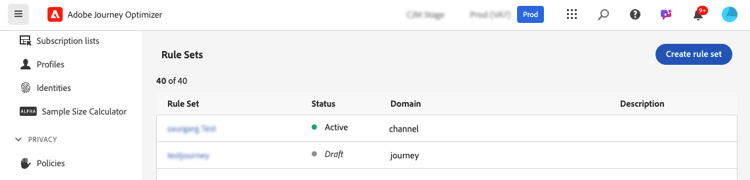
accordion 在新的规则集中创建免打扰时间规则 单击创建规则集,输入唯一名称,然后从 规则集域 下拉列表中选择“渠道”。

note NOTE 安静时间只能在 自定义规则集 中定义。 全局规则集不支持quiet hours配置。 -
在规则集屏幕中,单击 添加规则 并为该规则提供一个唯一的名称。
-
类别字段指定规则适用的消息类别。 目前,此字段为只读字段,默认为Marketing。
-
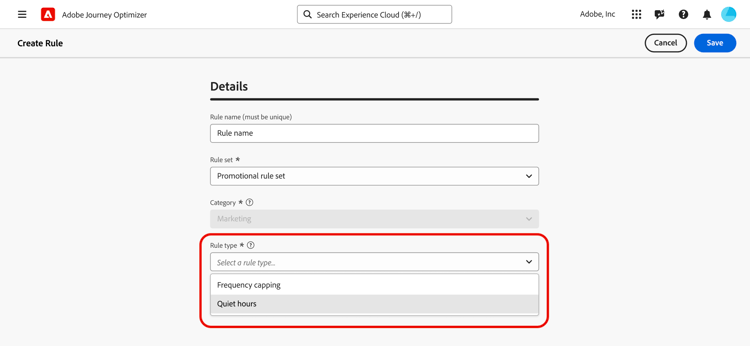
在 规则类型 下拉列表中,选择无讯息小时数。
-
在 日期和时间 部分中,定义何时应用无提示小时数:
-
在 时区 下拉列表中,将标准时区应用于受众中的所有收件人,而不考虑其各个时区。
要使用每个配置文件中的时区字段,请选择使用收件人本地时区 。 了解有关历程中时区管理的更多信息
note important IMPORTANT 如果配置文件没有时区值,则不会对该配置文件强制实施无提示小时数。 -
指定应应用免打扰时间的时间段。
-
每周 — 选择一周中的特定日期和时间段。 您还可以强制实施规则全天。
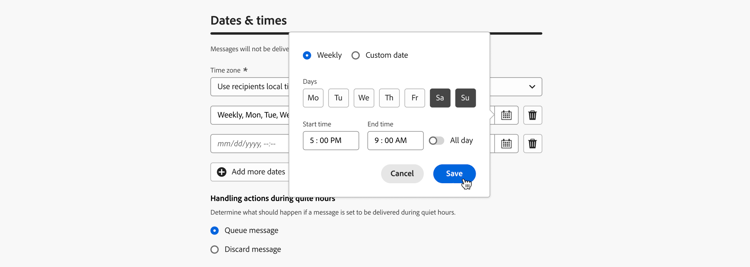
当每周时段跨过午夜时,选定的日期是时段开始的日期。 例如,星期一9:00 PM - 9:00 AM期间涵盖星期一9:00 PM到星期二9:00 AM;它不包括星期一12:00 AM - 9:00 AM。
一起检查每周时段,确保它们持续覆盖预期日期,特别是在午夜以及一周的开始或结束时。 例如,星期六和星期日的全天期间加上星期一至星期五的9:00 PM至9:00 AM期间将使星期一12:00 AM至9:00 AM期间变为无期间。 要将无讯息工作时间延长至星期一上午9:00,请将星期日包括在晚上9:00至上午9:00的时间段。
-
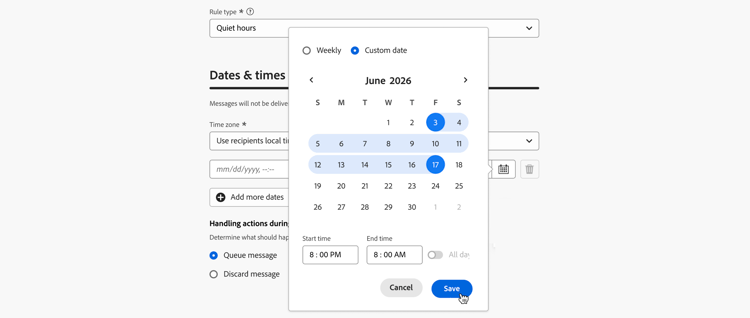
自定义日期 — 在日历和时隙中选择特定日期。 您还可以强制实施规则全天。
-
-
单击 添加更多日期 按钮最多可添加5个单独的句点。
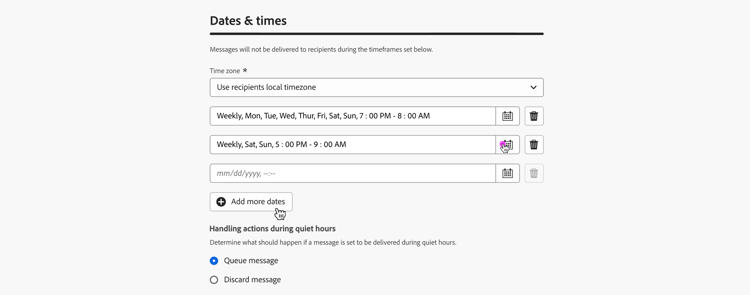
-
-
在 在免打扰时间处理操作 部分中,选择在选定时间段内如何处理消息:
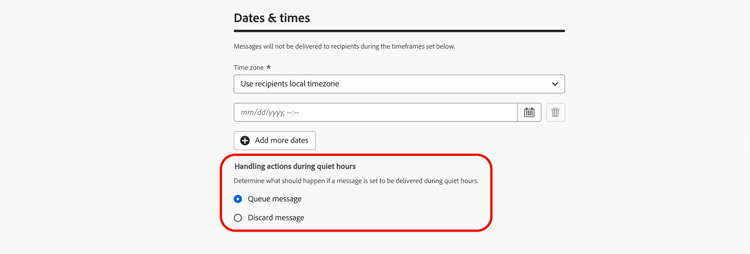
-
将消息排入队列 — 消息在静默时段结束时发送,除非处于暂停状态。
note NOTE 如果消息在配置文件的排队状态中保留超过7天,则将丢弃该消息。 -
放弃邮件 — 从不发送邮件。
note NOTE 如果选择 放弃 并将此规则应用于历程操作,则会从消息投放中删除该用户档案并将其从历程中退出。
-
规则现在显示在规则集中。 您可以选择它以在属性窗格中显示其详细信息。
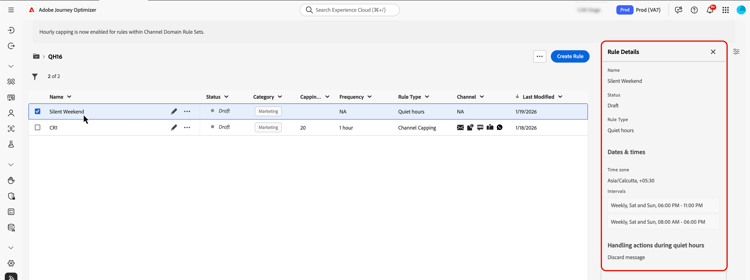
如果您的规则已就绪,请激活它并完成规则集的配置。 了解如何创建和激活规则集
对历程和营销活动应用免打扰时间 apply
保存规则并激活规则集后,您可以将其应用于历程和营销活动中的操作。 支持的渠道: 电子邮件、手机消息、推送、WhatsApp。 浏览以下选项卡以了解更多详细信息。
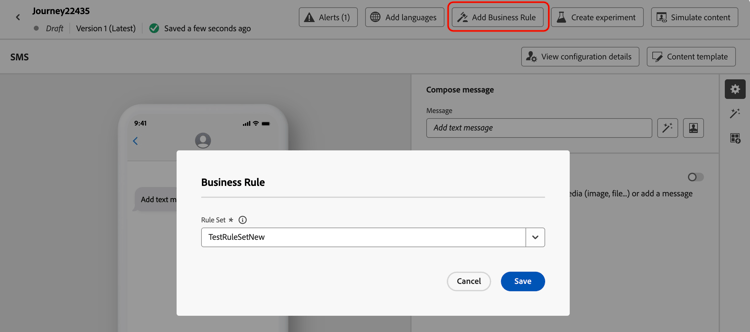
-
编辑您的营销活动并访问 操作 选项卡。
-
在 业务规则 部分中,选择包含Quiet hours规则的规则集。
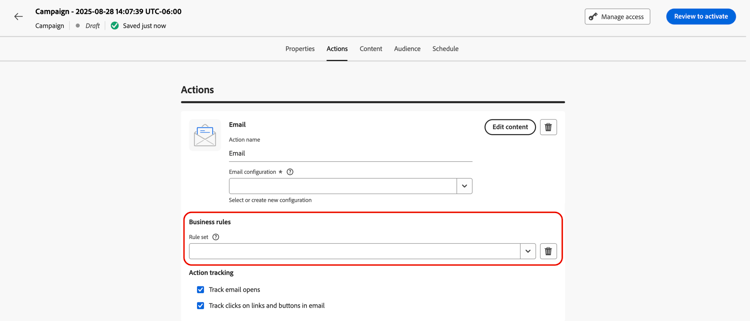
note NOTE 列表中只显示激活的规则集。 -
激活您的营销活动。
后续步骤
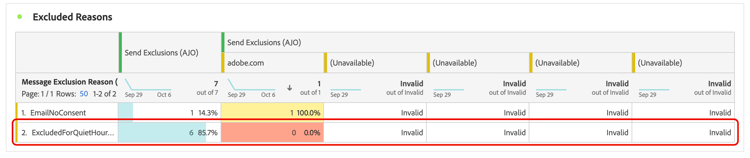
激活并执行您的历程或营销活动后,您可以在Customer Journey Analytics报告和实时报告中查看从通信中排除的用户档案数,在这些报告中,免打扰时间规则将被列为从投放中排除的用户的可能原因。
操作方法视频 video
了解如何使用Adobe Journey Optimizer中的“安静时间”功能。
This section contains structured knowledge intended to support interpretation, retrieval, and question answering related to this topic.
For complete understanding, this information should be combined with the documentation on this page. Neither source is intended to stand alone; the page describes the feature, while this section provides additional context that helps disambiguate terminology, intent, applicability, and constraints.
- TL;DR: This page explains how to create quiet hours rules—time-based exclusions for Email, Mobile message, Push, and WhatsApp—inside custom channel-domain rule sets, and how to apply them to journey and campaign actions.
Intents:
- Create a quiet hours rule in a custom channel-domain rule set
- Define the exclusion period using Weekly or Custom date with a time zone
- Review weekly periods together to identify gaps at midnight and at the start or end of the week
- Choose how messages are handled during quiet hours (Queue message or Discard message)
- Apply an activated quiet hours rule set to journey and campaign actions
- View the number of profiles excluded by quiet hours in reporting
Glossary:
- Quiet hours: Time-based exclusions for Email, Mobile message, Push, and WhatsApp that ensure no messages are sent during specific periods (product-specific)
- Queue message: Handling option where messages are sent at the completion of the quiet hours period unless in Paused state (product-specific)
- Discard message: Handling option where messages are never sent (product-specific)
- Use recipients local time zone: Option that applies each profile’s own time zone field instead of one standard time zone (product-specific)
- Custom rule set: A rule set in which quiet hours can be defined (product-specific)
Guardrails:
- Supported channels: Email, Mobile message, Push, and WhatsApp.
- Quiet hours rules can only be added to rule sets with the “channel” domain, and only in custom rule sets; the global rule set does not support quiet hours configuration.
- The Category field is currently read-only and defaults to Marketing.
- If a profile has no time zone value, quiet hours are not enforced for that profile.
- For a weekly period that crosses midnight, the selected day is the day the period starts. A Monday 9:00 PM–9:00 AM period covers Monday 9:00 PM through Tuesday 9:00 AM, not Monday 12:00 AM–9:00 AM.
- Review weekly periods together for continuous coverage. A Saturday and Sunday all-day period combined with Monday–Friday 9:00 PM–9:00 AM periods leaves Monday 12:00 AM–9:00 AM uncovered; include Sunday in the 9:00 PM–9:00 AM period to cover through Monday 9:00 AM.
- You can add up to 5 separate periods with the Add more dates button.
- Updates to a quiet hours rule may take up to 12 hours to be applied to channel actions that already use that rule.
- In cases of high-volume communications, the system may take additional time to begin enforcing quiet hour suppressions.
- If a message remains in a queued state for a profile for more than 7 days, the message is discarded.
- If you select Discard and apply this rule to a journey action, the profile is removed from message delivery and exited from the journey.
Terminology:
- Canonical name: quiet hours — variants: quiet hours rule
- Synonyms: none
- Do not confuse: “Queue message” (sent after the quiet period unless Paused) ≠ “Discard message” (never sent)
- Do not confuse: standard “Time zone” (one time zone for all recipients) ≠ “Use recipients local time zone” (each profile’s own time zone)
FAQ:
- Q: Which channels support quiet hours? — Email, Mobile message, Push, and WhatsApp.
- Q: Can I set quiet hours in the global rule set? — No, quiet hours can only be defined in custom rule sets with the “channel” domain.
- Q: What happens to a message that hits quiet hours? — With Queue message it is sent when the quiet period ends unless it is Paused; with Discard message it is never sent.
- Q: What if a profile has no time zone value? — Quiet hours are not enforced for that profile.
- Q: Which day does a weekly period that crosses midnight apply to? — The selected day is the day the period starts. A Monday 9:00 PM–9:00 AM period covers Monday evening through Tuesday morning.
- Q: How can I cover Monday through 9:00 AM? — Include Sunday in the 9:00 PM–9:00 AM period; a Saturday and Sunday all-day period combined with Monday–Friday overnight periods leaves Monday 12:00 AM–9:00 AM uncovered.
- Q: How long can a message stay queued? — If it remains queued for a profile for more than 7 days, it is discarded.
- Q: How long do rule updates take to apply? — Up to 12 hours for channel actions that already use that rule.