在此页面上:了解如何在自定义渠道上线之前验证该渠道,方法是:从Channel Builder中测试端点连接,使用测试用户档案模拟内容并发送校样。
在激活使用自定义渠道的历程或营销活动之前,请验证您的端点是否可访问、身份验证是否有效以及个性化令牌是否可以为目标用户档案正确解析。
从Channel Builder测试连接 test-connection
当自定义渠道处于 草稿 状态时,请使用渠道生成器中的 测试 按钮向您的端点发送测试请求并验证端到端连接,然后再激活。 了解详情

此测试确认:
- 终结点可从Journey Optimizer的出站IP访问。
- 配置的身份验证凭据是否有效。
- 终结点返回HTTP 2xx响应。
检查外部系统的日志,确认已收到测试请求,带有预期的标头和负载结构。
预览和测试您的自定义渠道体验 preview-test
创建自定义渠道体验后,您可以在激活历程或营销活动之前验证个性化内容的端到端投放。
使用以下功能预览和测试自定义渠道有效负载并验证端到端体验。
使用测试轮廓模拟内容 simulate-content
模拟内容功能针对测试配置文件解析个性化表达式,以便您能够在交付任何实际消息之前检查将会发送的确切有效负载。
-
在历程操作或营销活动版本屏幕中,单击模拟内容。
-
单击 添加测试配置文件 并选择一个或多个配置文件。 了解如何创建测试轮廓。
-
在预览面板中查看已解析的有效负载。 对于每个测试配置文件,请验证:
- 所有个性化令牌(例如
{{profile.person.name.firstName}})已被配置文件中的预期值替换。 - 没有未解析的令牌剩余(显示为空字符串或文本
{{...}}语法)。 - 已填充必需的有效负载字段。
- 辅助函数生成预期的格式化输出。

- 所有个性化令牌(例如
在本节中了解有关预览和测试内容的更多信息。
发送校样 send-proof
要在激活之前验证端到端投放,请向一组测试收件人发送验证:
-
在 模拟内容 面板中,切换到 发送校样 选项卡。
-
添加要使用的配置文件。 您可以上载包含未在Journey Optimizer中定义为测试用户档案的用户档案的CSV文件。 了解有关创建测试用户档案的更多信息
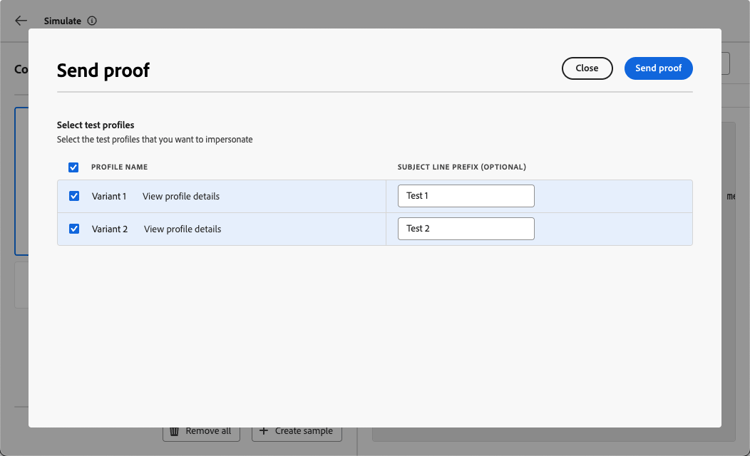
-
单击发送校样。 Journey Optimizer使用每个所选配置文件的个性化有效负载调用您的外部端点。
-
检查您的外部系统,确认已收到验证负载。 对于消息渠道(例如,微信或Kakao Talk),验证消息是否显示在目标设备或消息传递应用程序上。
使用与电子邮件验证相同的验证模式显示验证结果:在发送验证之前显示必填字段、类型不匹配和架构验证错误。
在本节中了解有关发送校样的更多信息
在历程测试模式下测试 test-journey
要进行端到端历程验证,请在 测试模式 下激活历程:
-
在历程画布中,单击右上角区域中的测试。
-
为受众触发的历程配置触发器事件或选择测试用户档案。
-
单击 触发事件 或让配置文件通过 读取受众 活动进入。
-
观察画布中的流动。 当配置文件到达自定义渠道操作节点时,Journey Optimizer会使用个性化有效负载调用您的外部端点。
-
检查外部系统的日志,确认已正确收到请求。
-
完成后单击停止测试。
在本节中了解有关在测试模式下测试历程的更多信息。
模拟历程 simulate-journey
Journey Optimizer的 模拟 模式允许您使用模拟用户(临时性类似用户档案的实体,无需预先创建测试用户档案)端到端地验证历程。
对于自定义渠道,模拟解析个性化表达式并呈现每个模拟用户的负载预览,因此您可以验证在内容上线之前是否可以交付正确的内容。
要使用自定义渠道模拟历程,请执行以下操作:
-
在历程画布中,单击右上角区域中的模拟。
-
手动添加模拟用户,或使用AI支持的 快速模拟 选项生成模拟用户。
-
配置任何所需的进入事件,然后触发模拟用户通过历程。
-
当模拟用户到达自定义渠道操作节点时,在预览面板中检查已解析的有效负载以确认个性化令牌和有效负载结构正确。
在本节中了解有关历程模拟的更多信息。
预激活核对清单 checklist
在激活历程或营销策划之前,请确认以下事项:
- Channel Builder中的连接测试成功(端点可访问,身份验证有效)。
- 模拟有效负载显示所有测试配置文件的预期值。
- 有效负载中不会保留未解析的个性化令牌。
- 已填充所有必需的有效负载字段。
- 您的外部系统正确发送和接收了校样。
- 历程操作活动(如果已配置)上的错误路径可按预期处理失败方案。
测试完成后,继续激活。 了解如何操作
This section contains structured knowledge intended to support interpretation, retrieval, and question answering related to this topic.
For complete understanding, this information should be combined with the documentation on this page. Neither source is intended to stand alone; the page describes the feature, while this section provides additional context that helps disambiguate terminology, intent, applicability, and constraints.
- TL;DR: This page explains how to validate a custom channel before activating a journey or campaign by testing the endpoint connection from the Channel Builder, simulating content with test profiles, sending proofs, testing in journey test mode, and simulating a journey.
Intents:
- Test the endpoint connection from the Channel Builder while the custom channel is in Draft status
- Simulate content against test profiles to inspect the resolved payload before any real message is sent
- Send a proof to test recipients to validate end-to-end delivery
- Validate the journey end to end using journey test mode
- Simulate a journey using simulated users without pre-created test profiles
- Work through the pre-activation checklist before activating
Glossary:
- Test (Channel Builder): A button available while a custom channel is in Draft status that sends a test request to your endpoint to validate the end-to-end connection before activating (product-specific)
- Simulate content: A feature that resolves personalization expressions against test profiles so you can inspect the exact payload that would be sent before any real message is delivered (product-specific)
- Send proof: A tab in the Simulate content panel used to send a proof to test recipients by calling your external endpoint with the personalized payload for each selected profile (product-specific)
- Test mode: A journey activation mode for end-to-end journey validation, entered by clicking Test on the journey canvas and ended with Stop test (product-specific)
- Simulation: A mode that validates a journey end to end using simulated users—temporary profile-like entities—without requiring pre-created test profiles (product-specific)
- Quick simulation: An AI-powered option to generate simulated users for a journey simulation (product-specific)
Guardrails:
- The Test button in the Channel Builder is available while a custom channel is in Draft status.
- The connection test confirms the endpoint is reachable from Journey Optimizer’s outbound IPs, that the configured authentication credentials are valid, and that the endpoint returns an HTTP 2xx response.
- In the Send proof tab you can upload a CSV file with profiles that are not defined as test profiles in Journey Optimizer.
- The proof result is displayed using the same validation patterns as email proofing: required fields, type mismatches, and schema validation errors are surfaced before the proof is sent.
- Simulation uses simulated users—temporary profile-like entities—without requiring pre-created test profiles.
Terminology:
- Canonical name: Simulate content — Acronym: n/a
- Synonyms: “Test mode” = journey test mode; “Simulation” = journey simulation
- Do not confuse: “Simulate content” (resolves personalization expressions against test profiles to inspect the payload) ≠ “Send proof” (calls your external endpoint with the personalized payload for test recipients) ≠ “Simulation” (validates the journey end to end using simulated users without pre-created test profiles)
- Do not confuse: “Test profiles” (selected in Simulate content) ≠ “Simulated users” (temporary profile-like entities used by Simulation)
FAQ:
- Q: How do I test the endpoint connection? — While the custom channel is in Draft status, use the Test button in the Channel Builder to send a test request that confirms the endpoint is reachable, authentication is valid, and the endpoint returns an HTTP 2xx response.
- Q: What does Simulate content do? — It resolves personalization expressions against test profiles so you can inspect the exact payload that would be sent before any real message is delivered.
- Q: Can I send a proof to profiles that are not test profiles? — Yes, in the Send proof tab you can upload a CSV file with profiles that are not defined as test profiles in Journey Optimizer.
- Q: What is the difference between Test mode and Simulation for journeys? — Test mode activates the journey for end-to-end validation using a trigger event or test profile, while Simulation validates the journey end to end using simulated users—temporary profile-like entities—without requiring pre-created test profiles.
- Q: How do I end a journey test? — Click Stop test when done.
- Q: What should I confirm before activating? — The connection test succeeded, simulated payloads show expected values, no unresolved personalization tokens remain, all required payload fields are populated, a proof was sent and received correctly, and any configured error paths handle failure scenarios.