Nesta página: saiba como definir variáveis a partir de um sinal ou de definições globais e usá-las para direcionar o direcionamento, as condições e Testar a lógica de atividade em campanhas orquestradas.
Como definir variáveis set
Em uma campanha Orquestrada, você pode trabalhar com variáveis, ou seja, valores que direcionam o direcionamento, condições de Teste e outra lógica de tela. Esses valores podem vir de dois lugares:
-
Um sinal — Se o agendamento da campanha for Acionado por um sinal, você poderá passar parâmetros ao acionar a campanha. Esses parâmetros se tornam disponíveis como variáveis na campanha Orquestrada acionada para essa execução. Saiba como acionar uma campanha Orquestrada usando um sinal
-
Variáveis globais — Você pode definir pares de nomes/valores diretamente na campanha usando o menu Editar variáveis, sem a necessidade de API ou sinal. Saiba como definir variáveis globais em campanhas orquestradas
Usar variáveis na tela use
As variáveis estão disponíveis nos seguintes locais na tela:
-
Construtor de regras — Abra o editor de expressões para uma regra e use o seletor de variáveis de eventos para selecionar uma variável e inserir sua referência na expressão. Saiba como editar expressões
No exemplo abaixo, uma variável chamada
brandfoi passada e a regra a usa como uma condição de filtro.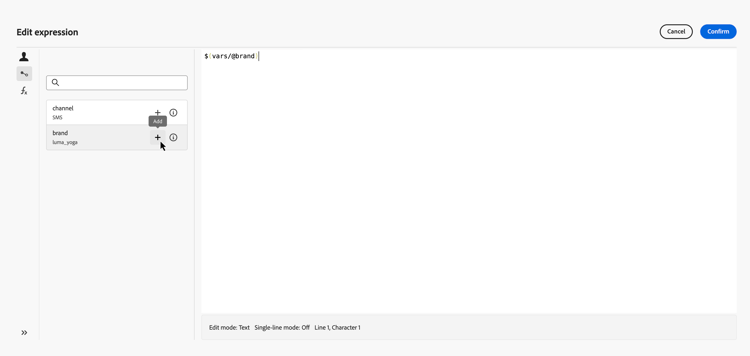
-
Atividade Test — Quando você define uma condição, o menu suspenso Tipo de condição lista todas as variáveis no escopo junto com Contagem de população. Selecione uma variável para usá-la como a base para uma ramificação de teste. Saiba como configurar a atividade Testar
No exemplo abaixo, a variável
channelé usada para rotear o fluxo para transições diferentes dependendo de seu valor.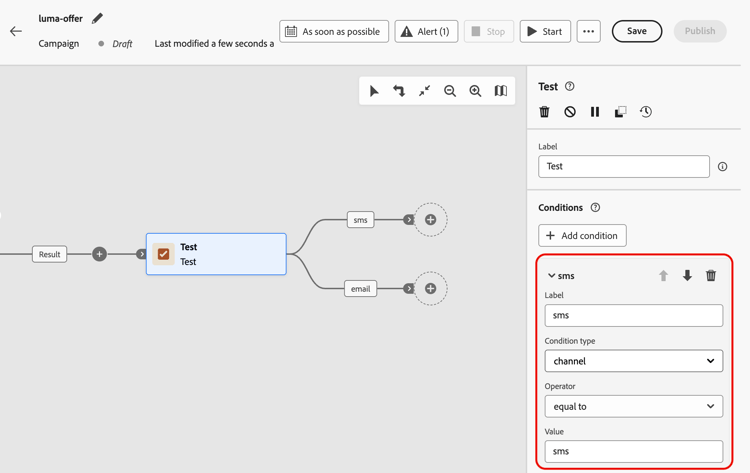
This section contains structured knowledge intended to support interpretation, retrieval, and question answering related to this topic.
For complete understanding, this information should be combined with the documentation on this page. Neither source is intended to stand alone; the page describes the feature, while this section provides additional context that helps disambiguate terminology, intent, applicability, and constraints.
- TL;DR: This page explains how to set variables from a signal or from global definitions in an Orchestrated campaign, and how to use them to drive targeting, conditions, and Test activity logic on the canvas.
Intents:
- Understand the two sources of variables in an Orchestrated campaign: signal parameters and global variables.
- Pass parameters through a signal so they become variables for that triggered run.
- Define global variables directly on the campaign using the Edit variables menu.
- Insert a variable reference into a rule builder expression using the event variables picker.
- Use a variable as the condition type for a Test activity branch.
Glossary:
- Variable: a value that drives targeting, Test conditions, and other canvas logic in an Orchestrated campaign (product-specific)
- Signal: the source of variables when the campaign schedule is set to Triggered by a signal; parameters passed when firing the campaign become variables for that run (product-specific)
- Global variables: name–value pairs defined directly on the campaign using the Edit variables menu, requiring no API or signal (product-specific)
- Event variables: the picker in the rule builder’s expression editor used to select a variable and insert its reference into an expression (product-specific)
- Condition type: the drop-down in the Test activity that lists all variables in scope alongside Population count, used to select a variable as the basis for a test branch (product-specific)
Guardrails:
- Variables support text values only.
- Variables drive canvas logic (rules, conditions) and cannot be used for message personalization.
Terminology:
- Canonical name: variable
- Do not confuse: “Global variables” (defined directly on the campaign via the Edit variables menu) ≠ “signal” parameters (passed when firing a triggered campaign, becoming variables for that run).
- Do not confuse: “event variables” (the picker in the rule builder used to select a variable) ≠ “variable” (the value itself that the picker lets you select).
FAQ:
- Q: Where can variables in an Orchestrated campaign come from? — From a signal (parameters passed when firing a triggered campaign) or from global variables (name–value pairs defined directly on the campaign via the Edit variables menu).
- Q: Do I need an API or a signal to define global variables? — No, global variables are defined directly on the campaign using the Edit variables menu, with no API or signal required.
- Q: What type of values do variables support? — Text values only.
- Q: Can variables be used for message personalization? — No, variables drive canvas logic such as rules and conditions, and cannot be used for message personalization.
- Q: How do I insert a variable into a rule builder expression? — Open the expression editor for a rule and use the event variables picker to select a variable and insert its reference.
- Q: How do I use a variable in a Test activity? — In the condition type drop-down, select a variable (listed alongside Population count) to use it as the basis for a test branch.
Related pages:
- To trigger an Orchestrated campaign using a signal and pass parameters that become variables: Learn how to trigger an Orchestrated campaign using a signal (orchestrated/trigger-orchestrated-campaign.md)
- To define global variables directly on the campaign: Learn how to define global variables in Orchestrated campaigns (orchestrated/global-variables.md)
- To use the event variables picker and insert a variable reference into a rule expression: Learn how to edit expressions (orchestrated/edit-expressions.md)
- To use a variable as the condition type in a Test activity: Learn how to configure the Test activity (orchestrated/activities/test.md)
Personas:
- marketer: Can set variables from a signal passed when firing a triggered campaign, or from global variables defined on the campaign using the Edit variables menu. Can insert a variable reference into a rule builder expression using the event variables picker. Can select a variable in the Test activity Condition type drop-down to use it as the basis for a test branch. Where: “Use variables in the canvas”.
Onboarding:
- Level: Intermediate
- First minimal step: Set the campaign schedule to Triggered by a signal and pass parameters, or define global variables on the campaign using the Edit variables menu.
- Success check: The variable is listed in the event variables picker or in the Test activity Condition type drop-down, available for use in the canvas.
- Next: To pass parameters through a signal so they become variables for a triggered run: Trigger an Orchestrated campaign using a signal (orchestrated/trigger-orchestrated-campaign.md); To define global variables directly on the campaign using the Edit variables menu: Define global variables in Orchestrated campaigns (orchestrated/global-variables.md)