Nesta página: saiba como usar o editor de expressão para criar manualmente regras com campos de banco de dados, variáveis e funções auxiliares para manipular datas, cadeias de caracteres e valores numéricos em suas campanhas orquestradas.
Trabalhar com o editor de expressão edit
A edição de uma expressão envolve a inserção manual de condições para formar uma regra. Este modo permite usar funções avançadas, que, por sua vez, permitem manipular os valores usados para realizar consultas específicas, como manipular datas, strings, campos numéricos e ordenação.
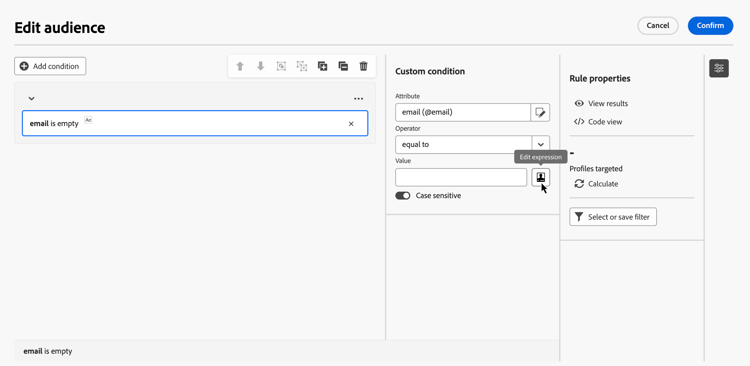
O editor de expressão está disponível por meio do botão Editar expressão do construtor de regras, disponível para os campos Atributo e Valor ao configurar uma condição personalizada.

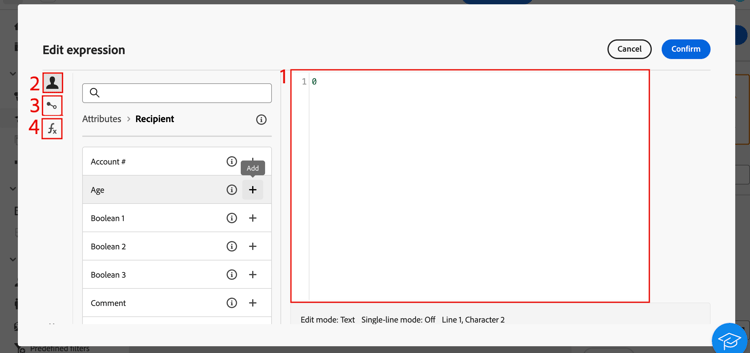
O editor de expressão fornece:
-
Um campo de entrada (1) no qual a expressão é definida.
-
Uma lista de campos (2) disponíveis que podem ser usados na expressão e correspondem à dimensão de direcionamento da consulta.
-
Uma lista de variáveis (3) disponíveis que podem ser usadas na expressão. Este menu está disponível para o campo Valor. Saiba como usar variáveis em campanhas orquestradas
-
Funções auxiliares (4), classificadas por categoria.
Para editar a expressão, insira uma expressão diretamente no campo de entrada. Para adicionar um campo, uma variável ou uma função auxiliar, coloque o cursor na expressão em que deseja adicioná-lo e clique no botão +.
Funções de ajuda
A ferramenta de edição de consultas permite usar funções avançadas para fazer filtragens complexas, dependendo dos resultados desejados e dos tipos de dados manipulados. Os recursos abaixo estão disponíveis.
Agregado
As funções de agregado efetuam cálculos para um conjunto de valores.
Data
As funções de data manipulam valores de data ou hora.
Geomarketing
As funções de geomarketing são usadas para manipular valores geográficos.
Numérico
As funções numéricas são usadas para converter textos em números.
Outros
Esta tabela contém as demais funções disponíveis.
String
As funções de string são usadas para manipular um conjunto de strings.
Janela
This section contains structured knowledge intended to support interpretation, retrieval, and question answering related to this topic.
For complete understanding, this information should be combined with the documentation on this page. Neither source is intended to stand alone; the page describes the feature, while this section provides additional context that helps disambiguate terminology, intent, applicability, and constraints.
- TL;DR: This page explains how to use the expression editor to manually build rule conditions with fields, variables, and helper functions for manipulating dates, strings, numbers, and other values in Orchestrated campaigns.
Intents:
- Open the expression editor from the Attribute or Value field when configuring a custom condition in the rule builder.
- Enter an expression directly in the input field, or insert a field, variable, or helper function using the + button.
- Use helper functions (Aggregate, Date, Geomarketing, Numeric, Others, String, Window) to manipulate dates, strings, numeric values, and sorting.
- Insert variables into an expression from the Value field.
Glossary:
- Expression editor: a mode accessed from the rule builder Edit expression button that lets you manually enter conditions to form a rule, using advanced functions (product-specific)
- Helper functions: functions sorted by category (Aggregate, Date, Geomarketing, Numeric, Others, String, Window) available in the expression editor to manipulate values (product-specific)
- Fields: items available in the expression editor that correspond to the targeting dimension of the query (product-specific)
- Variables: items available in the expression editor, from the Value field menu, that can be used in an expression (product-specific)
Guardrails:
- The expression editor is available from the rule builder Edit expression button, for the Attribute and Value fields, when configuring a custom condition.
- The variables menu in the expression editor is available only for the Value field, not for the Attribute field.
- The DateOnly function takes into account the server’s timezone, not the operator’s.
Terminology:
- Canonical name: expression editor — variants: Edit expression
- Do not confuse: “fields” (correspond to the targeting dimension of the query) ≠ “variables” (listed in a separate menu, available from the Value field)
FAQ:
- Q: Where is the expression editor available from? — The rule builder Edit expression button, for the Attribute and Value fields, when configuring a custom condition.
- Q: How do I add a field, variable, or helper function to an expression? — Place your cursor in the expression where you want to add it and click the + button.
- Q: What categories of helper functions are available? — Aggregate, Date, Geomarketing, Numeric, Others, String, and Window.
- Q: Does the DateOnly function use my local timezone? — No, it takes into account the server’s timezone, not the operator’s.
- Q: Can I use variables from the Attribute field? — No, the variables menu is available only for the Value field.
Related pages:
- For using variables in an expression from the Value field: Learn how to use variables in Orchestrated campaigns (orchestrated/variables-orchestrated-campaigns.md)
Personas:
- marketer: Can open the expression editor from the Attribute or Value field when configuring a custom condition, and enter an expression directly in the input field. Can place the cursor and select the + button to add a field, variable, or helper function. Can use helper functions sorted by category, such as Aggregate, Date, Geomarketing, Numeric, Others, String, and Window, to manipulate dates, strings, numeric values, and sorting. The page states that the variables menu is available only for the Value field. Where: “Work with the expression editor”.
Onboarding:
- Level: Experienced
- First minimal step: Select the Edit expression button for the Attribute or Value field when configuring a custom condition.
- Next: Learn how to use variables in the expression editor: Use variables in Orchestrated campaigns (orchestrated/variables-orchestrated-campaigns.md)