이 페이지에서: 라이브 보고를 사용하여 여정 캔버스에서 지난 24시간 동안의 주요 여정 지표를 직접 모니터링하는 방법을 알아봅니다.
여정이 게시된 후 시험 실행 모드가 활성화되면 실시간 보고에서는 지난 24시간 동안의 지표를 여정 캔버스 내에서 직접 제공합니다.
표시된 이벤트는 지난 24시간 내에 발생했으며, 이벤트와 해당 표시 간 최소 간격은 2분이며, 일반적으로 5분 이내입니다.
실시간 성능 지표를 표시하는
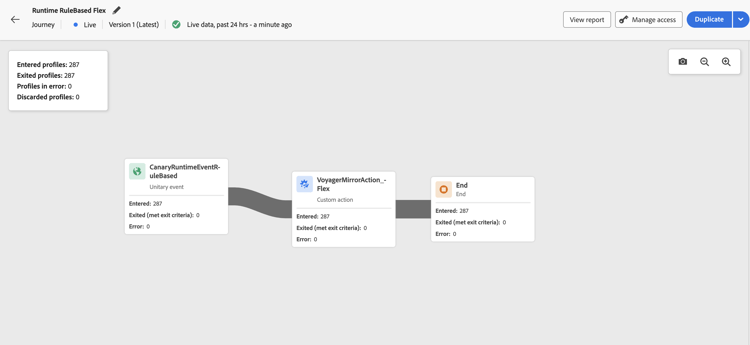
라이브 또는 시험 실행 모드의 여정에 대해 다음을 확인할 수 있습니다.
-
입력한 프로필: 여정에 입력한 총 개인 수.
-
종료된 프로필: 여정을 종료한 총 개인 수(오류 포함).
-
오류가 있는 프로필: 여정 중에 오류가 발생한 개인의 총 수입니다.
-
삭제된 프로필: 다음 이유 중 하나로 여정에서 삭제된 총 개인 수:
- 대상 자격 활동의 경우 대상 자격에 대한 예상 동사가 여정이 받은 내용과 일치하지 않으면(예: “실현됨” 대신 “종료됨”) 취소가 발생할 수 있습니다.
- event-triggered 여정의 경우, 개인이 너무 빨리 여정을 다시 입력하려고 시도하거나 다시 입력이 허용되지 않는 경우 취소가 발생할 수 있습니다.
- 반복 여정에서 개인이 이미 여정에 있고 재입력 정책이 "강제 재입력"으로 설정되어 있지 않은 경우 각 반복에서 취소가 계산됩니다.
- 대상자 읽기 활동에서 내보낸 개인에 대해 ID가 설정되지 않았거나 수신된 ID 네임스페이스가 여정의 예상 ID와 일치하지 않으면 무시됩니다.
Live 또는 시험 실행 모드의 모든 여정 내의 각 활동에 대해 다음에 액세스할 수 있습니다.
- 입력됨: 이 활동에 입력한 총 개인 수입니다. Action 활동의 경우, 시험 실행 모드에서 실행되지 않으므로 이 지표는 프로필이 통과함을 나타냅니다.
- 종료됨(종료 기준을 충족함): 종료 기준(오류 포함)으로 인해 해당 활동에서 여정을 종료한 총 개인 수.
- 종료됨(강제 종료): 여정 실무자 구성으로 인해 일시 중지된 동안 여정을 종료한 총 개인 수 이 지표는 시험 실행 모드의 여정에 대해 항상 0입니다.
- 오류: 해당 활동에 오류가 있는 개인의 총 수입니다.
누락된 보고 데이터 문제 해결 troubleshooting-missing-data
여정 보고서에 예상 데이터가 표시되지 않으면 다음 사항을 고려하십시오.
-
여정 이름 동기화: Adobe Journey Optimizer의 여정 이름이 보고 데이터 집합에 저장된 이름과 일치하는지 확인하십시오. 이 이름이 일치하지 않으면 보고 데이터가 올바르게 표시되지 않을 수 있습니다.
-
데이터 새로 고침 시간: 여정 이름 또는 구성을 업데이트한 후 데이터를 새로 고칠 수 있는 충분한 시간을 허용하십시오. 보고 데이터는 일반적으로 몇 분 이내에 표시되지만, 경우에 따라 더 오래 걸릴 수 있습니다.
-
액세스 권한: 여정 보고서를 보는 데 필요한 권한이 있는지 확인하십시오. 데이터가 표시되지 않으면 관리자에게 여정 보고서 보기 권한이 활성화되었는지 확인하십시오. 권한에 대해 자세히 알아보기
-
여정 상태: 보고 데이터는 게시된 여정 또는 시험 실행 모드에서 실행 중인 여정에 대해서만 사용할 수 있습니다. 초안 여정은 보고 데이터를 생성하지 않습니다.
이러한 항목을 확인한 후에도 문제가 지속되면 Adobe 관리자 또는 Adobe 지원에 지원을 요청하세요.
This section contains structured knowledge intended to support interpretation, retrieval, and question answering related to this topic.
For complete understanding, this information should be combined with the documentation on this page. Neither source is intended to stand alone; the page describes the feature, while this section provides additional context that helps disambiguate terminology, intent, applicability, and constraints.
- TL;DR: This page explains how to view and interpret the live report embedded in the journey canvas, covering the key profile flow metrics available for published journeys and journeys in Dry run mode.
Intents:
- View real-time journey performance metrics directly in the journey canvas
- Interpret Entered, Exited, Error, and Discarded profile counts for the journey and each activity
- Understand why profiles are discarded from a journey
- Troubleshoot missing or unexpected data in journey live reports
- Verify the required permission to access journey live reports
Glossary:
- Live Reporting: Real-time metrics displayed directly on the journey canvas covering the last 24 hours (product-specific)
- Dry run mode: A journey execution mode that simulates the journey without sending real messages, in which live reporting is also available (product-specific)
- Discarded profiles: Profiles that attempted to enter the journey but were rejected due to qualification mismatches, reentry restrictions, or identity issues (product-specific)
- Exited (forced exit): Profiles that were removed from the journey while it was paused by a journey practitioner; always zero in Dry run mode (product-specific)
Guardrails:
- Live report data covers only the past 24 hours.
- Events are displayed with a minimum interval of two minutes from occurrence, typically within five minutes.
- The View journeys report permission is required to see live report data.
- Reporting data is only available for published journeys or journeys in Dry run mode; draft journeys generate no data.
- For Action activities, the Entered metric shows profiles passing through (not executed) in Dry run mode.
- The Exited (forced exit) metric is always zero in Dry run mode.
Terminology:
- Canonical name: Live report (journey canvas) — Acronym: none — variants: journey live report, in-canvas reporting
- Synonyms: “Entered profiles” = “profiles who entered the journey”
- Do not confuse: “Live report” ≠ “Journey global report” (live report is the last 24 hours in the canvas; global report covers a wider historical time range in the reporting UI)
FAQ:
- Q: How current is the data shown in the live report? — Events from the past 24 hours are shown, with a minimum display delay of two minutes and typically within five minutes.
- Q: Why can I not see any data in my journey live report? — Check that you have the View journeys report permission, that the journey is published (not in draft), and that the journey name matches the name in the reporting dataset.
- Q: What causes profiles to be discarded? — Discards can occur due to audience qualification verb mismatches, reentry policy violations on recurring or event-triggered journeys, or missing/mismatched identity namespace on Read Audience activities.
- Q: Is the live report available during Dry run mode? — Yes; live reporting is available for both published live journeys and journeys running in Dry run mode.
- Q: What does the Entered metric mean for Action activities in Dry run mode? — It indicates profiles passing through the activity, since actions are not actually executed in Dry run mode.