このページ:データソースを設定し、フィールドグループを定義すると、ジャーニーに必要な特定のデータのみを取得できます。
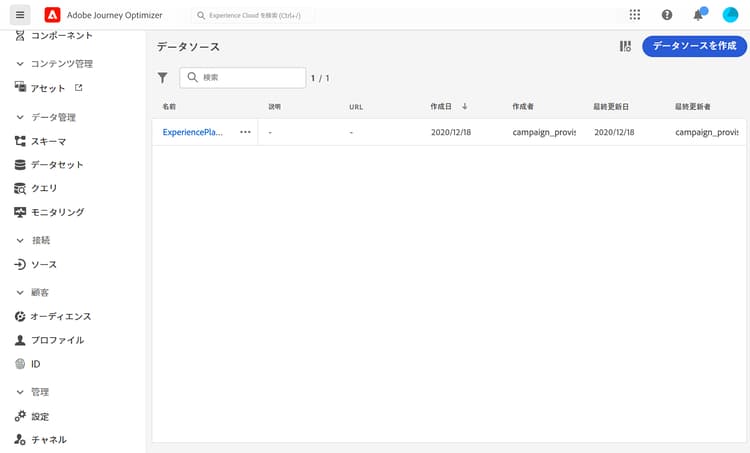
データソースを設定するには、次の手順に従います。
フィールドグループの定義 define-field-groups
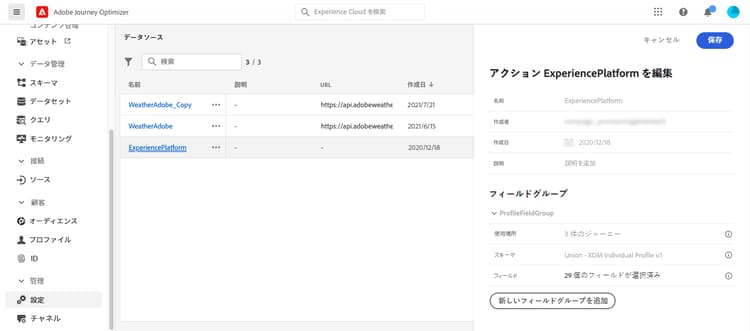
フィールドグループは、データソースから取得し、ジャーニーで使用できるフィールドのセットです。
データソースごとに、複数のフィールドグループを定義できます。
例えば、電話番号、メール、名前、プロファイルのアドレスを使用してフィールドグループを作成できます。 その後、このデータをジャーニーで使用して条件を作成できます。 例えば、顧客がモバイルアプリケーションをインストールしている場合にのみプッシュ通知を送信するように指定できます。 空の場合は、メールを送信できます。
デフォルト名は自動的に追加されますが、フィールドグループには名前を付けることをお勧めします。 フィールドグループ名は、Journey Optimizer 内の他のユーザーに表示されます。 フィールドグループに関連性の高い名前を付けることをお勧めします。
ジャーニーでデータソースフィールドを使用すると、システムはそのフィールドグループに定義されているすべてのフィールドを取得します。 したがって、ジャーニーに必要なフィールドのみを選択することをお勧めします。 これにより、ジャーニーでのリクエストの待ち時間が短縮され、パフォーマンスが向上します。 フィールドグループには、後から簡単にフィールドを追加できます。
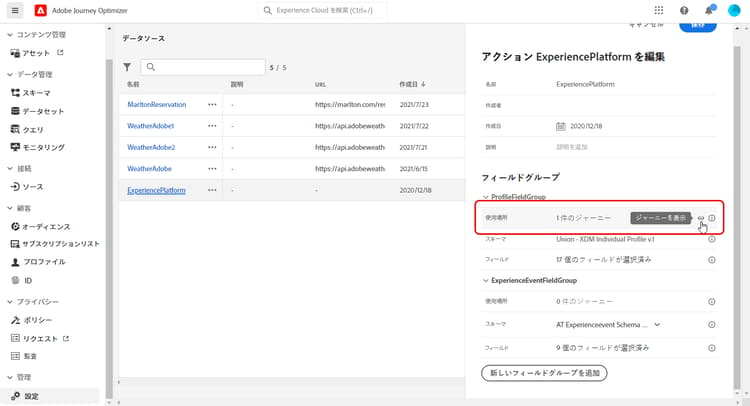
フィールドグループを使用するジャーニーの数は、「使用されている場所」フィールドに表示されます。 「ジャーニーを表示」ボタンをクリックすると、このフィールドグループを使用するジャーニーのリストが表示されます。
フィールドグループのライフサイクル field-group-lifecycle
ドラフトやライブジャーニーで使用されていないフィールドグループに対しては、フィールドの追加や削除を行うことができます。
フィールドグループを 1 つ以上のドラフトジャーニーまたはライブジャーニーで使用する場合、選択したスキーマから新しいフィールドを増分的に追加できますが、既に選択されているフィールドは選択解除/削除/変更できません。 ドラフトジャーニーまたはライブジャーニーで既に使用されているスキーマの既存のフィールドを変更した場合(例えば、フィールドのデータタイプを変更した場合)、フィールドグループの更新は許可されません。 これにより、ジャーニーが中断するのを回避します
1 つ以上のジャーニーで使用されているフィールドグループからフィールドを削除するには、次の手順に従います。 例えば、「フィールドグループ A」という名前のフィールドグループがあるとします。
- フィールドグループのリストで、「フィールドグループ A」にカーソルを置き、右側にある「複製」アイコンをクリックします。 例えば、複製したフィールドグループに「フィールドグループ B」という名前を付けます。
- 「フィールドグループ B」で、不要になったフィールドを削除します。
- 「フィールドグループ A」で、このフィールドグループが使用される場所を確認します。 この情報は、「使用場所」フィールドに表示されます。
- 「フィールドグループ A」を使用するすべてのジャーニーを開きます。
- これらのジャーニーそれぞれの新しいバージョンを作成します。 「フィールドグループ A」を使用してすべてのアクティビティを編集し、「フィールドグループ B」を選択します。
- 「フィールドグループA」を使用する、ジャーニーの古いバージョンを停止します。 すると、「フィールドグループ A」を使用するジャーニーはなくなります。
- 「フィールドグループ A」はもう使用しないので、削除します。
This section contains structured knowledge intended to support interpretation, retrieval, and question answering related to this topic.
For complete understanding, this information should be combined with the documentation on this page. Neither source is intended to stand alone; the page describes the feature, while this section provides additional context that helps disambiguate terminology, intent, applicability, and constraints.
- TL;DR: This page explains how to configure a data source from the Configurations menu and how to define field groups so your journeys retrieve only the specific data they need.
Intents:
- Configure a data source from the Administration Configurations menu
- Define one or several field groups for a data source
- Name field groups and select only the fields needed to reduce request latency
- Check how many journeys use a field group with the Used in field and View journeys button
- Add fields to, or remove fields from, a field group according to its lifecycle rules
Glossary:
- Field group: A set of fields that you can retrieve from a data source and use in a journey (product-specific)
- Used in: The field that displays the number of journeys using a field group, with a View journeys button to list them (product-specific)
Guardrails:
- The data source configuration is always performed by a technical user.
- When a data source field is used in a journey, the system retrieves all fields defined for that field group; selecting only the fields you need reduces request latency and increases performance.
- If a field group has no field, it is not displayed in the expression editor.
- You can add or remove fields from a field group only if it is not used in any draft or live journey.
- If a field group is used in one or more draft or live journeys, you can incrementally add new fields from the selected schema, but cannot deselect, remove, or modify fields that have already been selected.
- Updates to a field group are not permitted if existing fields of a schema already in use by draft or live journeys are modified, for example changing the data type of a field.
Terminology:
- Canonical name: field group — Acronym: n/a — variants: field groups
- Do not confuse: “add field groups to the built-in data source” ≠ “create a new external data source”
FAQ:
- Q: Where do I configure a data source? — In the Administration menu section, select Configurations, then in the Data Sources section click Manage to display the list of data sources.
- Q: Why should I select only the fields I need in a field group? — When a field is used in a journey, the system retrieves all fields defined for that field group, so selecting only the fields you need reduces request latency and increases performance.
- Q: Why is my field group not showing in the expression editor? — If a field group has no field, it is not displayed in the expression editor.
- Q: Can I modify fields already used by a draft or live journey? — No, if a field group is used in one or more draft or live journeys you can incrementally add new fields but cannot deselect, remove, or modify fields already selected.
- Q: How do I remove a field from a field group used in journeys? — Duplicate the field group, remove the unwanted fields in the duplicate, create new versions of each journey that uses the original and select the duplicate in the activities using it, stop the old versions of those journeys, and then remove the original field group once it is no longer used.