Risoluzione dei problemi relativi alle azioni in entrata nei percorsi troubleshooting-inbound-actions
In questa pagina: scopri come eseguire il debug e risolvere i problemi comuni relativi alle azioni in entrata, ad esempio esperienze in-app, web e basate su codice, in un percorso prima di contattare il supporto tecnico.
Le azioni in entrata, ad esempio le esperienze in-app, web e basate su codice, sono componenti critici di Journey Optimizer in quanto consentono un coinvolgimento personalizzato con gli utenti durante il percorso. Tuttavia, possono verificarsi comportamenti imprevisti, ad esempio contenuto in entrata mancante o consegna continua dopo che un profilo esce dal percorso.
Questa guida fornisce una procedura dettagliata per eseguire il debug dei problemi relativi alle azioni in entrata in un percorso, per aiutarti a identificarli e risolverli in modo indipendente prima di contattare il supporto tecnico.
Prerequisiti prerequisites
Prima di iniziare la risoluzione dei problemi, verificare quanto segue:
-
Configura una sessione Assurance. Scopri come fare nella Adobe Experience Platform documentazione di Assurance.
-
Passa al percorso contenente l’azione in entrata per recuperare il nome del percorso e l’ID della versione.
note NOTE L'ID versione percorso si trova nell'URL dopo 'percorso/' (ad esempio: 86232fb1-2932-4036-8198-55dfec606fd7). 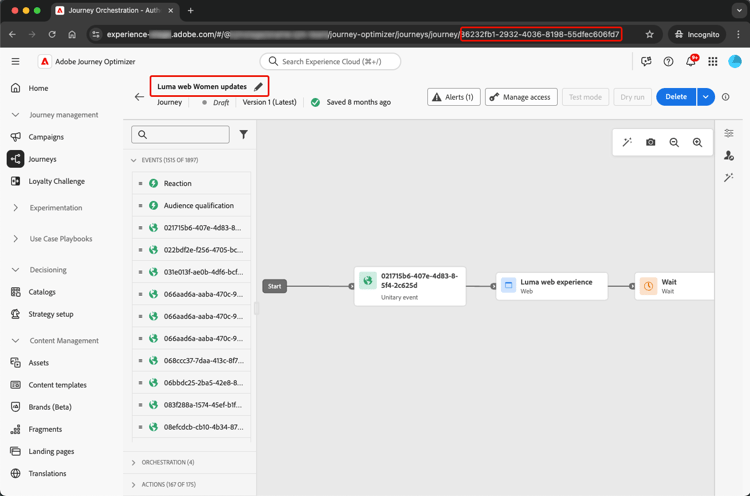
-
Fai clic sull’azione in entrata per visualizzarne i dettagli. Recupera l’etichetta e l’ID dell’azione in entrata.
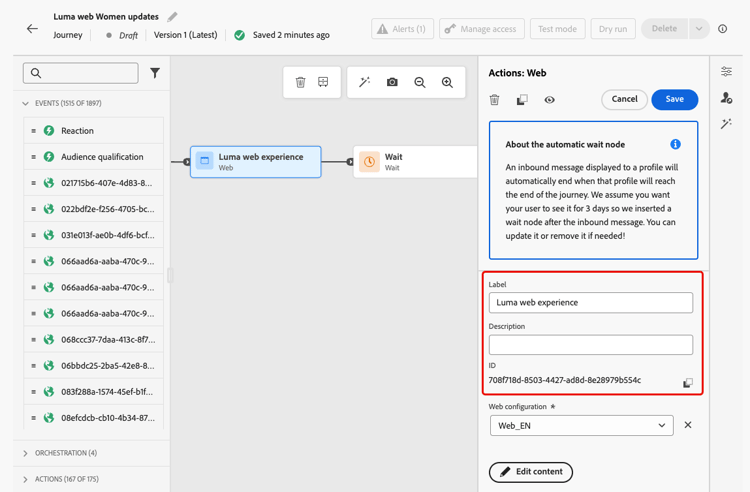
-
Ottieni lo spazio dei nomi e l’ID del profilo per identificare il profilo che incontra problemi. In base alla configurazione, ad esempio, lo spazio dei nomi può essere ECID, e-mail o ID cliente. Scopri come cercare un profilo nella documentazione di Experience Platform.
Scenario 1: l’utente non ha ricevuto il contenuto in entrata scenario-1
In questo scenario, un profilo ha inserito l’azione in entrata nel percorso, ma anche dopo 30 minuti, il contenuto in entrata corrispondente non viene visualizzato nel dispositivo/client al passaggio dell’attivazione della configurazione.
Controlli preliminari pre-checks
-
Il set di dati in entrata del Percorso è abilitato per l’acquisizione del profilo
L’azione in entrata utilizza il set di dati Percorso in entrata per gli aggiornamenti del profilo durante l’esecuzione. Assicurati che il set di dati sia abilitato per i profili nella sandbox corrente. Ulteriori informazioni sui set di dati
-
Identità ‘joai’ definita nelle identità della piattaforma
L’azione in entrata utilizza lo spazio dei nomi joai nel profilo
segmentMembershipper attivare il profilo per il passaggio in entrata. Assicurati che sia stato definito in Platform Identities per la sandbox. Ulteriori informazioni su Servizio Experience Platform Identity
Passaggi del debug debugging-steps
Il grafico seguente mostra la sequenza dei passaggi di debug che puoi seguire:
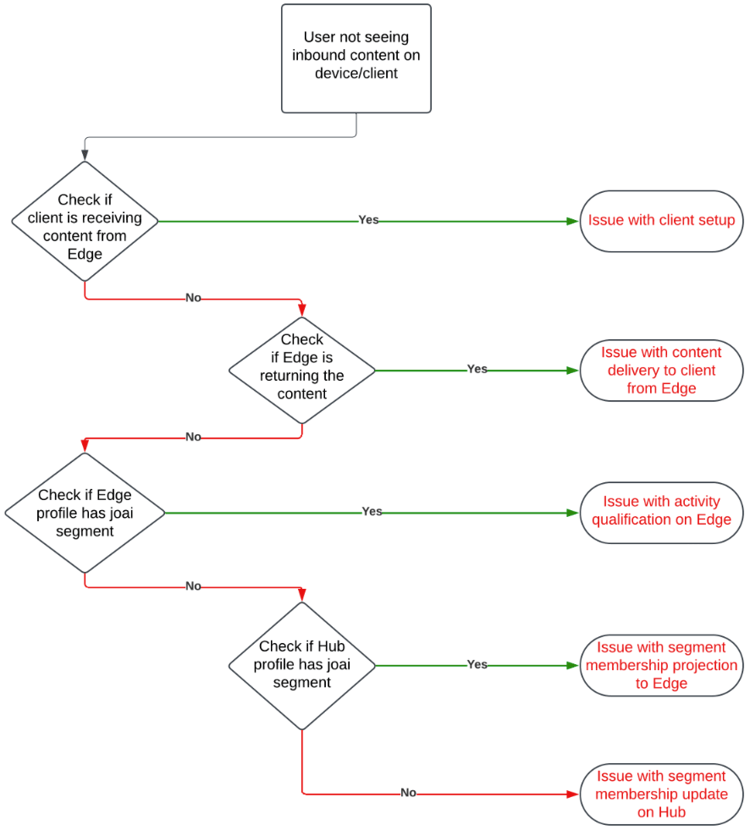
Passaggio 1: verificare se la periferica o il client riceve il contenuto dalla rete Edge step-1
Per prima cosa, controlla se il dispositivo/client riceve il contenuto previsto.
-
Vai alla sessione Assurance e seleziona la sezione Messaggistica in-app dal pannello a sinistra.
-
Nella scheda Messaggi sul dispositivo, fare clic sull’elenco a discesa Messaggi.
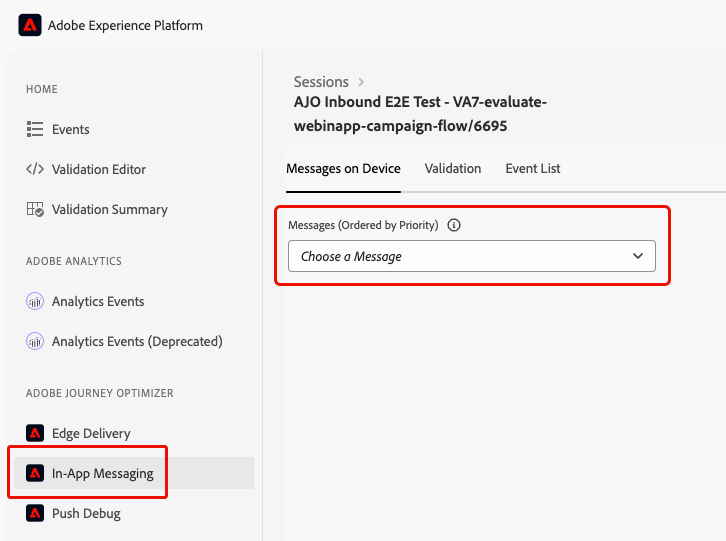
-
Cerca un messaggio con il nome del percorso seguito da “- Messaggio in-app”. Se presente, significa che il messaggio in-app è presente sul dispositivo/client e il problema potrebbe essere correlato al trigger in-app.
-
Se il messaggio non viene trovato, significa che il dispositivo o il client non ha ricevuto il messaggio in-app.
Passaggio 2: verificare se la rete Edge restituisce il contenuto step-2
Questo passaggio consente di assicurarsi che Edge Network restituisca il contenuto in entrata previsto da riprodurre sul dispositivo/client.
Quando un profilo entra in un’azione in entrata in un percorso, viene automaticamente qualificato in un segmento di pubblico speciale (nello spazio dei nomi joai) corrispondente all’azione del percorso in entrata.
Quando un client effettua una richiesta all’Edge Network per un profilo e una superficie specifici, il profilo è idoneo a ricevere il contenuto per le azioni del percorso in entrata che hanno come destinazione tale superficie, solo se il profilo è attualmente membro del segmento joai corrispondente.
Per eseguire il debug del comportamento di Edge Network, segui i passaggi seguenti.
-
Apri la visualizzazione Edge Delivery nella sessione di Assurance. Questa vista fornisce informazioni sull’esecuzione dell’azione in entrata sul server Edge Network. Per ulteriori informazioni, consulta la documentazione di Experience Platform.
-
Verifica se l’attività Edge corrispondente all’azione in entrata è elencata nelle sezioni Attività qualificate o Attività non qualificate.
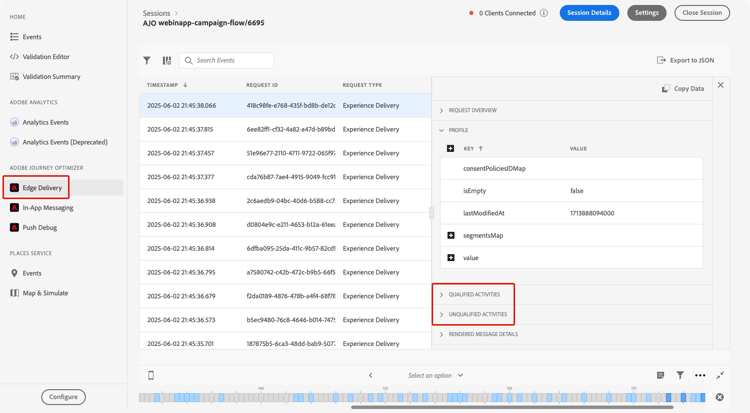
- Se nella sezione Attività qualificate, il profilo è qualificato per l’azione di percorso in entrata e il contenuto deve essere restituito.
- Se nella sezione Attività non qualificate il profilo non è idoneo per l’azione di percorso in entrata. Per ulteriori dettagli, consulta i motivi di esclusione.
- Se in nessuna sezione si è verificato un problema con la pubblicazione dell’azione di percorso in entrata in Edge Network oppure l’URI della superficie richiesta non corrisponde alle impostazioni di configurazione del canale per l’azione in entrata.
note NOTE Per trovare l'attività Edge nella sessione Assurance, cerca l'attività in cui audienceNamespace è joai e audienceSegmentId è <JourneyVersionID>_<JourneyActionID> (ad esempio: 86232fb1-2932-4036-8198-55dfec606fd7_708f718d-8503-4427-ad8d-8e28979b554c). 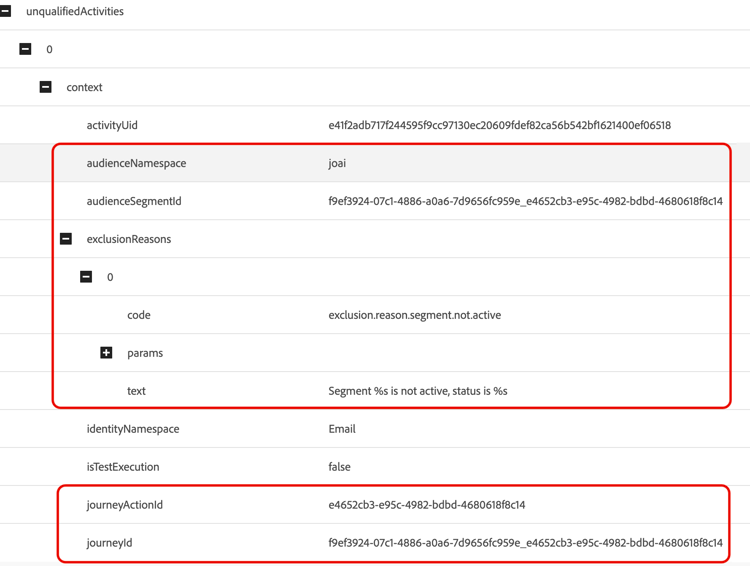
-
Se l’attività si trova nella sezione Attività non qualificate e il motivo dell’esclusione è ‘Il segmento non è attivo’, significa che il server di consegna Edge Network non ritiene che il profilo faccia parte del segmento di pubblico joai rilevante.
Puoi verificare se il segmento joai è presente nella vista del profilo del server di consegna Edge Network aprendo l’elemento segmentsMap della sezione Profile e cercando la presenza dell’ID del segmento joai.
-
Se il server di consegna Edge Network non visualizza il profilo come nel segmento joai pertinente, passa al passaggio successivo.
Passaggio 3: verifica se l’iscrizione al pubblico “joai” è stata propagata alla rete Edge step-3
Questo passaggio consente di verificare che il profilo Edge sia stato aggiornato correttamente quando il profilo è entrato nell’azione del percorso in entrata e che sia stato qualificato nel segmento joai corrispondente.
Quando un profilo viene qualificato per un segmento joai, viene prima aggiornato nell’hub e quindi l’appartenenza al segmento viene proiettata nel profilo Edge per l’utilizzo da parte del server di consegna Edge Network.
Per verificare la presenza del segmento joai nell’attributo segmentMembership del profilo di Edge, eseguire la procedura seguente.
-
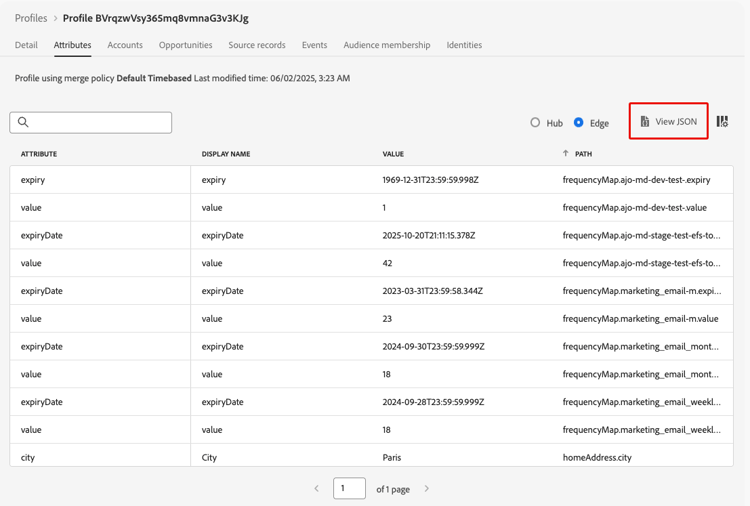
Passa al menu Cliente > Profili nel riquadro di navigazione sinistro di Journey Optimizer e individua il profilo utilizzando lo spazio dei nomi e l’ID. Ulteriori informazioni su Profili cliente in tempo reale
-
Selezionare la scheda Attributi e scegliere la visualizzazione Edge.
-
Fare clic su Visualizza JSON per aprire la visualizzazione JSON per il profilo.
-
Vai all’attributo
segmentMembershipe controlla se l’ID segmento <JourneyVersionID>_<JourneyActionID> è presente nello spazio dei nomi joai e se in realized status.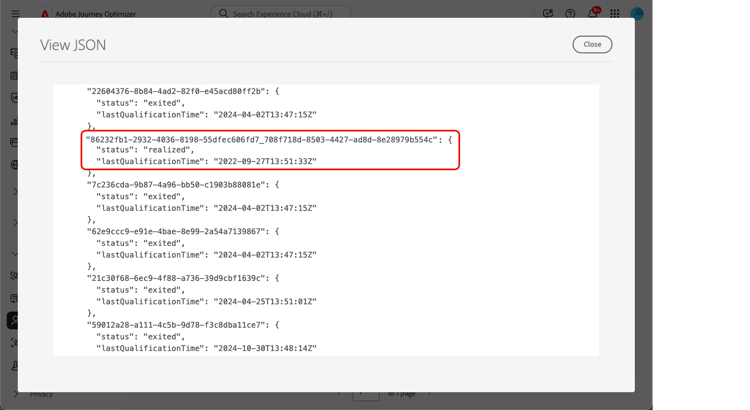
-
Se presente, il segmento joai corrispondente all’azione del percorso in entrata è stato propagato correttamente al profilo Edge.
-
Se non viene visualizzata nella vista del profilo del server di consegna Edge Network, potrebbe essersi verificato un problema con il modo in cui il server di consegna carica il profilo Edge.
-
-
Se l’ID segmento joai non è presente o è nello stato exited, significa che non è stato (ancora) propagato ad Edge.
Attendere 15-30 minuti per la propagazione dei valori
segmentMembershipdall’hub ad Edge. Se non è ancora presente, andare al passaggio successivo.
Passaggio 4: verifica se l’iscrizione al pubblico “joai” è presente nel profilo nell’hub step-4
Questo passaggio consente di verificare che il profilo Hub sia stato aggiornato correttamente quando il profilo è entrato nell’azione del percorso in entrata e che sia stato qualificato nel segmento joai corrispondente.
Per verificare la presenza del segmento joai nell’attributo segmentMembership del profilo Hub, eseguire la procedura seguente.
-
Passa al menu Cliente > Profili nel riquadro di navigazione sinistro di Journey Optimizer e individua il profilo utilizzando lo spazio dei nomi e l’ID. Ulteriori informazioni su Profili cliente in tempo reale
-
Seleziona la scheda Attributi e scegli la visualizzazione Hub.
-
Fare clic su Visualizza JSON per aprire la visualizzazione JSON per il profilo.
-
Vai all’attributo segmentMembership e controlla se l’ID segmento <JourneyVersionID>_<JourneyActionID> è presente nello spazio dei nomi joai e se è nello stato realized .
-
Se presente, il segmento joai corrispondente all’azione del percorso in entrata è stato correttamente acquisito nel profilo Hub.
-
Se non viene trovato nel profilo di Edge dopo almeno 30 minuti, potrebbe essersi verificato un problema con il sistema di proiezione di Edge.
-
-
Se l’ID del segmento joai non è presente o è nello stato exited, significa che il profilo non è stato (ancora) qualificato correttamente nel segmento di pubblico joai speciale al momento dell’immissione nell’azione del percorso in entrata corrispondente.
Attendere 15-30 minuti per l’acquisizione dei valori
segmentMembershipnel profilo sull’hub. Se non è ancora presente, andare al passaggio successivo.
Passaggio 5: se il client/dispositivo non riceve ancora il contenuto previsto step-5
Se hai eseguito tutti i passaggi precedenti e non vedi il comportamento previsto dopo 30-60 minuti di attesa che l’iscrizione al segmento si propaghi ad Edge Network, contatta l’Assistenza clienti di Adobe o il tuo rappresentante Adobe.
Includi tutti i dettagli possibili dai passaggi di debug, ad esempio:
- il passaggio in cui si verifica il comportamento imprevisto;
- l’ID versione del percorso;
- l’ID dell’azione del percorso;
- la traccia completa di Assurance;
- la vista JSON del profilo Edge;
- la vista JSON del profilo dell’hub;
- ecc.
Scenario 2: l’utente sta ancora ricevendo il contenuto in entrata scenario-2
Questo scenario è inverso a Scenario 1: il profilo è uscito dal percorso, ma l’utente sta ancora ricevendo il contenuto in entrata.
Tuttavia, quando un profilo esce da un percorso, non dovrebbe più essere idoneo per i segmenti di pubblico joai corrispondenti alle azioni in entrata nel percorso.
Segui gli stessi passaggi di debug dello Scenario 1 per verificare se il profilo Hub, il profilo Edge e il server di consegna Edge Network riflettono correttamente lo stato di appartenenza al segmento del segmento joai pertinente e se il client non riceve più il contenuto in entrata.
This section contains structured knowledge intended to support interpretation, retrieval, and question answering related to this topic.
For complete understanding, this information should be combined with the documentation on this page. Neither source is intended to stand alone; the page describes the feature, while this section provides additional context that helps disambiguate terminology, intent, applicability, and constraints.
- TL;DR: This page provides a step-by-step self-service debugging guide for two inbound action scenarios in Adobe Journey Optimizer journeys: a profile entering an inbound step but not receiving the content, and a profile continuing to receive content after exiting the journey.
Intents:
- Set up an Assurance session as a prerequisite before debugging inbound action issues
- Verify whether the device or client is receiving inbound content from the Edge Network using Assurance
- Check Edge Network qualified and unqualified activities to determine if a profile is eligible for an inbound journey action
- Confirm that the joai audience segment membership has propagated from the Hub profile to the Edge profile
- Diagnose delays in joai segment ingestion on the Hub profile after a profile enters an inbound action
- Escalate to Adobe Customer Care with the correct diagnostic information when self-service steps do not resolve the issue
Glossary:
- Inbound actions: Journey activities that deliver personalized content to a user’s device or browser, including In-app, web, and code-based experience channels (product-specific)
- joai namespace: A special identity namespace used in profile
segmentMembershipto activate a profile for an inbound journey action step (product-specific) - joai segment: An automatically created audience segment in the joai namespace corresponding to a specific inbound journey action; the profile must be in a realized state in this segment to receive the content (product-specific)
- Journey Inbound dataset: The AEP dataset used to store profile updates made when a profile enters an inbound journey action (product-specific)
- Hub profile: The central profile store in Adobe Experience Platform used as the source of truth for profile attributes and segment membership
- Edge profile: The projected copy of the Hub profile used by the Edge Network delivery server to evaluate content eligibility in real time
- Assurance: An Adobe Experience Platform tool for real-time debugging of client-side SDK behavior and Edge Network responses
Guardrails:
- The Journey Inbound dataset must be enabled for profile ingestion in the current sandbox before inbound actions work correctly
- The joai namespace must be defined in Platform Identities for the sandbox
- Propagation of joai segment membership from Hub to Edge can take up to 15–30 minutes
- Ingestion of joai segment membership into the Hub profile can take up to 15–30 minutes after the profile enters the inbound action
- If content is still missing after 30–60 minutes, escalate to Adobe Customer Care with journey version ID, action ID, Assurance trace, and Edge and Hub profile JSON views
Terminology:
- Canonical name: joai namespace — Acronym: joai — variants: joai identity, joai segment namespace
- Canonical name: Inbound actions — Acronym: none — variants: inbound channels, inbound content
- Synonyms: “Hub profile” = “central profile” (AEP); “Edge profile” = “projected profile” (used by Edge Network)
- Do not confuse: “Qualified Activities” ≠ “Unqualified Activities” in Edge Delivery view — qualified means the profile received content; unqualified means it did not, with an exclusion reason shown
FAQ:
- Q: What are the two main inbound action failure scenarios covered by this guide? — Scenario 1: a profile entered the inbound step but the user never sees the content. Scenario 2: a profile exited the journey but the user still receives the inbound content.
- Q: What tool do I use to debug inbound action delivery? — Adobe Experience Platform Assurance. Set up an Assurance session first, then use the In-App Messaging and Edge Delivery views to inspect content delivery and Edge Network responses.
- Q: What is the joai segment and why does it matter? — When a profile enters an inbound action, it is automatically qualified into a joai audience segment scoped to that specific action. The Edge Network only delivers the inbound content if the profile is in a realized state in that joai segment.
- Q: How long does it take for joai segment membership to appear on the Edge profile? — Up to 15–30 minutes for propagation from Hub to Edge after the Hub profile is updated.
- Q: What should I do if the joai segment ID is in exited state on the Edge profile? — The profile has left the joai segment, meaning it exited the inbound journey action. If this is unexpected, trace back through Hub profile ingestion and check if the profile correctly entered the inbound action step.
- Q: What information should I provide when escalating to Adobe Customer Care? — The journey version ID, journey action ID, the step where unexpected behavior occurs, the full Assurance trace, and the JSON views of both the Edge and Hub profiles.