En esta página: Aprenda a crear una configuración de canal de mensajes móviles en Adobe Journey Optimizer estableciendo el tipo de mensaje, la configuración móvil, el número de remitente, el subdominio y el campo de ejecución para enviar mensajes SMS, RCS y MMS.
Una vez configurado el canal de mensajes móviles, debe crear una configuración de canal para poder enviar mensajes SMS, RCS y MMS desde Journey Optimizer.
Para crear una configuración de canal, siga estos pasos:
-
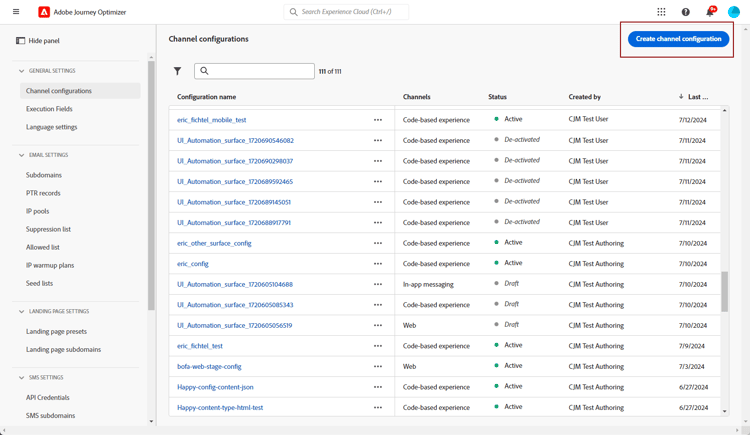
En el carril izquierdo, vaya a Administración > Canales y seleccione Configuración general > Configuraciones de canal. Haga clic en el botón Crear configuración de canal.
-
Introduzca un nombre y una descripción (opcional) para la configuración y, a continuación, seleccione el canal móvil.
Los nombres deben comenzar por una letra (A-Z). Solo puede contener caracteres alfanuméricos. También puede utilizar caracteres de guion bajo
_, punto.y guion-.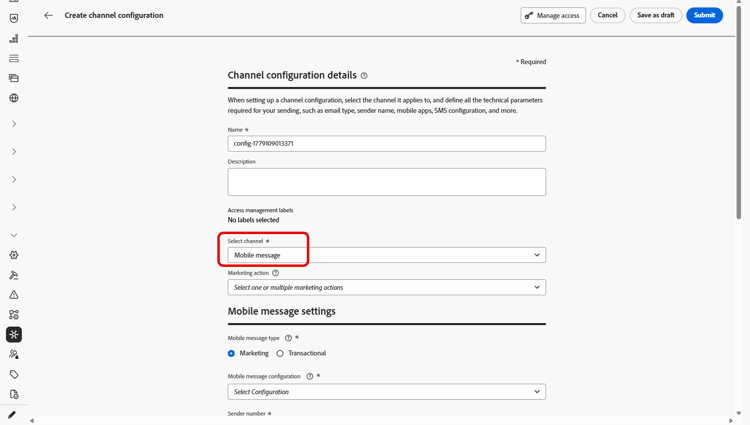
-
Seleccione el tipo de SMS para esta configuración:
- Marketing: para mensajes promocionales que requieren el consentimiento del usuario.
- Transaccional: para mensajes no comerciales como confirmaciones de pedidos, restablecimientos de contraseñas o actualizaciones de envíos.
note caution CAUTION Los mensajes transaccionales se pueden enviar a perfiles que cancelaron la suscripción a comunicaciones de marketing, pero solo en contextos específicos. 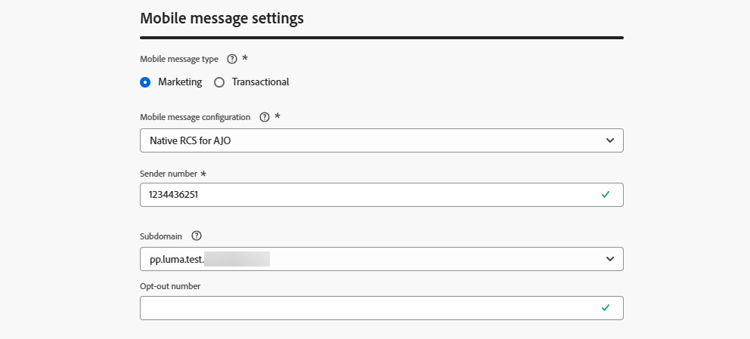
-
Seleccione la configuración móvil que desea asociar con la configuración.
Para obtener más información sobre cómo configurar su entorno para que envíe mensajes de dispositivos móviles, consulte esta sección.
-
Escriba el número de remitente que desee usar para sus comunicaciones.
-
En el campo Número de exclusión, especifique el número al que los perfiles envían sus solicitudes de exclusión; por ejemplo, respondiendo a DETENER. Journey Optimizer verifica el consentimiento de exclusión registrado para este número antes de que se envíe un mensaje.
Si este campo se deja en blanco, Journey Optimizer usa el número de remitente en su lugar. Tenga en cuenta que si el número de remitente es un identificador de remitente alfanumérico, como un nombre de marca, debe especificar el número de teléfono entrante en el campo Número de exclusión. De lo contrario, las exclusiones no coinciden y es posible que los perfiles que se excluyeron sigan recibiendo mensajes.
-
Si desea utilizar la función de acortamiento de URL en los mensajes de Mobile, seleccione un elemento de la lista Subdominio.
Para poder seleccionar un subdominio, asegúrese de que ha configurado previamente al menos un subdominio SMS/RCS/MMS. Descubra cómo
-
En la sección Execution dimension, use el Campo de ejecución de SMS para seleccionar entre los atributos de perfil el número de teléfono que desea usar en la prioridad si hay varios números disponibles en la base de datos. Más información
note NOTE De manera predeterminada, Journey Optimizer usa el número de teléfono especificado en configuración general en el nivel de espacio aislado. Al actualizar este campo, se anula el valor predeterminado de los recorridos y campañas que utilizan esta configuración. -
Seleccione Usar conjunto de datos personalizado para entrante para enrutar el SMS entrante de esta credencial a un conjunto de datos creado previamente que elija en el menú desplegable. Más información acerca del uso de un conjunto de datos personalizado para palabras clave entrantes
note NOTE El esquema del conjunto de datos debe ser XDM ExperienceEvent e incluir al menos estos grupos de campos: - Adobe CJM ExperienceEvent: Detalles de interacción del mensaje
- Adobe CJM ExperienceEvent: Detalles de ejecución de mensajes
- Adobe CJM ExperienceEvent: Detalles del perfil de mensaje
El esquema y el conjunto de datos deben estar habilitados para el perfil. -
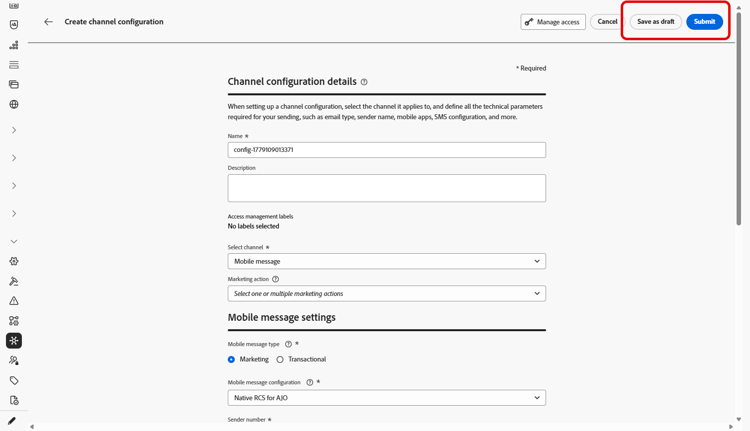
Una vez configurados todos los parámetros, haga clic en Enviar para confirmar. También puede guardar la configuración de canal como borrador y reanudarla más adelante.
-
Una vez creada la configuración del canal, se muestra en la lista con el estado Procesando.
Si las comprobaciones no se realizan correctamente, obtenga más información sobre los posibles motivos de error en esta sección.
-
Una vez que las comprobaciones son correctas, la configuración del canal obtiene el estado Activo. Está listo para utilizarse para enviar mensajes.
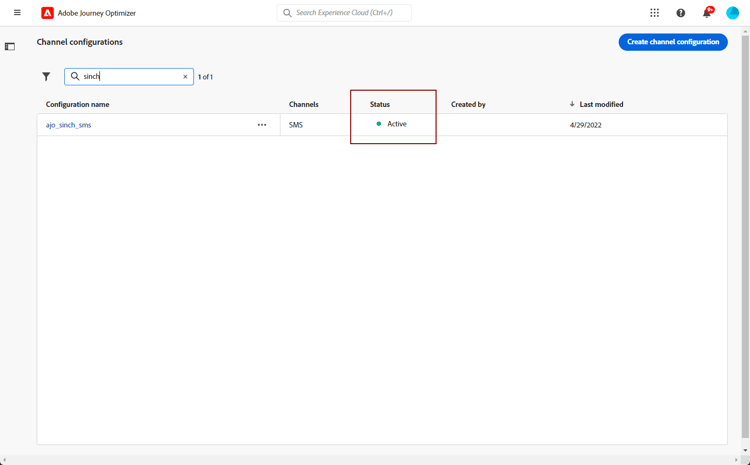
Ya está listo para enviar mensajes de Mobile con Journey Optimizer.
This section contains structured knowledge intended to support interpretation, retrieval, and question answering related to this topic.
For complete understanding, this information should be combined with the documentation on this page. Neither source is intended to stand alone; the page describes the feature, while this section provides additional context that helps disambiguate terminology, intent, applicability, and constraints.
- TL;DR: This page explains how to create a Mobile message channel configuration in Journey Optimizer by setting the message type, mobile configuration, sender number, subdomain, and execution field to send SMS, RCS, and MMS messages.
Intents:
- Create a Mobile message channel configuration
- Select the SMS Type (Marketing or Transactional) for the configuration
- Associate a Mobile configuration and a sender number
- Enable URL shortening by selecting a subdomain
- Override the priority phone number with the SMS Execution Field
- Save the channel configuration as draft and resume it later
Glossary:
- Channel configuration: The Mobile message configuration you create to send SMS, RCS, and MMS messages from Journey Optimizer (product-specific)
- SMS Type: The message category of the configuration, either Marketing or Transactional (product-specific)
- Marketing: SMS Type for promotional messages that require user consent (product-specific)
- Transactional: SMS Type for non-commercial messages such as order confirmations, password resets, or delivery updates (product-specific)
- Mobile configuration: The provider API credentials association selected for the channel configuration (product-specific)
- Sender number: The number used for your communications (product-specific)
- Subdomain: An item selected to use the URL shortening function in Mobile messages (product-specific)
- SMS Execution Field: A field in the Execution dimension section used to select, among profile attributes, the phone number to use in priority when several numbers are available (product-specific)
Guardrails:
- Configuration names must begin with a letter (A-Z) and can contain only alpha-numeric characters plus underscore, dot, and hyphen.
- Transactional messages can be sent to profiles who have unsubscribed from marketing communications, but only in specific contexts.
- To select a subdomain, you must have previously configured at least one SMS/RCS/MMS subdomain.
- By default, Journey Optimizer uses the phone number specified in the general settings at the sandbox level; updating the SMS Execution Field overrides the default value for the journeys and campaigns using this configuration.
- The custom dataset for inbound schema must be XDM ExperienceEvent and include at least the Message interaction details, Message Execution Details, and Message Profile Details field groups; the schema and dataset must be enabled for Profile.
Terminology:
- Canonical name: Mobile message channel configuration — variants: SMS configuration, channel configuration
- Do not confuse: “Marketing” (promotional; requires user consent) ≠ “Transactional” (non-commercial messages)
- Do not confuse: “Processing” (status while checks run) ≠ “Active” (status once checks are successful; ready to deliver messages)
- Do not confuse: “Mobile configuration” (provider API credentials association) ≠ “channel configuration” (the Mobile message configuration created on this page)
FAQ:
- Q: What is the difference between the Marketing and Transactional SMS Type? — Marketing is for promotional messages that require user consent; Transactional is for non-commercial messages such as order confirmations, password resets, or delivery updates.
- Q: Can Transactional messages reach profiles who unsubscribed from marketing? — Yes, but only in specific contexts.
- Q: Why is no subdomain available to select? — You must have previously configured at least one SMS/RCS/MMS subdomain before a subdomain can be selected.
- Q: What does the SMS Execution Field do? — It selects the phone number to use in priority among profile attributes; updating it overrides the default sandbox-level number for the journeys and campaigns using this configuration.
- Q: What do the Processing and Active statuses mean? — After you submit, the configuration displays with the Processing status; once the checks are successful it gets the Active status and is ready to deliver messages.