En esta página: revise la configuración y el contenido de su campaña de acción para detectar cualquier error antes de activarla, de modo que pueda enviar su mensaje con seguridad inmediatamente o en la fecha programada.
Una vez configurada la campaña de acción, debe revisar su parámetro y contenido antes de activarla. Para realizar esto, siga los pasos a continuación.
-
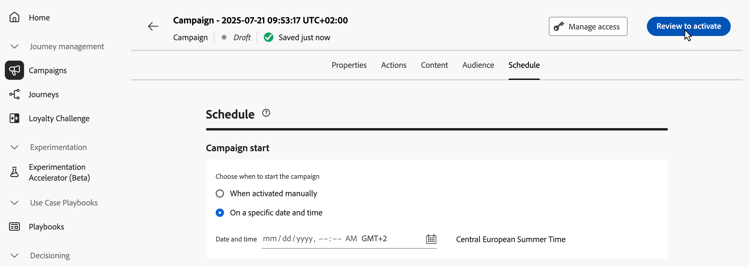
En la pantalla de configuración de la campaña, haga clic en Revisar para activar y mostrar un resumen de la campaña.
-
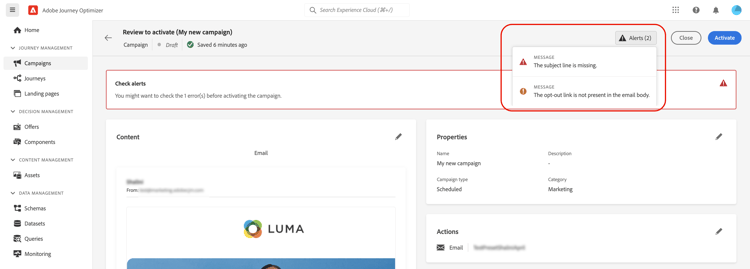
Se muestra un resumen de la configuración de la campaña, que le permite comprobar si algún parámetro es incorrecto o falta y modificar la campaña si es necesario.
En caso de errores, no puede activar la campaña. Resuelva los errores antes de continuar.
-
Cuando una campaña usa políticas de decisión en su contenido, puede revisar la estructura de cada política y copiar los detalles técnicos directamente desde el resumen de la campaña. Descubra cómo
-
Compruebe que la campaña esté configurada correctamente y luego haga clic en Activar.
-
La campaña se activa. Su estado es Activo o Programado si ha especificado una fecha de inicio. El mensaje configurado en la campaña se envía inmediatamente o en la fecha especificada.
El estado Completado se asigna automáticamente a la campaña 3 días después de activarse o en la fecha de finalización de la campaña si esta tiene una ejecución recurrente. Más información sobre los estados de las campañas.
Si no se ha especificado una fecha de finalización, la campaña mantiene el estado Activo. Para cambiarlo, debe detener la campaña manualmente. Aprenda a detener una campaña
-
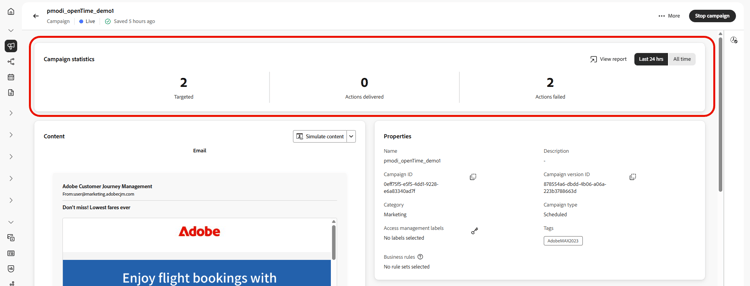
Una vez activada una campaña, puede comprobar en cualquier momento su información abriéndola. El resumen le permite obtener estadísticas sobre el número de perfiles objetivo y las acciones enviadas y fallidas.
También puede obtener estadísticas adicionales en informes dedicados si hace clic en el botón Ver informe. Más información
Si activar o publicar una campaña devuelve un código de error, consulte Errores de campaña y Errores de creación de contenido.
This section contains structured knowledge intended to support interpretation, retrieval, and question answering related to this topic.
For complete understanding, this information should be combined with the documentation on this page. Neither source is intended to stand alone; the page describes the feature, while this section provides additional context that helps disambiguate terminology, intent, applicability, and constraints.
- TL;DR: This page explains how to review the configuration and content of an Action campaign, activate it, and check its information and statistics afterwards.
Intents:
- Review the summary of an Action campaign before activating it
- Know what happens when the summary shows errors or when an approval policy applies
- Know which status a campaign gets after activation and when it becomes Completed
- Stop a campaign that keeps the Live status because it has no end date
- Check the statistics of an activated campaign and open its reports
- Find the error pages to use when activating or publishing returns an error code
Glossary:
- Review to activate: Button in the campaign configuration screen that displays a summary of the campaign
- Campaign summary: Summary of the campaign configuration used to check whether any parameter is incorrect or missing; for a campaign that uses decision policies, it also shows each policy’s structure and technical details to copy
- Live: Status of an activated campaign
- Scheduled: Status of an activated campaign when a start date was entered
- Completed: Status assigned automatically after activation (see Guardrails)
- View report: Button that gives access to additional statistics in dedicated reports
Guardrails:
- In case of errors in the summary, you cannot activate the campaign. Resolve the errors before proceeding.
- The Completed status is automatically assigned to the campaign 3 days after it has been activated, or at the campaign’s end date if it has a recurring execution.
- If no end date has been specified, the campaign keeps the Live status. To change it, you need to stop the campaign manually.
Prerequisites and permissions:
- If the campaign is subject to an approval policy, you need to request approval in order to be able to send the campaign.
Terminology:
- Canonical name: Review and activate an Action campaign — variants: review and activation of Action campaigns
- Do not confuse: Live (activated, sent immediately) ≠ Scheduled (activated with a start date, sent on that date) ≠ Completed (assigned automatically after activation)
FAQ:
- Q: How do I activate an Action campaign? — In the campaign configuration screen, click Review to activate, check the summary, then click Activate.
- Q: Why can I not activate my campaign? — In case of errors in the summary, you cannot activate the campaign. Resolve the errors first. If the campaign is subject to an approval policy, you need to request approval in order to be able to send it.
- Q: Which status does the campaign get once activated? — Live, or Scheduled if you entered a start date. The message is sent immediately or on the specified date.
- Q: When does the campaign become Completed? — The Completed status is automatically assigned 3 days after activation, or at the campaign’s end date if it has a recurring execution.
- Q: Why does my campaign stay Live? — If no end date has been specified, the campaign keeps the Live status until you stop the campaign manually.
- Q: Where do I see statistics once the campaign is activated? — Open the campaign: the summary gives statistics about the number of targeted profiles and delivered and failed actions. Click View report for additional statistics in dedicated reports.
Troubleshooting:
- Activating or publishing a campaign returns an error code: see Campaign errors (campaigns/campaign-errors.md) and Content authoring errors (content-management/content-authoring-errors.md).
Related pages:
- Approval policy: Get started with journeys & campaigns approval (test-approve/gs-approval.md)
- Decision policies in campaign content: decision policies (experience-decisioning/create-decision.md)
- Reviewing a decision policy’s structure and copying technical details from the campaign summary: Use decision policies in messages, View decision policy details from the campaign summary (experience-decisioning/use-decision-policy.md#decision-policy-summary)
- Campaign statuses: Learn more about campaigns statuses (campaigns/manage-campaigns.md#statuses)
- Stopping a campaign: Learn how to stop a campaign (campaigns/manage-campaigns.md)
- Reports: Campaign report (reports/campaign-global-report-cja.md)